
No recent searches
Popular Articles

Sorry! nothing found for
Determining Primary and Secondary Records
Created by Russ Hartle, Modified on Mon, 31 Mar, 2025 at 10:18 AM by Russ Hartle
!Did You Know?- MERGING RECORDS IS FINAL AND CAN NOT BE REVERSED!
- IF DONE IMPROPERLY, MERGING RECORDS CAN CAUSE LARGE AMOUNTS OF DATA TO BE SYNCHRONIZED WITHIN AN AGENCY!
- IF YOU ARE UNSURE, PLEASE CONTACT SUPPORT FOR ASSISTANCE!
Determining Primary and Secondary Records
Before merging, it is best practice to check the history of the records. This allows the user to determine the Primary and Secondary record(s). The Primary Record is the record that will be kept during the merge process. The Secondary Record(s) will be merged into the Primary Record.
1. In this example, the last name of “JONES” was searched in the Person Management module. In the results window, notice that there are two similar records: “JONES, JOHNNIE” and “JONES, JONNY”. For illustration purposes, it is assumed that these records are the same individual. Users should always do their due diligence in determining if the records are the same and need to be merged.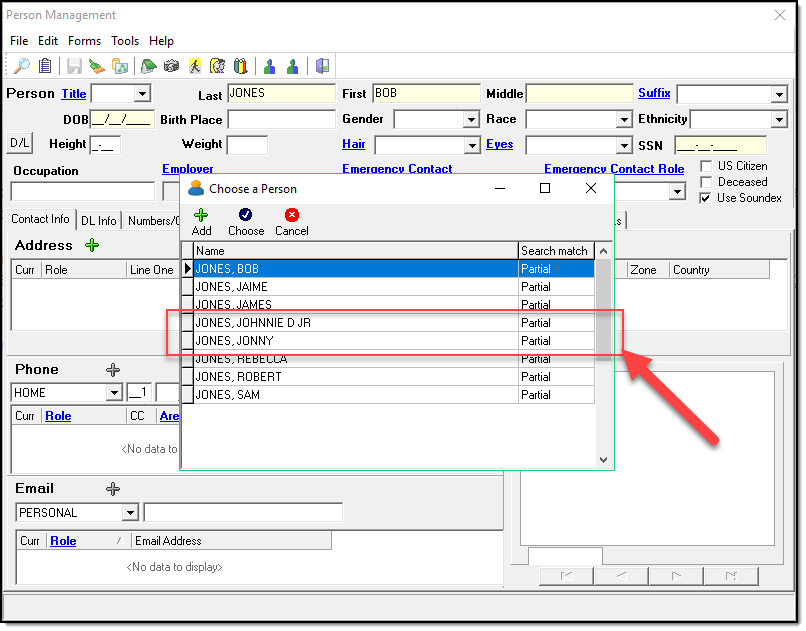
2. From the results window, highlight the record you wish to investigate and then select the “Choose” button (A).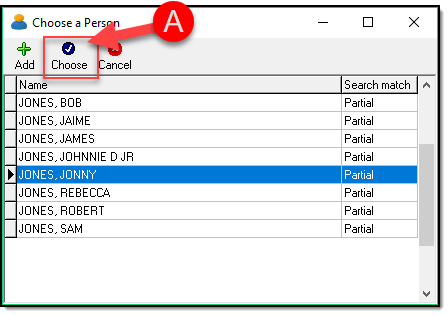
3. In the main Person Management window, select the “Master Name Index” option (A) from the “Tools” drop-down list.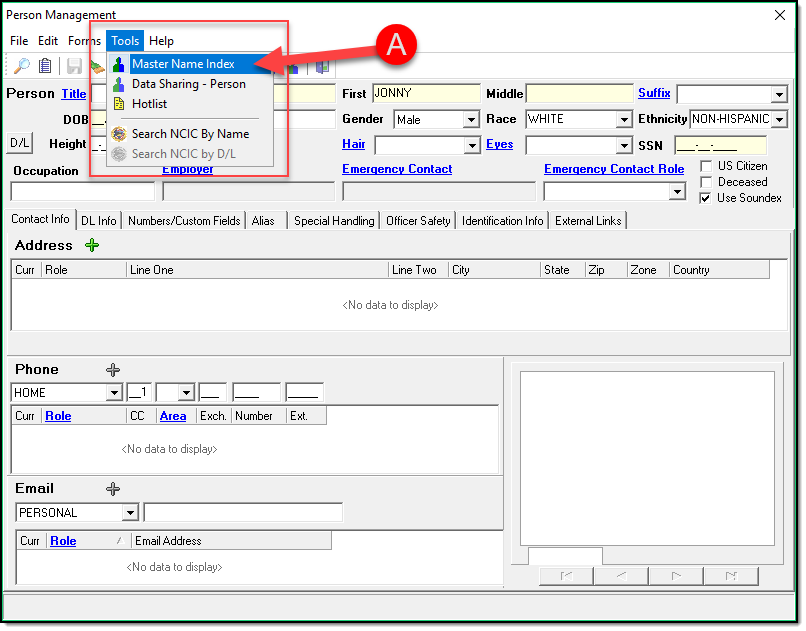
4. The Master Name Index will display the complete history and any associated items with the selected individual. In this example, the “JONES, JONNY” record has very little associated information.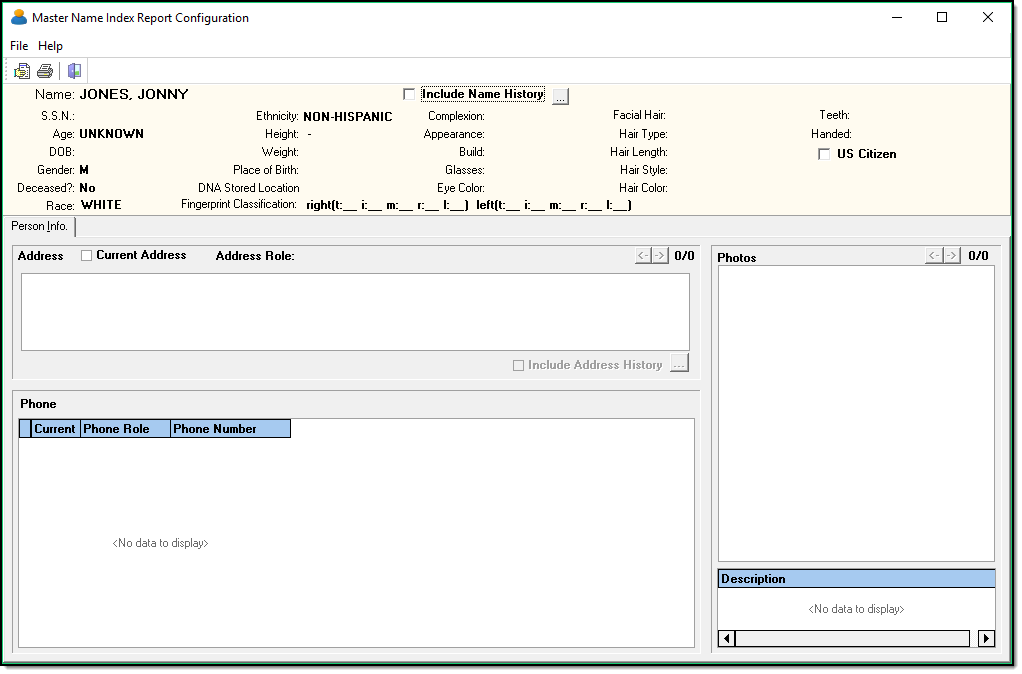
5. To investigate the “JONES, JOHNIE” record, close the Master Name Index window and then select the “Results” button (A) from the main Person Management window.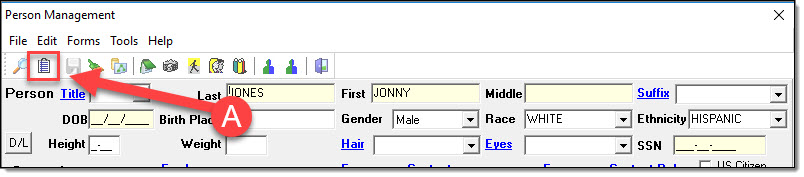
6. From the results window, highlight the “JONES, JOHNNIE” record and then select the “Choose” button.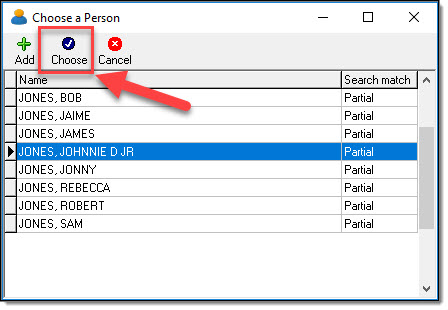
7. In the main Person Management window, select the “Master Name Index” option from the “Tools” drop-down list.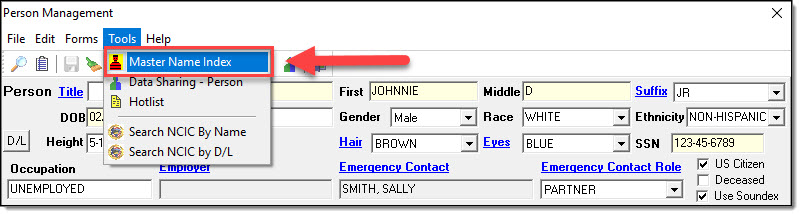
8. In this example, the “JONES, JOHNNIE” record has numerous types and quantities of associated information (A). The record with the most items is the key factor (Primary Record) with any merge. So in this example, the “JONES, JOHNNIE” record would be the Primary Record and the “JONES, JONNY” record would be the Secondary Record.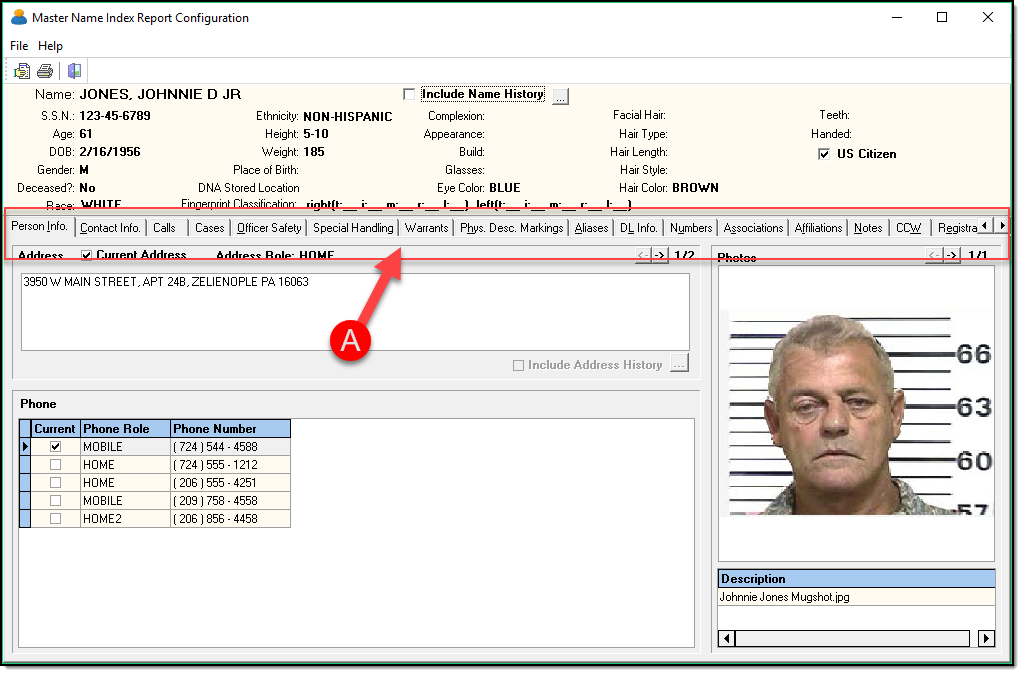
*Tips
If there are more than two duplicate records, make sure to check the history on each one to determine the Primary and Secondary records.
!Did You Know?
The merge functionality only allows for two records to be merged at a time. This is so that multiple records can’t be inadvertently (or maliciously) merged in mass.
Was this article helpful?
That’s Great!
Thank you for your feedback
Sorry! We couldn't be helpful
Thank you for your feedback
Let us know how can we improve this article!
Feedback sent
We appreciate your effort and will try to fix the article
X