
No recent searches
Popular Articles

Sorry! nothing found for
Entering Call Notes
Created by Russ Hartle, Modified on Thu, 22 May, 2025 at 3:34 PM by Russ Hartle
Tips:
Call notes can be typed directly into the Call Notes box. There are also “Timestamp” and “Spell check” buttons available from the Add/Edit Call window.
1. To access a larger Notes Editor window, click the blue words “Call Notes”.

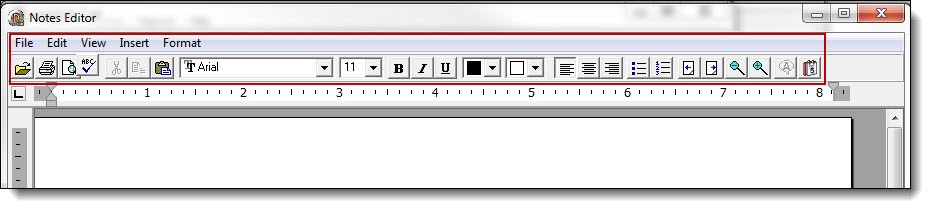
2. Formatting options are available at the top of the Notes Editor.
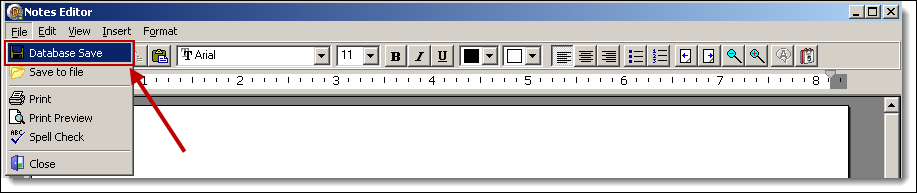
3. Save the call notes by selecting “Database Save” from the File drop down menu.
4. Exit the Call Notes Editor by clicking the “X” in the corner of the window.

5. Click the “Save” button in the upper left-hand corner of the Add/Edit Call window to save all of the recent changes to the call.
 !Did You Know?
- Press Release information can be entered in the same manner as call notes by selecting the Press release tab at the bottom of the Add/Edit Call window.
- Agencies that have a CADLink integration will see a third tab called “Dispatch Record”. This tab contains a summary of the information entered into the CAD software for the incident.
Was this article helpful?
That’s Great!
Thank you for your feedback
Sorry! We couldn't be helpful
Thank you for your feedback
Let us know how can we improve this article!
Feedback sent
We appreciate your effort and will try to fix the article
X