
No recent searches
Popular Articles

Sorry! nothing found for
Entering Fleet Events
Created by Russ Hartle, Modified on Wed, 10 Sep, 2025 at 3:57 PM by Russ Hartle
Entering Fleet Events
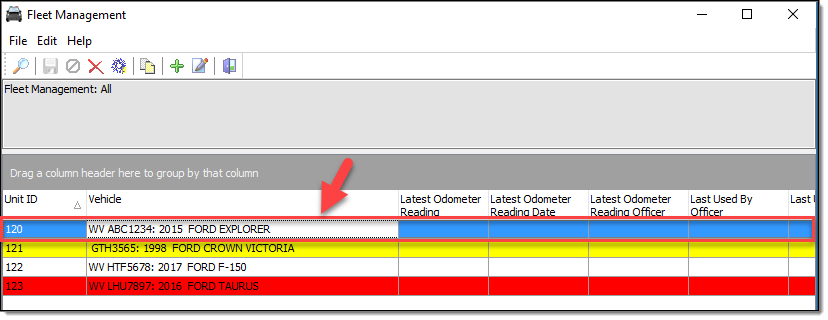
1. Once the units have been entered for the agency, events can be entered for the units. To enter an event, double-click on a unit from the main Fleet Management grid.
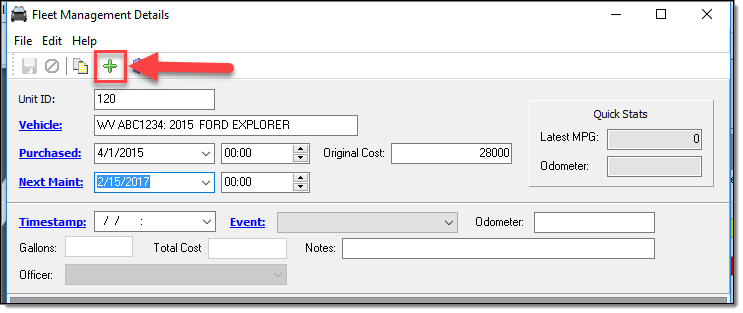
2. From the Fleet Management Details window, select the “Add” button.
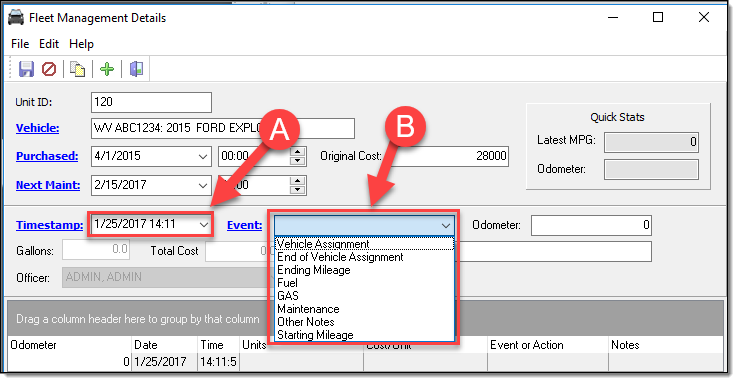
3. Enter the date/time of the event (A) and then select an event type from the event drop down list (B).
*Tips:
Items in the event drop down list trigger whether or not additional fields are active for the event. Here are some examples:
Selecting “Vehicle Assignment” (A) will activate the “Officer” drop down list (B).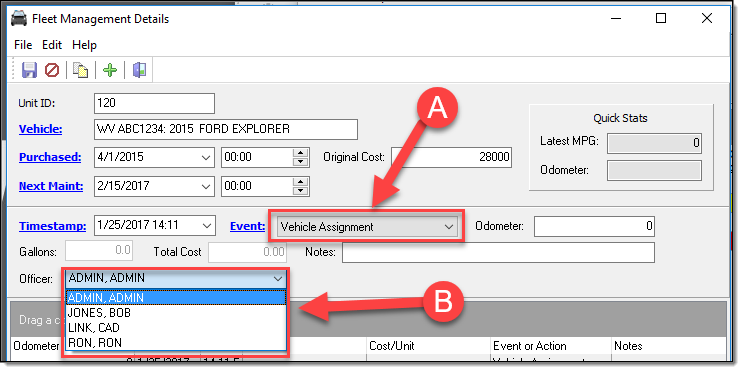
Selecting “Fuel” (A) will activate the “Gallons” and “Cost/Gal” fields (B).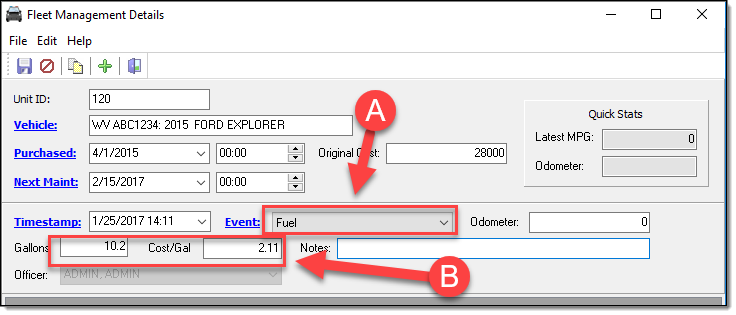
Selecting “Maintenance” (A) will populate the Qty. of 1 (B), and activate the “Total Cost” field ( C ).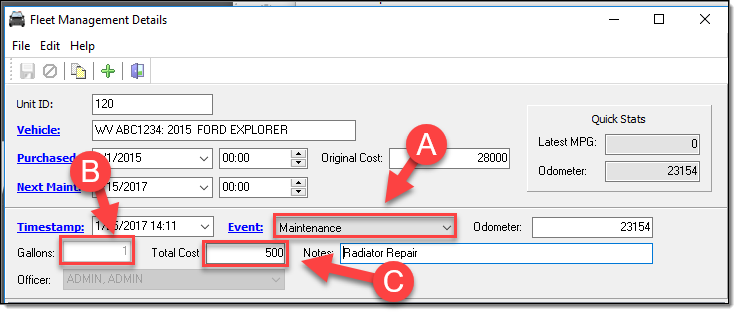
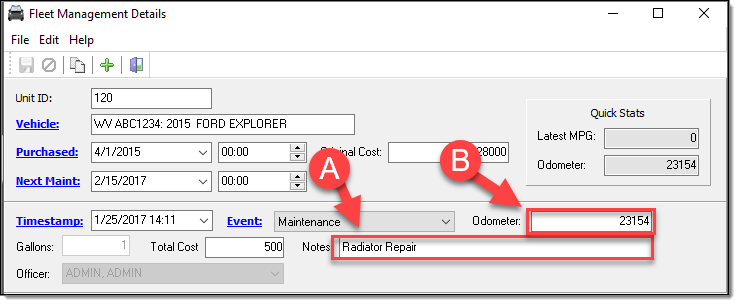
4. Each event also has a place to record notes (A) and the odometer reading.
!Did You Know?
It is important to record the odometer reading for the different events. Especially with the “Fuel” event type. The “Quick Stats” section uses this information to calculate MPG based on the difference in mileage between the last two recorded “Fuel” events, divided by the number of gallons entered for the latest “Fuel” event.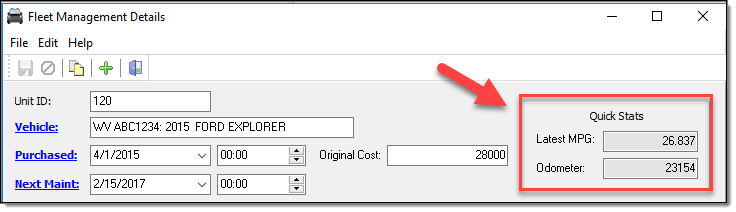
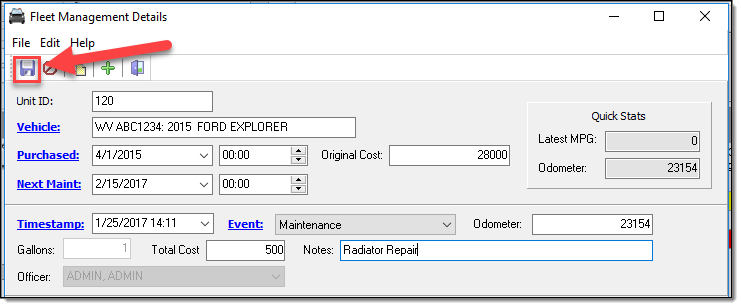
5. Save the event information by selecting the “Save” button in the upper left of the Fleet Management Details window.
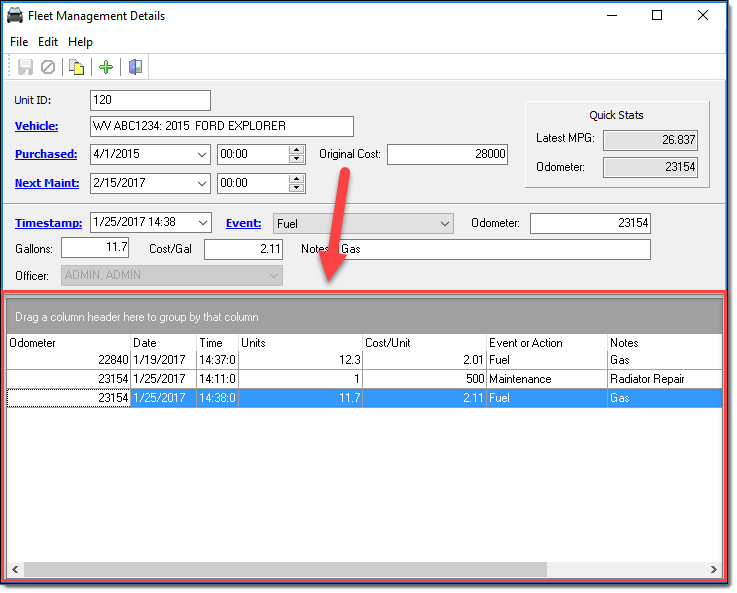
6. The complete list of events for a unit can be viewed in the bottom half of the Fleet Management Details window. The events can be sorted and/or filtered by any of the column headings.
Was this article helpful?
That’s Great!
Thank you for your feedback
Sorry! We couldn't be helpful
Thank you for your feedback
Let us know how can we improve this article!
Feedback sent
We appreciate your effort and will try to fix the article
X