
No recent searches
Popular Articles

Sorry! nothing found for
Entering the Agency Units
Created by Russ Hartle, Modified on Wed, 10 Sep, 2025 at 3:56 PM by Russ Hartle
Entering the Agency Units
1. When you first start out with Fleet Management, the main grid will be blank. The first step is to enter the unit(s) (vehicles) for your agency.
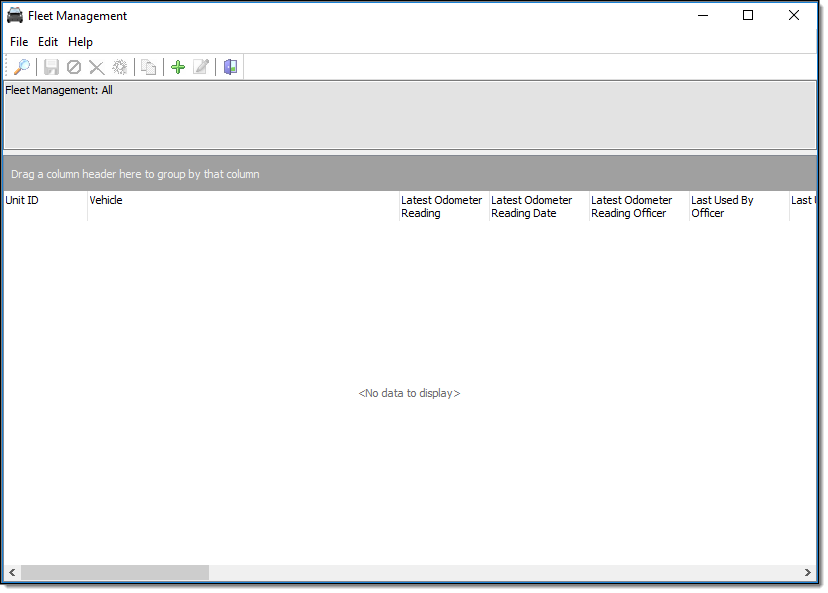
2. To add the first unit, select the “Add” button at the top of the Fleet Management window.

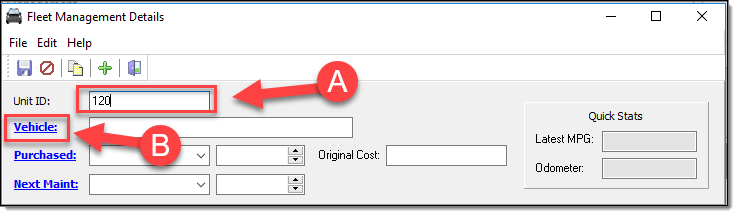
3. On the Fleet Management Details window, enter the Unit ID (A) and then select the blue hyper link for Vehicle (B) to search for and/or enter the vehicle details.
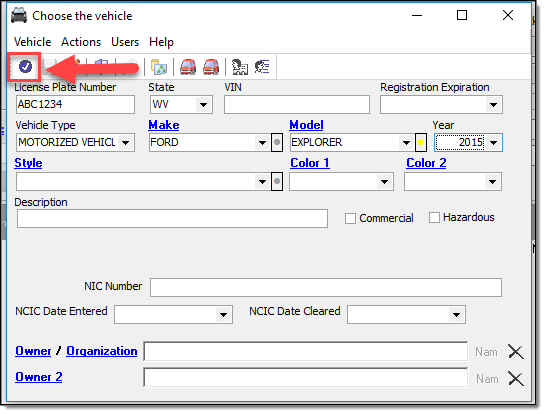
4. Fleet vehicles are searched/entered just like any other vehicle in the RMS. Enter any criteria (License Plate Number, Make, Model, etc.) and search. If no matches are found, enter and save the new vehicle information. You can enter as little or as much vehicle information that is important to your agency. Once the data is searched or entered as a new record, select the “Choose” button in the upper left of the Vehicle window.
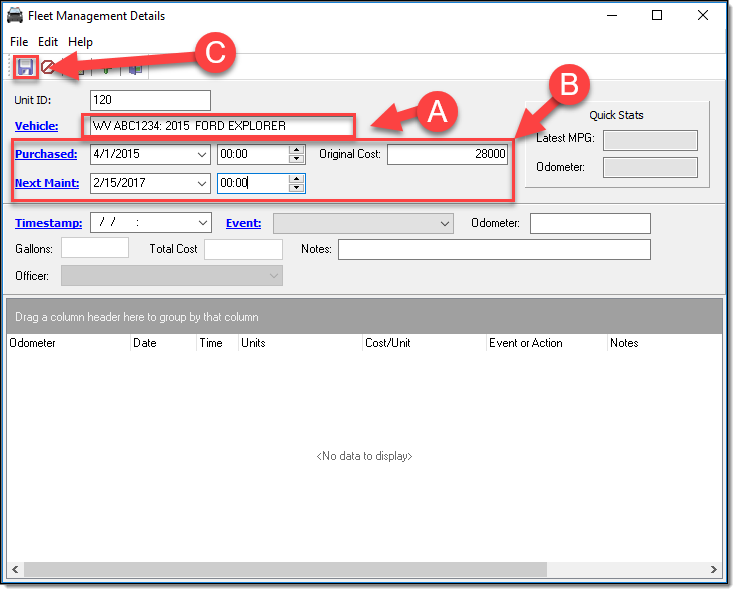
5. The chosen record is displayed in the Vehicle field (A). You also have the ability to enter the Purchased date/time, original cost, and Next Maintenance date/time for the unit (B). After entering any of these fields, select the “Save” button ( C ) to save the changes.
*Tips:
It is important to enter the Next Maintenance date as this field controls the color coded notifications related to due or past due maintenance.
6. Select the “Exit” button to close the Fleet Management Details window.
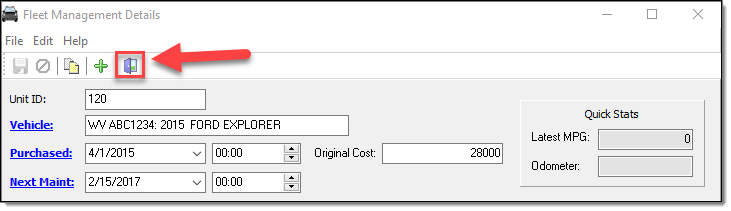
7. Repeat steps 1-6 in the Entering the Agency Units section above for each additional unit for the agency.
Was this article helpful?
That’s Great!
Thank you for your feedback
Sorry! We couldn't be helpful
Thank you for your feedback
Let us know how can we improve this article!
Feedback sent
We appreciate your effort and will try to fix the article
X