
No recent searches
Popular Articles

Sorry! nothing found for
Error Reporting
Created by Russ Hartle, Modified on Tue, 27 May, 2025 at 11:03 AM by Russ Hartle
Error Reporting
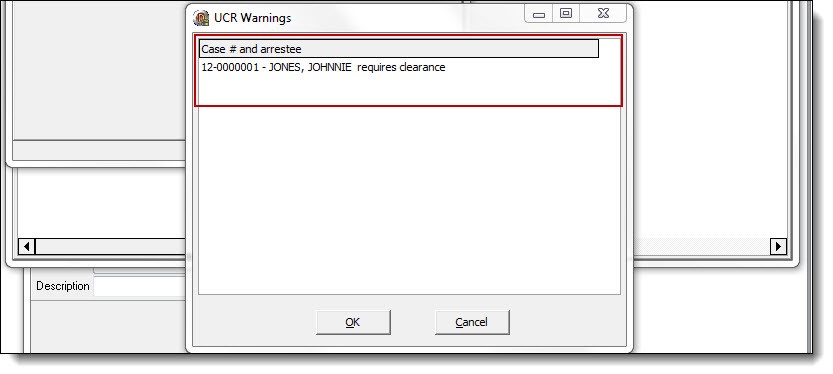
1. You will receive a warning box if arrest clearance data is missing from any case in the selected month and year.
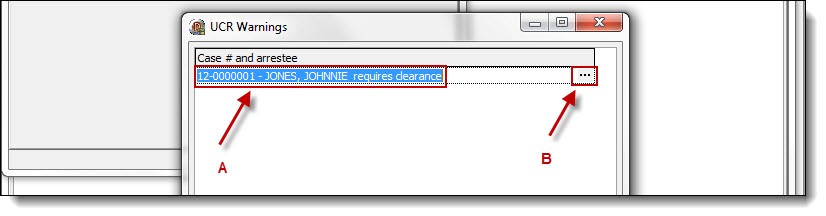
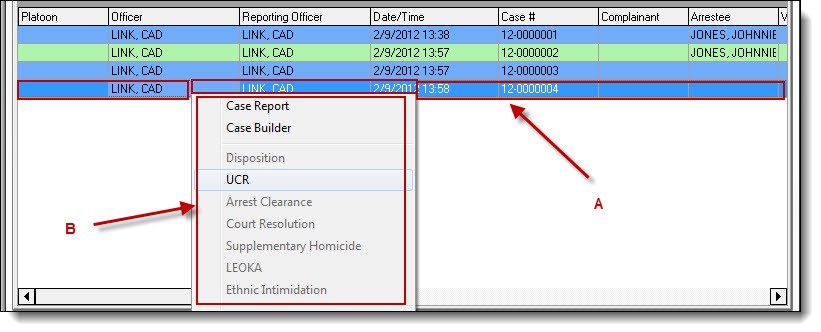
2. Highlight the case number (A), and then click the three dots (B) to open Case Builder and enter the arrest clearance information.
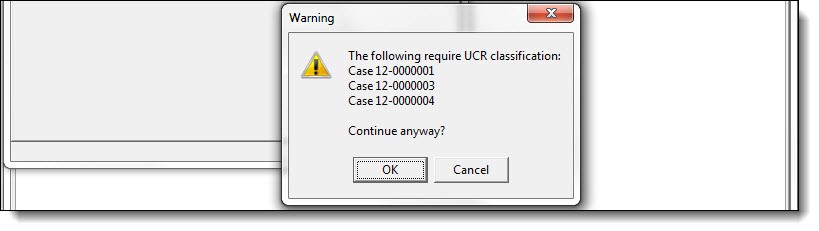
3. After any missing arrest clearance information has been entered, you may receive a second warning box containing cases with missing UCR classifications.
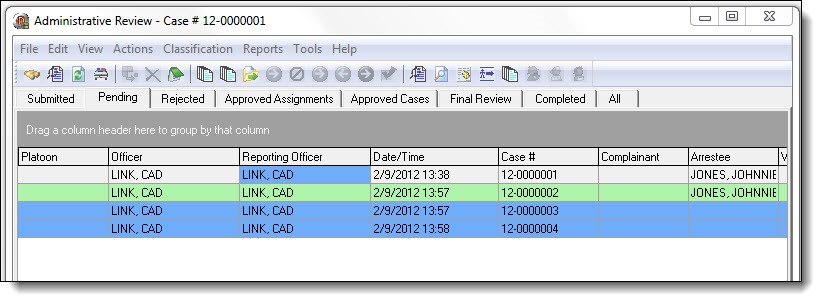
4. By clicking the “Cancel” button, you can return to the main Admin Review window to address any errors. Cases in Admin Review are color coded when information is needed. The most common colors are blue and green. A blue colored case means UCR classification needs to be completed. A green colored case means arrest clearance information needs to be completed.
*Tips:
A color chart is available by selecting “Color Reference” from the Help drop down list in Admin Review.
5. Entering classification information can be accomplished by opening the case in Case Builder or selecting one of the quick entry buttons from the right-click menu in Admin Review. Highlight a case from the grid (A), right-click, and then select “Case Builder” or a classification shortcut (B).
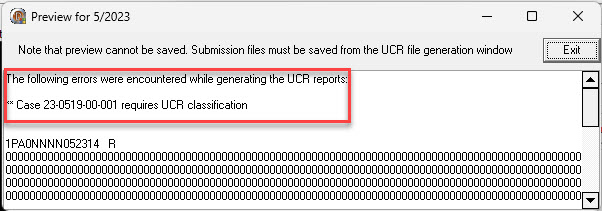
6. Once any outstanding errors have been addressed, the UCR report will be generated. This is the final step before saving the monthly file. The top of the report will once again display any previously ignored errors in the monthly file. To report correct UCR data, all errors must be corrected prior to saving the monthly file.
*Tips:
A pre-check for errors can be run by selecting the UCR Check Sum tab and previewing the corresponding reports.
Was this article helpful?
That’s Great!
Thank you for your feedback
Sorry! We couldn't be helpful
Thank you for your feedback
Let us know how can we improve this article!
Feedback sent
We appreciate your effort and will try to fix the article
X