
No recent searches
Popular Articles

Sorry! nothing found for
Exporting a Report
Created by Russ Hartle, Modified on Thu, 3 Apr, 2025 at 3:14 PM by Russ Hartle
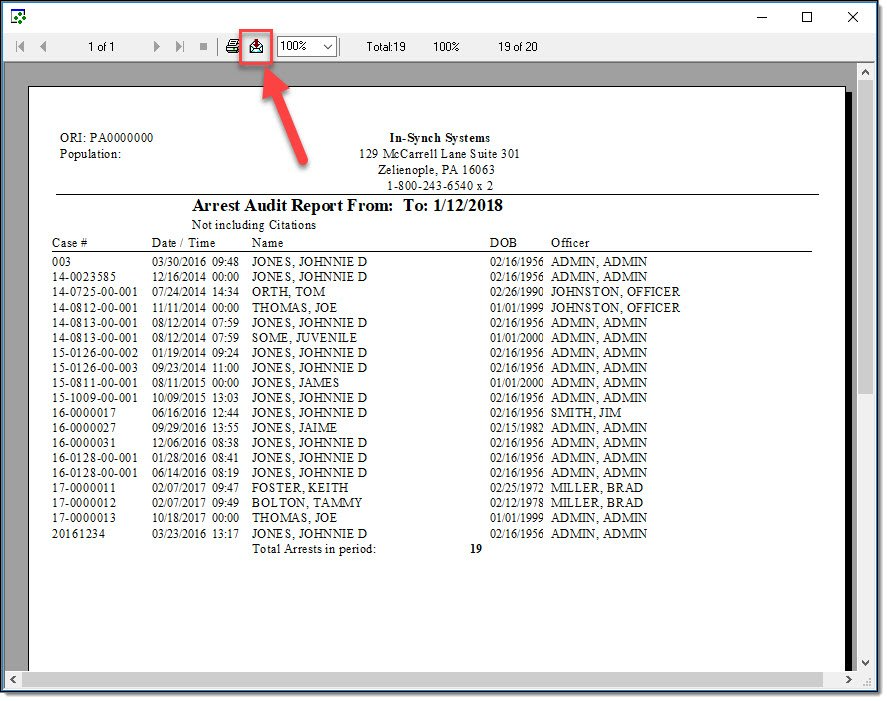
Many of the built-in reports found within the Reports module of In-Synch RMS contain options to export data. The example below shows the required steps to export a report to Excel format:
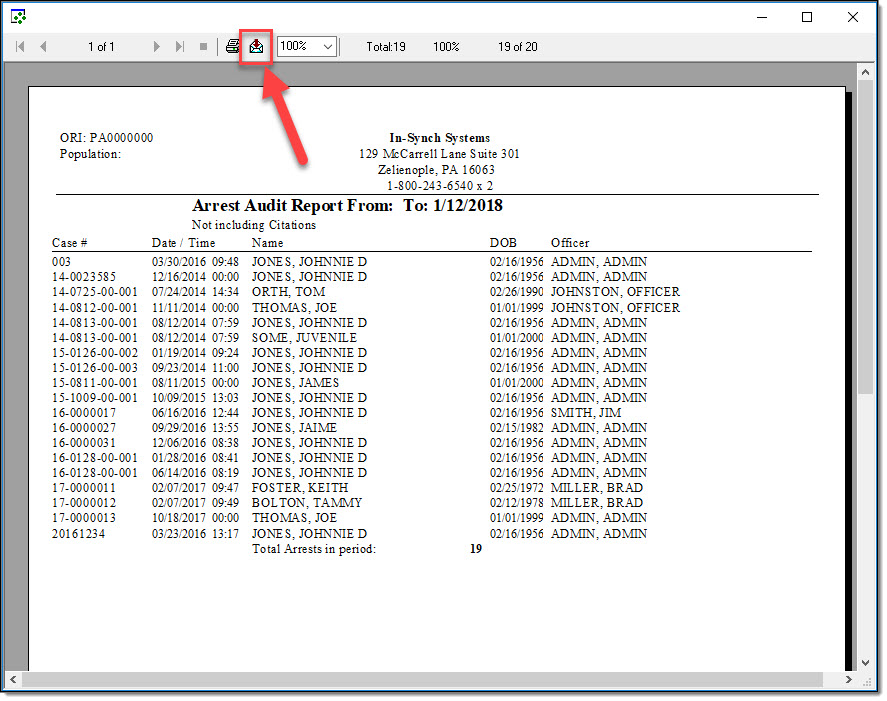
- From the Print Preview window of a report, select the “Export” button.
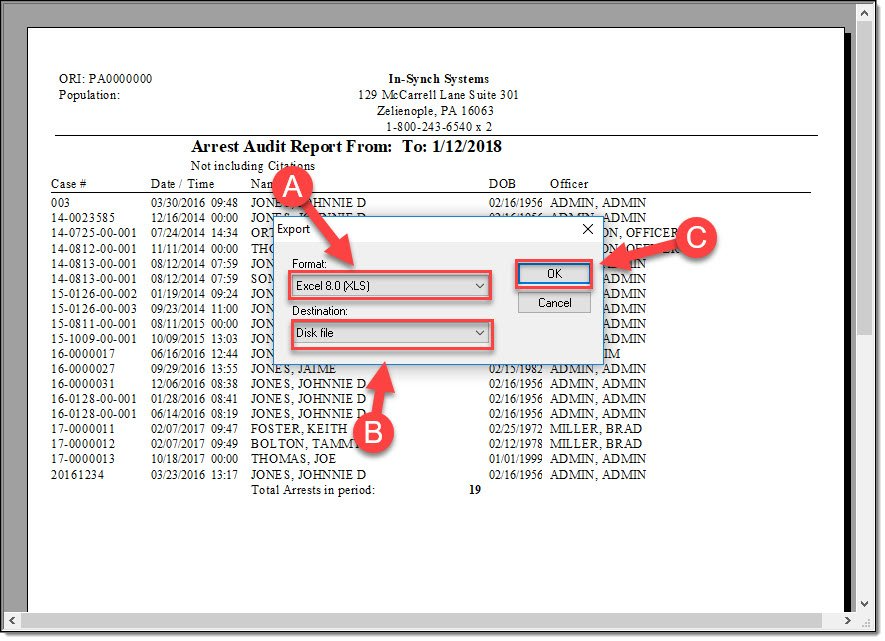
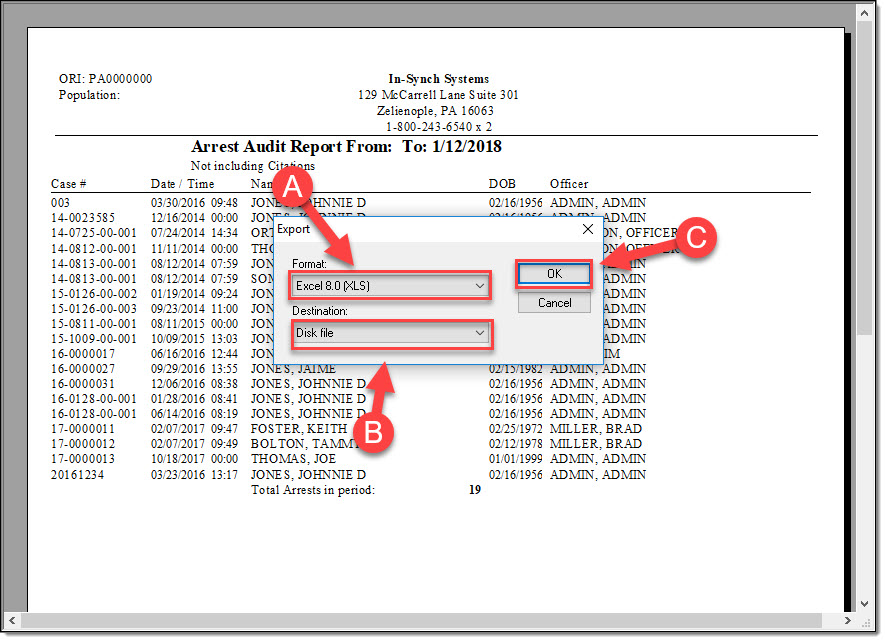
- An export window will open. Select the export type from the “Format” drop-down list (A), the destination type from the Destination drop-down list (B), and then select the “OK” button ( C ). For this example, the report will be exported to Excel 8.0 (XLS) format.
 !Did You Know?
- In almost every circumstance, the Destination type will be “Disk File”. This allows the output to be saved to a file on your local machine.
- The “Format” drop-down list has numerous options, but the most common formats include:
- Acrobat Format (PDF)
- Acrobat Format (PDF) requires the full version of Adobe Acrobat to be installed on the local machine. If you wish to output the report to a PDF for reading purposes, the best practice is to use the “Print” function and print to PDF (using a third party PDF writer or the PDF writer that is included in the newer Microsoft Operating Systems).
- Excel 8.0 (XLS)
- Requires Excel (or open source equivalent) to open the file.
- Rich Text (Exact) Format
- Requires Word (or open source equivalent/other RTF program) to open the file.
- Acrobat Format (PDF)
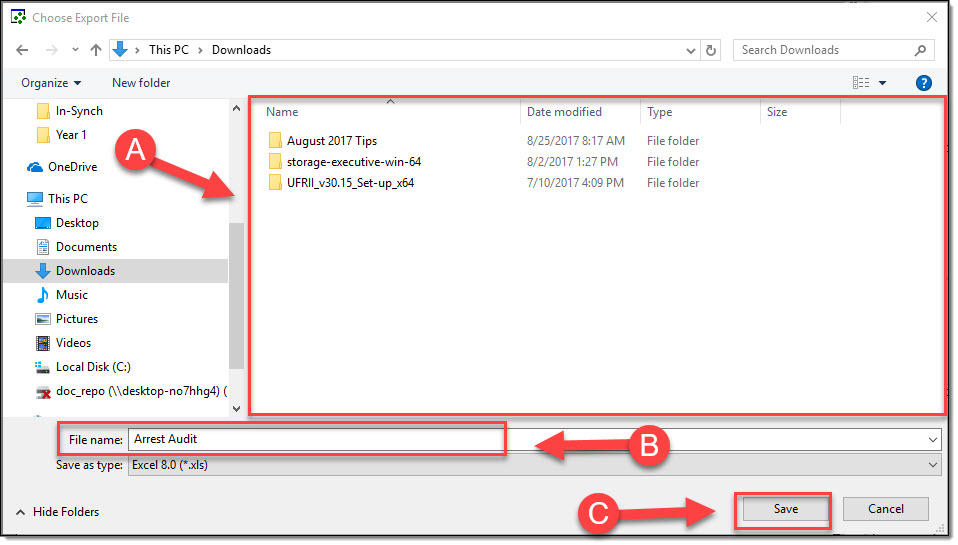
In the “Choose Export File” window, select a save location (A), enter a file name (B), and then select the “Save” button ( C ).
 *Tips:
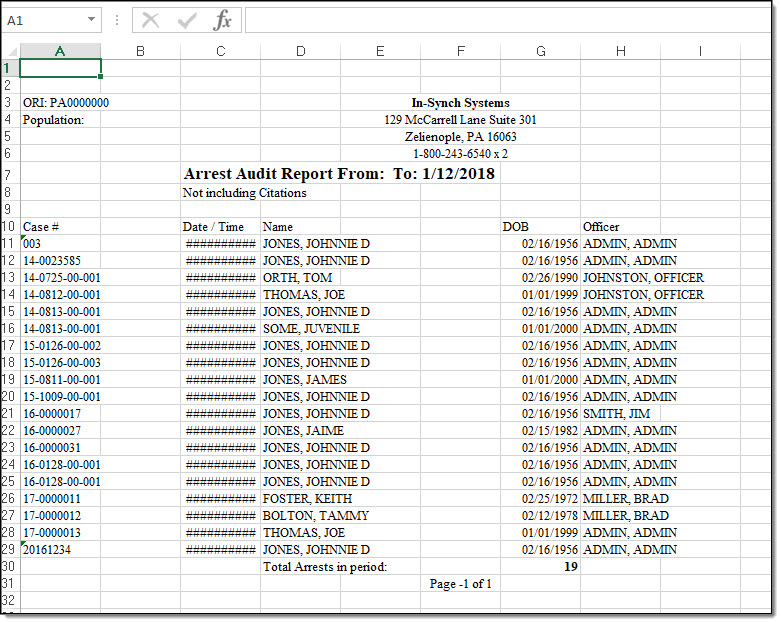
Exported File Before Formatting
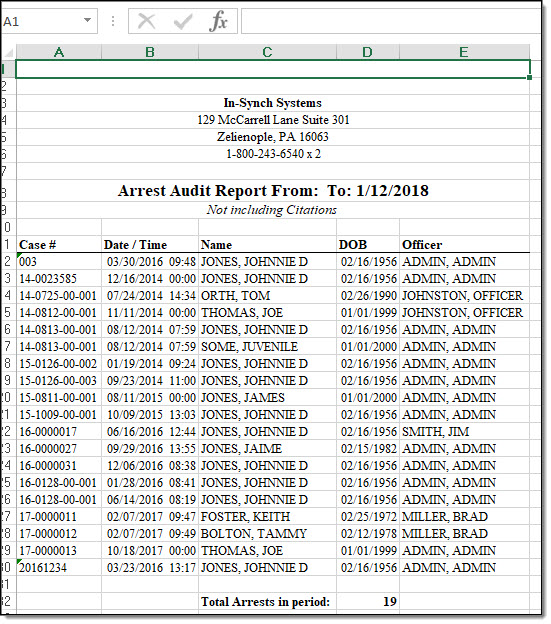
Exported File After Manual Formatting
Was this article helpful?
That’s Great!
Thank you for your feedback
Sorry! We couldn't be helpful
Thank you for your feedback
Let us know how can we improve this article!
Feedback sent
We appreciate your effort and will try to fix the article
X