
No recent searches
Popular Articles

Sorry! nothing found for
Getting Started\Adding Codes
Created by Russ Hartle, Modified on Thu, 11 Sep, 2025 at 3:53 PM by Russ Hartle
Getting Started
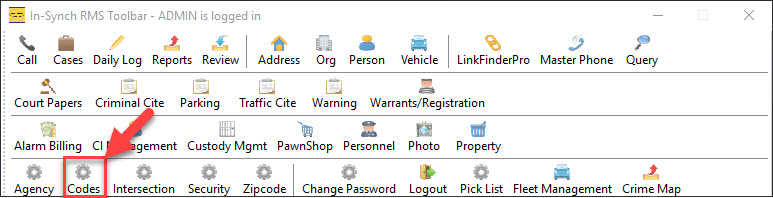
This guide is designed to show the most common functions of the Code Management Module in the In-Synch RMS. The Code Management module allows system administrators to Add, Edit or Delete offenses that are used in throughout the RMS. The Codes Management module can be accessed by clicking the “Codes” button located on the main Toolbar.
Adding Codes
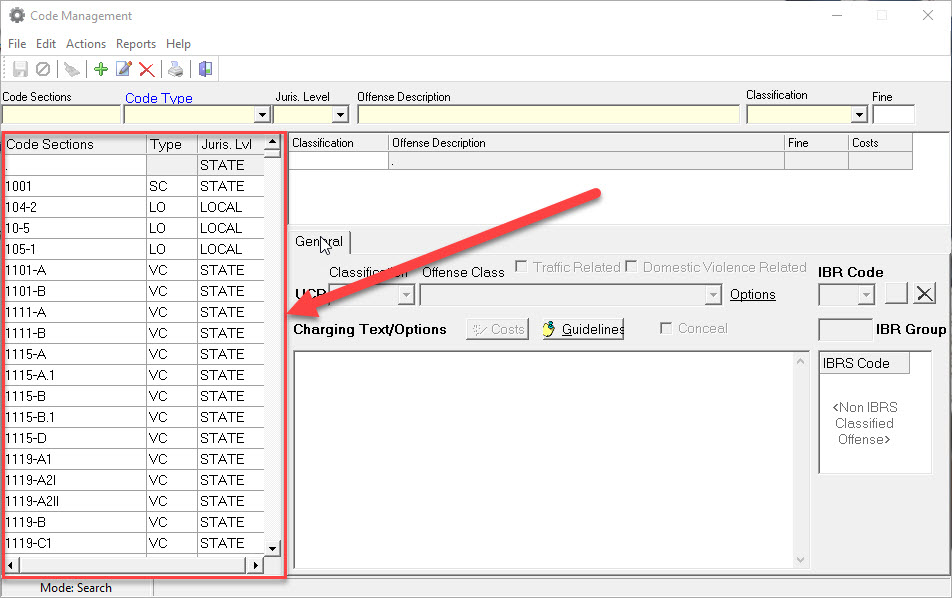
1. Clicking the “Codes” button will open the “Code Management” window which will display all offenses that are currently entered in the In-Synch RMS.
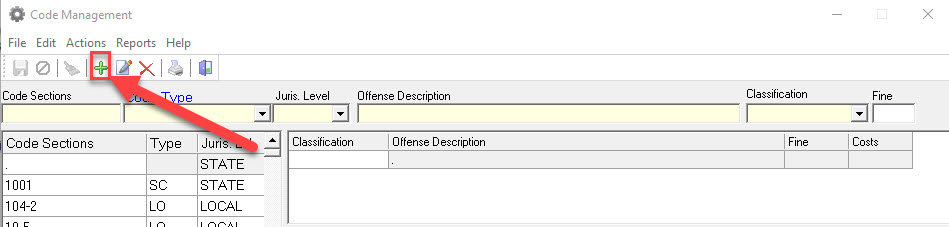
2. To add a new offense click on the “Add” button on the tool bar.
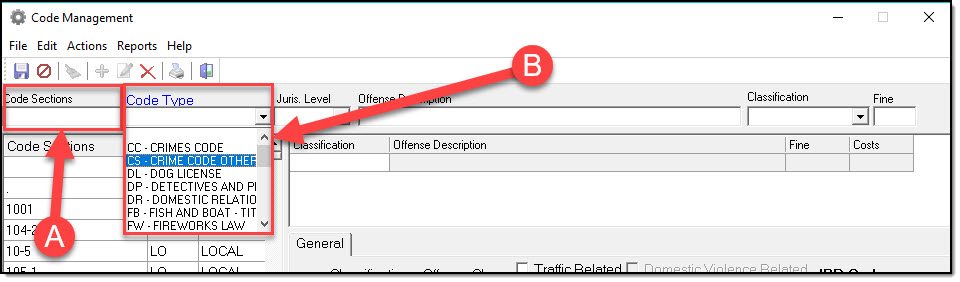
3. Enter the Offense Section (A), and then select a Code Type (B).
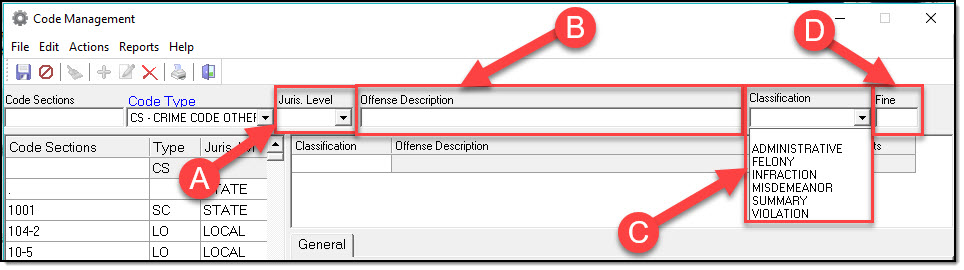
4. Choose the appropriate Jurisdiction Level from the “Juris. Level” dropdown box (A), enter a description of the offense by typing it into the “Offense Description” box (B) and then select the appropriate Classification from the “Classification” drop-down box ( C ). If the fine for a particular code is constant, the value can be entered into the “Fine” box (D).
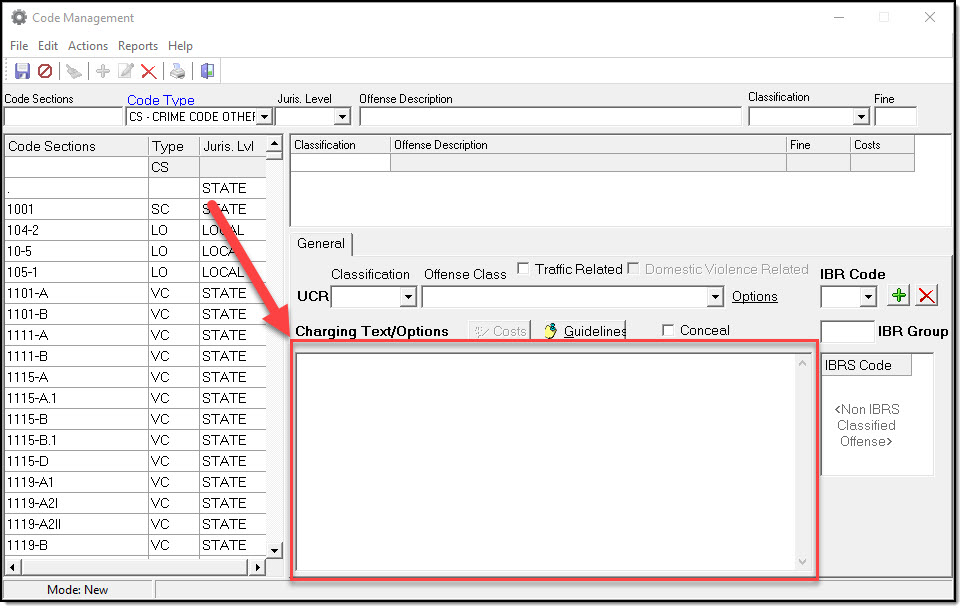
5. Charging Text can be added by typing directly into the “Charging Text/Options” box or by copying it from another source and pasting it into the box.
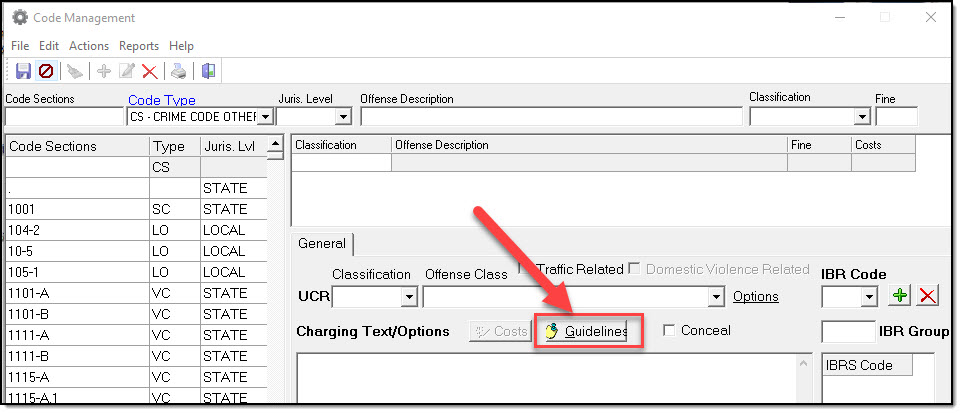
6. The entire body of the applicable law can be added in the Code Management module of the In-Synch RMS as a source of reference. To add the entire law or any portion thereof to an offense, click on the “Guidelines” button to open the Charging Guidelines window.
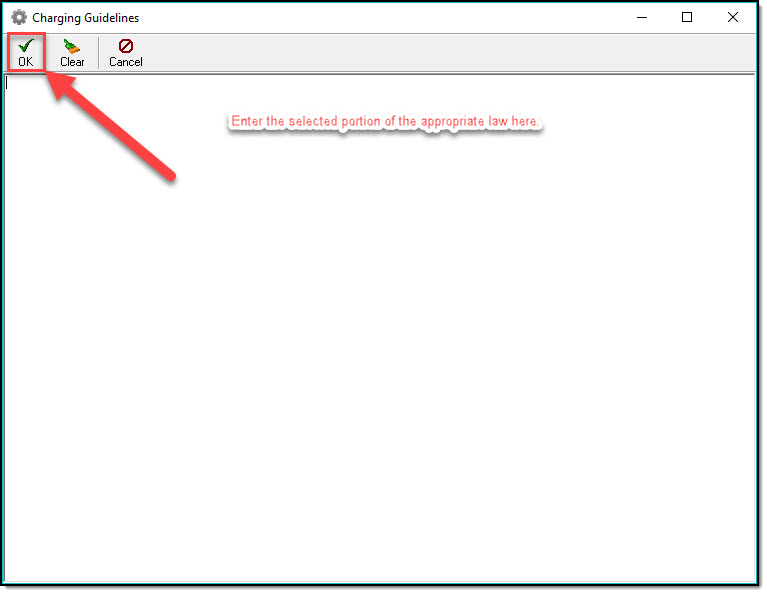
7. Enter the applicable law or the portion pertaining to the selected offense into the Charging Guidelines window by typing it directly into the provided space or by copying it from another source and pasting it into the window. After the guidelines have been entered click the “OK” button and the window will close and save the entry.
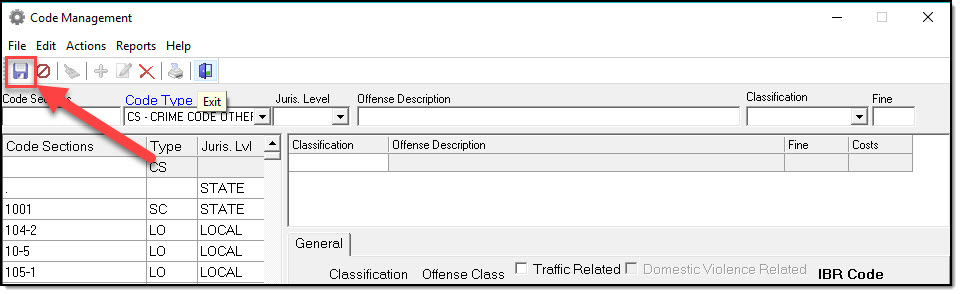
8. To save all of the entries and add the new offense to the Code Management module, click the “Save” button on the Code Management window.
Was this article helpful?
That’s Great!
Thank you for your feedback
Sorry! We couldn't be helpful
Thank you for your feedback
Let us know how can we improve this article!
Feedback sent
We appreciate your effort and will try to fix the article
X