
No recent searches
Popular Articles

Sorry! nothing found for
Getting Started\Adding New Pawn Tickets
Created by Russ Hartle, Modified on Thu, 11 Sep, 2025 at 3:37 PM by Russ Hartle
Getting Started
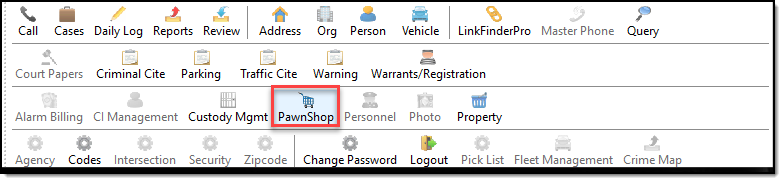
The Pawnshop Management application allows you to track pawn tickets, and create hot list reports. To access Pawnshop Management, press the ‘Pawnshop’ button on the main toolbar.
Adding New Pawn Tickets
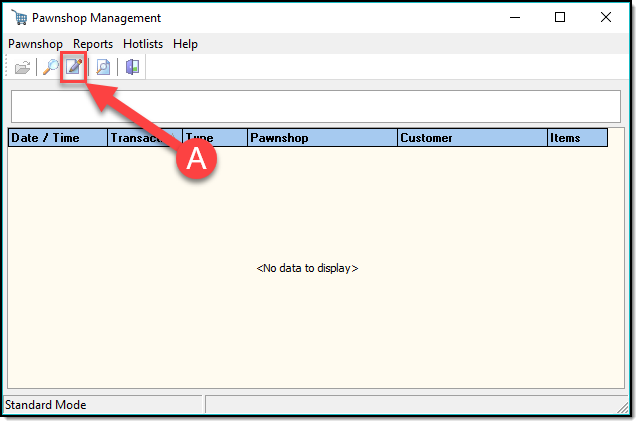
To enter a new pawn ticket, press the Ticket Entry button (A).
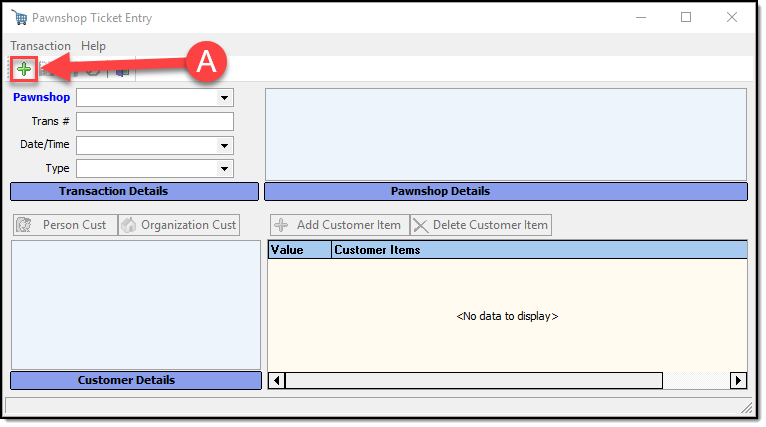
This opens the Pawnshop Ticket Entry window. Press the green Add button to start entering a new pawn ticket (A).
Select the name of the pawn shop from the drop down list, then fill in the Trans #, Date/Time, and Type of transaction (A). Use the Customer buttons to search/add the customer information to the pawn ticket (B). Use the Customer Item buttons to add, or remove items from the pawn ticket ( C ).
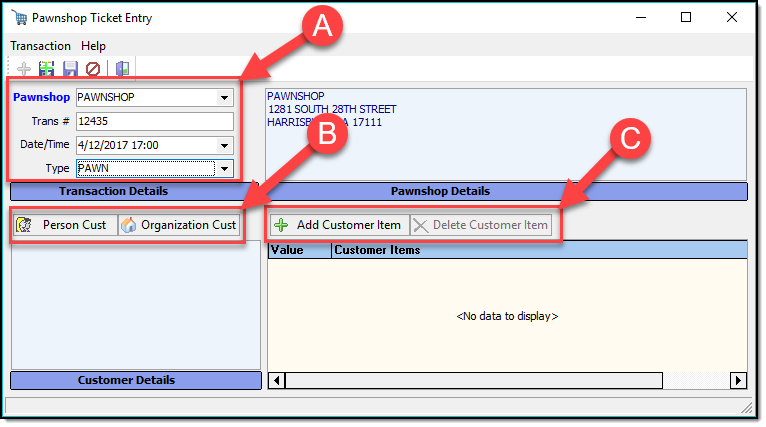
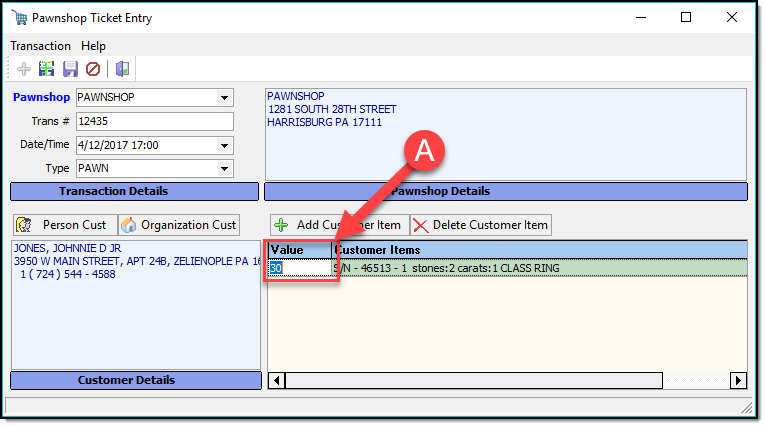
After entering the Customer Items, fill in the value of the item(s) by clicking in the value column, and entering the item’s value (A).
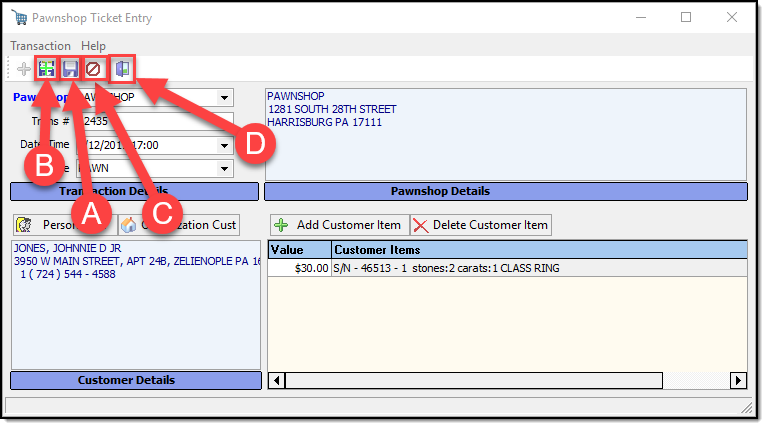
Once you have finished entering the pawn ticket information, press the Save button (A), the Save/Add button, (which saves the current ticket, and opens a new ticket entry form) (B), or the Cancel button ( C ). When finished, press the Exit button (D).
Was this article helpful?
That’s Great!
Thank you for your feedback
Sorry! We couldn't be helpful
Thank you for your feedback
Let us know how can we improve this article!
Feedback sent
We appreciate your effort and will try to fix the article
X