
No recent searches
Popular Articles

Sorry! nothing found for
Getting Started\Searching for Photos
Created by Russ Hartle, Modified on Thu, 11 Sep, 2025 at 3:40 PM by Russ Hartle
Getting Started
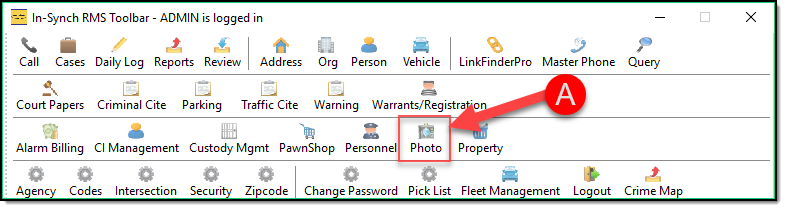
The Photo Management module is used to view and/or export photos associated with items in the database. Other functionality includes wanted and missing person posters as well as photo line-ups. By default, Photo Management is restricted to members of the Administrator security group. Individual users may be granted or denied access to the module. To open Photo Management click the “Photo” button (A) on the main RMS toolbar.
Searching for Photos
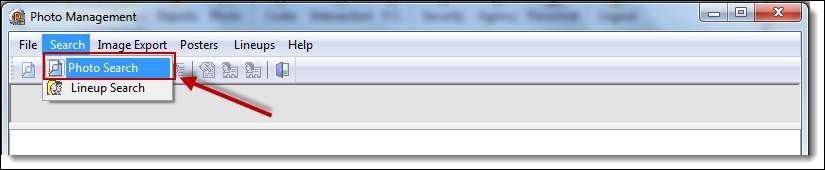
1. Photo Management has two types of searches: Photo Search and Lineup Search. For this example, we will use the Photo Search option. To start a search, select the “Photo Search” button from the Search drop down list.
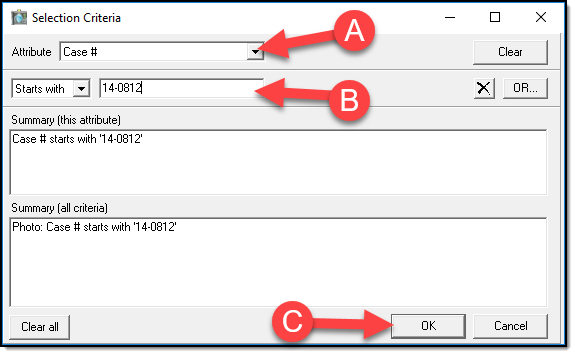
2. From the Selection Criteria window choose a search attribute. Attributes include type of photo, person name, DOB, Gender, Occurrence Number, Investigation Number, etc. For this example, we will conduct a Case search. Select “Case #” from the attribute drop down list (A), enter the search criteria (B), and then click the “OK” button ( C ).
 !Did You Know?
- The search criteria can be changed from “Starts with” to “Is”, “Contains”, “Between”, etc. depending on the Attribute selected.
- The search criteria field will change between a drop down list and a text box depending on the Attribute selected.
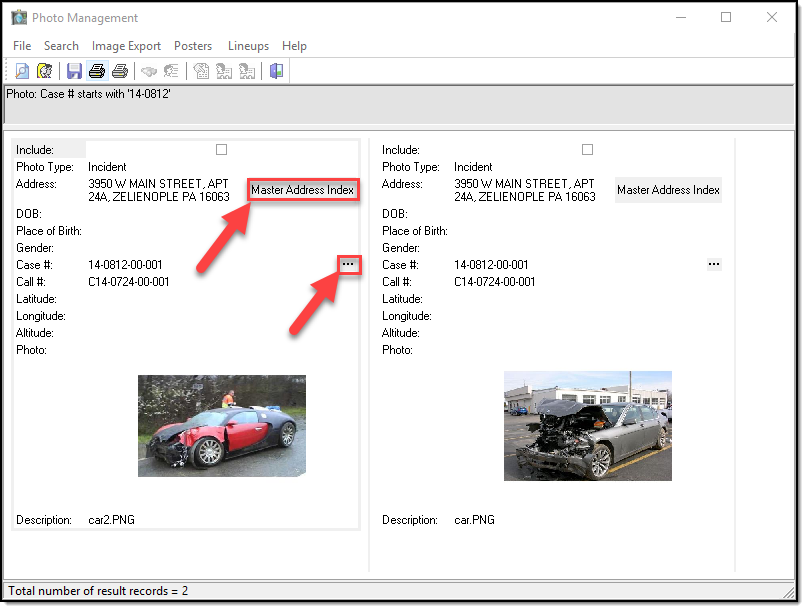
3. Any photos matching the search criteria will be displayed in the Photo Management window.
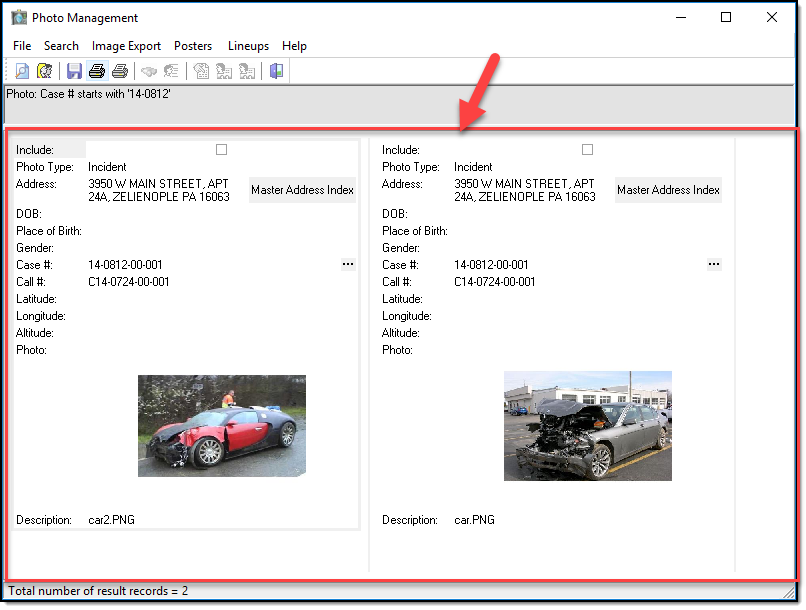
4. Master Index reports or Case Builder can be opened and viewed from Photo Management by clicking on the respective buttons.
Was this article helpful?
That’s Great!
Thank you for your feedback
Sorry! We couldn't be helpful
Thank you for your feedback
Let us know how can we improve this article!
Feedback sent
We appreciate your effort and will try to fix the article
X