
No recent searches
Popular Articles

Sorry! nothing found for
Making a Case
Created by Russ Hartle, Modified on Thu, 22 May, 2025 at 3:49 PM by Russ Hartle
Tips:
In order to escalate a call into a case, you must first find the original call for service. If you escalated the call to a case last chapter, skip ahead to the “Opening a Case” section of this chapter.
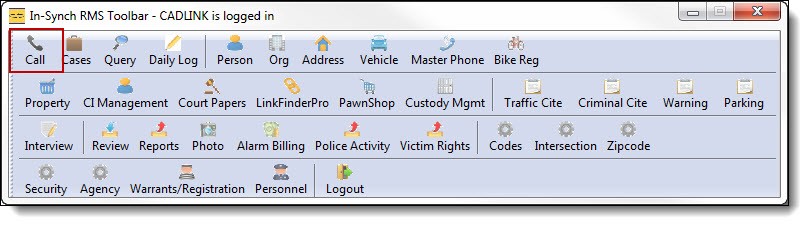
1. Open Call Log from the main RMS toolbar by clicking on the “Call” button.
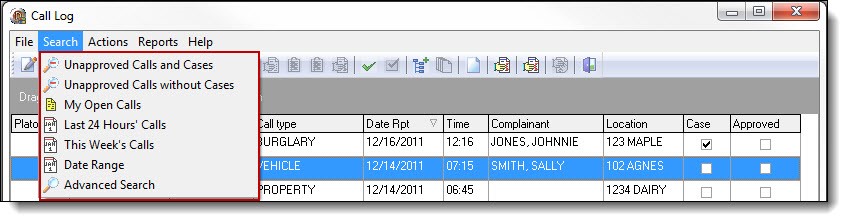
2. Use the quick search functions listed in the Searching for a Call section of the Call Log chapter to search for the call.
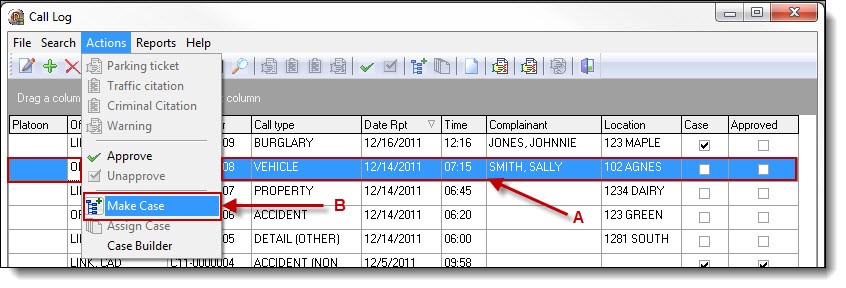
3. Highlight the call (A), and then select “Make Case” from the Actions drop down list (B).
4. Use the drop down box to select the officer to which you would like to assign the case (A), and then click the “Save” button (B).
 !Did You Know?
- Once a call has been escalated to a case, any changes will be handled through Case Builder.
- The Actions drop down list in Call Log has a quick link to Case Builder, for working on a newly escalated incident. For purposes of this guide, we will use the traditional method of accessing Case Builder rather than the quick link.
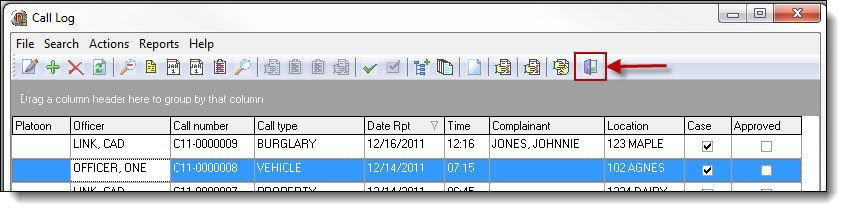
5. Once the incident has been escalated to a case and assigned to an officer, click the “Exit “ button to close the Call Log window.
Was this article helpful?
That’s Great!
Thank you for your feedback
Sorry! We couldn't be helpful
Thank you for your feedback
Let us know how can we improve this article!
Feedback sent
We appreciate your effort and will try to fix the article
X