---
title: Merge Logic
description: In-Synch
---
[Skip to content](https://kb.arms.com/in-synch/merge-logic#main-content)
English
Show submenu for translations

Open main navigation
Close main navigation
- English
Show submenu for translations
- Contact us
Contact us
How can we help you?
- There are no suggestions because the search field is empty.
1. [In-Synch](https://kb.arms.com/in-synch?hsLang=en)
2. [Knowledge base3](https://kb.arms.com/in-synch/knowledge-base3?hsLang=en)
3. [How To](https://kb.arms.com/in-synch/knowledge-base3?hsLang=en#how-to)
# Merge Logic
No recent searches
Popular Articles

Sorry! nothing found for
### Merge Logic
Created by Russ Hartle, Modified on Mon, 31 Mar, 2025 at 10:18 AM by Russ Hartle
### Merge Logic
### One-to-many Data Elements
For data elements that contain one-to-many links, the data from the Secondary Record will be added to the Primary Record. Examples of these data elements include, but are not limited to Person Address, Person Phone, Person Email, Person Photos, Calls, Cases, Citations, etc.
- For example, if the Primary Person Record has two linked addresses and the Secondary Person Record has one linked address, after the merge is complete the Primary Person Record will have three linked addresses and the Secondary Person Record will no longer exist.
*\****Tips**
When dealing with Person and Organization Addresses, Phone Numbers, and Email Addresses, the user must select one “Current” record after a merge. This process is covered in depth later in this chapter.
### One-to-one Data Elements
For data elements that contain one-to-one links, the following logic applies:
1. If data is present in the Primary Record’s data field and no data is present in the Secondary Record’s data field, then the data is kept from the Primary Record.
2. If no data is present in the Primary Record’s data field and data is present in the Secondary record’s data field, then the Secondary Record’s data is added to the Primary Record.
3. If data is present in both the Primary and Secondary Record’s data field, then the Primary Record’s data is kept.
Examples of these data elements include, but are not limited to Person Last Name, Person First Name, Person Middle Name, Person Suffix, Person SSN, Person DOB, etc.
An example of the logic presented in number 1 is as follows:
**Tables can't be imported directly. Please insert an image of your table which can be found [here](https://kb.arms.com/in-synch/merge-logic).**
Results after Merge:
**Tables can't be imported directly. Please insert an image of your table which can be found [here](https://kb.arms.com/in-synch/merge-logic).**
An example of the logic presented in number 2 is as follows:
**Tables can't be imported directly. Please insert an image of your table which can be found [here](https://kb.arms.com/in-synch/merge-logic).**
Results after Merge:
**Tables can't be imported directly. Please insert an image of your table which can be found [here](https://kb.arms.com/in-synch/merge-logic).**
An example of the logic presented in number 3 is as follows:
**Tables can't be imported directly. Please insert an image of your table which can be found [here](https://kb.arms.com/in-synch/merge-logic).**
Results after Merge:
**Tables can't be imported directly. Please insert an image of your table which can be found [here](https://kb.arms.com/in-synch/merge-logic).**
*!***Did You Know?**
Some examples include:
- Snagit
- Snipping Tool (Comes with newer versions of Microsoft Operating Systems)
- Using Ctrl + Prnt Scrn (to capture the entire screen) and Ctrl + v (to paste into Paint or Word).
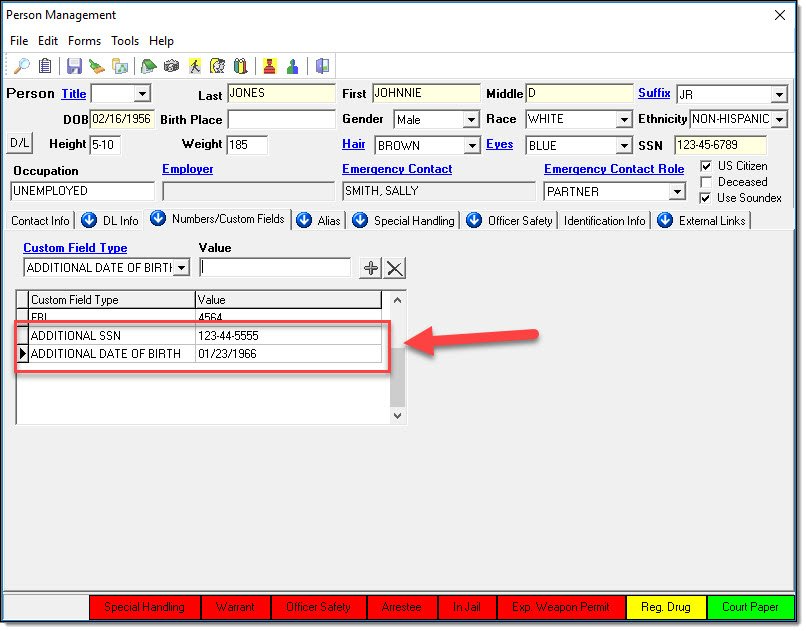
The most common Person data elements containing different values are DOB and Person SSN. Both of these items can be manually recorded in the Person “Numbers/Custom Fields” after a merge has been completed.
[](https://manula.s3.amazonaws.com/user/9801/img/mergelogic-001.jpg)
Was this article helpful?
That’s Great!
Thank you for your feedback
Sorry! We couldn't be helpful
Thank you for your feedback
Let us know how can we improve this article! \*
Feedback sent
We appreciate your effort and will try to fix the article
**X**
- [Release Notes](https://kb.arms.com/in-synch/release-notes?hsLang=en#main-content)
- [Version 4.8](https://kb.arms.com/in-synch/release-notes?hsLang=en#version-4-8)
- [Knowledge base3](https://kb.arms.com/in-synch/knowledge-base3?hsLang=en#main-content)
- [How To](https://kb.arms.com/in-synch/knowledge-base3?hsLang=en#how-to)
- [Knowledge base2](https://kb.arms.com/in-synch/knowledge-base2?hsLang=en#main-content)
- [Modules](https://kb.arms.com/in-synch/knowledge-base2?hsLang=en#modules)
- [Knowledge base1](https://kb.arms.com/in-synch/knowledge-base1?hsLang=en#main-content)
- [State Reporting](https://kb.arms.com/in-synch/knowledge-base1?hsLang=en#state-reporting)
- [Internal Wiki](https://kb.arms.com/in-synch/knowledge-base1?hsLang=en#internal-wiki)
- [State Specific Modules](https://kb.arms.com/in-synch/knowledge-base1?hsLang=en#state-specific-modules)
- [Release Notes](https://kb.arms.com/in-synch/knowledge-base1?hsLang=en#release-notes)
- [In-Synch RMS QuickStart Video Series](https://kb.arms.com/in-synch/knowledge-base1?hsLang=en#in-synch-rms-quickstart-video-series)
- [Error Messages](https://kb.arms.com/in-synch/knowledge-base1?hsLang=en#error-messages)
- [Knowledge base](https://kb.arms.com/in-synch/knowledge-base?hsLang=en#main-content)
- [Interfaces](https://kb.arms.com/in-synch/knowledge-base?hsLang=en#interfaces)
[](http://arms.com)
[mailto:email@email.com](mailto:email@email.com)
Copyright © 2026, End2End Public Safety