---
title: Merging Records
description: In-Synch
---
[Skip to content](https://kb.arms.com/in-synch/merging-records#main-content)
English
Show submenu for translations

Open main navigation
Close main navigation
- English
Show submenu for translations
- Contact us
Contact us
How can we help you?
- There are no suggestions because the search field is empty.
1. [In-Synch](https://kb.arms.com/in-synch?hsLang=en)
2. [Knowledge base3](https://kb.arms.com/in-synch/knowledge-base3?hsLang=en)
3. [How To](https://kb.arms.com/in-synch/knowledge-base3?hsLang=en#how-to)
# Merging Records
No recent searches
Popular Articles

Sorry! nothing found for
### Merging Records
Created by Russ Hartle, Modified on Mon, 31 Mar, 2025 at 10:18 AM by Russ Hartle
### Merging Records
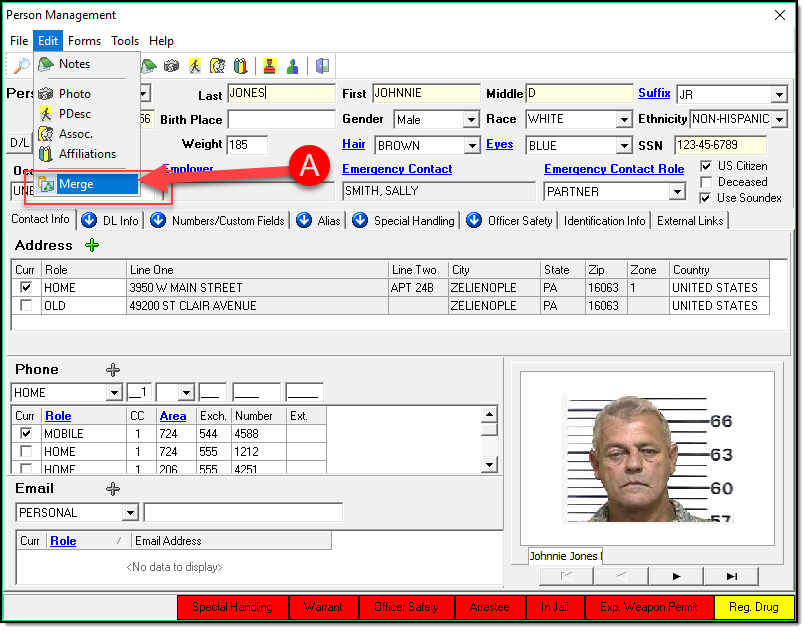
1\. In the earlier section, it was determined that the “JONES, JOHNNIE” record was the Primary Record and the “JONES, JONNY” record was the Secondary Record. With the “JONES, JOHNNIE” record open in Person Management, select the “Merge” option (A) from the “Edit” drop-down list.
[](https://manula.s3.amazonaws.com/user/9801/img/merge-006.png)
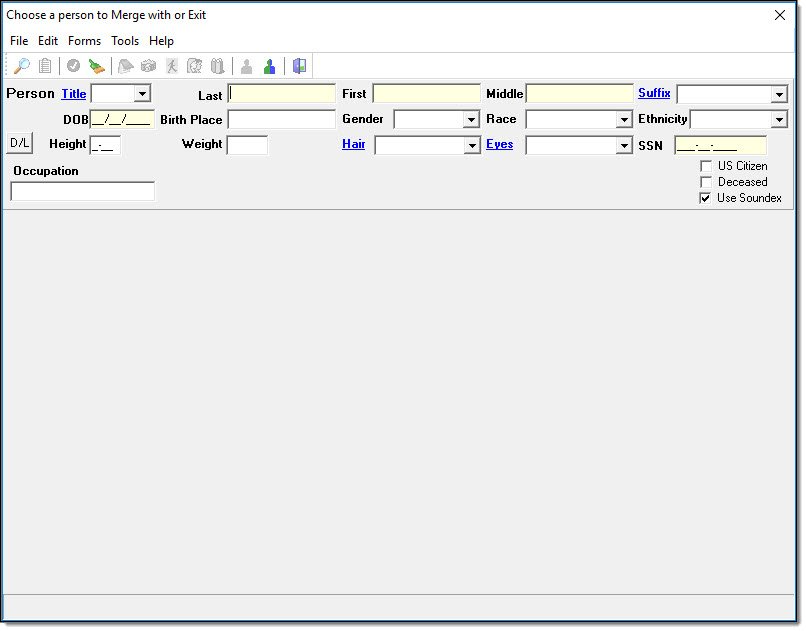
2\. A secondary Person Management window will open.
[](https://manula.s3.amazonaws.com/user/9801/img/merge-006a.jpg)
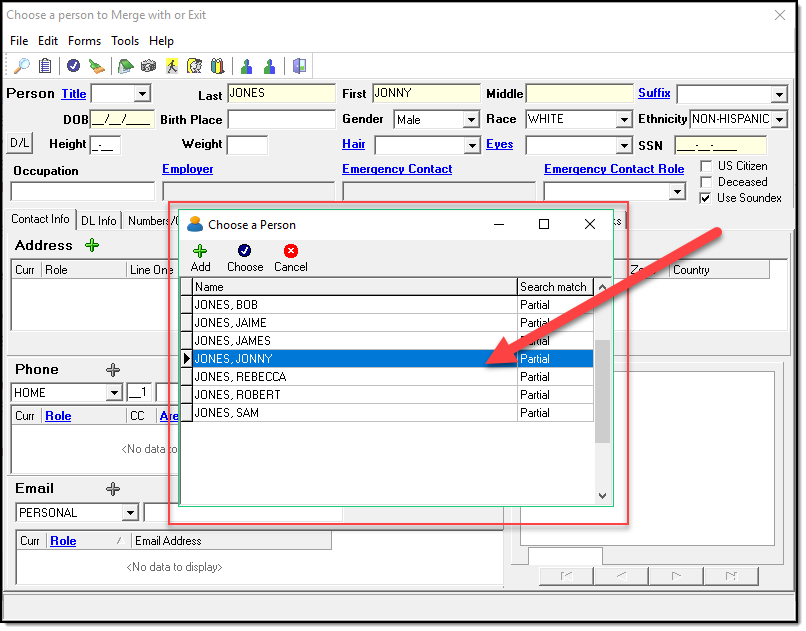
3\. Search for the record you wish to merge into the Primary Record. In this example, the last name of “JONES” was searched. Notice that the Primary Record (“JONES, JOHNNIE”) no longer shows as an option in the search results.
[](https://manula.s3.amazonaws.com/user/9801/img/merge-007.png)
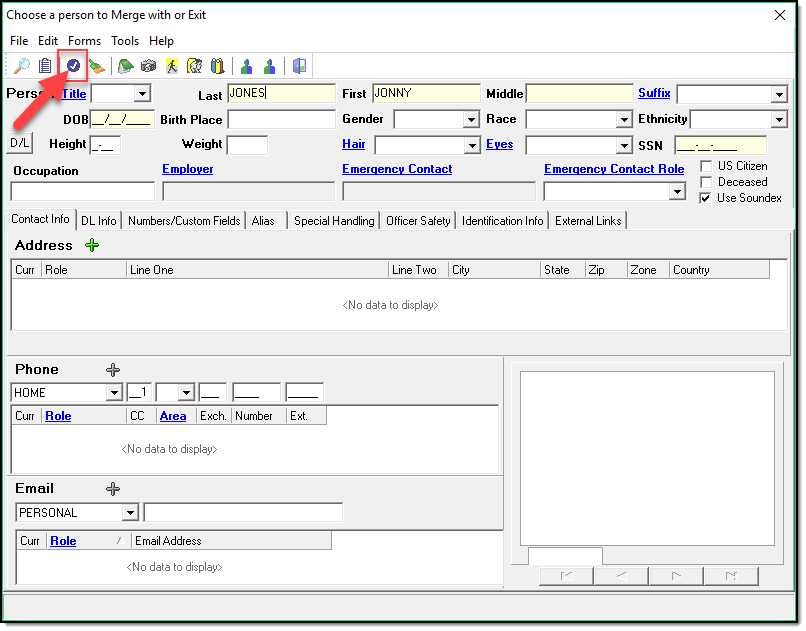
4\. Select the “Choose” button to begin the merge.
[](https://manula.s3.amazonaws.com/user/9801/img/merge-008.png)
5\. The merge process will start automatically when you choose the second record.
[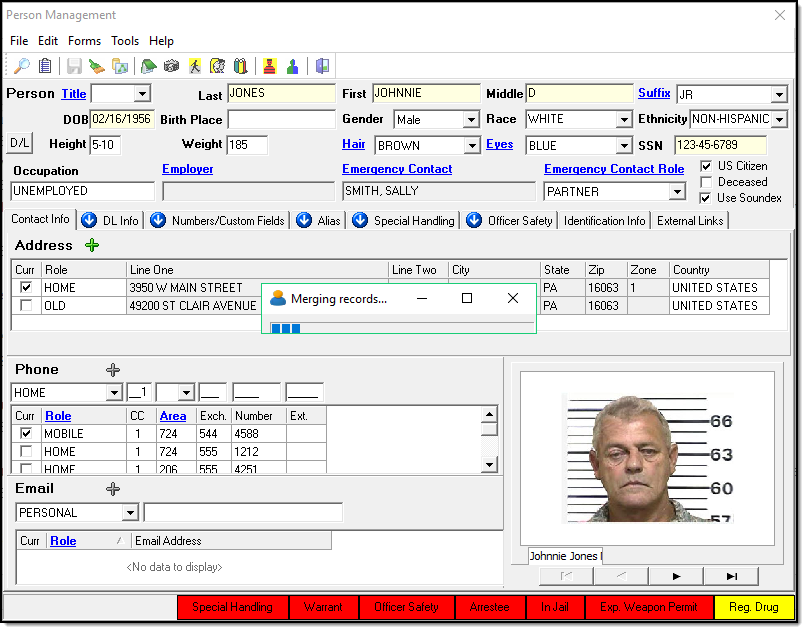](https://manula.s3.amazonaws.com/user/9801/img/merge-009.png)
6\. Once the merge is done, you will receive a “Merge Completed Successfully” message box.
[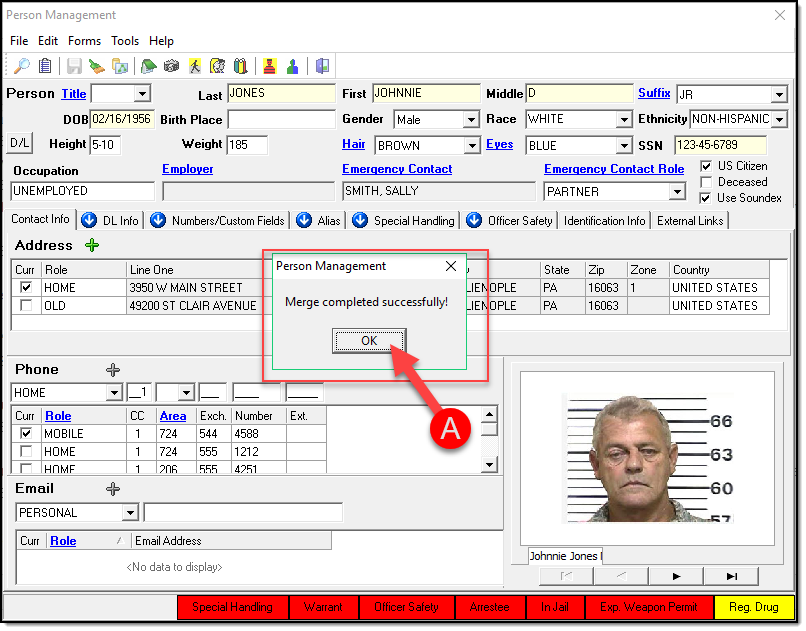](https://manula.s3.amazonaws.com/user/9801/img/merge-010.png)
*\****Tips**
Repeat the steps in this section for any additional records that need to be merged. **Remember to select the Primary Record first.**
Was this article helpful?
That’s Great!
Thank you for your feedback
Sorry! We couldn't be helpful
Thank you for your feedback
Let us know how can we improve this article! \*
Feedback sent
We appreciate your effort and will try to fix the article
**X**
- [Release Notes](https://kb.arms.com/in-synch/release-notes?hsLang=en#main-content)
- [Version 4.8](https://kb.arms.com/in-synch/release-notes?hsLang=en#version-4-8)
- [Knowledge base3](https://kb.arms.com/in-synch/knowledge-base3?hsLang=en#main-content)
- [How To](https://kb.arms.com/in-synch/knowledge-base3?hsLang=en#how-to)
- [Knowledge base2](https://kb.arms.com/in-synch/knowledge-base2?hsLang=en#main-content)
- [Modules](https://kb.arms.com/in-synch/knowledge-base2?hsLang=en#modules)
- [Knowledge base1](https://kb.arms.com/in-synch/knowledge-base1?hsLang=en#main-content)
- [State Reporting](https://kb.arms.com/in-synch/knowledge-base1?hsLang=en#state-reporting)
- [Internal Wiki](https://kb.arms.com/in-synch/knowledge-base1?hsLang=en#internal-wiki)
- [State Specific Modules](https://kb.arms.com/in-synch/knowledge-base1?hsLang=en#state-specific-modules)
- [Release Notes](https://kb.arms.com/in-synch/knowledge-base1?hsLang=en#release-notes)
- [In-Synch RMS QuickStart Video Series](https://kb.arms.com/in-synch/knowledge-base1?hsLang=en#in-synch-rms-quickstart-video-series)
- [Error Messages](https://kb.arms.com/in-synch/knowledge-base1?hsLang=en#error-messages)
- [Knowledge base](https://kb.arms.com/in-synch/knowledge-base?hsLang=en#main-content)
- [Interfaces](https://kb.arms.com/in-synch/knowledge-base?hsLang=en#interfaces)
[](http://arms.com)
[mailto:email@email.com](mailto:email@email.com)
Copyright © 2026, End2End Public Safety