
No recent searches
Popular Articles

Sorry! nothing found for
Multi-Level Photo Search
Created by Russ Hartle, Modified on Thu, 11 Sep, 2025 at 3:43 PM by Russ Hartle
Multi-Level Photo Search
Sometimes it is beneficial to do a multi-level photo search, linking more than one search criteria to return a broad amount of results. In this example we will search for all adult person photo’s where the person is male, their hair color is black, and their weight is between 200 and 250 pounds. This is useful when creating Photo Lineups.
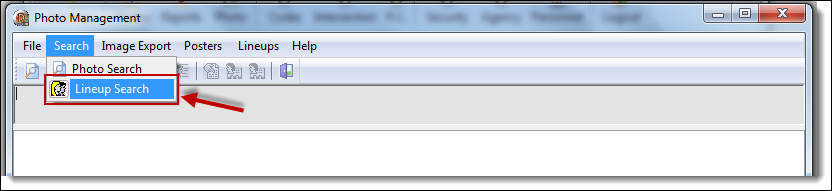
1. From the Photo Management window, select the “Lineup Search” button from the Search drop down list.
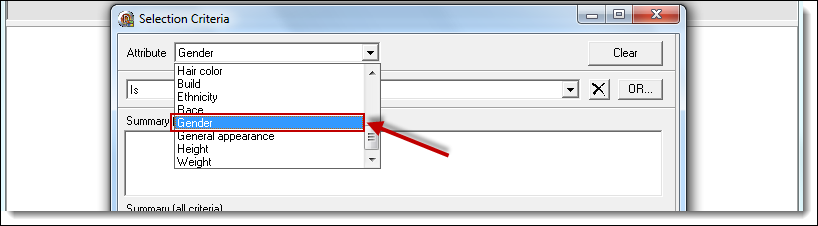
2. By default, only adult photos will be returned, so we have met our first criteria. From the Attribute drop down list select “Gender”.
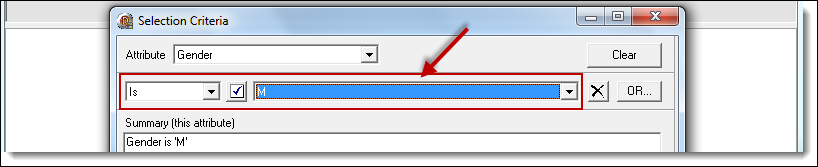
3. In the search criteria fields select “Is” and “M”.
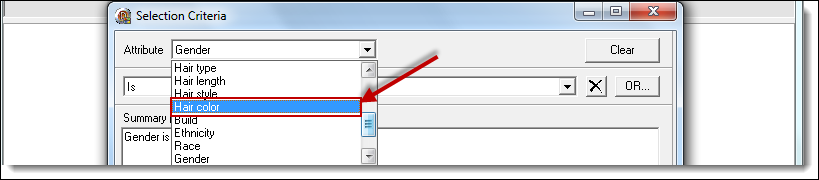
4. We have now satisfied the second search criteria of males only. From the Attribute drop down list, change the attribute from “Gender” to “Hair Color”.
5. In the search criteria fields select “Is” and “BLACK”.
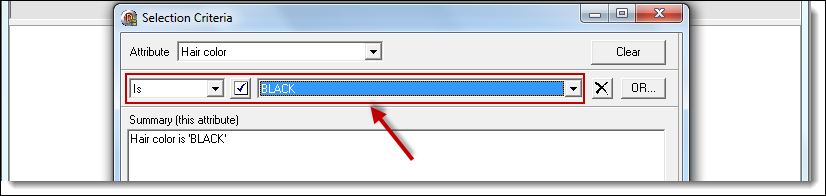
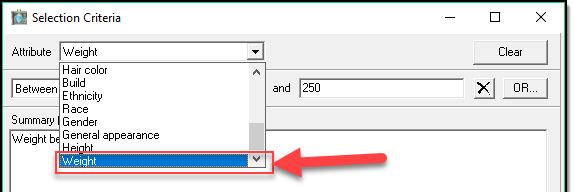
6. We have now satisfied the third search criteria of black hair. From the Attribute drop down list, change the attribute from “Hair Color” to “Weight”.
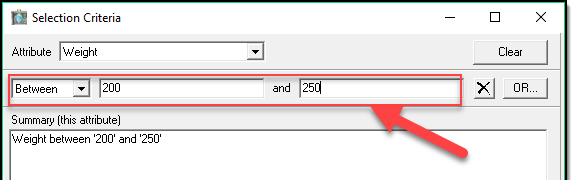
7. In the search criteria fields select “Between” and enter “200” and “250” into the corresponding text fields.
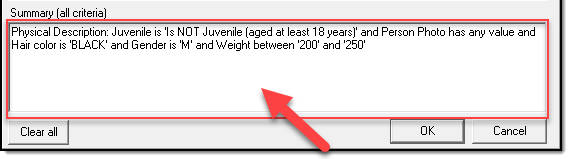
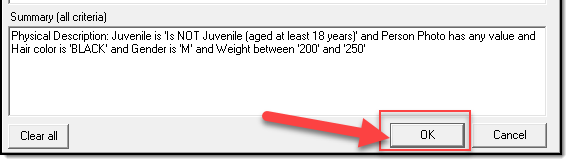
8. All 4 search criteria have now been satisfied. As we were entering the different types of criteria, the Summary of the criteria was updating. To view, all of the criteria entered, view the details in the “Summary (all criteria)” field.
 !Did You Know?
- From the “Selection Criteria” window, the “Clear” button will remove the current search criteria.
- From the “Selection Criteria” window, the “Clear All” button will remove all search criteria.
- From the “Selection Criteria” window, you can use the “OR” button to choose more than one type for a single attribute. For example, Hair Color is “BLACK” or “BROWN”.
9. After entering all of the search criteria, click the “OK” button to perform the photo search.
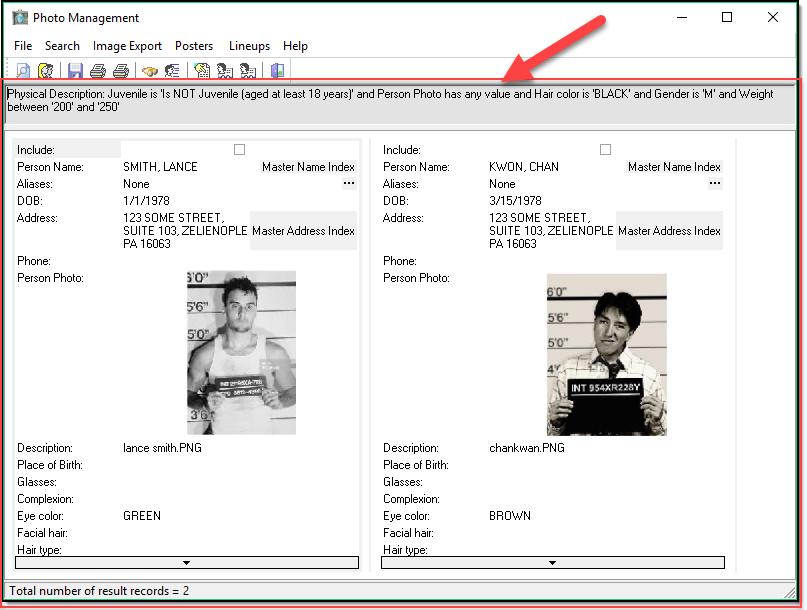
10. The result is displayed in the Photo Management window.
Was this article helpful?
That’s Great!
Thank you for your feedback
Sorry! We couldn't be helpful
Thank you for your feedback
Let us know how can we improve this article!
Feedback sent
We appreciate your effort and will try to fix the article
X