
No recent searches
Popular Articles

Sorry! nothing found for
OmniCourt and SAS
Created by Russ Hartle, Modified on Tue, 15 Apr, 2025 at 10:01 AM by Russ Hartle
OmniCourt and Southern Automated Interfaces
The OmniCourt and SouthernAutomated interfaces are used to export Citation information and import/export Warrant information between the RMS and the OmniCourt software. The OmniCourt software is provided by Southern Automated Solutions (SAS). More information about SAS and OmniCourt can be found here: Omnicourt Website
General Information
The interfaces consist of several pieces:
- Mapped Drive – Shared drive (usually on the Court network) where citation information is exported from the RMS.
- In-Synch.ini Settings – Additional in-synch.ini settings used for configuration of the OmniCourt and SouthernAutomated interfaces.
- OmniCourtService.exe – Outputs citations in .csv format, from the RMS to the mapped drive.
- SouthernAutomated.exe – Imports Warrants from OmniCourt/outputs the Warrant served status (date) from the RMS.
- Log Files – Logs from the various applications.
Mapped Drive
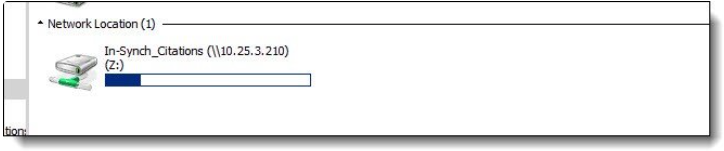
A shared drive must be mapped to export the citation information from the RMS. Since the drive is usually on the court network, SAS may provide the location/logon credentials for the mapped drive.
Example:
- (Z:) is mapped to \\10.25.3.210\In-Synch_Citations
Username: administrator
Password: P@ssw0rd
In-Synch.ini Settings
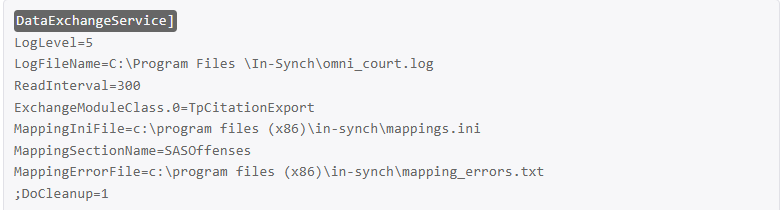
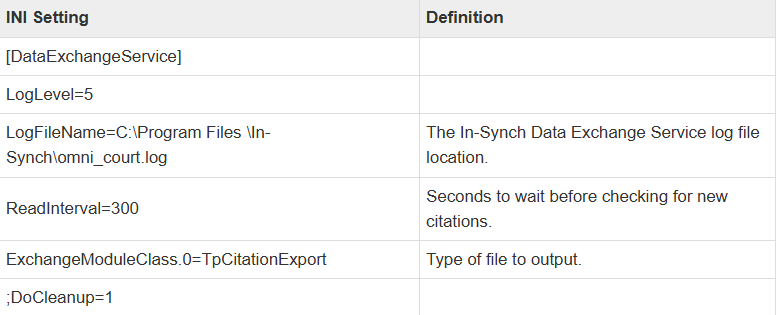
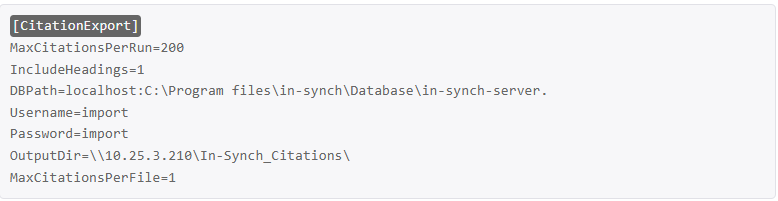
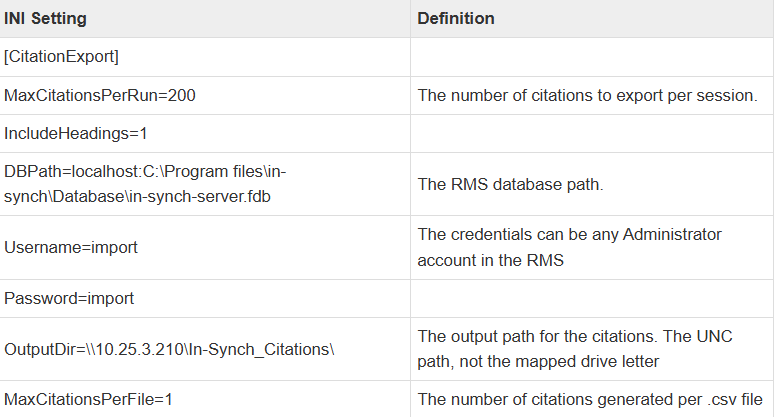
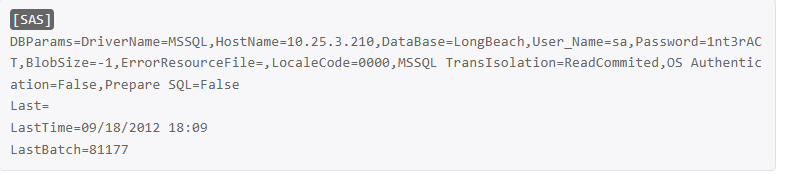
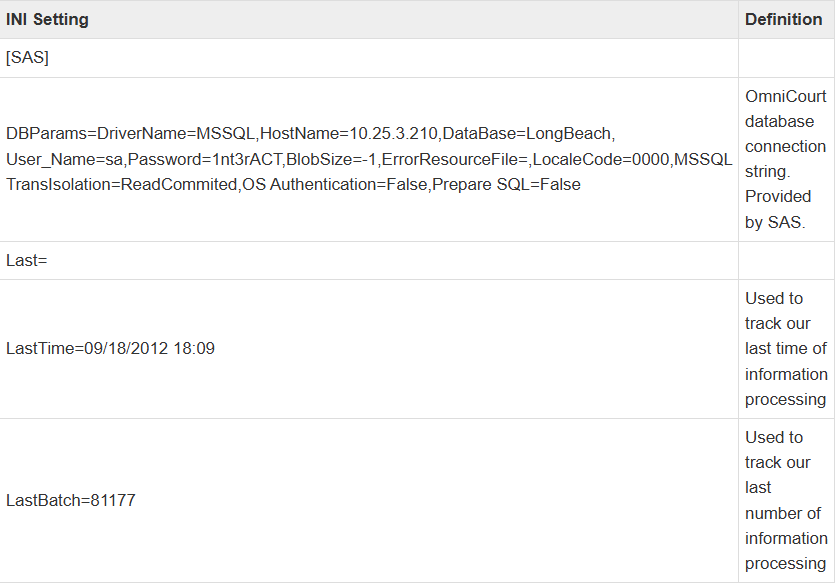
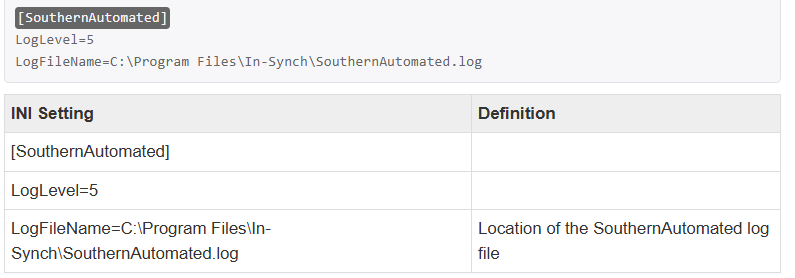
Add the following entries to the bottom of the In-Synch.ini file:
OmniCourt.exe INI Settings
SouthernAutomated.exe INI Settings
File Locations and SocketServer
- Once the mapped drive is connected and the In-synch.ini sections have been entered, place the OmniCourtService.exe and SouthernAutomated.exe in the In-Synch folder.
- Close Socket Server.
- Install Socket Server as a service.
- From command line
- cd “C:\Program files\in-Synch” – 32-bit
- cd “C:\Program files (x86)\In-Synch” – 64-bit
- scktsrvr -install
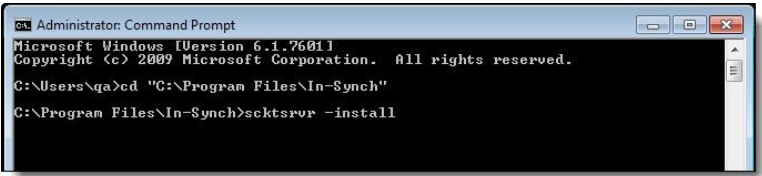
*After installing Scktsrvr.exe as a service, it is listed under “Borland Socket Server” in Services.msc, and “ScktSrvr.exe” in the “Processes” tab of Task Manager.
4.) Remove In-Synch Socket Server from the startup folder on the computer.
OmniCourtService.exe
1. Install OmniCourtService.exe as a service.
- From command line
- cd “C:\Program files\in-Synch” – 32-bit
- cd “C:\Program files (x86)\In-Synch” – 64-bit
- OmniCourtService -install
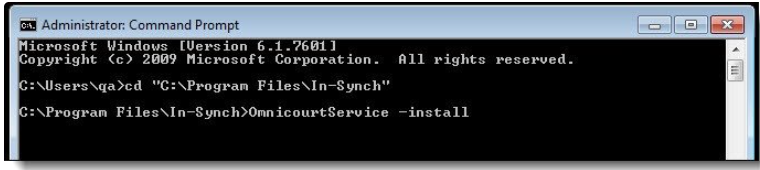
!After installing OmniCourtService.exe, it is listed under “In-Synch Data Exchange Service” in services.msc, and listed as “OmniCourtService.exe” in the “Processes” tab of Task Manager. Why don’t these names match? The In-Synch Data Exchange Service is a generic service created to import/export data to/from the RMS in a predefined format. The service can be used for different purposes by changing the configuration settings that are listed in the In-Synch.ini file. When compiled with OmniCourtService.exe, the In-Synch Data Exchange Service exports citation information into a .csv file. This .csv file is placed in a shared drive on the Court network and processed by SAS into their OmniCourt software. When compiled with other applications the In-Synch Data Exchange Service can been used to import other types of data, such as CAD (Three Rivers Park District). The “Process Name” for the In-Synch Data Exchange Service can change depending on the application it is packaged with.
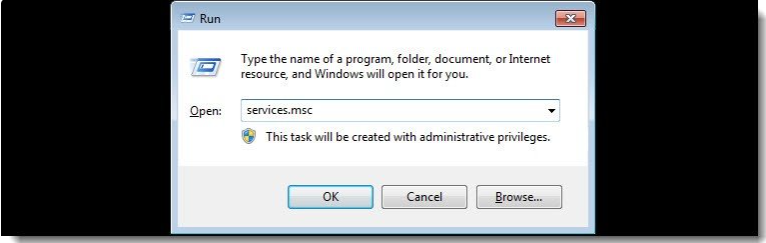
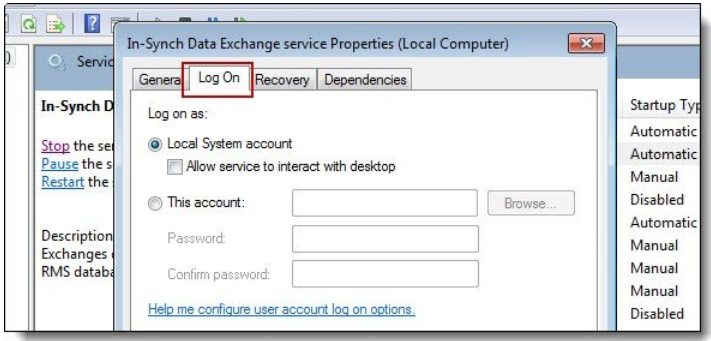
2. Open Services.msc.
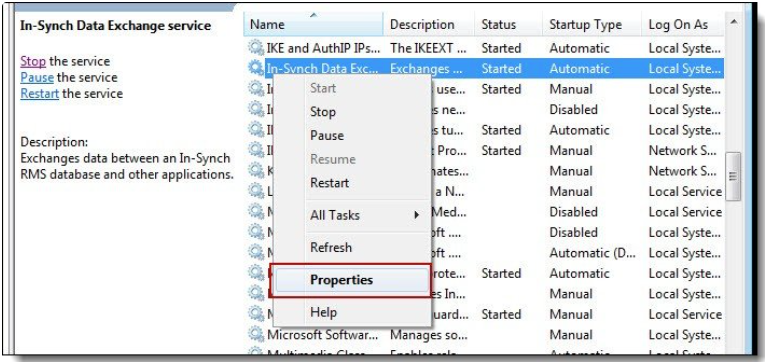
3. Right-click on In-Synch Data Exchange Service, and select “Properties”.
4. Select the “Log On” tab
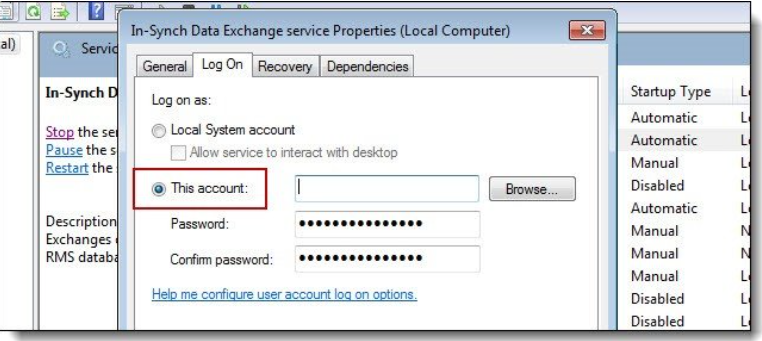
5. Choose the “This account” radio button.
6. Enter an Administrator’s account credentials into the Account and Password fields. (This may be a domain administrator account or local PC administrator account from the Court network.)
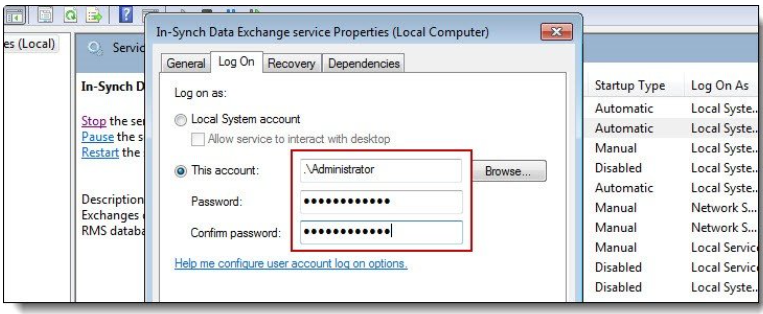
If no Administrator account is defined, the In-Synch Data Exchange service may not have privileges to write the .csv files to the mapped drive.
7. Apply the changes and close the properties window.
8. Restart the “In-Synch Data Exchange Service.
SouthernAutomated.exe
1. Create a shortcut to SouthernAutomated.exe and place it in the startup folder.
!The Southern Automated Warrant interface runs as a system tray icon, but also has a window. The application is constantly running, therefore minimizing and restoring the window will cause the application to appear to be unresponsive. The process takes precedence over the GUI, so it will still be working even though the window isn’t refreshing. Closing and re-opening the program will allow you to view the latest warrants/charges processing.
2. Launch the SouthernAutomated shortcut from the startup menu.
!Warrant information entered into the OmniCourt software will be placed into a staging table. The SouthernAutomated interface will import the warrant information from the staging table into the RMS. When a warrant is marked as served in the RMS, the SouthernAutomated interface will update the staging table to reflect the served date.
Log Files
1. There are two (2) log files:
- Data Exchange Service – omni_court.log
- SAS – SouthernAutomated.log
*Any file that grows to be > 2GB, should be renamed and a new log file will automatically be generated.
Was this article helpful?
That’s Great!
Thank you for your feedback
Sorry! We couldn't be helpful
Thank you for your feedback
Let us know how can we improve this article!
Feedback sent
We appreciate your effort and will try to fix the article
X