
No recent searches
Popular Articles

Sorry! nothing found for
Printing Property Barcodes (Evidence Pack)
Created by Russ Hartle, Modified on Thu, 11 Sep, 2025 at 3:47 PM by Russ Hartle
Printing Property Barcodes (Evidence Pack)
*Tips:
Printing of a property barcode should be done with an approved label printer (optional). Contact In-Synch Systems (1-800-243-6540 x ext. 1) for details on supported models. Be sure to print the property barcode after the property has been checked into its permanent storage location. Failure to do so will result in the wrong storage location on the property tag.
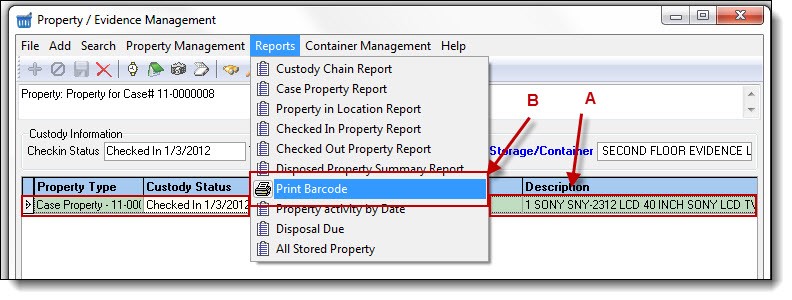
1. Highlight the property item from the results window (A), then select “Print Barcode” from the Reports drop down list (B).
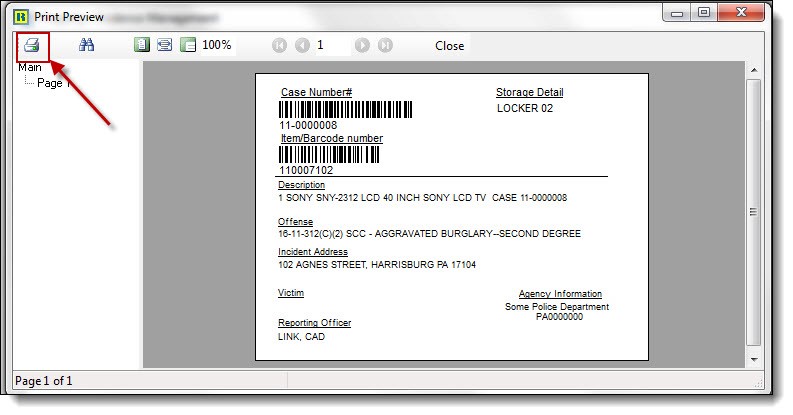
2. Click the “Print” button to print the Barcode Label.
Was this article helpful?
That’s Great!
Thank you for your feedback
Sorry! We couldn't be helpful
Thank you for your feedback
Let us know how can we improve this article!
Feedback sent
We appreciate your effort and will try to fix the article
X