
No recent searches
Popular Articles

Sorry! nothing found for
Rbuilder Error
Created by Russ Hartle, Modified on Tue, 1 Apr, 2025 at 2:08 PM by Russ Hartle
This option may require an administrator account or an account with the rights to manipulate the computer’s file/folder permissions.
Occasionally, users may experience the following RBuilder error: “Cannot create file “C:\Program Files (x86)\In-Synch\RBuilder.ini. Access is denied.” when trying to preview a Call Summary or Case Report.
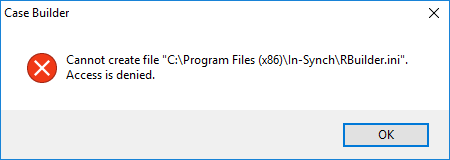
This error can be resolved by setting the appropriate permissions on the In-Synch folder. Note: If you are not the computer administrator you will need to contact your IT staff to complete this fix.
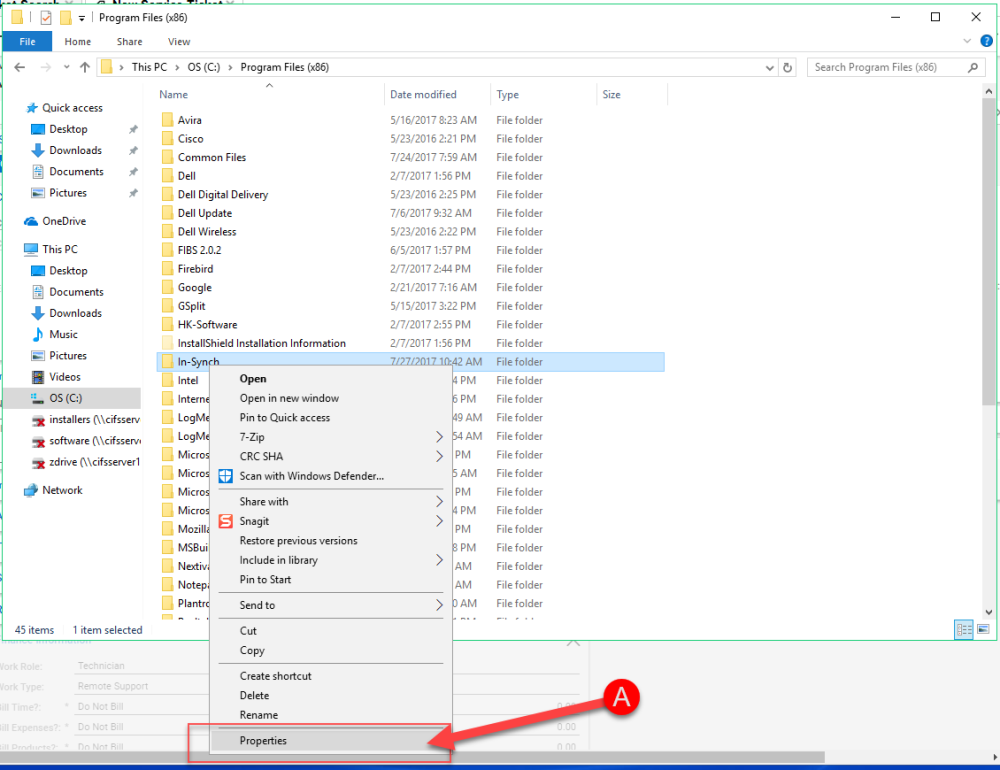
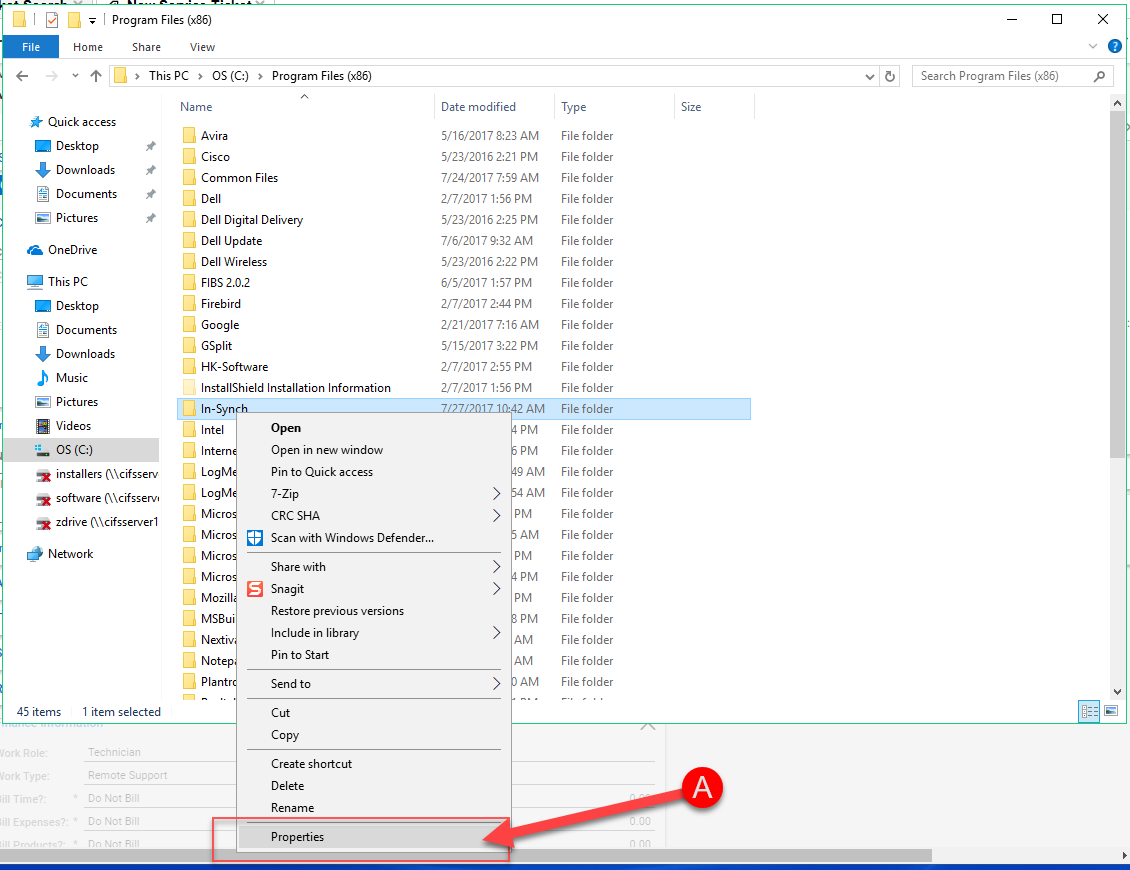
- Through File Explorer, browse to the In-Synch directory. (“C:\Program Files\” for 32-bit computers) (“C:\Program Files (x86)\” for 64-bit computers). Please note: You do not need to open the In-Synch folder, you just need to browse to it.
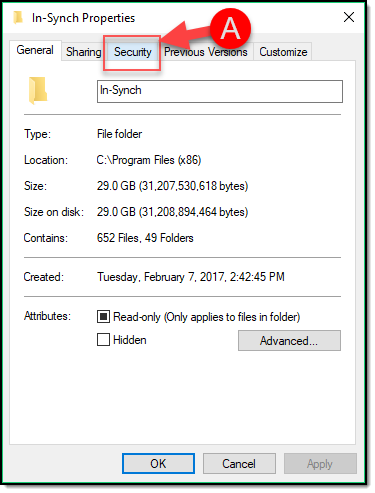
- Right-click on the In-Synch folder and select Properties (A).
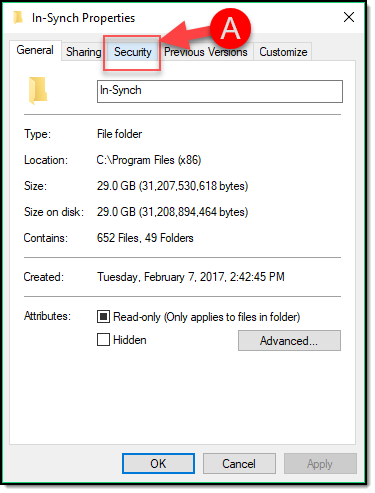
- Select the Security Tab (A).
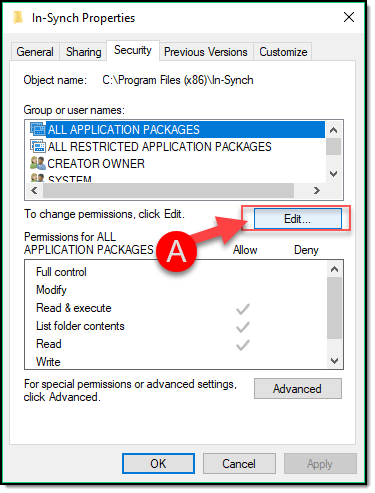
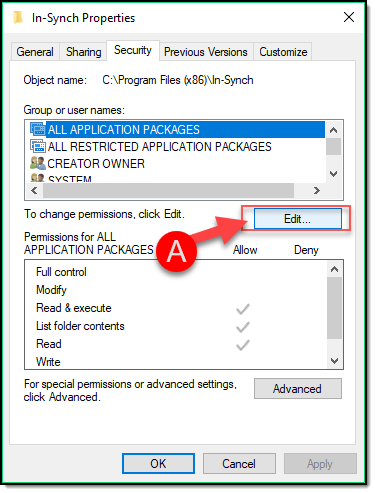
- Select the Edit button (A).
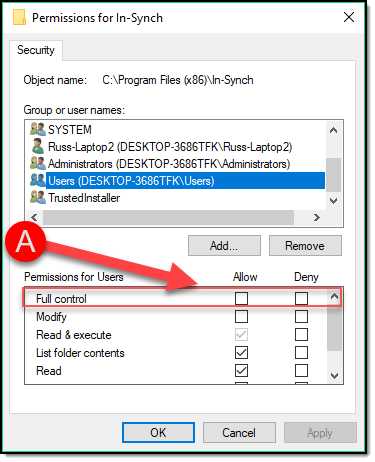
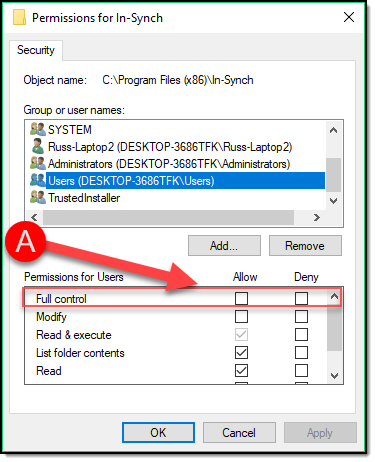
- Highlight the “Users” group and place a checkmark in the “Allow Full Control” box (A).
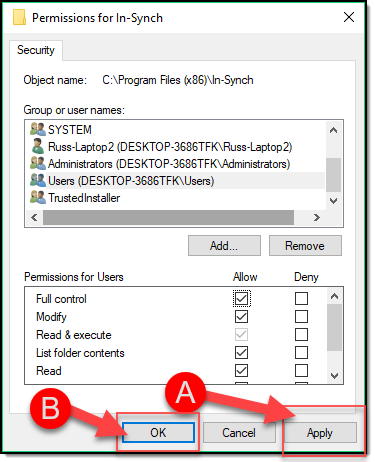
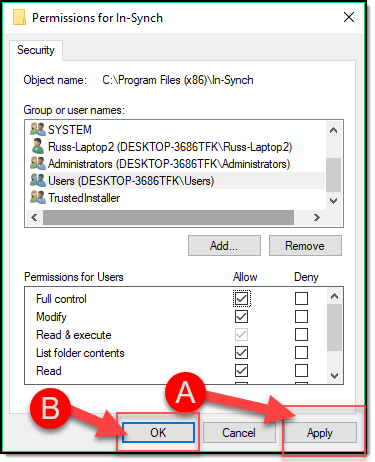
- Select the “Apply” button (A) and then “Ok” button (B).
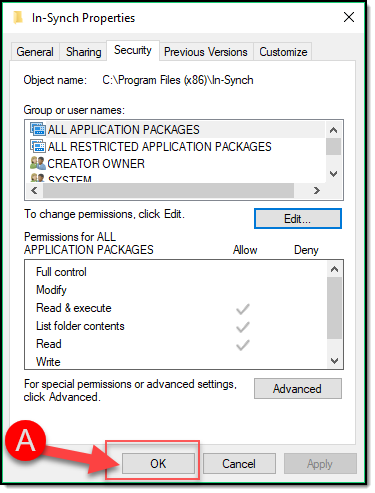
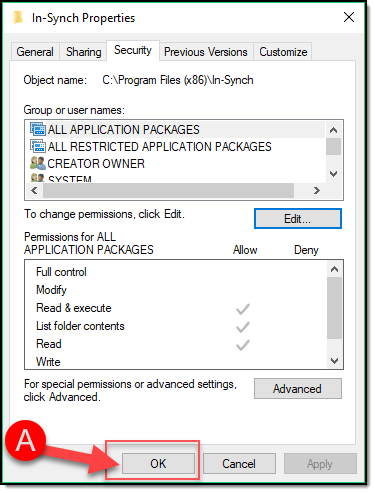
- On the main properties window, select the “OK” button (A).
- You can now close any open folders and attempt to Preview your Case Report again. (This may require you to close case builder and re-open it)
Additionally the Windows OS may try to redirect the call for rbuilder.ini to C:\ProgramData\In-Synch
If this is the case it will be noted in the error and you simply need to follow the steps laid out above to set permissions on the C:\ProgramData\In-Synch folder.
Was this article helpful?
That’s Great!
Thank you for your feedback
Sorry! We couldn't be helpful
Thank you for your feedback
Let us know how can we improve this article!
Feedback sent
We appreciate your effort and will try to fix the article
X