
No recent searches
Popular Articles

Sorry! nothing found for
Reviewing a Case Assignment
Created by Russ Hartle, Modified on Tue, 27 May, 2025 at 10:22 AM by Russ Hartle
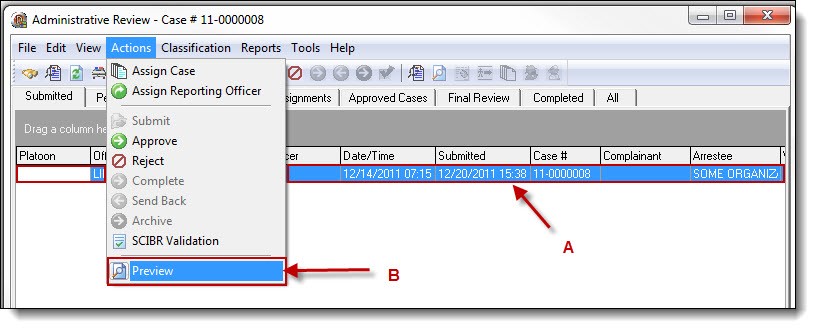
1. Supervisors have the ability to either preview the case report or open the case assignment using Case Builder. To preview a submitted case report, highlight the case assignment (A), and then select “Preview” from the Actions drop down list (B). Corrections or edits cannot be made from the Case Report Print Preview window.
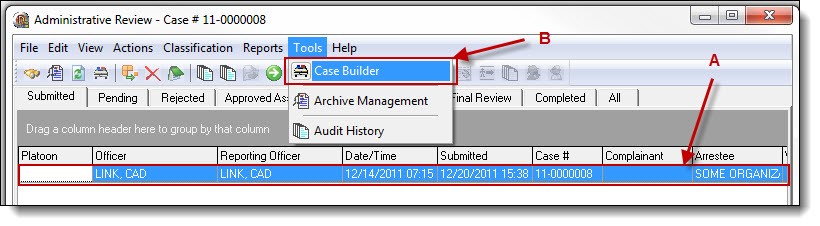
2. To open a submitted case assignment in Case Builder, highlight the case assignment (A), and then select “Case Builder” from the Tools drop down list (B). Opening a case assignment in Case Builder allows the supervisor to make small corrections or edits to data and spelling that may not warrant a full rejection back to the officer.
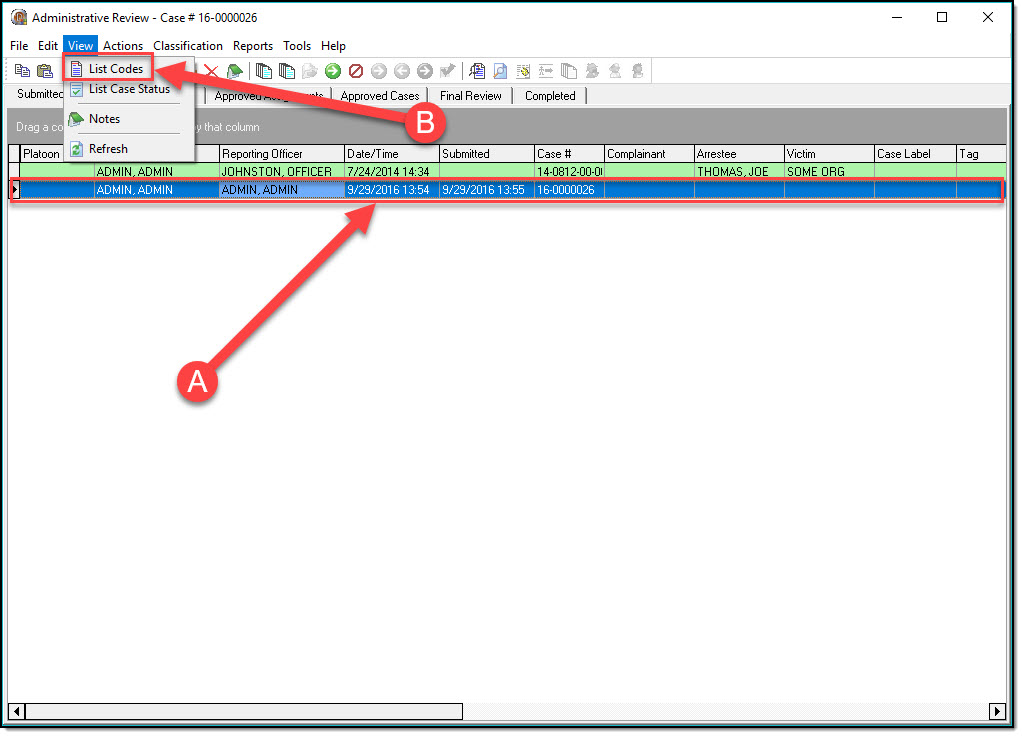
3. To view the charges in a case, highlight the case assignment (A), and then select “List Codes” from the View drop down list (B). This is a quick way to see what charges are involved in an incident, without having to open the entire case.
!Did You Know?
Most items found in the drop down lists in Admin Review can also be accessed by buttons on the Admin Review toolbar as well as by highlighting a case and using the right-click sub-menu.
Was this article helpful?
That’s Great!
Thank you for your feedback
Sorry! We couldn't be helpful
Thank you for your feedback
Let us know how can we improve this article!
Feedback sent
We appreciate your effort and will try to fix the article
X