
No recent searches
Popular Articles

Sorry! nothing found for
Searching and Entering a New Vehicle
Created by Russ Hartle, Modified on Fri, 20 Jun, 2025 at 2:30 PM by Russ Hartle
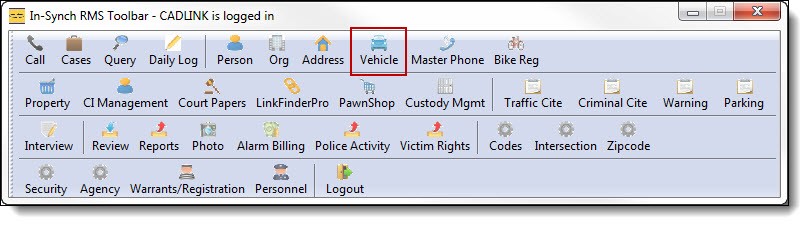
1. Click on “Vehicle” from the main RMS toolbar.
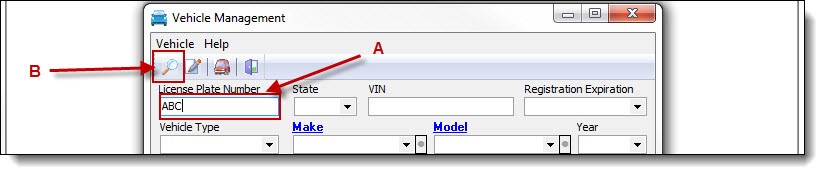
2. Enter part of the license plate number (A), and then click the “Search” button (B).
*Tips:
You may use the mouse to click the “Search “ button or use the “Enter” key to perform searches.
 !Did You Know?
- Entering a partial license plate number will allow more results to display. The goal of searching is to eliminate duplicates in the database and reduce the need to enter the same data multiple times.
- If the license plate number isn’t available, you can search by any of the fields on the Vehicle Management window.
- The “%” can be used as a wildcard for searching partial plates. Examples: AB%123, or %23.
3. If no matches were found, follow step 3a; otherwise, follow steps 4a-4c.
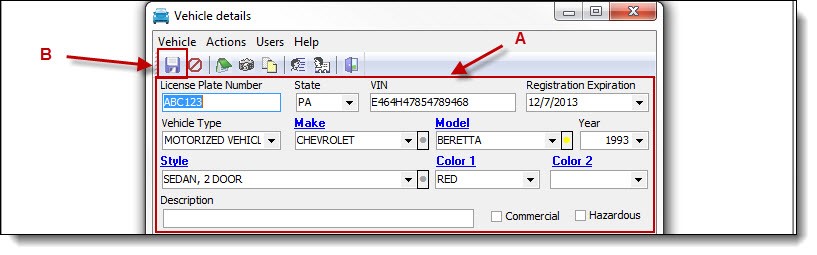
3a. If no matches were found, enter the rest of the known vehicle information (A), and then click the “Save” button (B).
4. When matches are found, follow steps 4a-4c.
4a. Vehicles matching the search criteria will display in the Vehicle Management results grid.
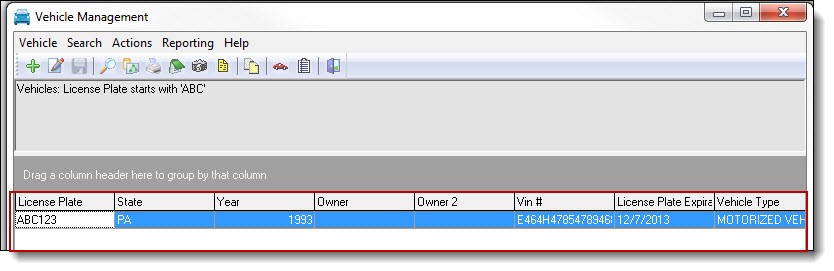
4b. If the vehicle you were looking for is found, double click the result to view or edit the vehicle’s details.
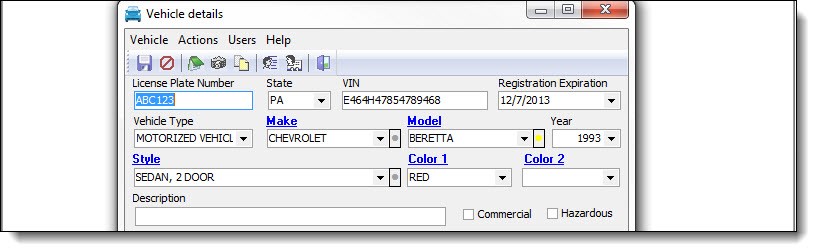
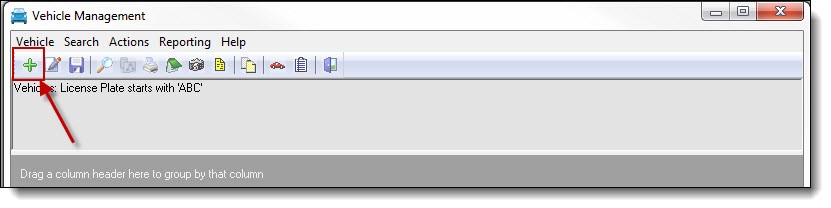
4c. If the search results do not contain the vehicle you were looking for, click the “Add” button to create a new vehicle record. Follow step 3a above for details on creating a new vehicle record.
!Did You Know?
Searching and entering data can be automated with the use of Barcode and Mag Stripe readers. (Optional equipment)
Was this article helpful?
That’s Great!
Thank you for your feedback
Sorry! We couldn't be helpful
Thank you for your feedback
Let us know how can we improve this article!
Feedback sent
We appreciate your effort and will try to fix the article
X