
No recent searches
Popular Articles

Sorry! nothing found for
Searching for a Call
Created by Russ Hartle, Modified on Fri, 9 May, 2025 at 9:02 AM by Russ Hartle
Searching for a Call
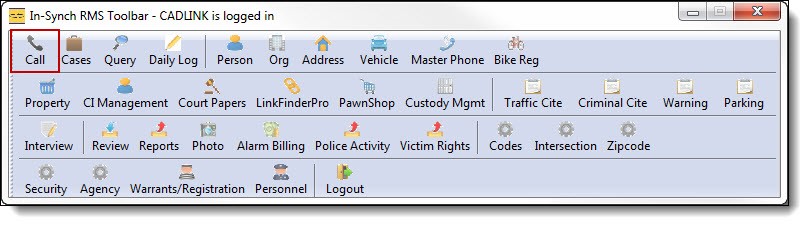
1. Click the “Call” button from the main RMS toolbar.
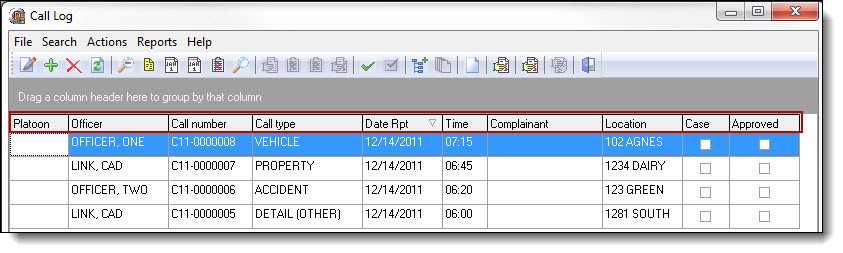
2. By default, the main Call Log window displays all calls that have been entered within the last 24 hours of your system clock. You can sort the calls ascending or descending by clicking on the individual column headers.
*Tips:
Advanced sorting can be completed by dragging the column headers to the gray section above the columns or using the custom filters found in the drop down list for each column header.
*Tips:
If you have had the Call Log open for an extended time it may be beneficial to do a call log refresh to ensure you have the most recent data. This can be done by clicking the refresh button on the main bar in the Call Log Grid.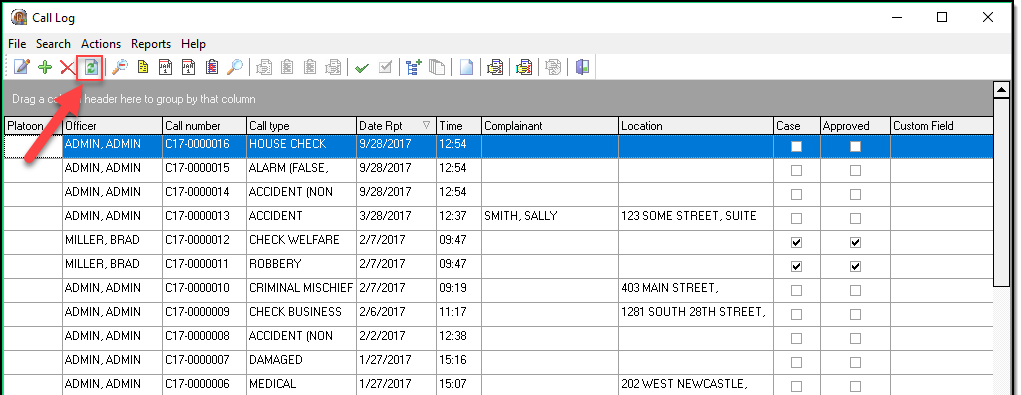
3. There are seven (7) search options built into Call Log. The first option is “Unapproved Calls and Cases”. This search will display all calls and cases that have not been approved by a supervisor from within the Call Log module. To access this search, select “Unapproved Calls and Cases” from the Search drop down list.
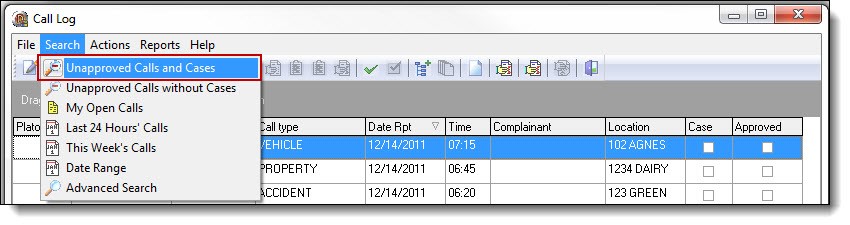
4. The second option is “Unapproved Calls without Cases”. This search will only display calls that have not been approved by a supervisor from within the Call Log Module. To access this search, select “Unapproved Calls without Cases” from the Search drop down list.
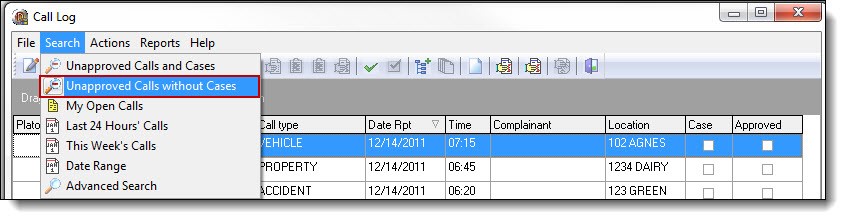
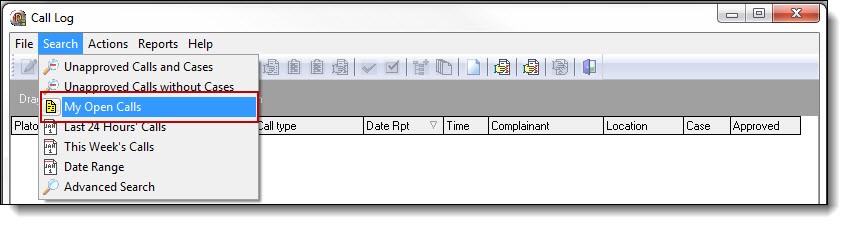
5. The third option is “My Open Calls”. This search will only display calls with no cleared date/time for the logged in user. To access this search, select “My Open Calls” from the Search drop down list.
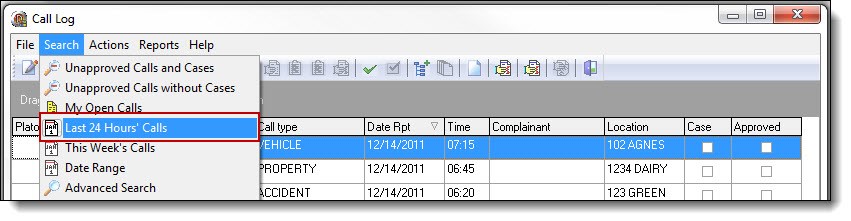
6. The fourth option is “Last 24 Hours Calls”. This search will only display calls with a date/time reported falling within the last 24 hours. To access this search, select “Last 24 Hours Calls “ from the Search drop down list.
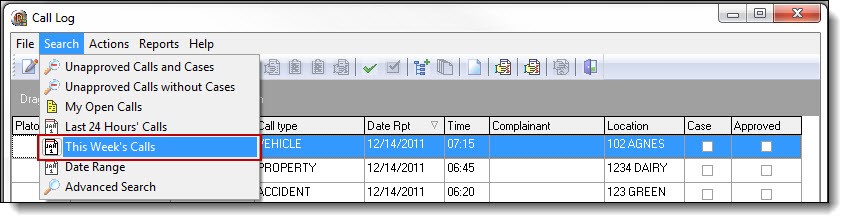
7. The fifth option is “This Weeks Calls”. This search will display calls within seven (7) days of the current date/time. To access this search, select “ This Weeks Calls “ from the Search drop down list.
8. The sixth option is “Date Range”. This search will display calls within the date/time range entered by the user. To access this search, select “ This Weeks Calls “ from the Search drop down list.
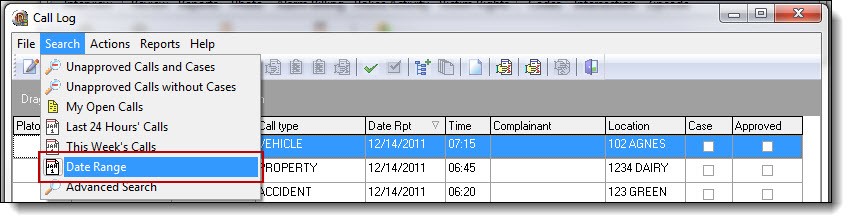
9. Enter the date and time information (A), and then click the “OK” button (B).

10. The seventh and last option is “Advanced Search”. This search will display calls meeting the search criteria entered by the user. To access this search, select “ Advanced Search “ from the Search drop down list.
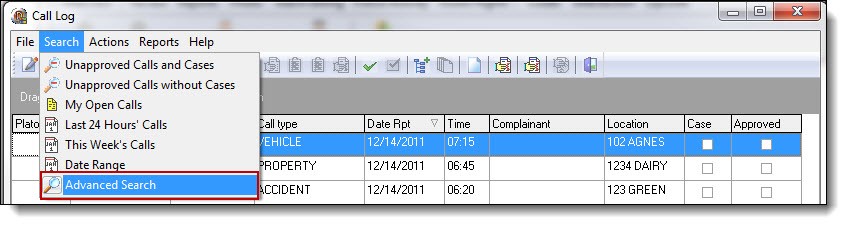
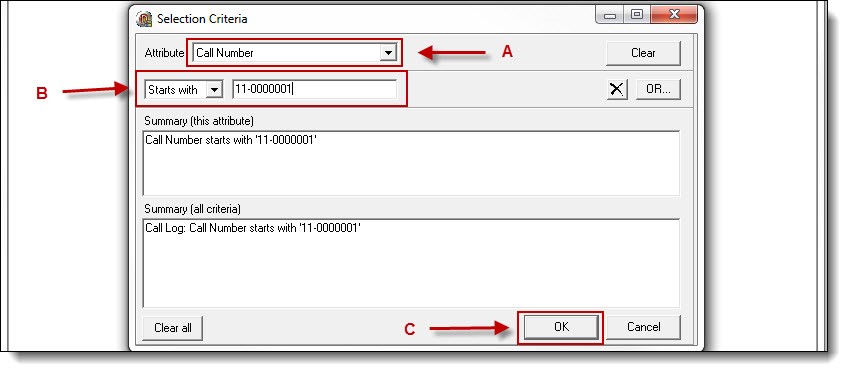
11. Select a choice from the Attribute drop down list (A), enter the search criteria (B), and then click the “OK” button ( C ).
 !Did You Know?
- Virtually every field within the call is available as an attribute in an Advanced Search. (Including call notes)
- Users can create multiple layers Call Log searches by selecting several attributes and using the and/or functions in the Advanced Search window.
Was this article helpful?
That’s Great!
Thank you for your feedback
Sorry! We couldn't be helpful
Thank you for your feedback
Let us know how can we improve this article!
Feedback sent
We appreciate your effort and will try to fix the article
X