
The Department Information of the System Default section is where ARMS keeps the basic information about the department. Users can modify Department information whenever required.
To navigate to this section :
Step 1: Go to the Additional button from Side Menu and click on Setup.
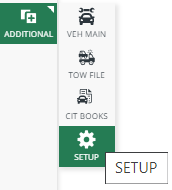
Figure 1 Setup Menu Location
Step 2: Select System Defaults from the options.
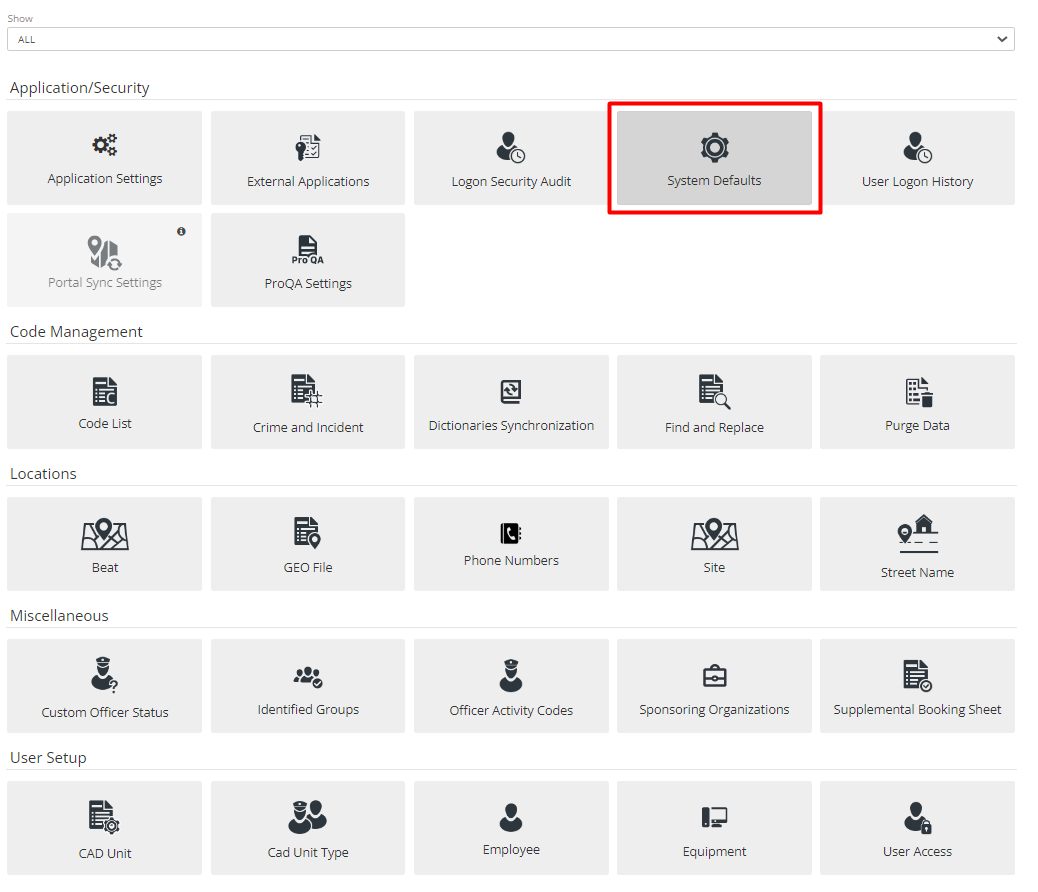
Figure 2 System Defaults
Step 3: The System Default screen will now be displayed for you to perform the desired action(s).
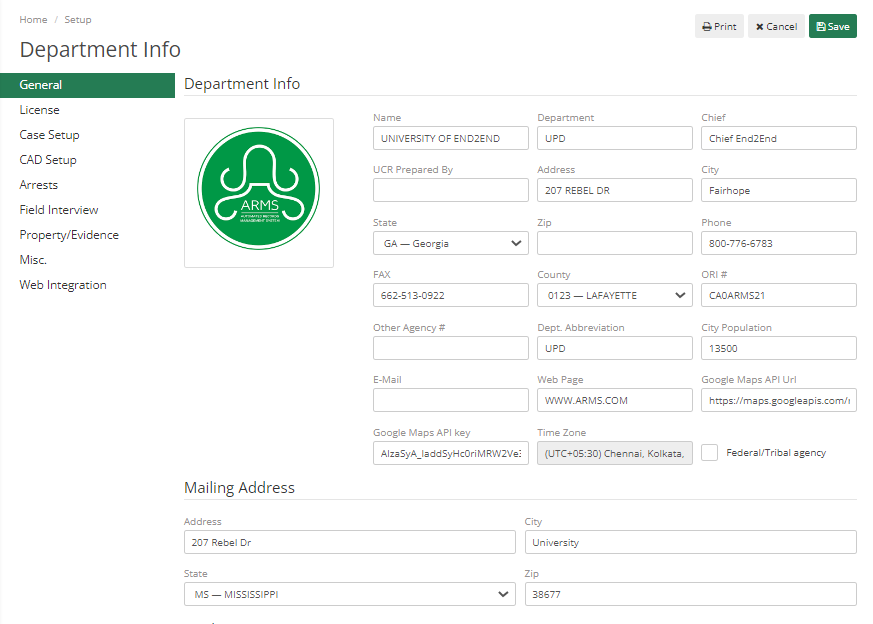
Figure 3 Department Info
The fields in this section are; Name (full name of the department/school), Department, Department Chief, UCR Prepared By, Department/School’s Address, City, State, Zip Code, Phone number, Fax number, County, ORI Number, any Other Agency Number, Department’s Abbreviation, City Population, Department E-mail, Department’s Web Page, Google Maps API URL and API key, Time Zone, and Mailing Address.
Media Settings - In this section, the Admins can modify the maximum file size that an Officer can attach to the case. The default setting for this is 500 MB.
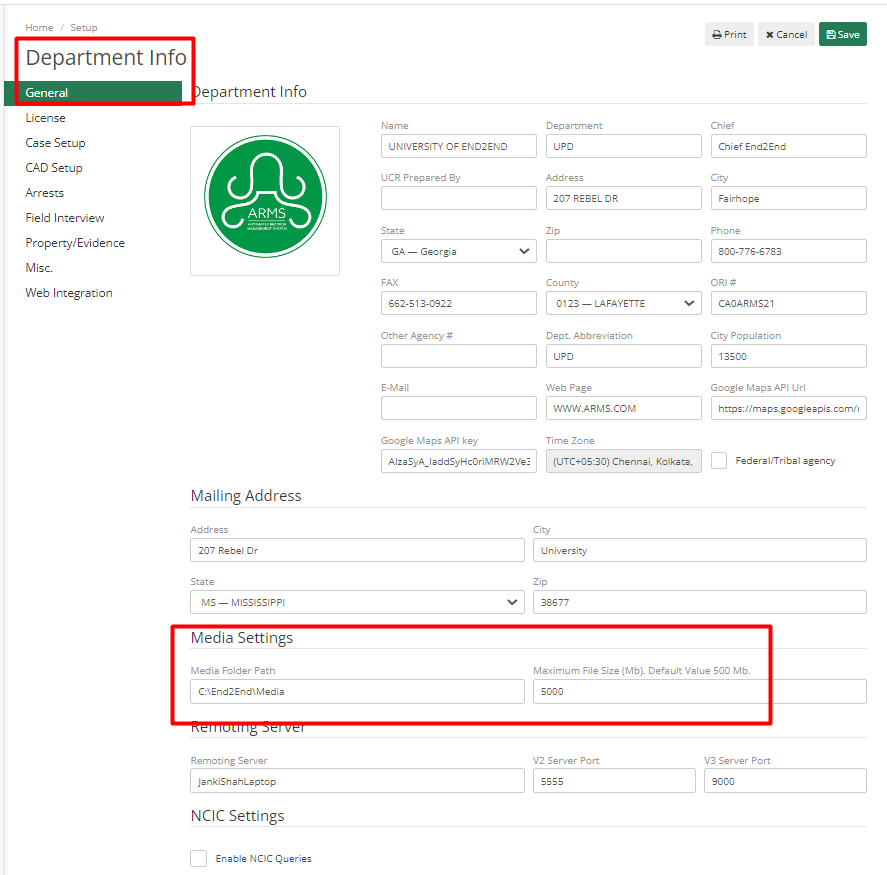
Figure 4 Media Settings
Terms of Use Settings – If the Department wants to display Terms of Use to all their employees on the Login Page, they can enable it by checking the “Enable Terms of Use on Login screen” checkbox. The Admin can make it mandatory for Employees to log in by accepting terms by checking the “Requires user to agree to Terms of use” checkbox. Text can be modified as per the requirement of the Department.
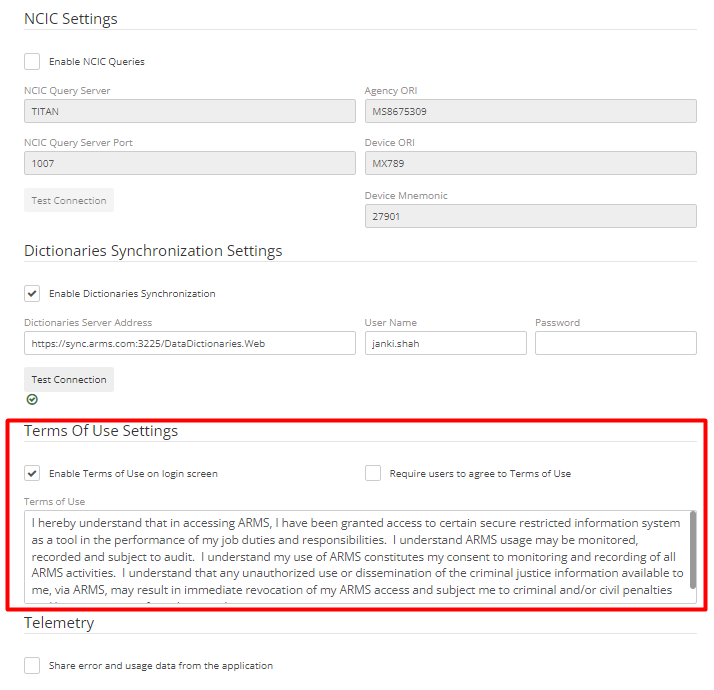
Figure 5 Terms of Use Settings
Users can add a departmental image, or change it, by clicking on the image area and selecting the edit icon. User can then add their desired image from the file explorer.
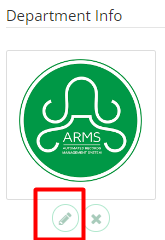
Figure 6 Department Badge
This badge, along with the Name of the business or school and Department will show up at the top of any reports that print from ARMS.
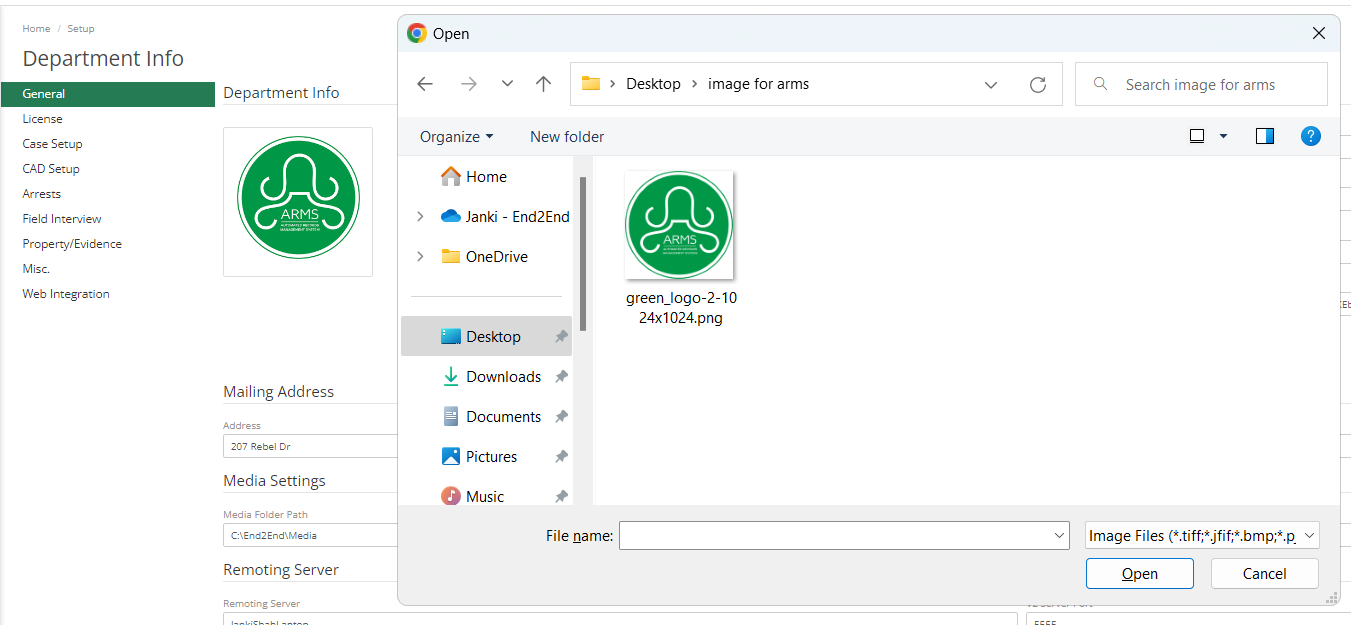
Figure 7 Change Department Badge