
CAD Examples
CAD can be used in many ways, and it is up to the Dispatcher to add as many or as few details to the calls received. Below are some examples of potential ways that CAD can be used.
1. A CAD event can be saved without assigning an officer to the call, or having any information entered into the Call Details area. In this case, all that exists in the ARMS database is the CAD event number and the date that the CAD event was created. Entering a call in this manner might be useful if the caller has been put on hold and no details are known about the call yet.
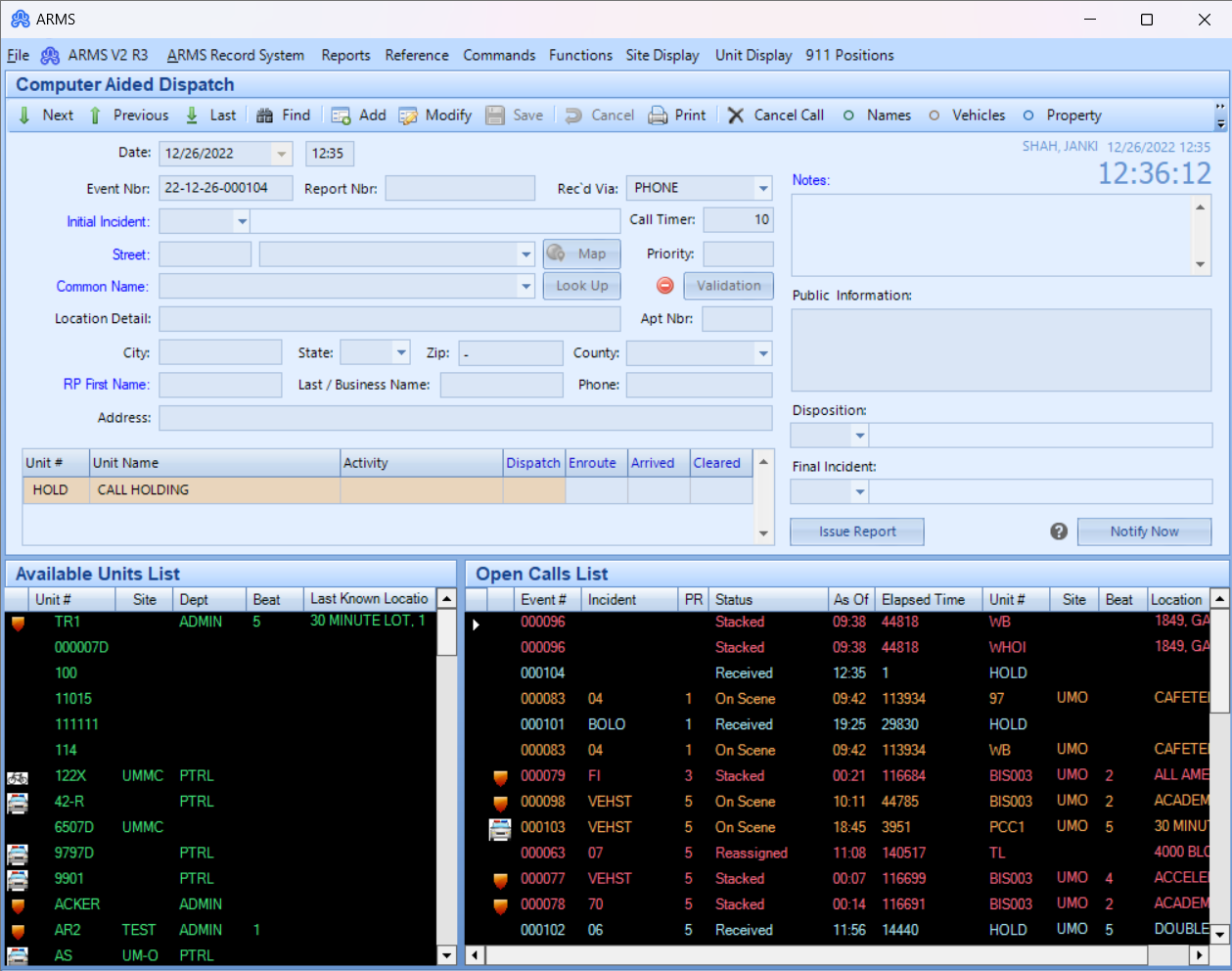
2. In the screenshot below some of the call details have been recorded and saved, a CAD event number has been given, but an officer has not been assigned to the call yet. In the Officer Assignment Area, the Unit # and Officer Name are “HOLD” and “CALL HOLDING” respectively, indicating that an officer has not been assigned. A yellow arrow along the left side of the Open Calls List indicates which call is currently being displayed in the Call Details area.
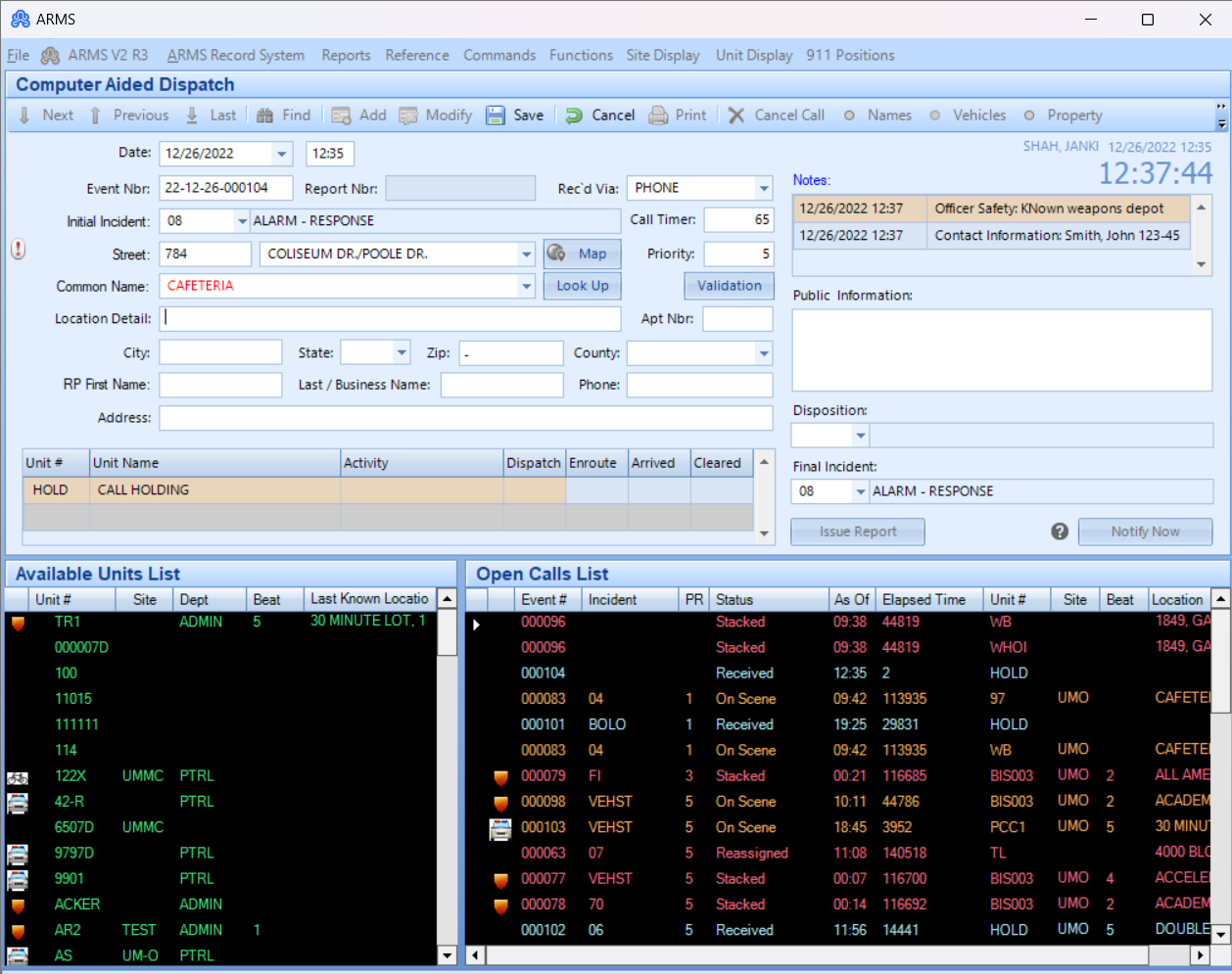
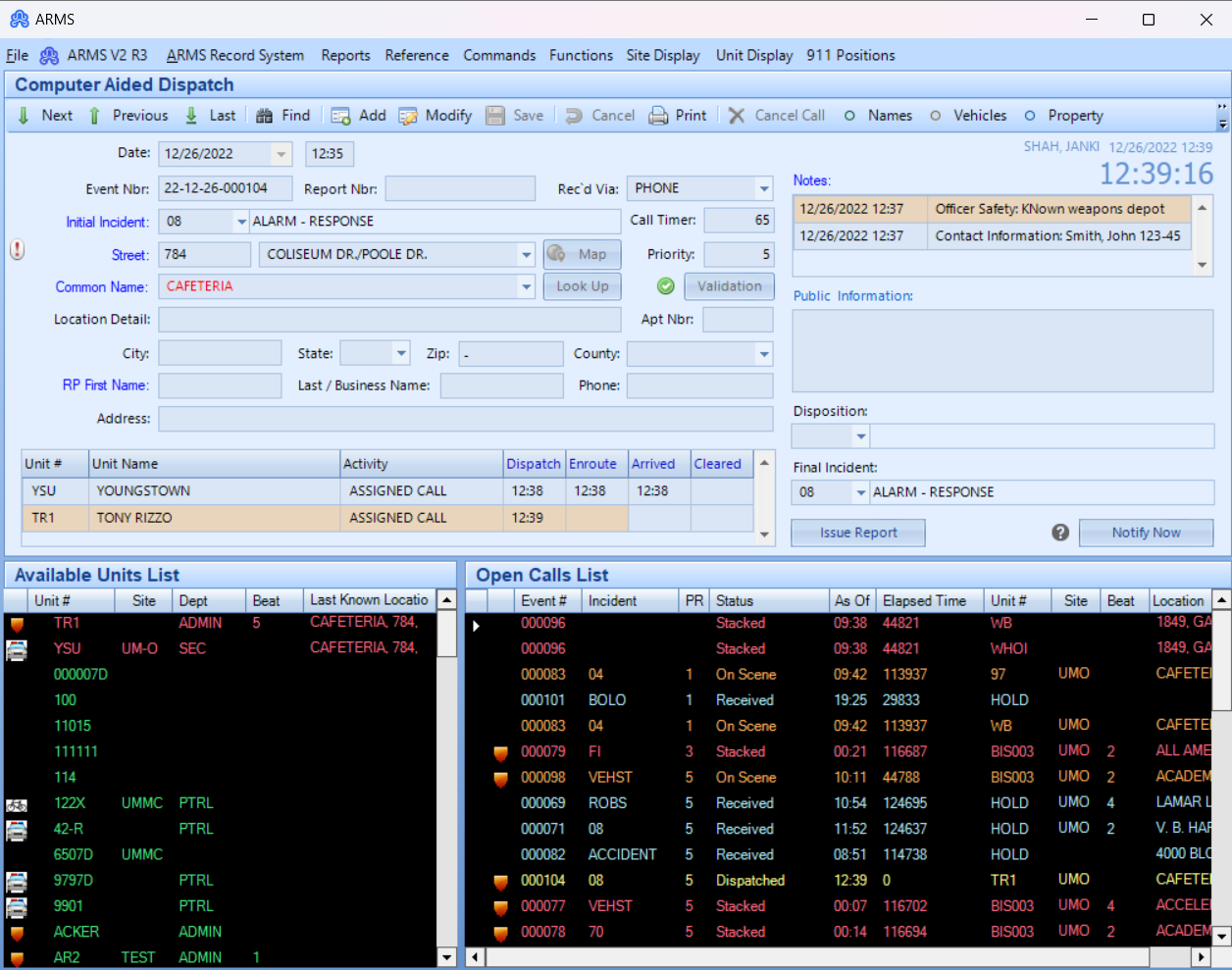
3. The screen shot below shows the same call as the previous, but now two officers have been added to the call. Their names are shown in the Officer Activity Area and the call is now being show as “On Scene” under the Status column of the Open Calls List.
4. CAD also can stack calls, which means that a single officer can be assigned to multiple calls. An officer that is stacked on calls will have to be cleared in the order that he was stacked.
In the screenshot below unit C2 has been stacked on call 17-01-25-000060. The Open Calls List displays stacked calls in red. Also in this call, a case report has been issued by clicking on the Issue Report check box. Once a report has been issued the Report Nbr. field will be filled out.

Stacked Calls
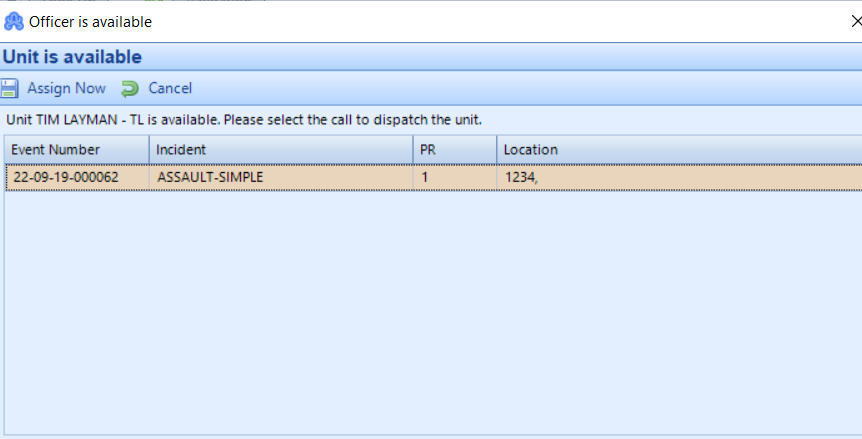
ARMS gives dispatchers the ability to stack calls. A Stacked call is assigning a call to a unit already responding to a call.
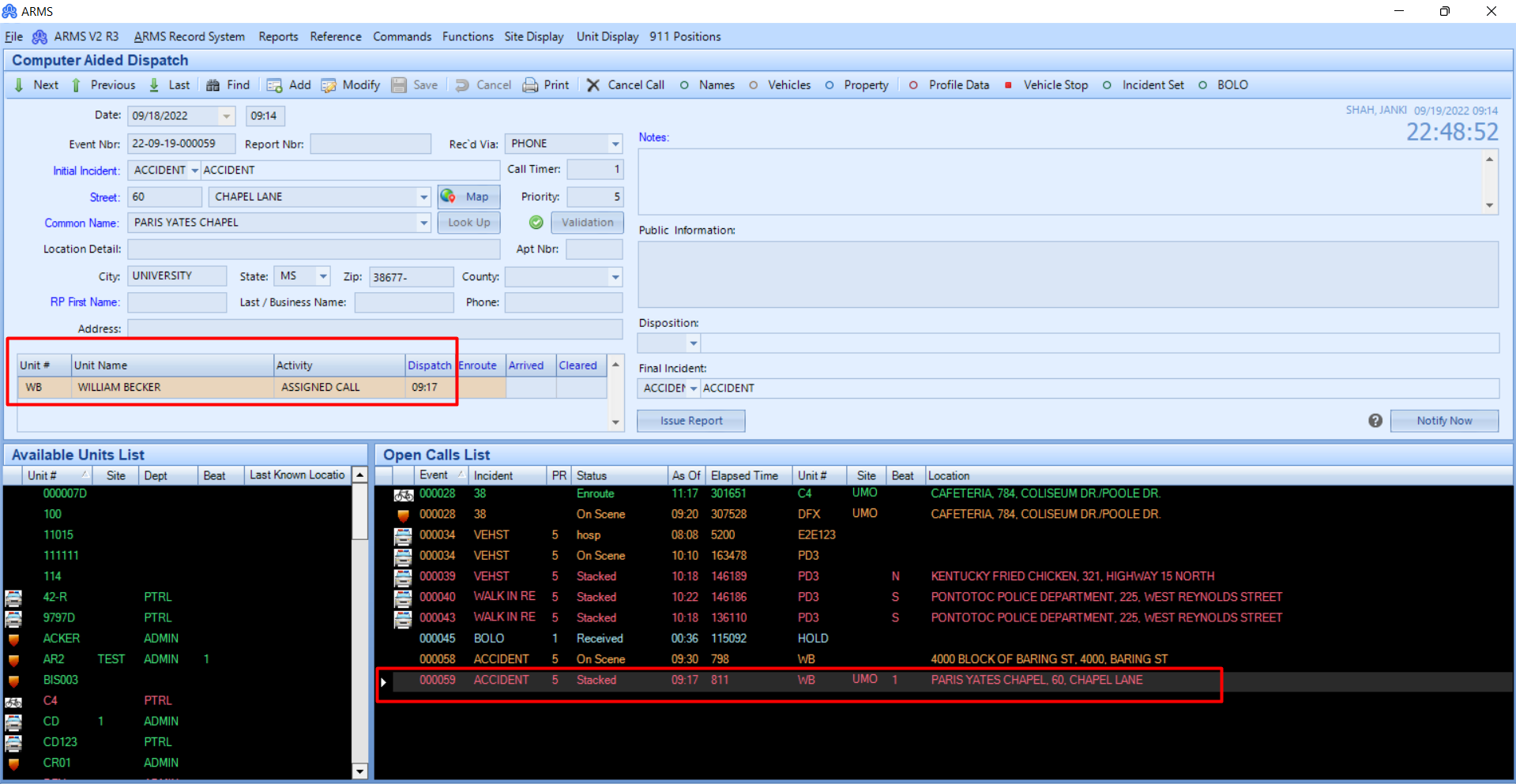
When a dispatcher adds two calls to the same unit after one call is marked as cleared and Report Taken, a popup is displayed. It indicates that that unit is now available and can be assigned to the next stacked call.
Reassigned Calls
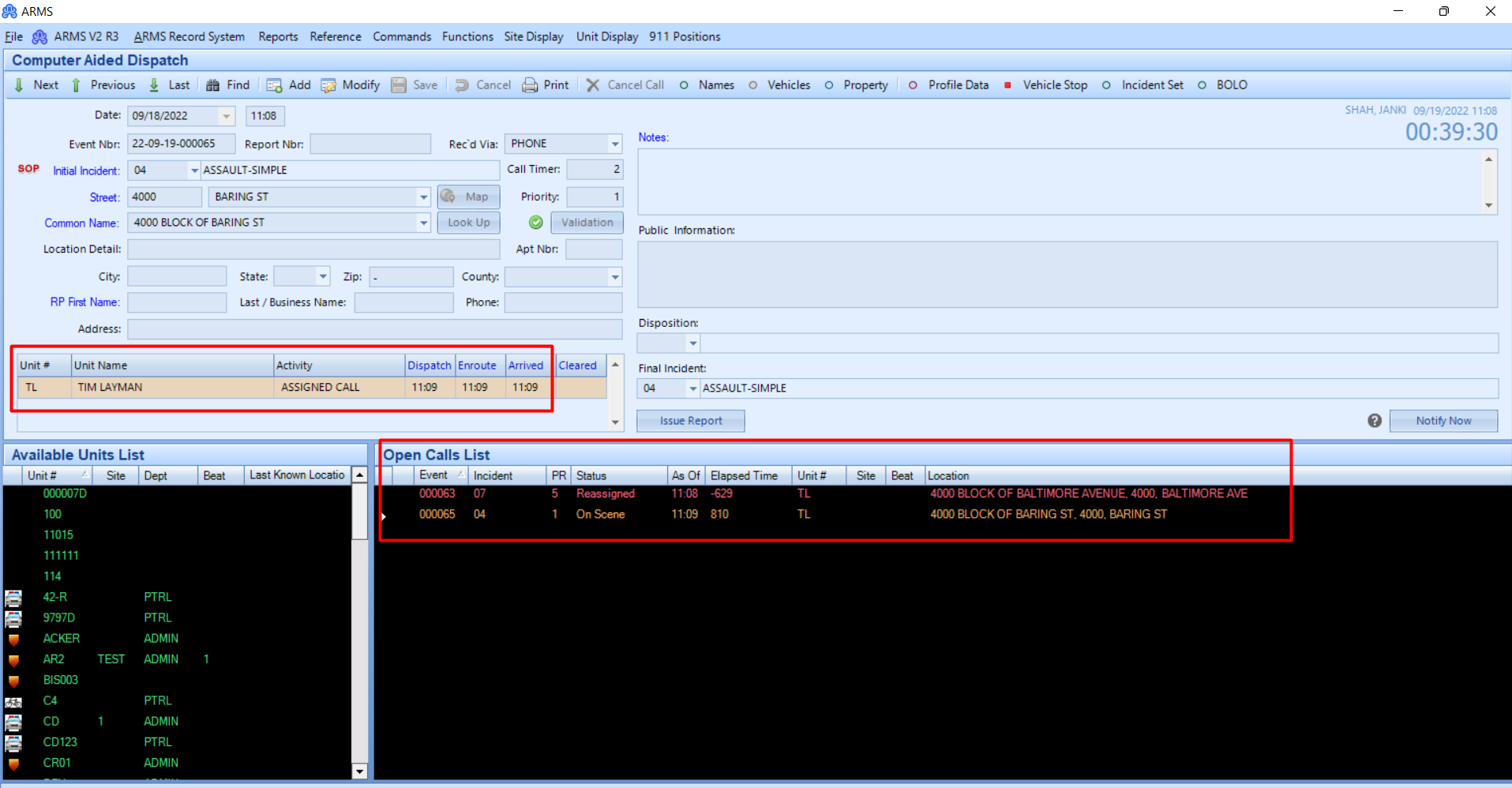
ARMS gives dispatchers the ability to reassign calls. A reassigned call is assigning a call to an officer already responding to a different call. They can order the calls based on priority.
To do so, the dispatcher can assign a new call to an officer responding to a call who will be added to the reassigned call.
Incident Sets
Incident Sets are groups of CAD Incidents that are related either through one event that took place over multiple CAD incidents or as a grouping of CAD Incidents.
An example of an event that may have multiple CAD Incidents is a bomb threat. This event can have the entire department responding across multiple locations and incidents (traffic control, evacuation, bomb search, etc.). By grouping the incidents using the Incident sets functionality administrators can quickly go through all the related incidents without having to search through incidents before and after the event. As each incident can have one report associated with the event, multiple case reports for the event can be issued for the complete incident set. The administrators can then use the Incident Set Management window found under the CAD Functions menu to print the selected set and review the case numbers for the incident set.
Alternatively, departments can use the incident sets to help track frequently occurring events such as building unlocks. By using the Incident Set Management window dispatchers can quickly navigate through all the linked events and see if a building has already been unlocked or if it still needs to be unlocked.