---
title: 12.0 Dictionaries Synchronization
description: 12.0 Dictionaries Synchronization
---
[Skip to content](https://kb.arms.com/arms/12.0-dictionaries-synchronization#main-content)
English
Show submenu for translations

Open main navigation
Close main navigation
- English
Show submenu for translations
- [Customer Portal](https://helpdesk.arms.com/tickets)
[Customer Portal](https://helpdesk.arms.com/tickets?hsLang=en)
How can we help you?
- There are no suggestions because the search field is empty.
1. [ARMS](https://kb.arms.com/arms?hsLang=en)
2. [Officer](https://kb.arms.com/arms/officer?hsLang=en)
3. [ARMS Mobile Admin Workbook](https://kb.arms.com/arms/officer?hsLang=en#arms-mobile-admin-workbook)
# 12.0 Dictionaries Synchronization
Dictionary Synchronization will let Admins synchronize some of their codes in the Code List to match the universal NCIC codes.
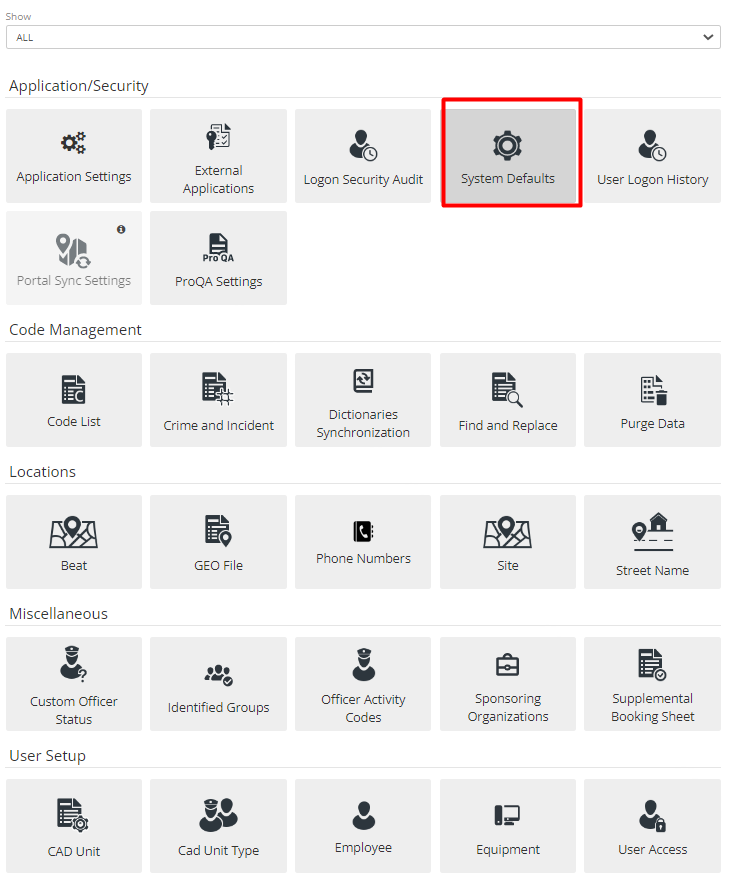
Figure 1 System Default Menu
To enable Dictionary Synchronization, go to the System Default tab in the Setup Menu and scroll down to Dictionary Synchronization Settings and Enable it by selecting the checkbox.
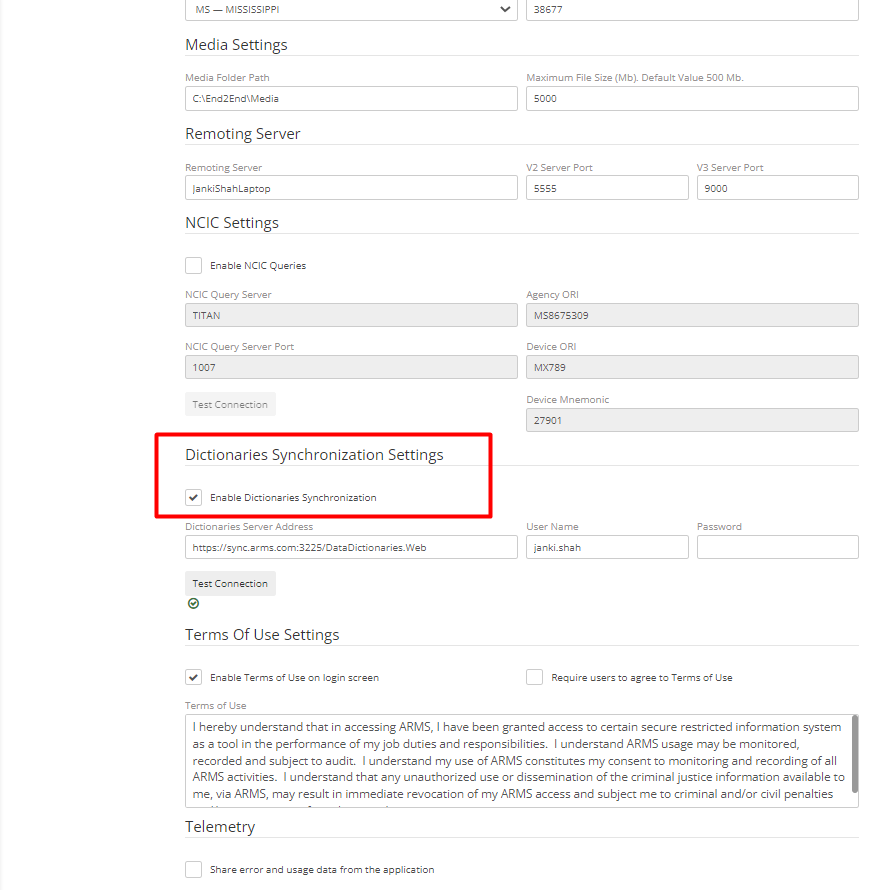
Figure 2 Dictionary Synchronization Settings
After enabling Dictionary Synchronization Settings, the department will need to get their Server Address, Username, and Password from the ARMS team.
The department will need to contact the ARMS support team to get help in setting up and testing the connection. To connect with the server, the IT team of the department must make sure that port 3224 is open to pull dictionary synchronization data from ARMS Server. It will pull standardized codes in the system.
NOTE: The port is no longer needed in the Address, remove the ":3224" or ":3225" from that Address now.
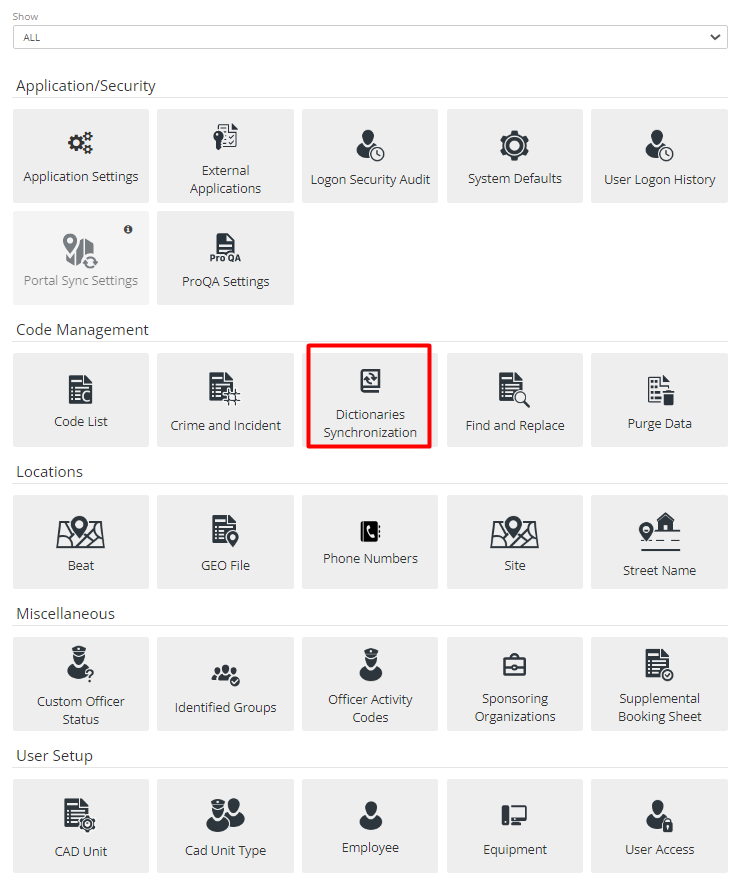
Figure 3 Dictionary Synchronization Menu
After checking the connection, go to Dictionary Synchronization tab in Setup Menu.
This tab will show a list of Codes that have available updates. Click on Refresh to check if any Update is available and click on the Show Updates only button to display only the list of codes that requires an update. Hit Update to Update to Standardized code.
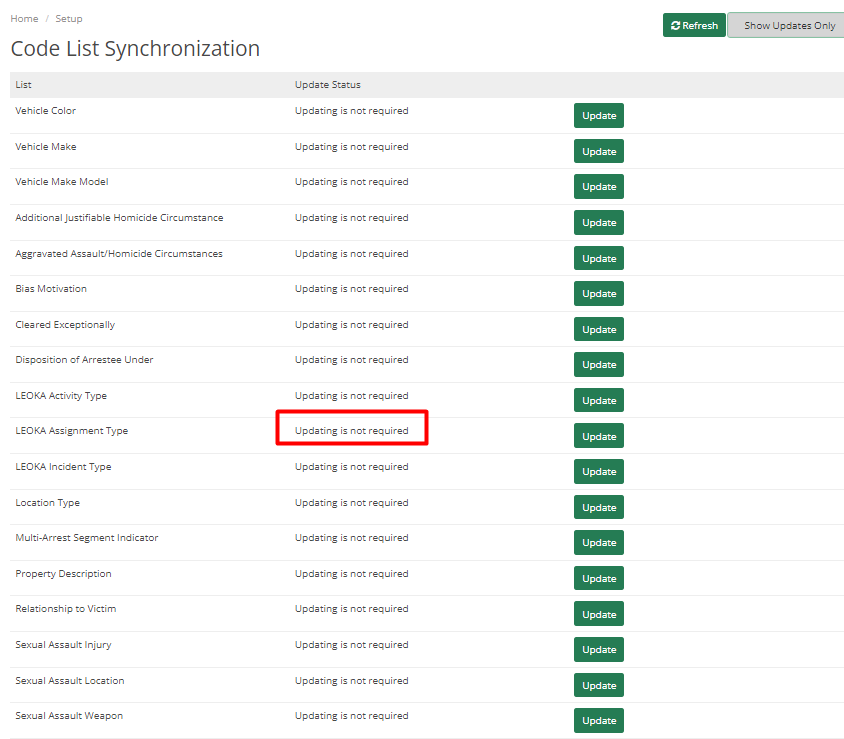
Figure 4 Code List Synchronization
When an Admin selects the Update button for whichever codes they would like to update, it will update and if there are any conflicts, the Conflicts Resolving page will pop up.
This page will show user codes that are like the NCIC standardized codes, but not exact, and shows what the NCIC standard code that is like code is. The User can choose to create a new code and keep the existing code Active, create new code and make the existing code Inactive, update the existing code, or go through each code manually here and decide one by one.
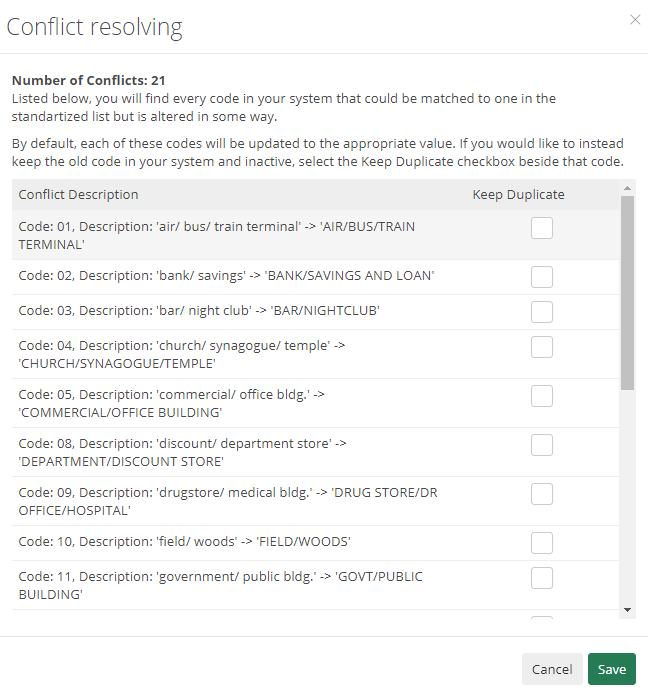
Figure 5 Conflict Page
When an Admin clicks save, they will have to go through the list and select whether they would like to update the code, make it inactive, or leave it as is.
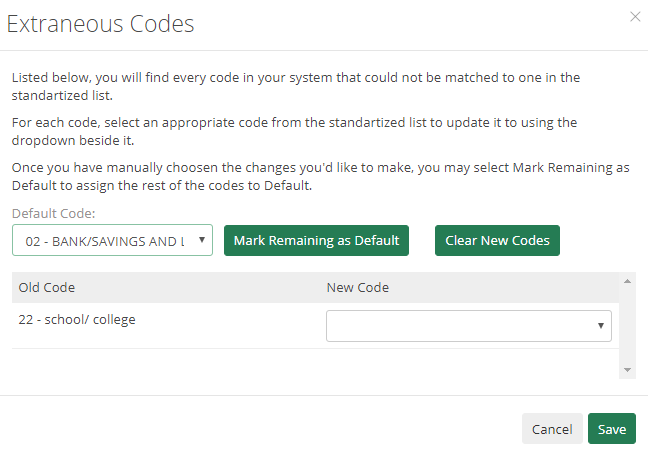
Figure 6 Extraneous Codes
After clicking OK, the Admin will be brought to another Conflict Resolving page that shows any codes that are not like any NCIC standard codes. Here they can choose to keep the existing codes Active, make the existing codes Inactive, or go through each code manually here and decide one by one.
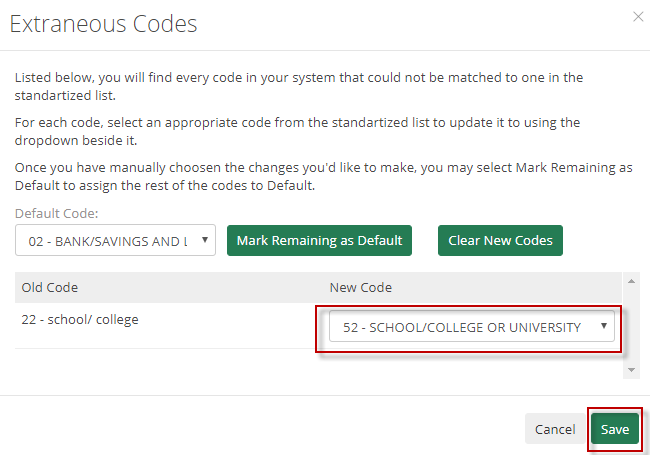
Figure 7 Manual Extraneous Codes
Afterwards an Attention page will pop up making sure User are ready to begin the synchronization.
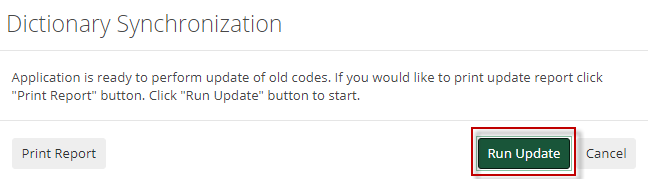
Figure 8 Attention Page
After the updating process is done, the Admin will get another message letting them know it is complete.

Figure 9 Message
- [Administrator](https://kb.arms.com/arms/administrator?hsLang=en#main-content)
- [Administrator Documents](https://kb.arms.com/arms/administrator?hsLang=en#administrator-documents)
- [Administrator FAQs - Error Messages/Troubleshooting](https://kb.arms.com/arms/administrator?hsLang=en#administrator-faqs-error-messages-troubleshooting)
- [Administrator FAQs - Feature Questions](https://kb.arms.com/arms/administrator?hsLang=en#administrator-faqs-feature-questions)
- [Administrator FAQs - Setup](https://kb.arms.com/arms/administrator?hsLang=en#administrator-faqs-setup)
- [Dispatcher](https://kb.arms.com/arms/dispatcher?hsLang=en#main-content)
- [ARMS WebCAD Workbook](https://kb.arms.com/arms/dispatcher?hsLang=en#arms-webcad-workbook)
- [ARMS CAD Workbook](https://kb.arms.com/arms/dispatcher?hsLang=en#arms-cad-workbook)
- [Dispatcher Documents](https://kb.arms.com/arms/dispatcher?hsLang=en#dispatcher-documents)
- [Dispatcher FAQs - Error Messages/Troubleshooting](https://kb.arms.com/arms/dispatcher?hsLang=en#dispatcher-faqs-error-messages-troubleshooting)
- [Dispatcher FAQs - Feature Questions](https://kb.arms.com/arms/dispatcher?hsLang=en#dispatcher-faqs-feature-questions)
- [Officer](https://kb.arms.com/arms/officer?hsLang=en#main-content)
- [ARMS Mobile - CAD Workbook](https://kb.arms.com/arms/officer?hsLang=en#arms-mobile-cad-workbook)
- [ARMS Mobile - Case Management Workbook](https://kb.arms.com/arms/officer?hsLang=en#arms-mobile-case-management-workbook)
- [ARMS Mobile - Home Screen Workbook](https://kb.arms.com/arms/officer?hsLang=en#arms-mobile-home-screen-workbook)
- [ARMS Mobile Admin Workbook](https://kb.arms.com/arms/officer?hsLang=en#arms-mobile-admin-workbook)
- [Officer Documents](https://kb.arms.com/arms/officer?hsLang=en#officer-documents)
- [Officer FAQs - Case Management](https://kb.arms.com/arms/officer?hsLang=en#officer-faqs-case-management)
- [Officer FAQs - Photos and Media](https://kb.arms.com/arms/officer?hsLang=en#officer-faqs-photos-and-media)
- [NIBRS](https://kb.arms.com/arms/nibrs?hsLang=en#main-content)
- [NIBRS Documents](https://kb.arms.com/arms/nibrs?hsLang=en#nibrs-documents)
- [NIBRS FAQs - Error Messages/Troubleshooting](https://kb.arms.com/arms/nibrs?hsLang=en#nibrs-faqs-error-messages-troubleshooting)
- [NIBRS Videos](https://kb.arms.com/arms/nibrs?hsLang=en#nibrs-videos)
- [NIBRS Workbook](https://kb.arms.com/arms/nibrs?hsLang=en#nibrs-workbook)
- [Clery](https://kb.arms.com/arms/clery?hsLang=en#main-content)
- [Clery Workbook](https://kb.arms.com/arms/clery?hsLang=en#clery-workbook)
- [Statistical Reporting](https://kb.arms.com/arms/statistical-reporting?hsLang=en#main-content)
- [Dashboard Workbook](https://kb.arms.com/arms/statistical-reporting?hsLang=en#dashboard-workbook)
- [Maxient Workbook](https://kb.arms.com/arms/statistical-reporting?hsLang=en#maxient-workbook)
- [Notification Manager FAQs](https://kb.arms.com/arms/statistical-reporting?hsLang=en#notification-manager-faqs)
- [Notification Manager Workbook](https://kb.arms.com/arms/statistical-reporting?hsLang=en#notification-manager-workbook)
- [Profile Data FAQs](https://kb.arms.com/arms/statistical-reporting?hsLang=en#profile-data-faqs)
- [Profile Data Workbook](https://kb.arms.com/arms/statistical-reporting?hsLang=en#profile-data-workbook)
- [Property/Evidence FAQs](https://kb.arms.com/arms/statistical-reporting?hsLang=en#property-evidence-faqs)
- [Property/Evidence Workbook](https://kb.arms.com/arms/statistical-reporting?hsLang=en#property-evidence-workbook)
- [Report Center Documents](https://kb.arms.com/arms/statistical-reporting?hsLang=en#report-center-documents)
- [Report Center FAQs](https://kb.arms.com/arms/statistical-reporting?hsLang=en#report-center-faqs)
- [UCR Documents](https://kb.arms.com/arms/statistical-reporting?hsLang=en#ucr-documents)
- [Vehicle Maintenance Workbook](https://kb.arms.com/arms/statistical-reporting?hsLang=en#vehicle-maintenance-workbook)
- [Parking](https://kb.arms.com/arms/parking?hsLang=en#main-content)
- [Internal Parking Documents](https://kb.arms.com/arms/parking?hsLang=en#internal-parking-documents)
- [Parking Administrator Document](https://kb.arms.com/arms/parking?hsLang=en#parking-administrator-document)
- [Parking Documents](https://kb.arms.com/arms/parking?hsLang=en#parking-documents)
- [Parking End User Documents](https://kb.arms.com/arms/parking?hsLang=en#parking-end-user-documents)
- [Parking FAQs](https://kb.arms.com/arms/parking?hsLang=en#parking-faqs)
- [Release Notes](https://kb.arms.com/arms/parking?hsLang=en#release-notes)
- [Webinars](https://kb.arms.com/arms/webinars?hsLang=en#main-content)
- [Administrator](https://kb.arms.com/arms/webinars?hsLang=en#administrator)
- [Clery](https://kb.arms.com/arms/webinars?hsLang=en#clery)
- [Dispatcher](https://kb.arms.com/arms/webinars?hsLang=en#dispatcher)
- [IT Support](https://kb.arms.com/arms/webinars?hsLang=en#it-support)
- [Miscellaneous](https://kb.arms.com/arms/webinars?hsLang=en#miscellaneous)
- [NIBRS](https://kb.arms.com/arms/webinars?hsLang=en#nibrs)
- [Officer](https://kb.arms.com/arms/webinars?hsLang=en#officer)
- [Parking](https://kb.arms.com/arms/webinars?hsLang=en#parking)
- [Statistical Reporting](https://kb.arms.com/arms/webinars?hsLang=en#statistical-reporting)
- [Miscellaneous](https://kb.arms.com/arms/miscellaneous?hsLang=en#main-content)
- [Release Notes](https://kb.arms.com/arms/miscellaneous?hsLang=en#release-notes)
- [ARMS User Training Conferences](https://kb.arms.com/arms/miscellaneous?hsLang=en#arms-user-training-conferences)
- [Internal](https://kb.arms.com/arms/miscellaneous?hsLang=en#internal)
- [Support Docs](https://kb.arms.com/arms/miscellaneous?hsLang=en#support-docs)
- [IT Support](https://kb.arms.com/arms/it-support?hsLang=en#main-content)
- [Internal IT Support Documents](https://kb.arms.com/arms/it-support?hsLang=en#internal-it-support-documents)
- [IT Support Documents](https://kb.arms.com/arms/it-support?hsLang=en#it-support-documents)
- [Internal](https://kb.arms.com/arms/internal?hsLang=en#main-content)
- [Jira Escalation Process and Documents](https://kb.arms.com/arms/internal?hsLang=en#jira-escalation-process-and-documents)
- [Parking Workflows](https://kb.arms.com/arms/internal?hsLang=en#parking-workflows)
- [Administration](https://kb.arms.com/arms/administration?hsLang=en#main-content)
- [Personnel Card](https://kb.arms.com/arms/administration?hsLang=en#personnel-card)
- [Online Bicycle Registration](https://kb.arms.com/arms/online-bicycle-registration?hsLang=en#main-content)
- [Bicycle Registration Workbook](https://kb.arms.com/arms/online-bicycle-registration?hsLang=en#bicycle-registration-workbook)
- [Courtyard - Public Incident Reporting](https://kb.arms.com/arms/courtyard-public-incident-reporting?hsLang=en#main-content)
- [Courtyard Manual](https://kb.arms.com/arms/courtyard-public-incident-reporting?hsLang=en#courtyard-manual)
[mailto:support@arms.com](mailto:support@arms.com)
Copyright © 2026, End2End Public Safety