
Officer Assignment Area
The Officer Assignment Area is where CAD Units can be assigned to a call that is currently being displayed in the CAD interface. By default, when a new CAD event is initiated, there are no officers assigned and the officer assignment area will contain one row with the terms “HOLD” and “CALL HOLDING” in the Unit # and Unit’s Name field, respectively.
|
Text Field |
List Value |
Description |
|
Unit # |
Yes |
The Unit # of the CAD Unit being assigned to the current CAD event. |
|
Unit Name |
No (Read Only) |
The name of the CAD Unit whose unit number has been assigned to the current CAD event. |
|
Activity |
Yes |
The activity of the CAD Unit that is assigned to the current CAD event. |
|
Dispatch |
No |
The time that the call was given the status of “Dispatch” |
|
Arrived |
No |
The time that the call was given the status of “Arrived” |
|
Enroute |
No |
The time that the call was given the status of “Enroute” |
|
Cleared |
No |
The time that the call was given the status of “Cleared” |
Assigning Status Times in the Officer Assignment Area
Status times can be assigned or changed in CAD when the interface is in either add, modify, or read-only mode. When adding or modifying, the time can be entered by either typing the time into the correct column or by typing a “t” into the correct column and pressing the TAB button. Using the t-TAB method for entering time stamps will enter the current system time.
If the CAD is in read-only mode status times can be assigned by clicking on the status hyperlinks above each status column.

Ctrl-R: Print the Current Record
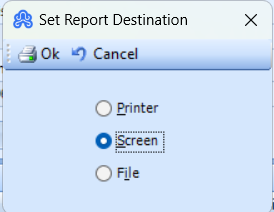
Using Ctrl-R will print out the current record being displayed in the CAD window. After pressing Ctrl-R the user will be prompted to choose the destination of the printing job, either to a known printer, to the screen, or to a file. This same function can be accomplished by using the Command menu and selecting Print.
Ctrl-L: Go to the Last Record
Using Ctrl-L will go to the most recently entered record in CAD.
Final Note about Navigation
ARMS was designed to be intuitive and easy to navigate through. We do our best to keep the average police officer in mind and realize that they have many other activities to learn without having to learn computer commands. We’ve made the Command menu available in every window as well as access to the quick keys.
Simply put, if the user wants to add a record in CAD, use Ctrl-a, modify a record, use Ctrl-m, etc. If the user gets to a position where they don’t know what mode they’re in, then clicking the ESC button is handy.
It will take users out of any mode they are in, and if they’re not in any of the Add, Write, or Modify modes it will close the window.
Also, the yellow text fields DO NOT indicate a required field. This yellow box merely indicates that there are predefined list values associated with that field. These can be obtained by typing a “?” into the field and pressing the TAB button.