
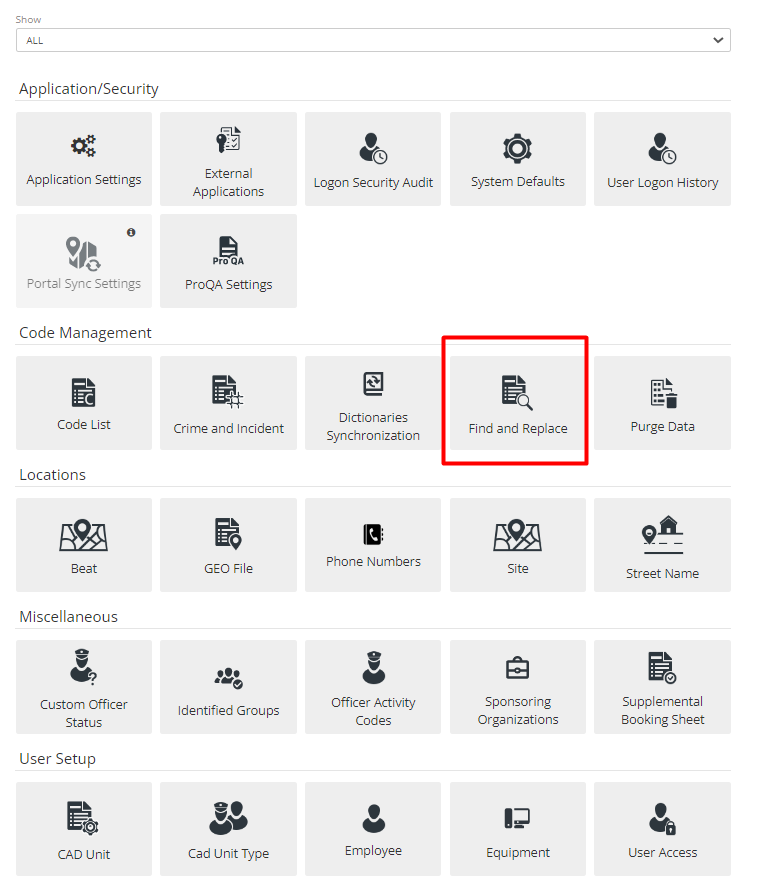
Figure 5 Find and Replace Tab
The Find and Replace section will be helpful if the Department needs a code cleanup or wants to remove code or mark a code as Inactive but requires merging code with another.
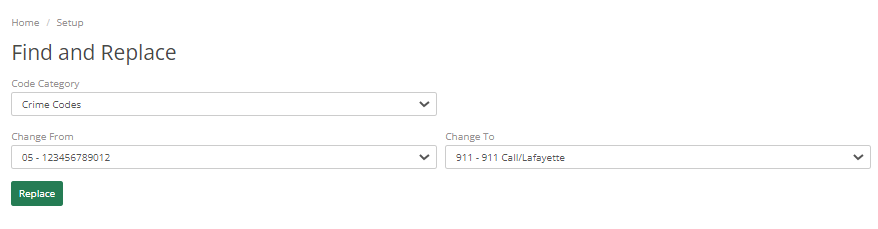
Figure 6 Find and Replace
If the Admin wants to completely delete a code, they will need to use the Find and Replace button, to move historically associated data with the code they want to delete into the code replacing it. So, if users have a code in the list that they would like to delete, they can select that code and then click on Replace button.
The Find and Replace List Values pop-up window will appear. For the List Values for (Category) – (Subcategory), it will populate with whatever code you have selected that you are wanting to delete. The Change these List Values drop-down menu with be where you select the Code you want to change the deleted code values to.
There are certain codes in the system that are called “system codes”. These system codes will appear in bold in the code list. The Code and Description can be modified, but they cannot be deleted.
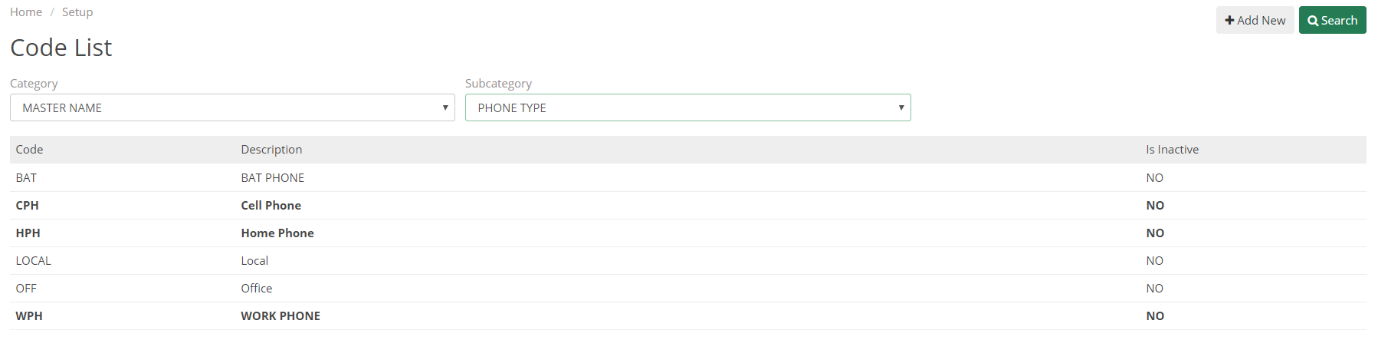
Figure 7 System Code Examples
There are also some codes that will need more setup than the other codes. One example of this is the Vehicle – Vehicle Model category. You will need to associate the Vehicle Models to a Vehicle Make in the system.
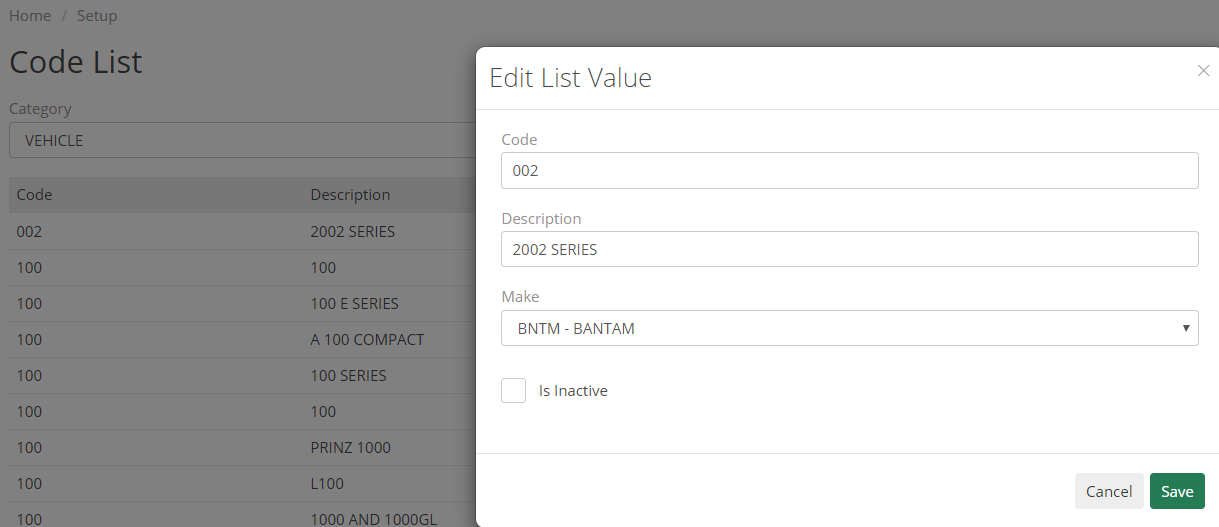
Figure 8 Edit List Value