
Person List
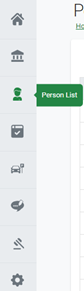
Figure 75 Side Menu >> Person
It displays the list of persons added to the department with different options like Search, Add New Person, Filter, and different viewing options. It displays all users with different user types.
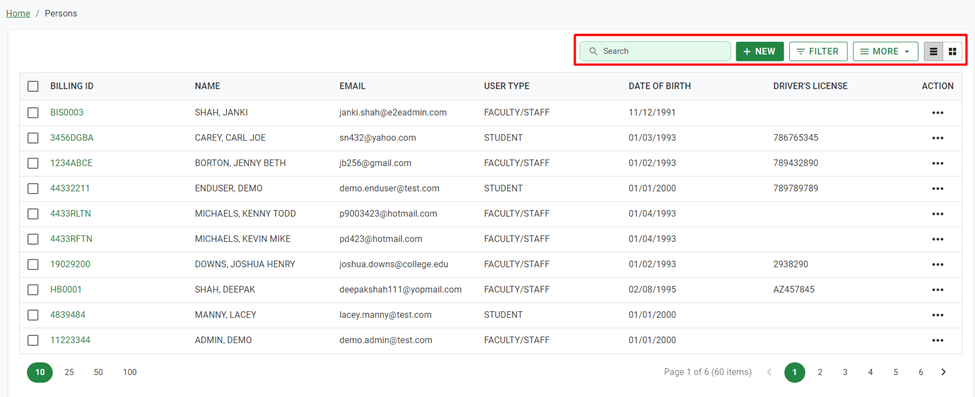
Figure 76 Person List
Search – It allows the admin to search for a person by billing id, Name, Email, User type, Date of birth, and Driving License.

Figure 77 Search Person List
Filter – This option helps the admin filter data using different fields like Billing#, Last Name, First Name, Middle name, Permit#, Classification, User type, Email, DL state, DL#, DOB from, DOB To and Call#.
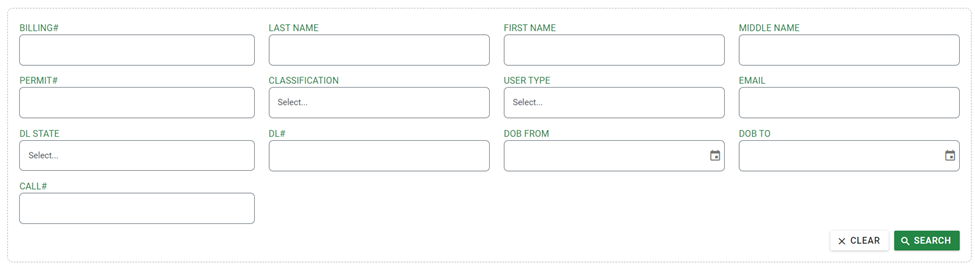
Figure 78 Filter Person List
Display Options – There are two viewing options, List View and Detail View. By default, it displays data in List View.
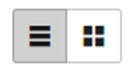
Figure 79 Display Options
The list view displays data in a list format. To view more details of the user one must click the billing id number in green font color.
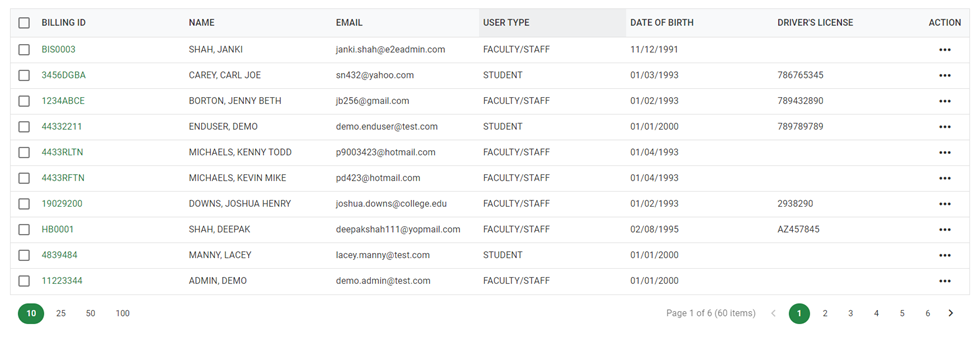
Figure 80 Listing Person in List View
The Detail view displays data in a card format which is convenient for users with a small display screen size. To view more details of the user one must click the billing id number in green font color.
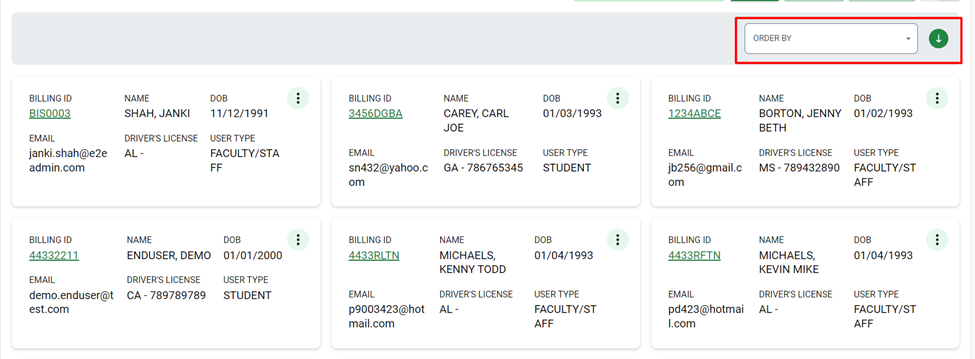
Figure 81 Listing Person in Detail View
In the detail view on the top left corner, there is an order by option that allows the Admin to display data in the order selected.
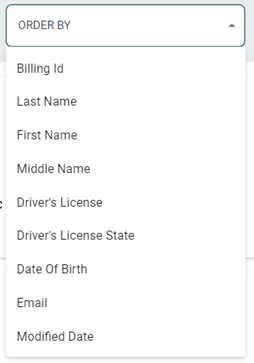
Figure 82 Order By
Other options – Three dots in front of each person’s detail in List View and Detail View display multiple options like View, Edit, Print Receipt, and Delete.
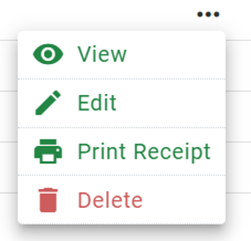
Figure 83 Menu with three dots
More: There are checkboxes in each row, once checkboxes are selected the user can click on More and see options like Merge, Import, Export, and Delete.
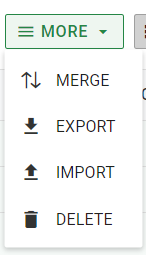
Figure 84 More options in Person