
Import Person Records
Import functionality is a feature that allows users to upload and import multiple sets of data into a system. This allows Admin to import a .csv file to directly add people.
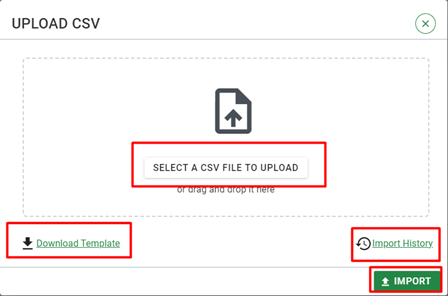
Figure 87 Import Person Records
Download Template:
The download template is an important aspect of the import functionality. It allows users to download a pre-defined template file that outlines the required structure and format of the data to be imported. The template serves as a guideline for users to organize their data in a standardized manner before initiating the import process. By providing a downloadable template, the system ensures that users understand the expected data format and facilitates the efficient preparation of the import data.
Import History:
Import history is a record-keeping mechanism that maintains a log of all the previous imports performed in the system. It tracks the details of each import, such as the date and time of import, the source of the data, and any associated notes or comments. The import history provides a valuable reference for users to track the progress of imports, review past import activities, and ensure data integrity.
The import process typically follows these steps:
- Download Template: Users download the import template, which serves as a structured format for organizing their data.
- Data Preparation: Users populate the template with their data, following the defined structure and format. They can use spreadsheet software like Microsoft Excel or Google Sheets to enter the data.
- Data Validation: Before initiating the import, the system may perform data validation checks to ensure the data is in the correct format and meets any defined criteria or constraints. This validation helps prevent errors and maintain data integrity.
- Import Initiation: Users initiate the import process by uploading the prepared data file into the system. The system parses the data from the file and maps it to the corresponding fields or entities within the system.On Import notification is displayed as below:
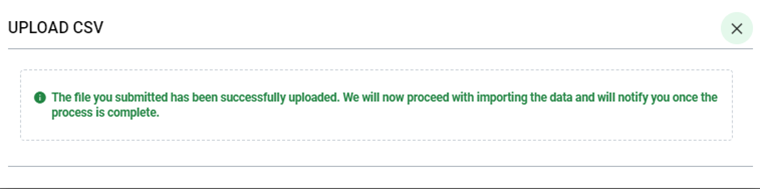
Figure 88 Upload Success Message
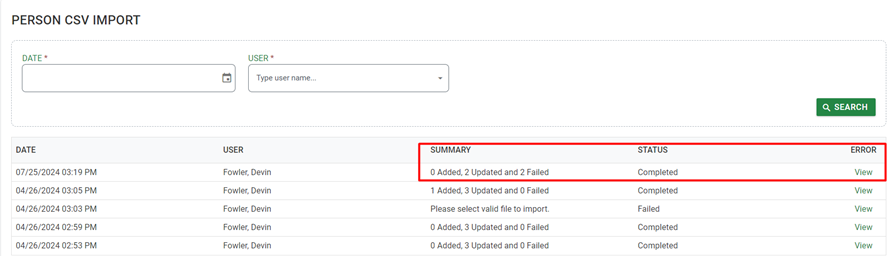
Figure 89 Import History
View link allows user to view import result. It displays errors as shown below:

Figure 90 Person Import Error Log
Delete Records
This option will delete all selected records from the system. Once selected, the Admin will be prompted for confirmation of deletion. Records cannot be recovered after deletion.
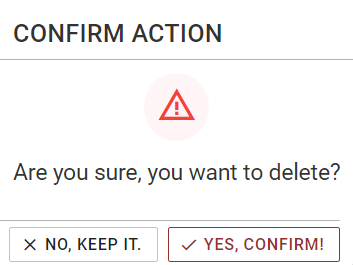
Figure 91 Delete Record confirmation