Vehicle Stop
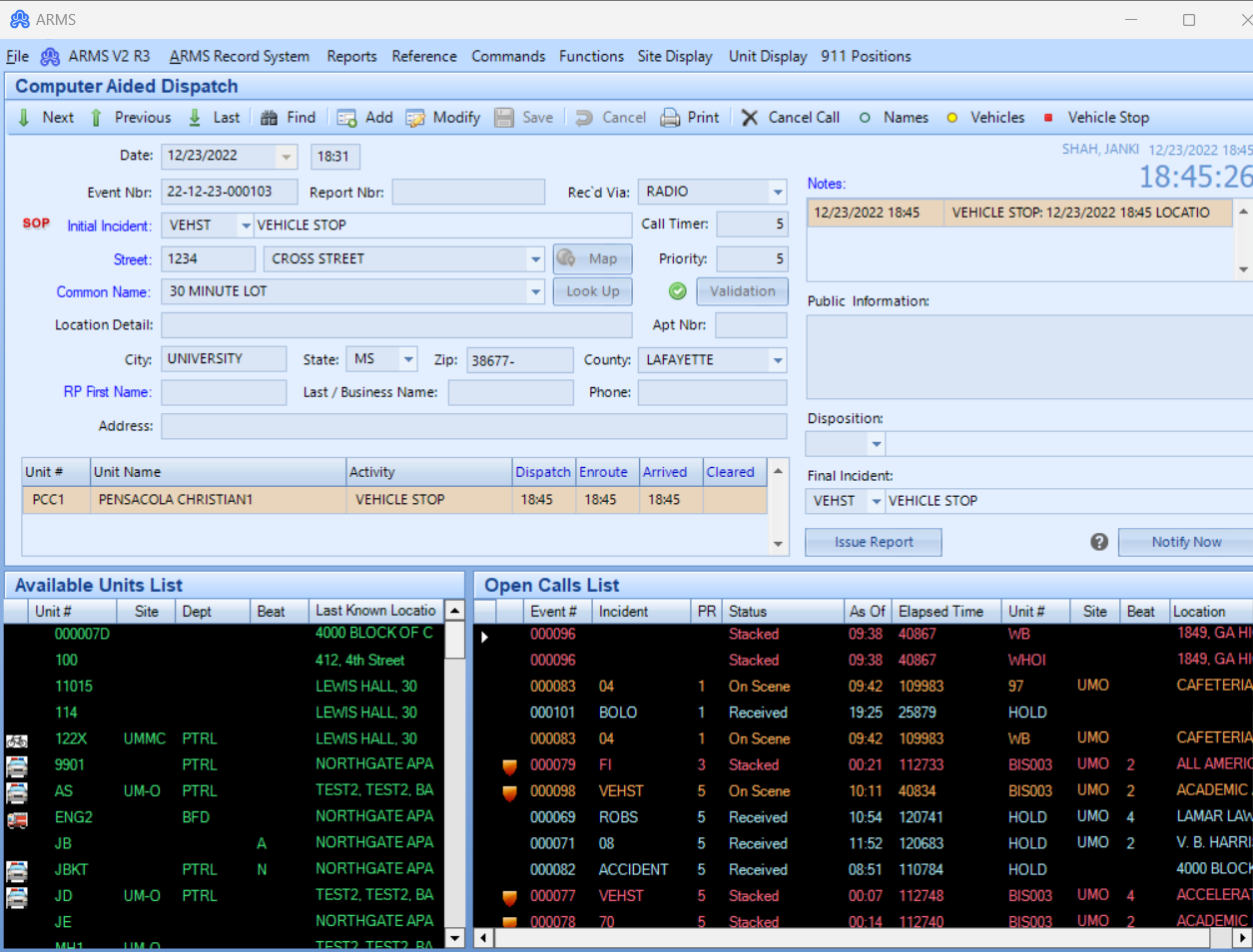
The Vehicle Stop module is to be used when a unit has pulled a vehicle over. It is used for the quick entry of a Vehicle Stop by getting the main information from the stop and entering it into a CAD event automatically.
To create a Vehicle Stop go to CAD and look in the upper right corner and select the Vehicle Stop button. Doing so will open the Vehicle Stop interface in add mode.

Once the Vehicle Stop interface is open the cursor will begin at the top in the Street field. Information can be entered into any of the text fields using the keyboard.
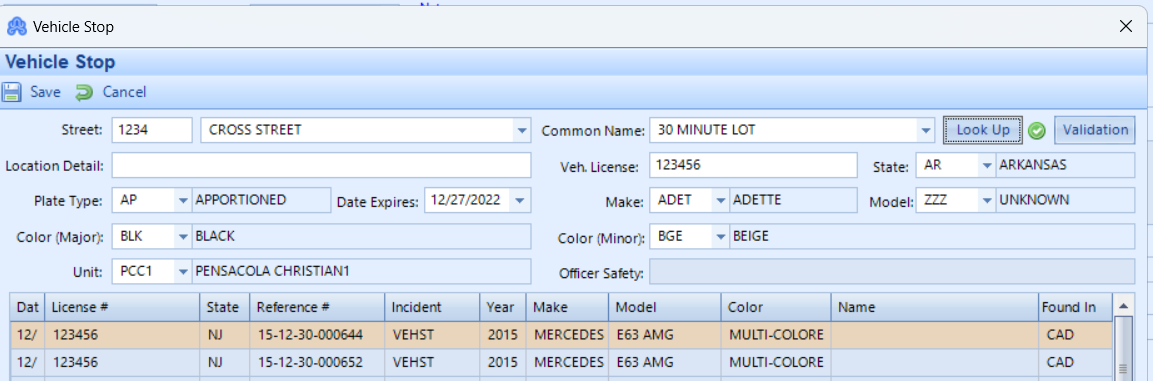
Users can enter a Street number and name, or just select a Common Name and it will fill out those two fields automatically. Then they can enter any Location Details. Next, they will need to enter a Vehicle License and hit the Tab button.
This will pull up any vehicles with that Vehicle License and the user can select the vehicle that has been stopped, it will fill in the fields with the information already in the system, or the user can fill in the fields manually if the vehicle is not yet in the system. Afterward, select the unit that has stopped the vehicle. The user can click the Save button.
Once saved, a CAD event will automatically be created with all the information entered and have the vehicle associated with the CAD event. The officer will already have their times marked for Dispatch, Enroute, and Arrived.