
BOLO’s
BE ON THE LOOKOUT.
A BOLO is an alert bulletin typically for a dangerous person, missing person, stolen vehicle, or another event. The BOLO feature in ARMS allows users to enter all information that has been passed to the department. The department can also attach Involved Parties, Vehicles, Pictures, and Other Media files such as surveillance video or pictures. Each BOLO is entered in ARMS as an incident and has an expiration date that will automatically clear the event. This date is defaulted to 30 days from the creation of the event but can be manually set to a different date. The Print Summary button will pull up a summary list of all BOLOs for the date range selected.
The BOLOs module is to be created by dispatchers to add information that they and the officers need to be on the lookout for and aware of. They can create a BOLO by clicking on the BOLO button in the toolbar and that will create a new CAD event.

The dispatcher can add an expiration date, which will determine when it no longer appears in the BOLO Review, the BOLO type, and the Priority of the BOLO. The BOLO Type default values include Dangerous Person, Missing Person, and Stolen Vehicle, but Dispatchers can add Other values through the Code List. The Priority will determine where the BOLO appears in the Open Call List.
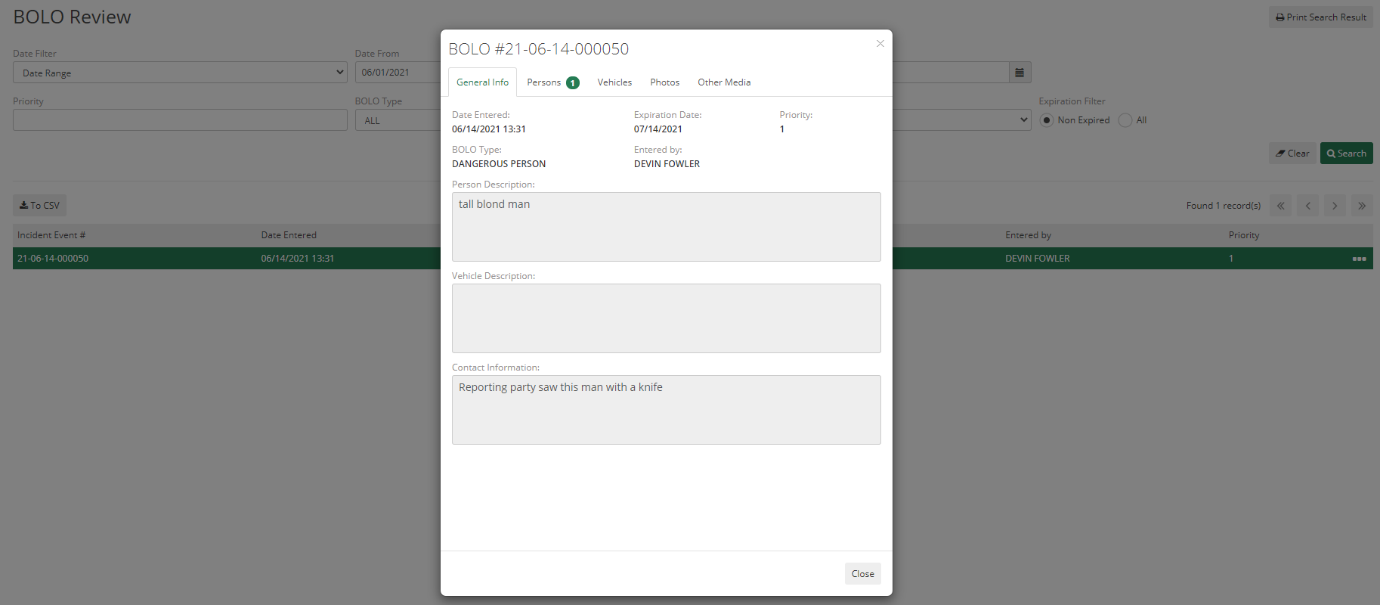
Below the initial information, any text information can be added to the Subject Person Description, Subject Vehicle Description, and Contact Information fields. Then, they can also attach Involved Parties, Vehicles, Photos, and Other Media to the BOLO by saving and right-clicking below the tab they'd like to add to.
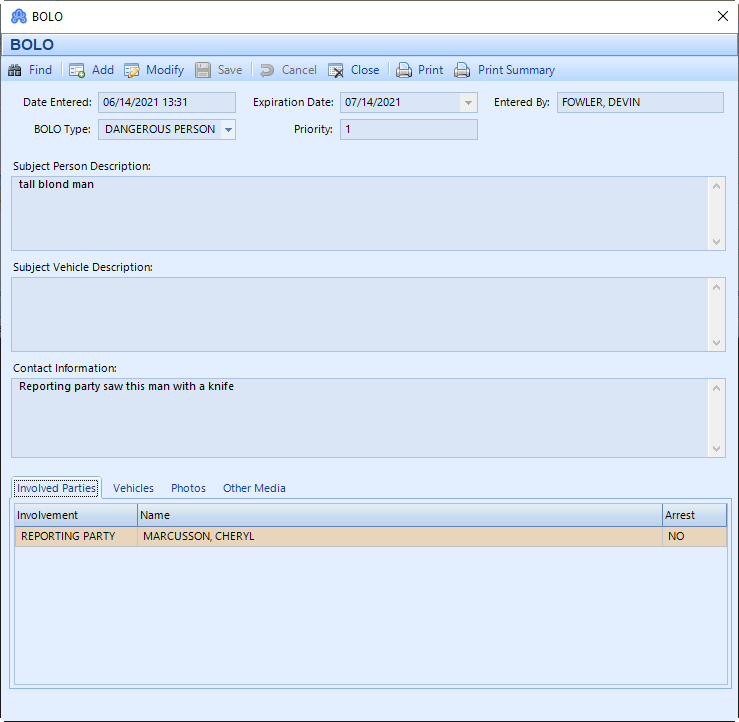
Once added, the BOLO will create a CAD Event which can then be left in the Open Call List, cleared out by adding an officer to the call and clearing, or by choosing Cancel Call. The BOLO will still appear when searching for it until the expiration date is reached or a user modifies it to expire on the present day.
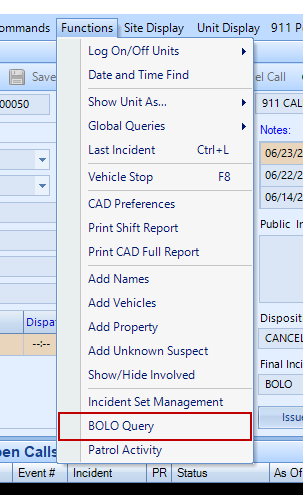
BOLOs can be searched by both Dispatchers and Officers in different modules. The dispatchers can go to Functions, then BOLO Query to search by Date, Priority, BOLO Type, and Non-Expired or All. The Date Filter field allows the dispatcher to search by a date range, but also just based on the last 24, 48, and 72 hours and 7 days. Each can then be selected to view the information below it and even printed.
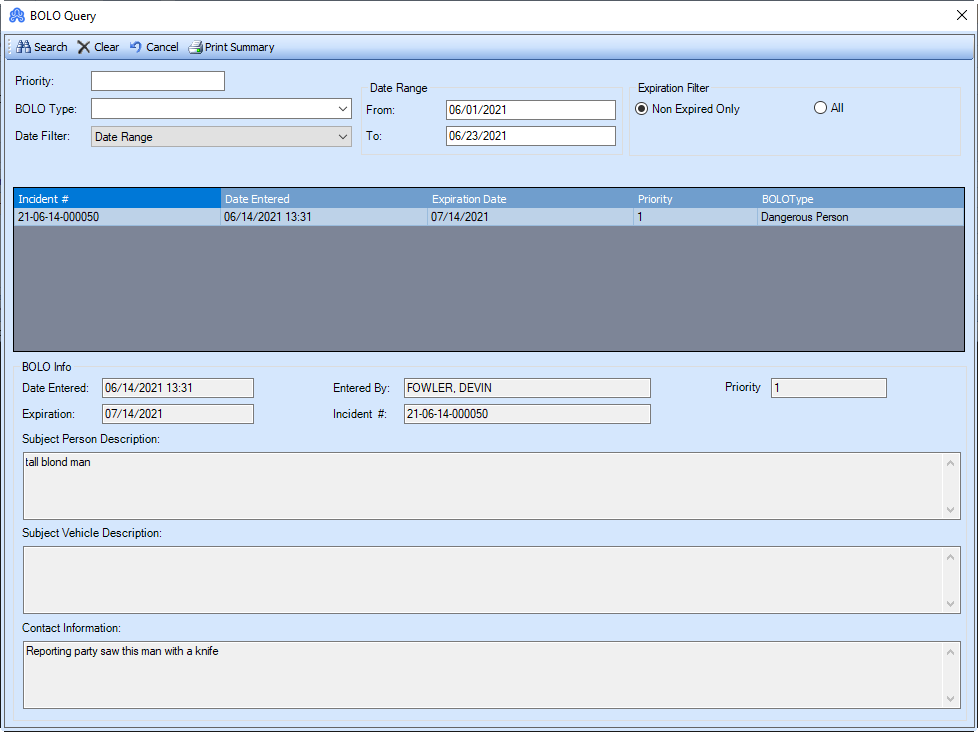
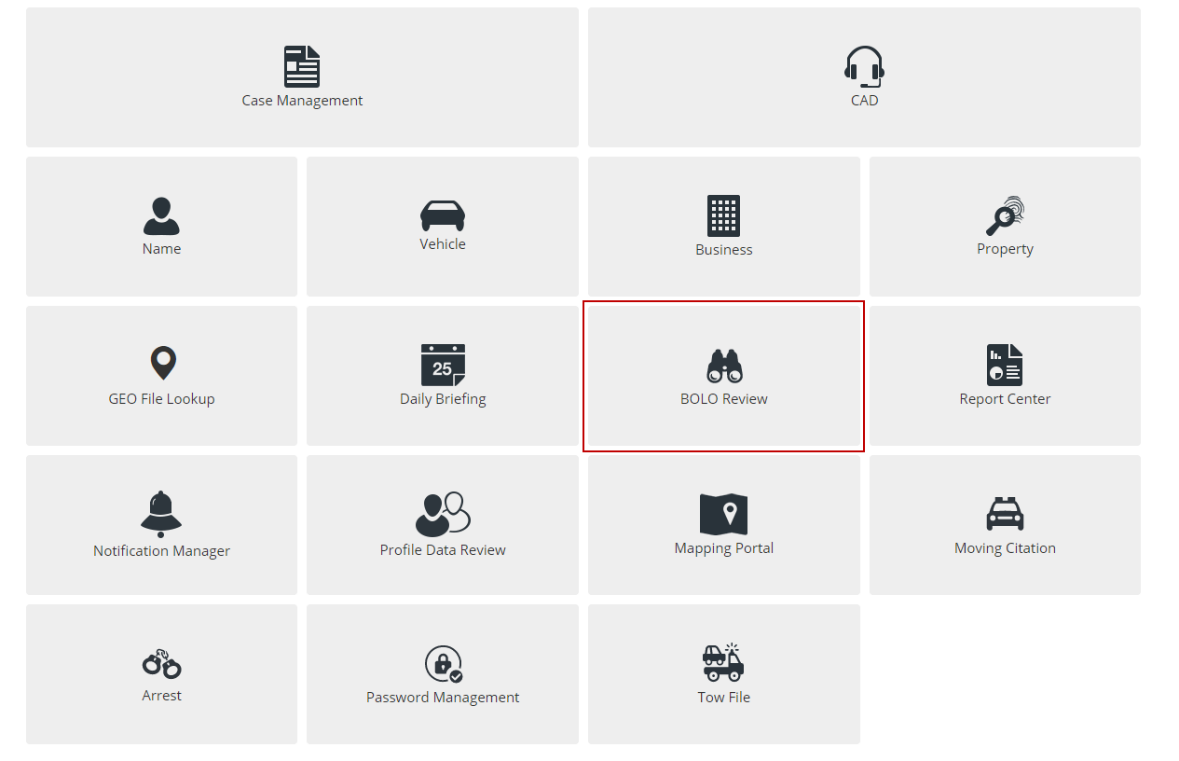
Officers can search the BOLOs through their department's ARMS Mobile website by going to the home screen and selecting the BOLO Review button. They can then search by Date, Priority, BOLO Type, and Non-Expired or All. The Date Filter field allows the Officer to search by a date range, but also just based on the last 24, 48, and 72 hours and 7 days. Each can then be selected to view the information below it and even printed.
Now, users can also Add BOLO through ARMS if they have required permissions.