---
title: 4.0 Crime and Incident Codes
description: 4.0 Crime and Incident Codes
---
[Skip to content](https://kb.arms.com/arms/4.0-crime-and-incident-codes#main-content)
English
Show submenu for translations

Open main navigation
Close main navigation
- English
Show submenu for translations
- [Customer Portal](https://helpdesk.arms.com/tickets)
[Customer Portal](https://helpdesk.arms.com/tickets?hsLang=en)
How can we help you?
- There are no suggestions because the search field is empty.
1. [ARMS](https://kb.arms.com/arms?hsLang=en)
2. [Officer](https://kb.arms.com/arms/officer?hsLang=en)
3. [ARMS Mobile Admin Workbook](https://kb.arms.com/arms/officer?hsLang=en#arms-mobile-admin-workbook)
# 4.0 Crime and Incident Codes
This is one of the most important parts of the Setup menu, as this section allows you to create the Crime and Incident codes used throughout the ARMS system. To get started, select Crime and Incident from the set-up menu
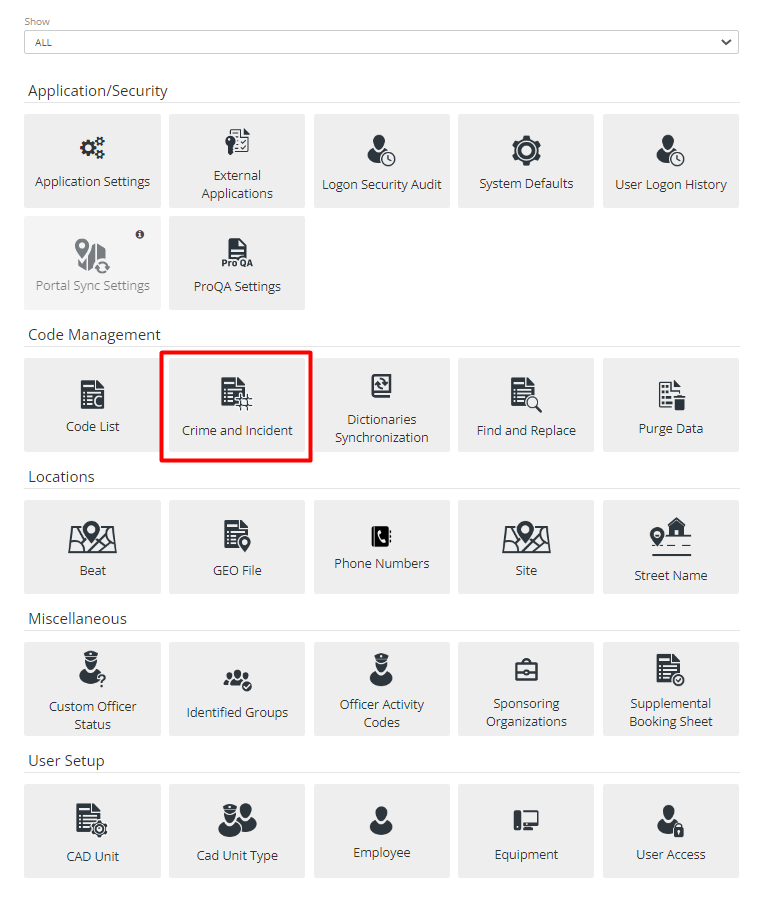
Figure 1 Crime and Incident Menu
The first screen displays the list of Crime codes in the system, which can be filtered as per requirement. Admins can add new crime codes by clicking Add New. Admins can also Bulk Edit items in the list and can Export all Crime/Incident codes into a CSV file or Excel spreadsheet.
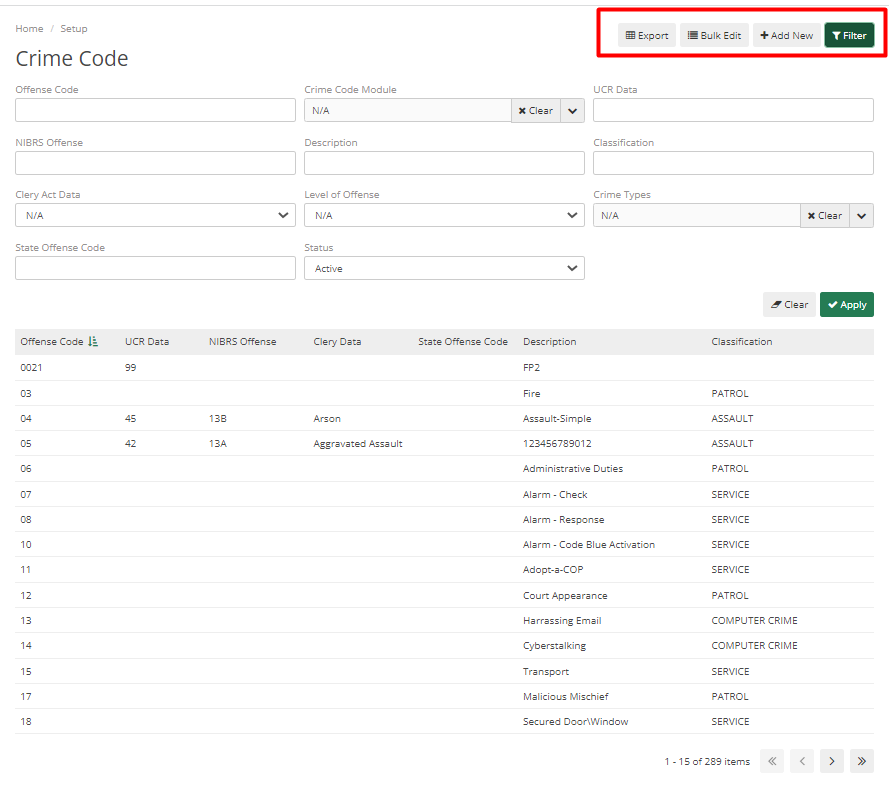
Figure 2 Crime Code List
There are a few system codes (identifiable by their **bold** font) automatically generated, as they are basic CAD functions like vehicle stop and logon. Any other codes must be entered manually.
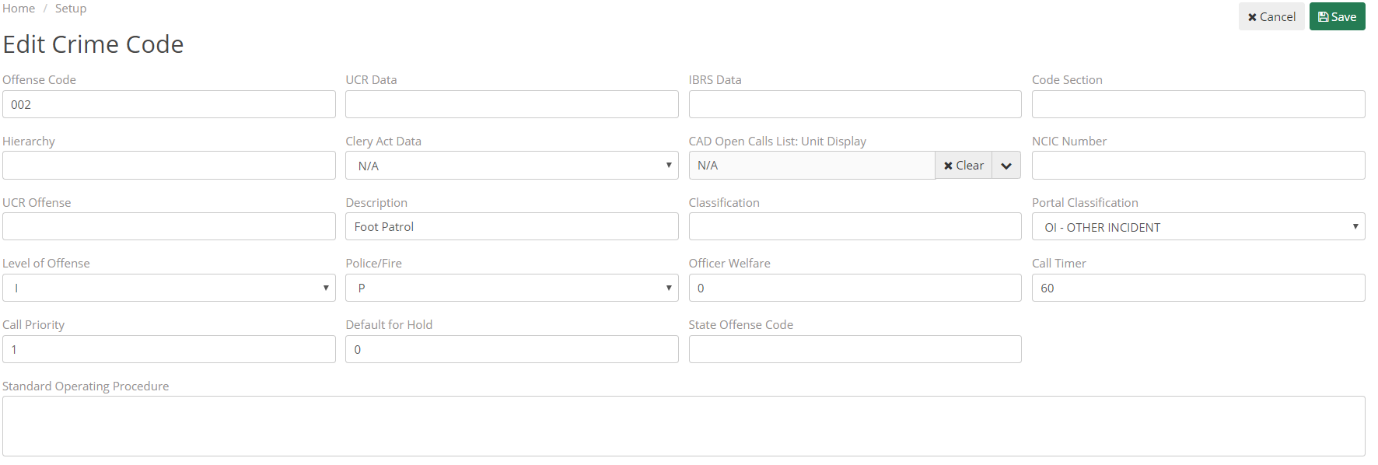
Figure 3 Edit Crime Code
Important fields to understand while adding Crime Codes are as below:
**Offense Code** – It is a code for Offenses that the Dispatcher can put in and can quickly type out.
**UCR Data** - It is for UCR Summary Reporting.
**Code Section** - It can be anything that can be specific to a state.
**Clery Act Data** - It is for Clery, Admins can select Clery Act Data from the list from the selected Offense Code.
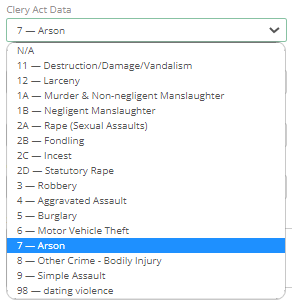
Figure 4 Clery Act Data
**NCIC Number** – If the selected offense code is an offense code that needs to be seen by NCIC then this option is required to fill.
**NIBRS Offense** – It is for NIBRS reporting, which need to be added if Admin/Officer is reporting for NIBRS.
**Description** – It is a description of the Offense Code; it describes what type of code it is.
**Classification** – It is a general overview of the Offense code. For example, aggravated assault, simple assault, etc. all come under assault. It makes it easier to see reporting as per classification.
**Portal Classification** – It relates to the mapping portal, as specific classifications match how they can be displayed in the portal.
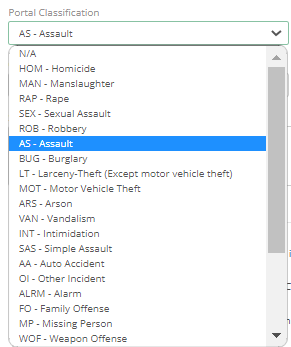
Figure 5 Portal Classification
**Level of Offense** – It shows the level of Offense which can be Incident, Misdemeanors, Felonies, or Other.
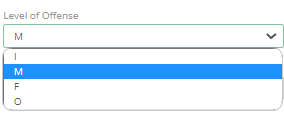
Figure 6 Level of Offense
**Call Timer** - Alerts will pop up as per the time set here. If 60 min is set, then every 60 min an alert will pop up to a Dispatcher. It can be lowered or raised as per the requirement. Dispatchers can change if they have permission, every time
**Call Priority** – It goes from 1 to 5, the higher the priority the higher the Call in Open Call List. 1 would be on top and would be at the bottom.
**State Offense Code** – This is for NIBRS Reporting; it will be required for reporting NIBRS data.
**Standard Operating Procedure** – This shows up on the Dispatcher side, whenever a Dispatcher puts in a crime code it will pop up an alert for them to be able to view the Standard Operating Procedure.
**Display this crime code in** - All checkboxes here help to customize the view for Dispatchers and Officers. It will display as per the settings made here.
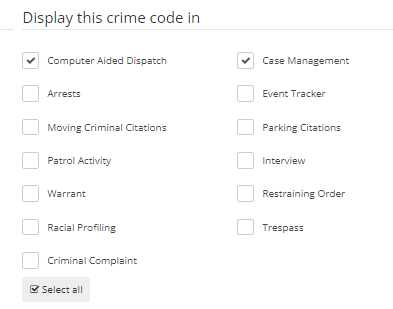
Figure 7 Display this Crime Code in
Example: A code is marked for Computer Aided Dispatch, but not Case Management. This means that a dispatcher can use this code within CAD, but an officer will be unable to select this code on a Case Report. In this example, the dispatcher can move faster through CAD by having their own succinct set of codes.
**Crime Types** – This is more for Reporting this Crime Code. It has multiple checkboxes as described below:
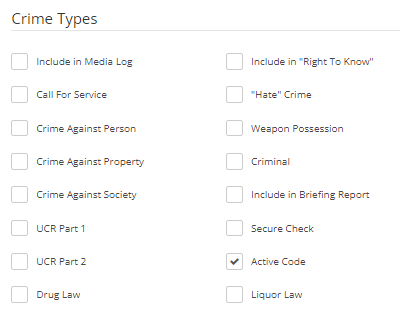
Figure 8 Crime Types
Include in Media Log and Include in “Right to know” is related to Clery.
Include in Media Log means when a user tries to Print Media Log it will show up with this Crime Code.
Call for Service – Any kind of Crime code that the department considers a Call for Service for the department
Crime Against Person – Crime which includes a Person as a Victim. For Example, Assault.
Crime Against Property - Crime which includes a Property as a Victim. For Example, Burglary.
Crime Against Society - Crime where no person is involved or there is no Victim. For Example, Involvement of Drugs/Narcotics/Weapons.
UCR Part 1 and Part 2 – It is for UCR Summary Reporting.
Drug Law, Liquor Law, ”Hate” Crime, and Weapon Possession - These all are related to Clery Reporting. Weapon Possession is to track that, that call has a Weapon Possession.
Criminal – It will label crime as Criminal.
Include in Briefing Report – It will add a Department Briefing Report in ARMS Home Screen.
Secure Check – If there is a building check and the Officer is allowed to self-initiate the call then they will see crime codes that have security checks allowed.
Active Code – If this checkbox is unchecked then it will not show any Officer or any Dispatcher. It will retain all information in past but will not allow anything in the future unless it’s marked active again.
- [Administrator](https://kb.arms.com/arms/administrator?hsLang=en#main-content)
- [Administrator Documents](https://kb.arms.com/arms/administrator?hsLang=en#administrator-documents)
- [Administrator FAQs - Error Messages/Troubleshooting](https://kb.arms.com/arms/administrator?hsLang=en#administrator-faqs-error-messages-troubleshooting)
- [Administrator FAQs - Feature Questions](https://kb.arms.com/arms/administrator?hsLang=en#administrator-faqs-feature-questions)
- [Administrator FAQs - Setup](https://kb.arms.com/arms/administrator?hsLang=en#administrator-faqs-setup)
- [Dispatcher](https://kb.arms.com/arms/dispatcher?hsLang=en#main-content)
- [ARMS WebCAD Workbook](https://kb.arms.com/arms/dispatcher?hsLang=en#arms-webcad-workbook)
- [ARMS CAD Workbook](https://kb.arms.com/arms/dispatcher?hsLang=en#arms-cad-workbook)
- [Dispatcher Documents](https://kb.arms.com/arms/dispatcher?hsLang=en#dispatcher-documents)
- [Dispatcher FAQs - Error Messages/Troubleshooting](https://kb.arms.com/arms/dispatcher?hsLang=en#dispatcher-faqs-error-messages-troubleshooting)
- [Dispatcher FAQs - Feature Questions](https://kb.arms.com/arms/dispatcher?hsLang=en#dispatcher-faqs-feature-questions)
- [Officer](https://kb.arms.com/arms/officer?hsLang=en#main-content)
- [ARMS Mobile - CAD Workbook](https://kb.arms.com/arms/officer?hsLang=en#arms-mobile-cad-workbook)
- [ARMS Mobile - Case Management Workbook](https://kb.arms.com/arms/officer?hsLang=en#arms-mobile-case-management-workbook)
- [ARMS Mobile - Home Screen Workbook](https://kb.arms.com/arms/officer?hsLang=en#arms-mobile-home-screen-workbook)
- [ARMS Mobile Admin Workbook](https://kb.arms.com/arms/officer?hsLang=en#arms-mobile-admin-workbook)
- [Officer Documents](https://kb.arms.com/arms/officer?hsLang=en#officer-documents)
- [Officer FAQs - Case Management](https://kb.arms.com/arms/officer?hsLang=en#officer-faqs-case-management)
- [Officer FAQs - Photos and Media](https://kb.arms.com/arms/officer?hsLang=en#officer-faqs-photos-and-media)
- [NIBRS](https://kb.arms.com/arms/nibrs?hsLang=en#main-content)
- [NIBRS Documents](https://kb.arms.com/arms/nibrs?hsLang=en#nibrs-documents)
- [NIBRS FAQs - Error Messages/Troubleshooting](https://kb.arms.com/arms/nibrs?hsLang=en#nibrs-faqs-error-messages-troubleshooting)
- [NIBRS Videos](https://kb.arms.com/arms/nibrs?hsLang=en#nibrs-videos)
- [NIBRS Workbook](https://kb.arms.com/arms/nibrs?hsLang=en#nibrs-workbook)
- [Clery](https://kb.arms.com/arms/clery?hsLang=en#main-content)
- [Clery Workbook](https://kb.arms.com/arms/clery?hsLang=en#clery-workbook)
- [Statistical Reporting](https://kb.arms.com/arms/statistical-reporting?hsLang=en#main-content)
- [Dashboard Workbook](https://kb.arms.com/arms/statistical-reporting?hsLang=en#dashboard-workbook)
- [Maxient Workbook](https://kb.arms.com/arms/statistical-reporting?hsLang=en#maxient-workbook)
- [Notification Manager FAQs](https://kb.arms.com/arms/statistical-reporting?hsLang=en#notification-manager-faqs)
- [Notification Manager Workbook](https://kb.arms.com/arms/statistical-reporting?hsLang=en#notification-manager-workbook)
- [Profile Data FAQs](https://kb.arms.com/arms/statistical-reporting?hsLang=en#profile-data-faqs)
- [Profile Data Workbook](https://kb.arms.com/arms/statistical-reporting?hsLang=en#profile-data-workbook)
- [Property/Evidence FAQs](https://kb.arms.com/arms/statistical-reporting?hsLang=en#property-evidence-faqs)
- [Property/Evidence Workbook](https://kb.arms.com/arms/statistical-reporting?hsLang=en#property-evidence-workbook)
- [Report Center Documents](https://kb.arms.com/arms/statistical-reporting?hsLang=en#report-center-documents)
- [Report Center FAQs](https://kb.arms.com/arms/statistical-reporting?hsLang=en#report-center-faqs)
- [UCR Documents](https://kb.arms.com/arms/statistical-reporting?hsLang=en#ucr-documents)
- [Vehicle Maintenance Workbook](https://kb.arms.com/arms/statistical-reporting?hsLang=en#vehicle-maintenance-workbook)
- [Parking](https://kb.arms.com/arms/parking?hsLang=en#main-content)
- [Internal Parking Documents](https://kb.arms.com/arms/parking?hsLang=en#internal-parking-documents)
- [Parking Administrator Document](https://kb.arms.com/arms/parking?hsLang=en#parking-administrator-document)
- [Parking Documents](https://kb.arms.com/arms/parking?hsLang=en#parking-documents)
- [Parking End User Documents](https://kb.arms.com/arms/parking?hsLang=en#parking-end-user-documents)
- [Parking FAQs](https://kb.arms.com/arms/parking?hsLang=en#parking-faqs)
- [Release Notes](https://kb.arms.com/arms/parking?hsLang=en#release-notes)
- [Webinars](https://kb.arms.com/arms/webinars?hsLang=en#main-content)
- [Administrator](https://kb.arms.com/arms/webinars?hsLang=en#administrator)
- [Clery](https://kb.arms.com/arms/webinars?hsLang=en#clery)
- [Dispatcher](https://kb.arms.com/arms/webinars?hsLang=en#dispatcher)
- [IT Support](https://kb.arms.com/arms/webinars?hsLang=en#it-support)
- [Miscellaneous](https://kb.arms.com/arms/webinars?hsLang=en#miscellaneous)
- [NIBRS](https://kb.arms.com/arms/webinars?hsLang=en#nibrs)
- [Officer](https://kb.arms.com/arms/webinars?hsLang=en#officer)
- [Parking](https://kb.arms.com/arms/webinars?hsLang=en#parking)
- [Statistical Reporting](https://kb.arms.com/arms/webinars?hsLang=en#statistical-reporting)
- [Miscellaneous](https://kb.arms.com/arms/miscellaneous?hsLang=en#main-content)
- [Release Notes](https://kb.arms.com/arms/miscellaneous?hsLang=en#release-notes)
- [ARMS User Training Conferences](https://kb.arms.com/arms/miscellaneous?hsLang=en#arms-user-training-conferences)
- [Internal](https://kb.arms.com/arms/miscellaneous?hsLang=en#internal)
- [Support Docs](https://kb.arms.com/arms/miscellaneous?hsLang=en#support-docs)
- [IT Support](https://kb.arms.com/arms/it-support?hsLang=en#main-content)
- [Internal IT Support Documents](https://kb.arms.com/arms/it-support?hsLang=en#internal-it-support-documents)
- [IT Support Documents](https://kb.arms.com/arms/it-support?hsLang=en#it-support-documents)
- [Internal](https://kb.arms.com/arms/internal?hsLang=en#main-content)
- [Jira Escalation Process and Documents](https://kb.arms.com/arms/internal?hsLang=en#jira-escalation-process-and-documents)
- [Parking Workflows](https://kb.arms.com/arms/internal?hsLang=en#parking-workflows)
- [Administration](https://kb.arms.com/arms/administration?hsLang=en#main-content)
- [Personnel Card](https://kb.arms.com/arms/administration?hsLang=en#personnel-card)
- [Online Bicycle Registration](https://kb.arms.com/arms/online-bicycle-registration?hsLang=en#main-content)
- [Bicycle Registration Workbook](https://kb.arms.com/arms/online-bicycle-registration?hsLang=en#bicycle-registration-workbook)
- [Courtyard - Public Incident Reporting](https://kb.arms.com/arms/courtyard-public-incident-reporting?hsLang=en#main-content)
- [Courtyard Manual](https://kb.arms.com/arms/courtyard-public-incident-reporting?hsLang=en#courtyard-manual)
[mailto:support@arms.com](mailto:support@arms.com)
Copyright © 2026, End2End Public Safety