
The GEO file is a section that encompasses the Site, Beat, and Street Name. It is more of Locations within the Department’s Jurisdiction. In this section, Admins can Search, Export, and Add New Geo Files.
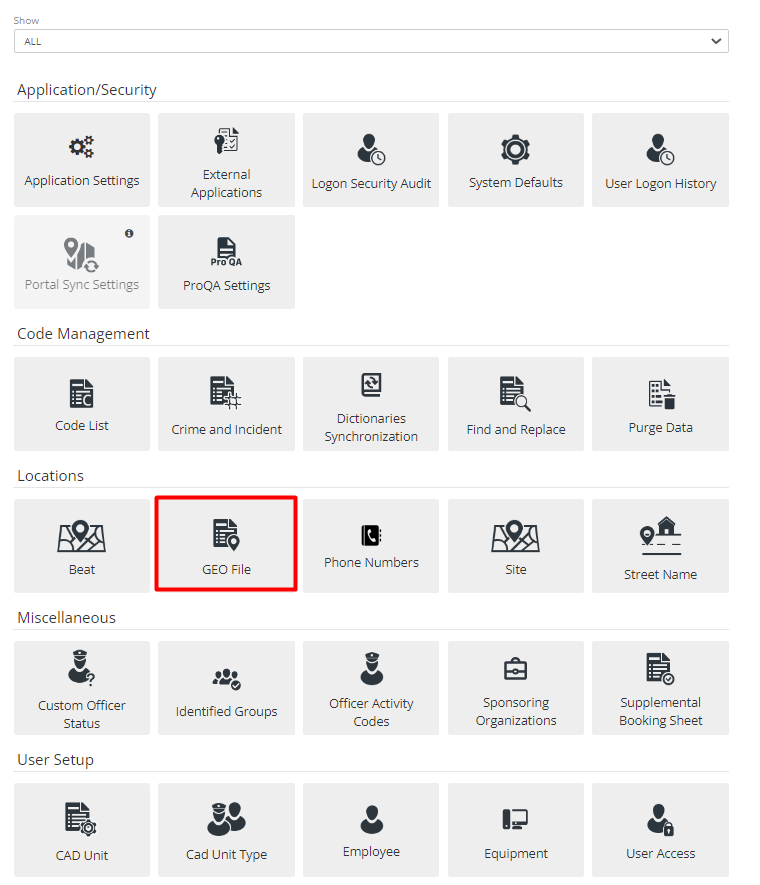
Figure 1 Geo File
Make use of the search and the arrow tabs to navigate through your GEO files. You can select Add to create a new Geo file or select Modify to edit. The hide inactive button will filter out all Geo files marked Inactive.
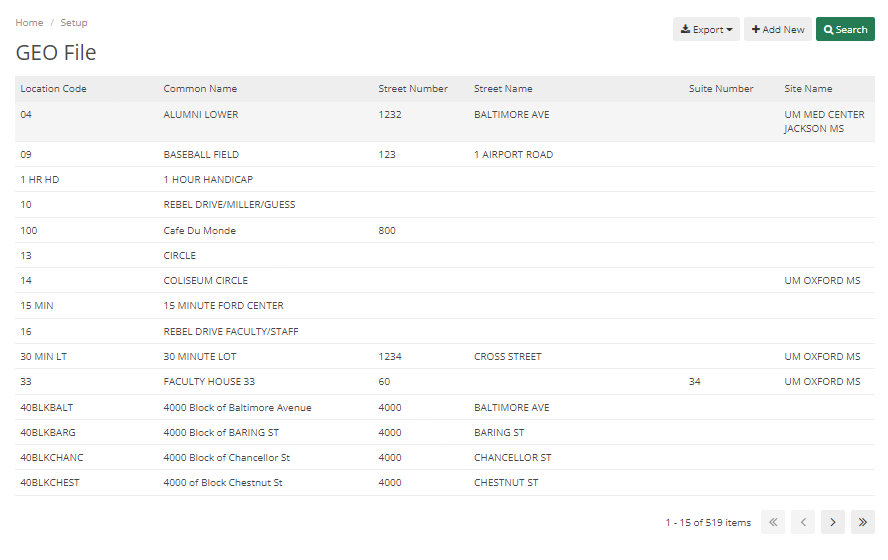
Figure 2 Geo File Listing
There are multiple tabs to Add details in Geo File like General, Officer Safety, Security Matrix, Clery Data, Haz Materials, Contact Information, Photos, Other Media, and Alias.
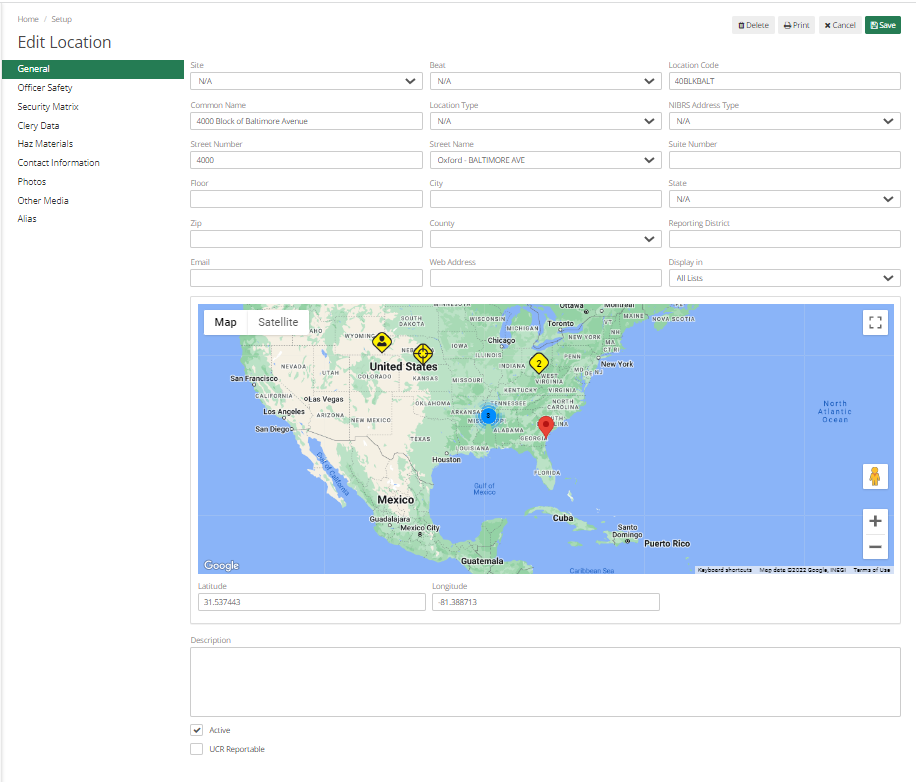
Figure 3 Geo File- General Tab
General Tab
Site - Select Site from dropdown, Admin can generate Lots of Reports based on Sites track Cases as per Site, the Dispatcher can display their Unit type or Locations based on Site.
Location Code – It helps to quickly pull locations by the location code.
Common Name – It would be the Normal Name of a Location that is commonly used.
Location Type – More values can be added to this dropdown through Code List.
NIBRS Address Type – If the Department Reports NIBRS, then this field can be selected.
City, State, Zip, County, and other basic Location-related Information. Other information like the Email Address and website of that location can be entered.
Map - It allows users to select the Geo files coordinates using Google maps. Click on the mapping icon, and then select your location. Longitude and latitude will be automatically generated wherever you click.
Description – Its field helps to describe location details.
If details are being added for UCR Reporting, then UCR Reportable can be marked.
Officer Safety Tab - This feature allows users to enter in potential Officer Safety risks and attach them to the location. When a location with an associated Officer Safety alert is used in CAD, a pop-up window will alert the dispatcher to any potential dangers, allowing them to keep Officers on the scene informed. Simply click Add new to add. To modify, click on the description to edit and delete records.
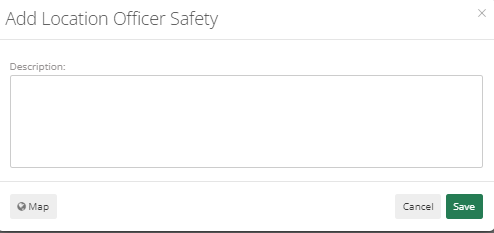
Figure 4 Add New Officer Safety
Security Matrix Tab
This will allow Admins to add information about the Location if that location has any Security System information. Details Like System, Company Name, Category Number, Phone Number, In Service For, System Located, Last Service Check, Next Service Check, Notes, and Security Matrix Icon can be added.
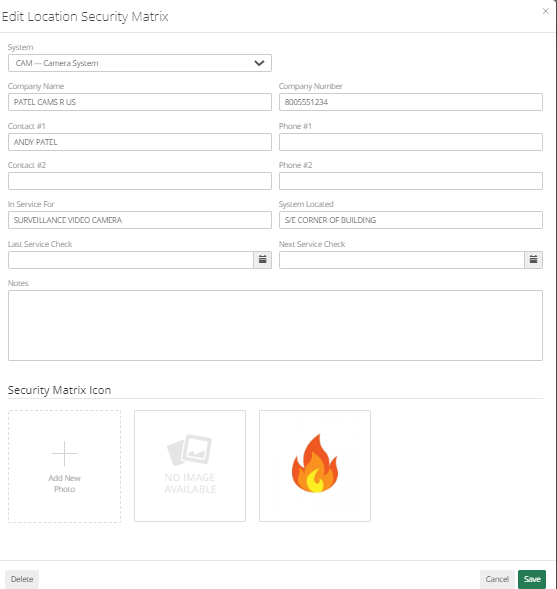
Figure 5 Security Matrix
Clery Data
The available classifications are On Campus, On Campus-in any student residential facility, Non-Campus building or property, Non-reportable location, and Public Property. These classifications will dictate how incidents occurring at the location are reported in Clery reports. See the description underneath each entry for more information. Click to select your classification.
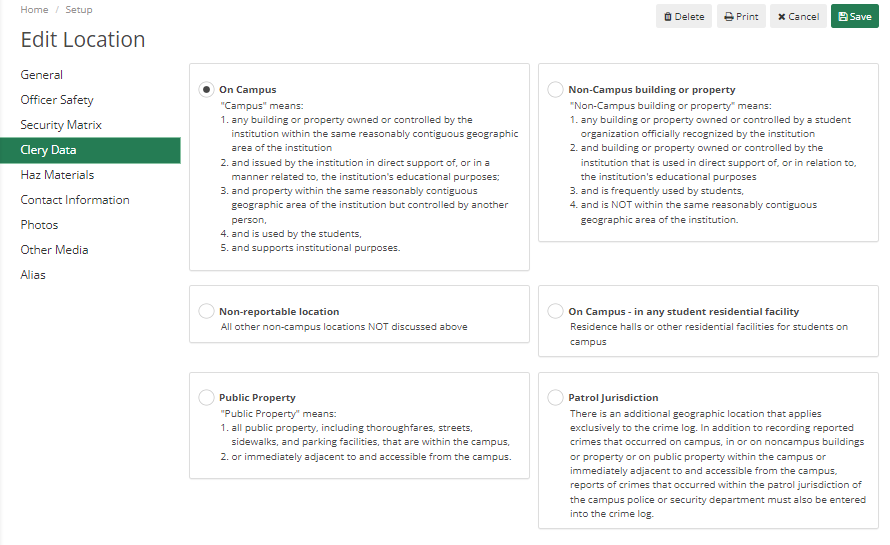
Figure 6 Clery Data
Haz Materials – It will alert for any kind of dangerous materials at the Location. This section allows users to input data on any hazardous materials that could be found on-site, like acids or flammables. Just like Officer Safety, any locations with attached hazardous materials will alert the dispatcher when the location is selected.
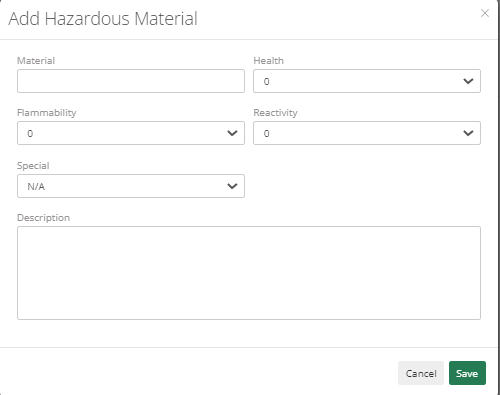
Figure 7 Haz Materials
Contact Information – Any contacts for the location would go here. Building administrators, owners, tenants, and anyone else associated with the location. Set up the types in Miscellaneous codes of the Code List, then select modify and add.
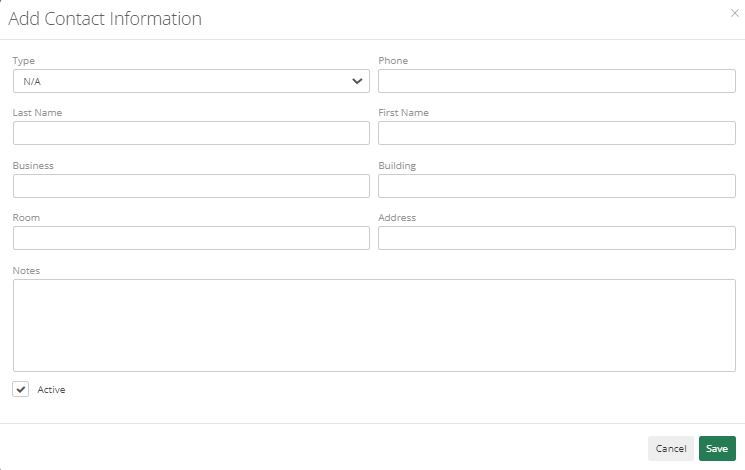
Figure 8 Contact Information

Figure 9 Contact Listing
Photos – Add location-related Photos. Generally, it would be used to add Blueprints.
Other Media – In case Blueprints or any related information is in pdf form then it can be uploaded in this section.
Alias – If the location is called by some other name for some people, then it can be mentioned here.
Once done, Save. Anything added here will be displayed to Officer/Dispatcher when they select the Location.