
The Employee File keeps track of the individual employees in ARMS. Every officer that will be dispatched and every user who will need access to ARMS will need an employee file created. You can click on the Employee to mark it as active and dispatchable. Once enabled click save.
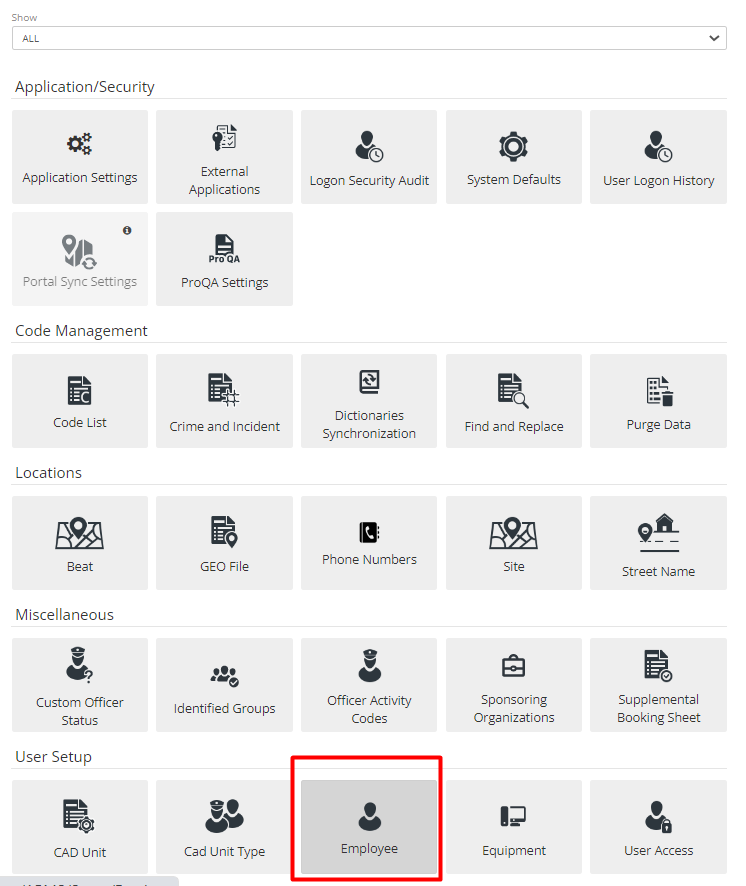
Figure 1 Employee Menu
To Add Employees to the ARMS system, go to Employee and create a new employee by clicking on the Add New button.
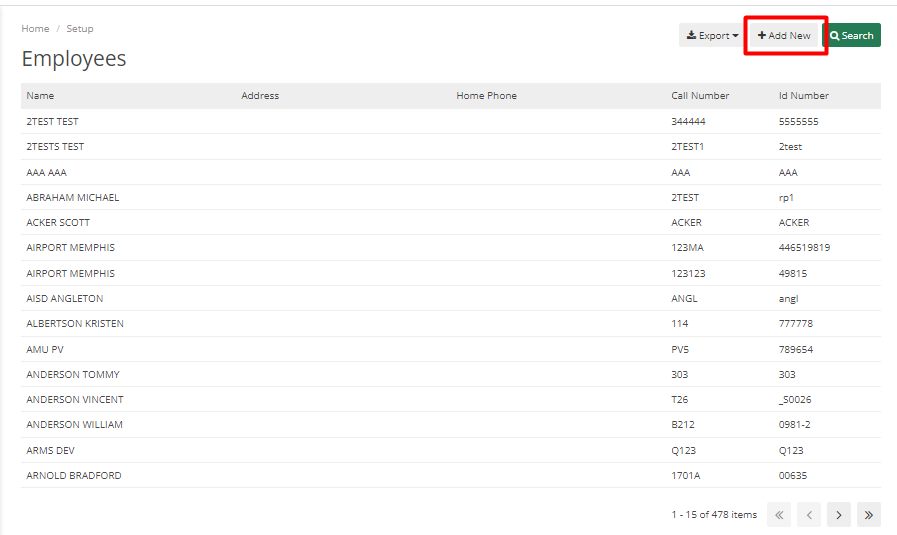
Figure 2 Employee Listing
Admins can also search and filter data as required, and there is an option in Search to show only active employees from the list.
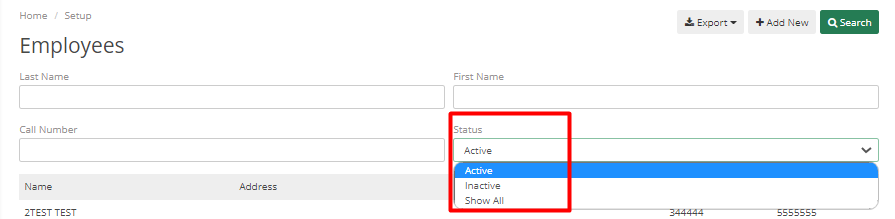
Figure 3 Employee Search
Admins can add multiple data to employee files like personal details, emergency contacts, photos, etc.
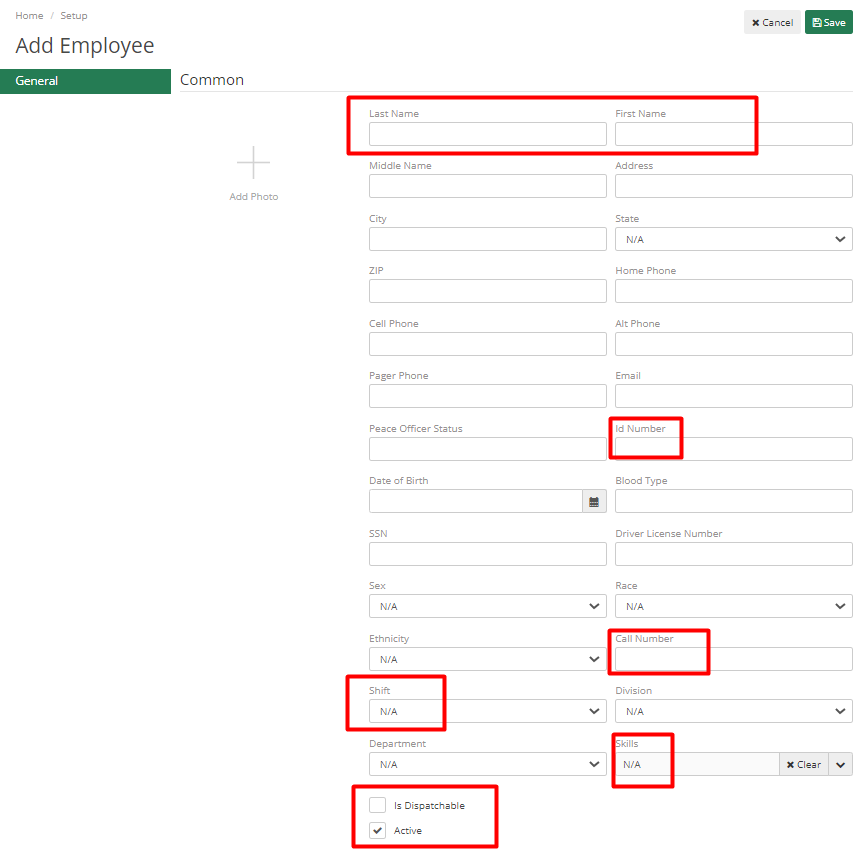
Figure 4 Add New Employee
First Name, Last Name, Shift, and Employee ID number are required fields when adding an employee. Call Number is a mandatory field for dispatchable staff, and the Is Dispatchable option needs to be selected. Once finished, add the Shift of an Employee and other data if available.
The Division and Skillset of an employee can be selected if there are any skills/divisions set up in the code list, which will assist the Dispatcher in finding an Officer for any case who has a particular skill set or belongs to a specific division.
To Activate the Employee's account, check the Active checkbox. Other fields can be added, if available, are Emergency contact details, Academy Details, Entry/Exit Dates, and Rank and Salary Details.
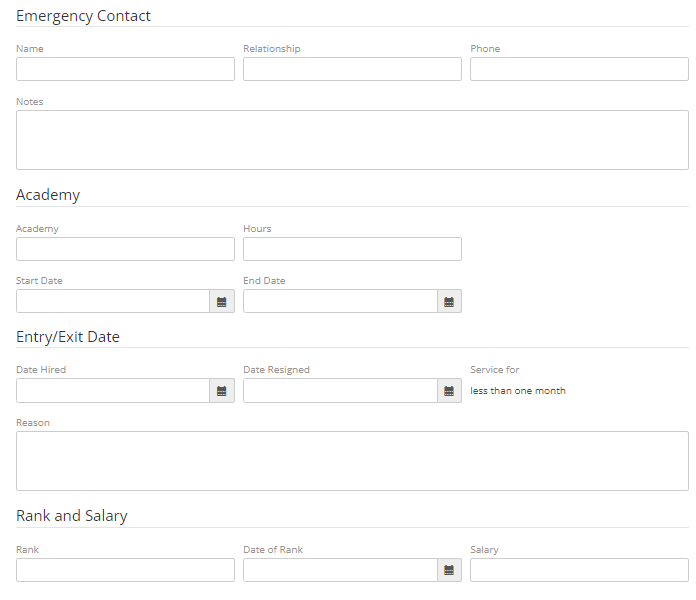
Figure 5 Employee Emergency Contact
Hit Save to add that Employee to the system.