
Citation List

Figure 118 Side Menu >> Citation List
This section displays all issued citations, with similar filtering and viewing options as prior sections. It also allows the Admin to create new citations and resolve sync conflicts that arise from those issued via handheld ticket writers.
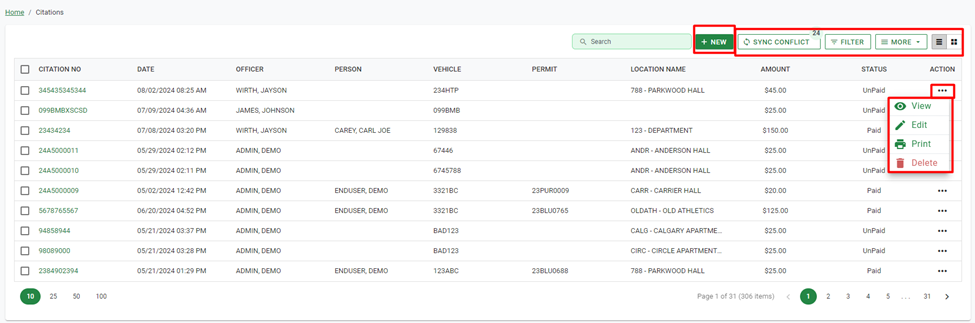
Figure 119 Citation List
Create Citation
New citations can be created by selecting the New button, in the Citation List section.
Step 1 – Select the permit, if any. Permits can be added to a citation by searching their number, or by any of their other details associated, like Permit Type, Last Name, Billing Number, et cetera. Once located, the permit can be linked. If there is no permit, continue to the Vehicle details.
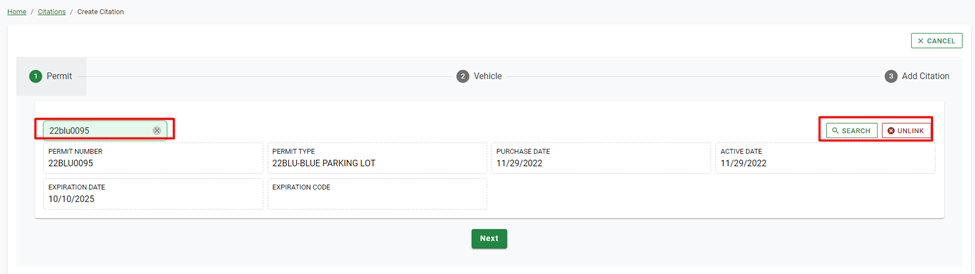
Figure 120 Add Citation >> Step 1 Select permit, if any
Clicking the Unlink button will remove the previously linked permit from the citation. Select Next after attaching the desired permit.
Step 2 – Select the vehicle. If a permit was linked, then its associated vehicle record will display, which can then be linked. If no permit was attached, the vehicle can be linked by searching its License Plate number, or any of its associated details. If the vehicle is not in the system, it can be added by clicking Add New and Link after the initial search. If the wrong vehicle was linked, click Link to search for the correct one. Once the desired vehicle is linked, click Next.
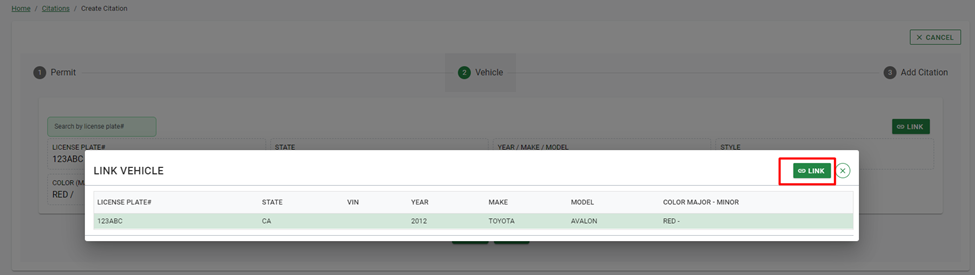
Figure 121 Add Citation >> Step 2 Link Vehicle
Step 3 – Add the citation(s) details. The Date Time, Officer, and Appeal By Date, will be automatically added. Citation Number, Location, Comments, and Violation(s) are manually entered. Fine amounts, as well as Scoff Code, is automatically entered based on the violation selected. Mark the Notify Administrator box if that action is needed.
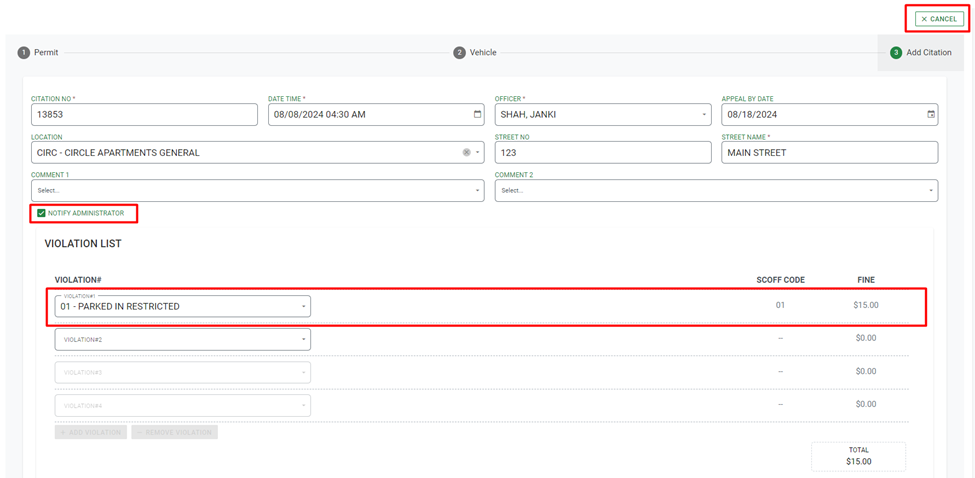
Figure 122 Add Citation >> Step 3 Add Citation
Clicking Save will create the citation. A successful creation message will pop up, and the detail page for the created citation will be displayed.

Figure 123 Citation success message
Any of the citation details can be edited on this page, as well as printing the citation itself or its receipt.
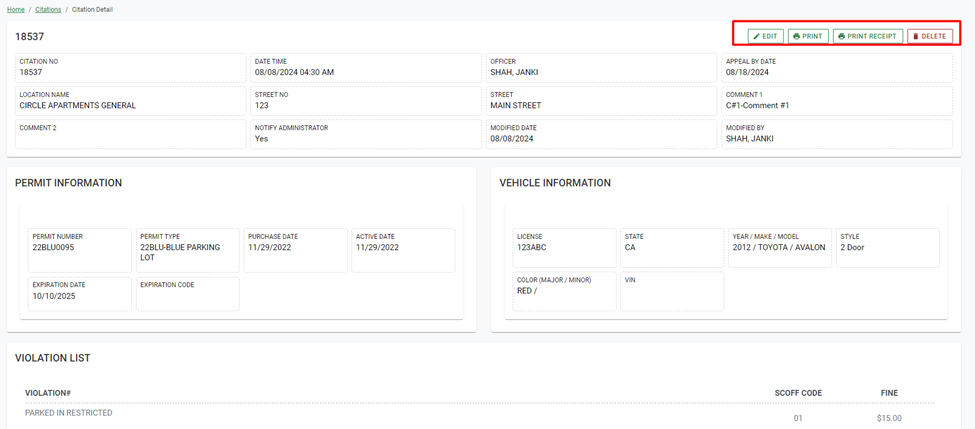
Figure 124 Citation Detail Page
Edit – This option allows editing any of the citations details.
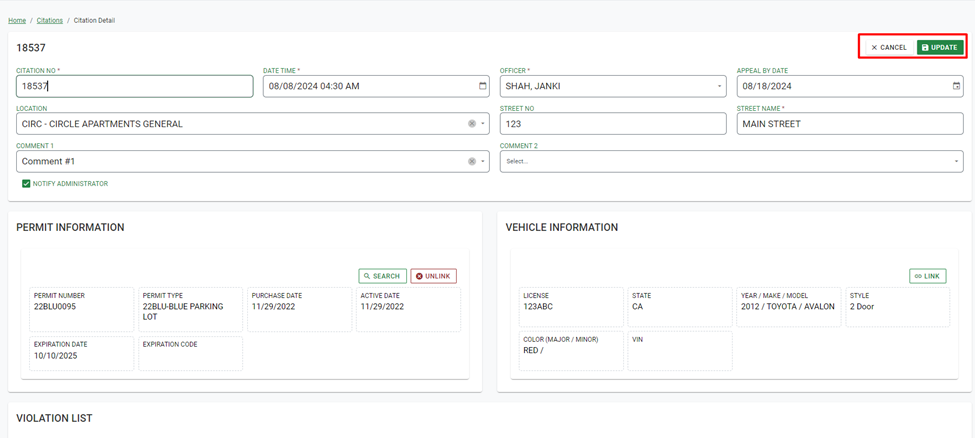
Figure 125 Edit Citation
Print – This option will create a PDF of the citation, which can be printed or saved.
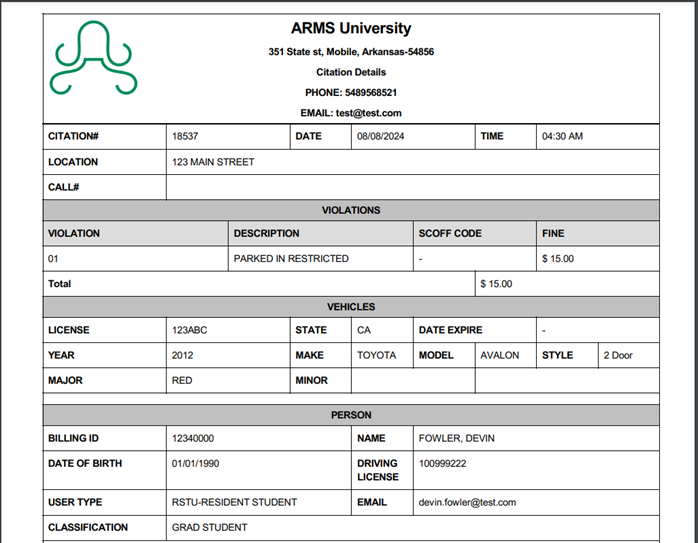
Figure 126 Example of Print Citation
Print Receipt – This option will create a PDF receipt of the citation, including details like Billing ID. This can also be printed or saved.
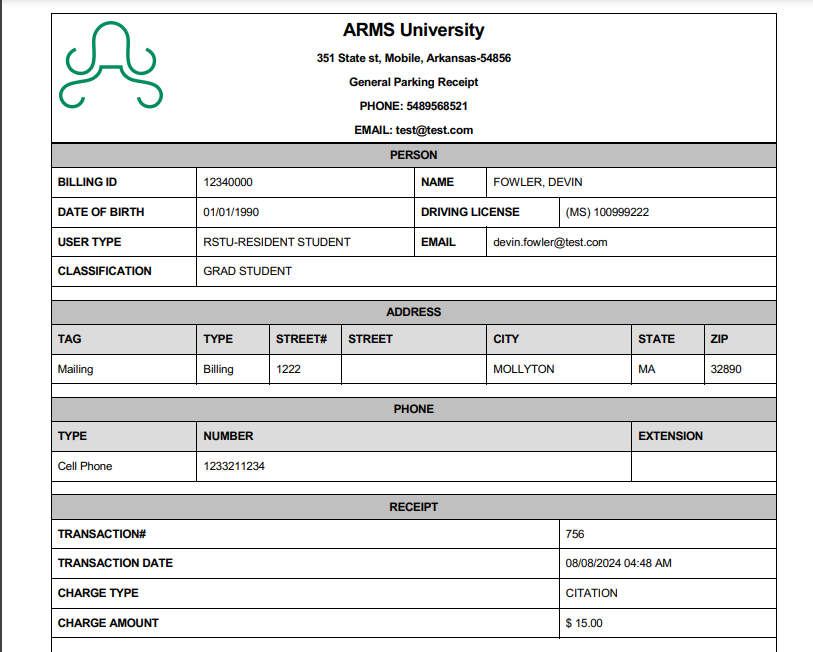
Figure 127 Example of Citation Receipt