Adding Property to a CAD event:
Property can be added to CAD events by going to the CAD Function menus and selecting the Property/Evidence menu item; the dispatcher can also select Property from the CAD dash menu. The Property/Evidence window allows users to make entries into the Property File that are associated with a CAD event number. The CAD Property/Evidence window will also show all property items that are associated with the current CAD event at the bottom of the window.
The Property/Evidence window can search for existing property as well as associate additional information such as custody information or NCIC/Recovery information.
To add a property item to a CAD event:
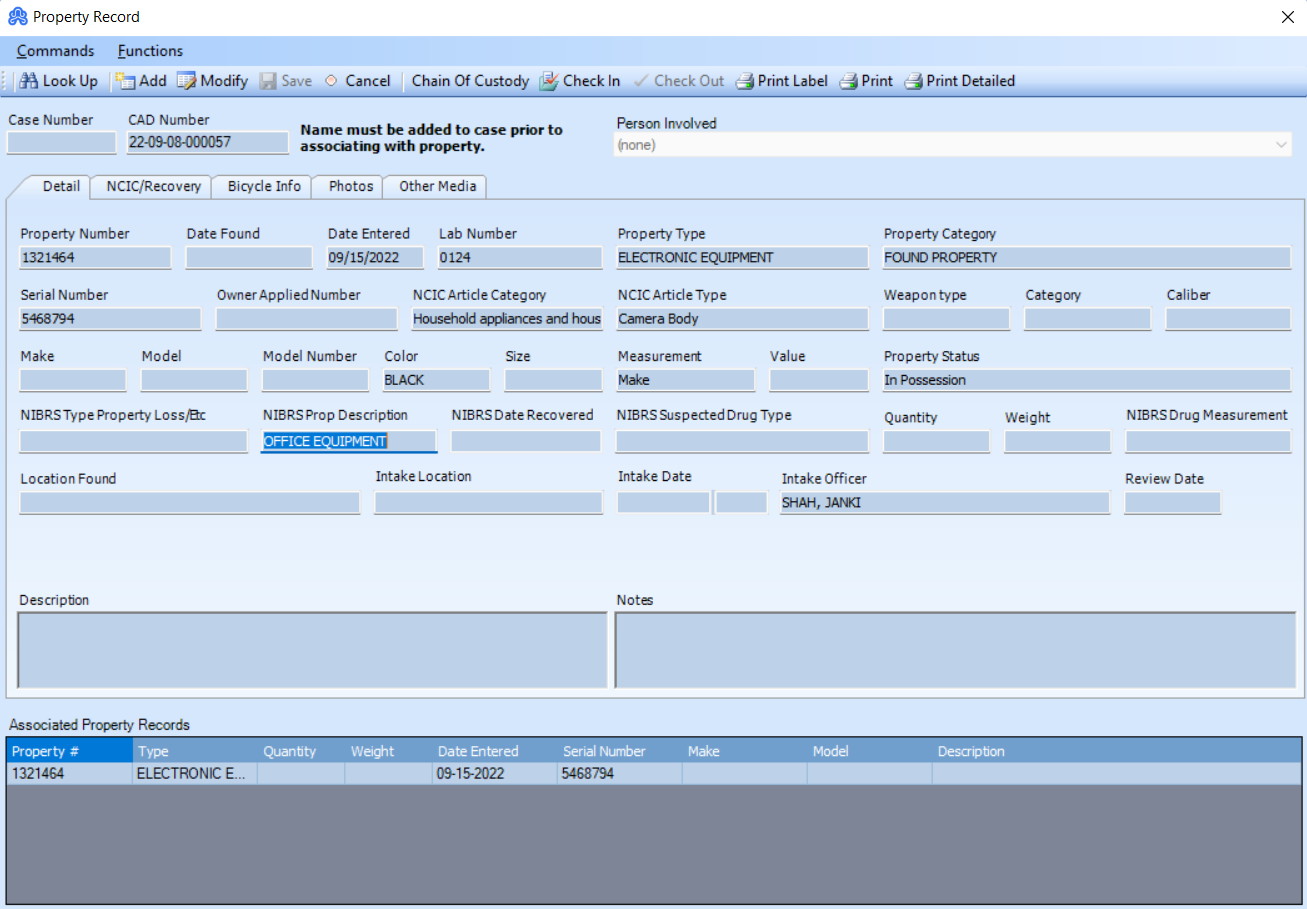
- Choose the Property/Evidence menu item from the Function’s menu. The Property/Evidence window will appear but will be in a read-only mode. The CAD event number that the property is associated with will be displayed at the top of the window.
- Use Ctrl-A to put the Property/Evidence window into write mode. The cursor will begin at the top left corner.
- Using the keyboard, begin entering any known information about the property such as date found, quantity, and property type. For text fields shaded in yellow, type a “?” and press the TAB button to display the list values associated with that text field (if the value is known, it can also be typed in using the keyboard).
- Once all known information has been entered into the text fields, press the “Save” button. The dispatcher will notice the added property item appear in the data grid at the bottom of the window
|
Text Field |
List Value |
Description |
|
Case Number |
Read-only |
Display the case number that the property is associated with. Normally this will be blank when adding from CAD. |
|
CAD Number |
Read-only. |
Displays the CAD number that the property will be associated with. |
|
Property Number |
No. |
The property number will be unique and will be auto-assigned at the time the property is added. |
|
Date Found |
No. |
The date that the property was added. This field is auto-formatted after being typed in. |
|
Date Entered |
Read-only. |
This field is stamped with the current date when the property is added. |
|
Lab Number |
No. |
The lab number of the property if applicable. |
|
Quantity |
No |
The quantity of the property. Example number of keys. |
|
Property type |
Yes |
The type of property being added such as jewelry or currency etc. |
|
Property/ Evidence |
Yes |
Differentiates if the item added is property or evidence. |
|
Serial number |
No |
The serial number of the property is applicable. |
|
Owner applied number |
No |
Any number that the owner has applied to the property. |
|
Make |
No |
The make of the item if applicable. |
|
Model |
No |
The model of the item if applicable. |
|
Model Number |
No. |
The model number of the properties applicable. |
|
Color |
Yes. |
The color of the property item is applicable. |
|
Size |
No |
The size of the item. This can be in any format specified in the measurement list value. |
|
Weight |
No. |
The weight of the item. This can be in any format specified in the measurement list value. |
|
Measurement |
Yes. |
The unit of measure is used to describe the size and weight of the item. |
|
Value |
No. |
The value of the property. |
|
Property Status |
Yes. |
The status of the property such as lost, found, recovered, etc. |
|
Location Found |
No. |
The location where the property was found, if applicable. |
|
Description |
No. |
A description of the property. |
|
Notes |
No. |
Any notes that need to be associated with the property. |
To add multiple property items:
Adding multiple items of property to a CAD event is simple. Once the dispatcher has added the first property item and has pressed the Save button, simply use the Ctrl-A function and the Property/Evidence window will allow the entry of a second item. This process can be repeated for as many items as needed.
The NCIC/Recovery Tab
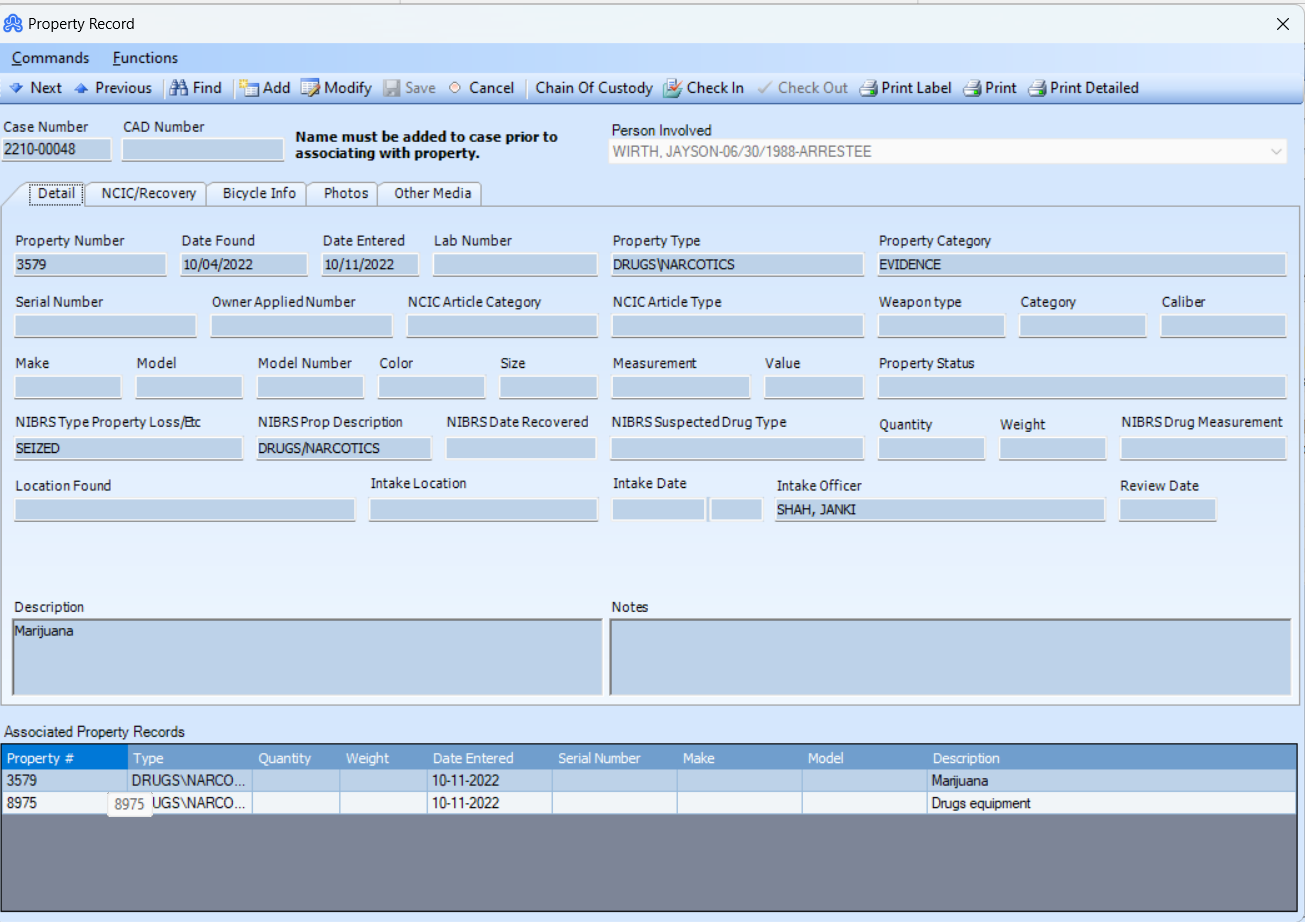
The NCIC/Recovery tab of the Property/Evidence window allows information such as NCIC numbers, recovery information and property dispositions to be maintained for a piece of property.
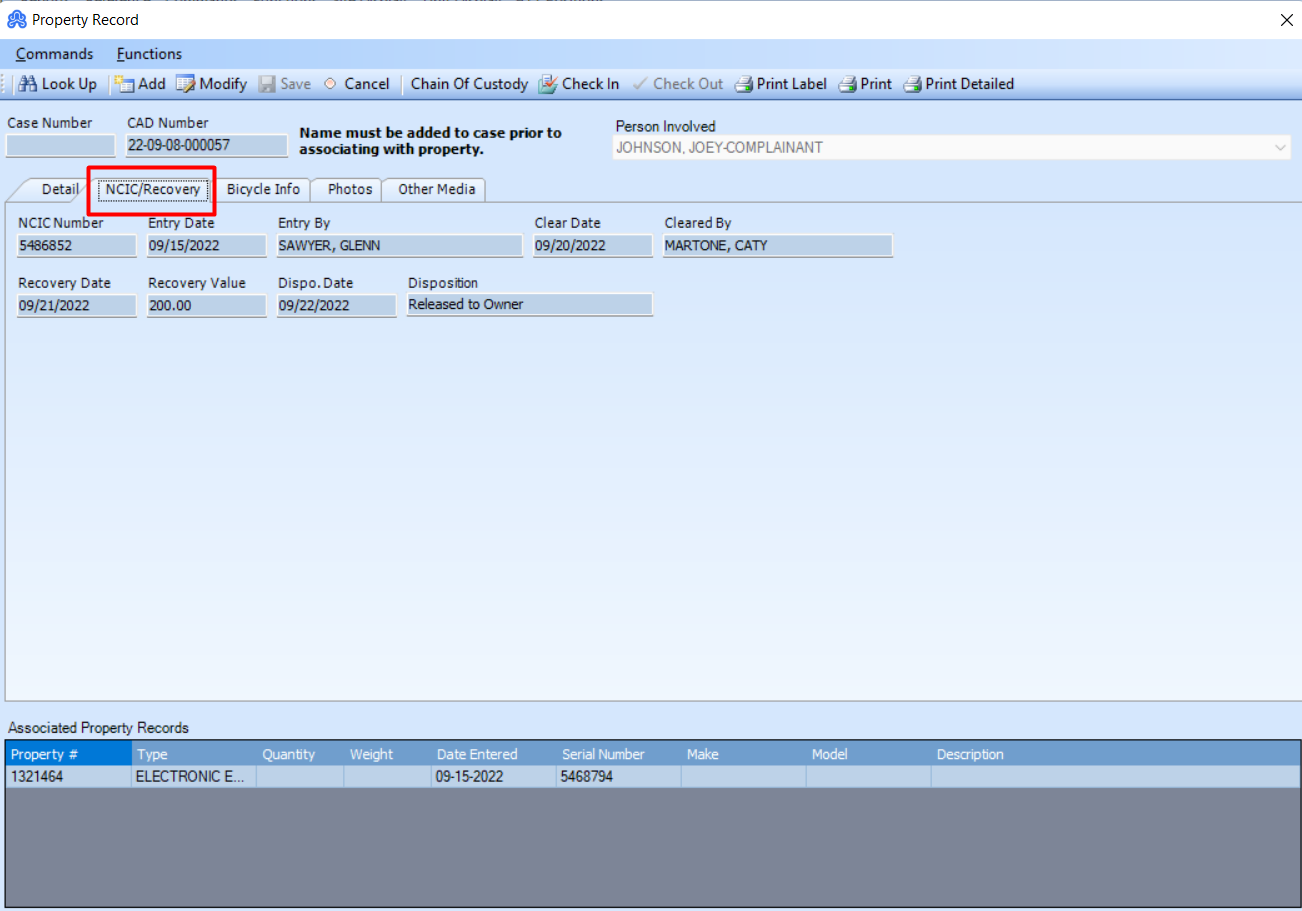
Once the Property/Evidence window has been put into add mode, information can be entered into any tab. Press Save when done adding information. As well, if multiple items of property are listed in the data grid at the bottom of the window, clicking on any of those records will display the detailed information of that property item in the text fields in each of the tabs.
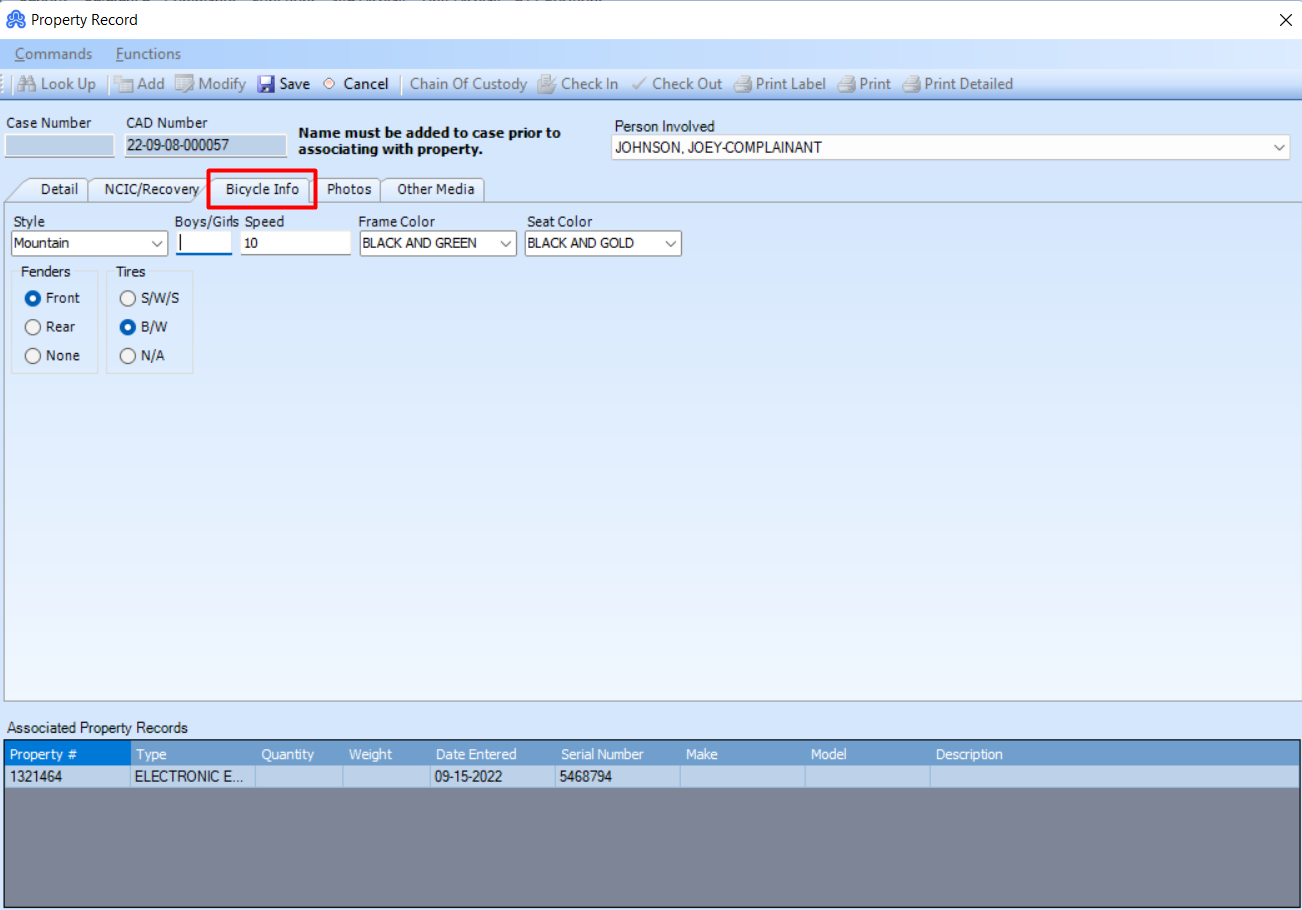
Bicycle Info
The Bicycle Info tab allows the dispatcher to enter bicycle-specific information for their property/evidence. The fields include Style, Boys/Girls, Speed, Frame Color, and Seat Color. They can also specify if it has a front or rear fender, and the tire type. Use the save button to record their bike information.
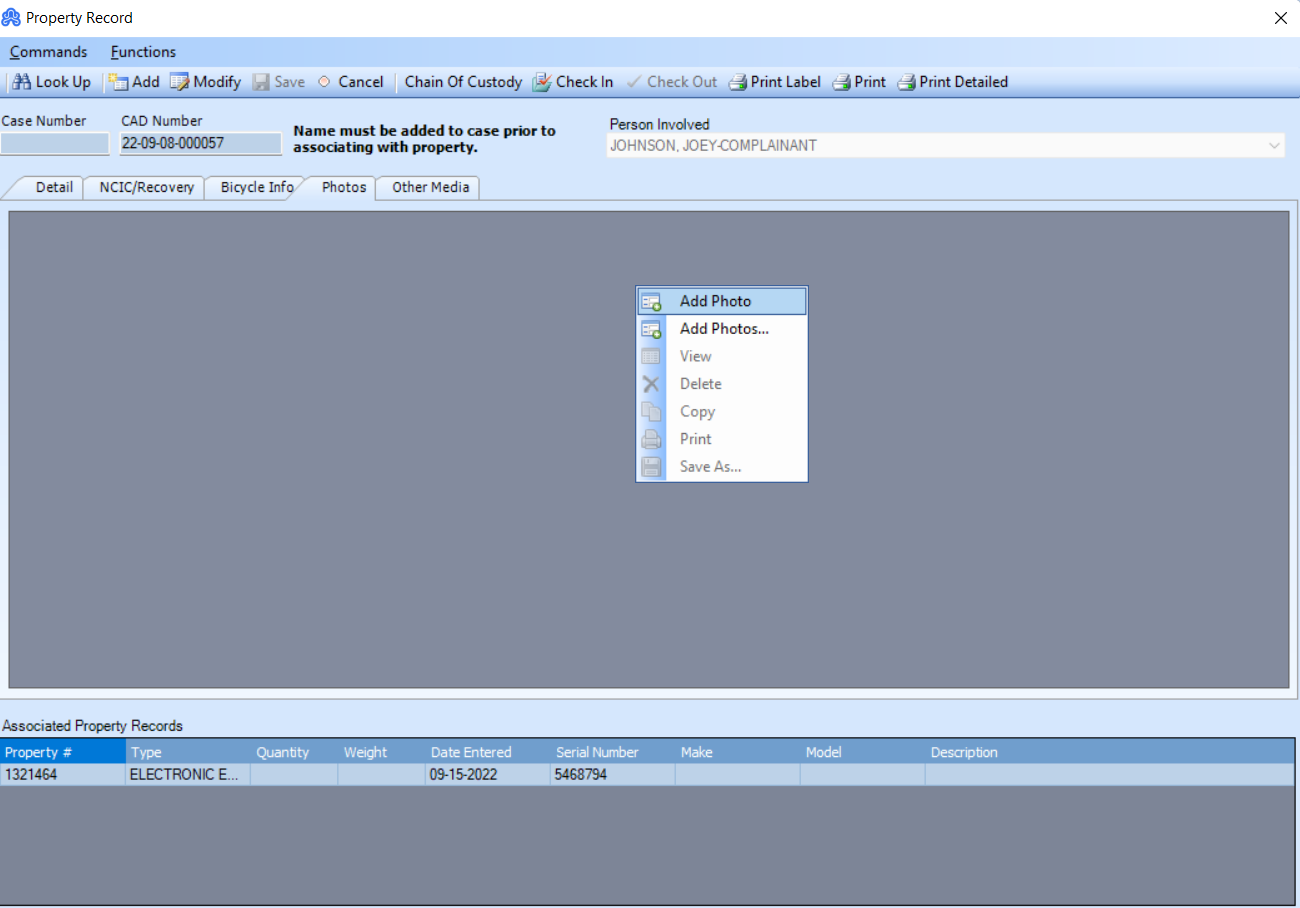
Photos
The photos tab works the same way as it does in other modules of ARMS. Right-click in the grey area to Add, View, Delete, Copy, Print, or Save Photos.