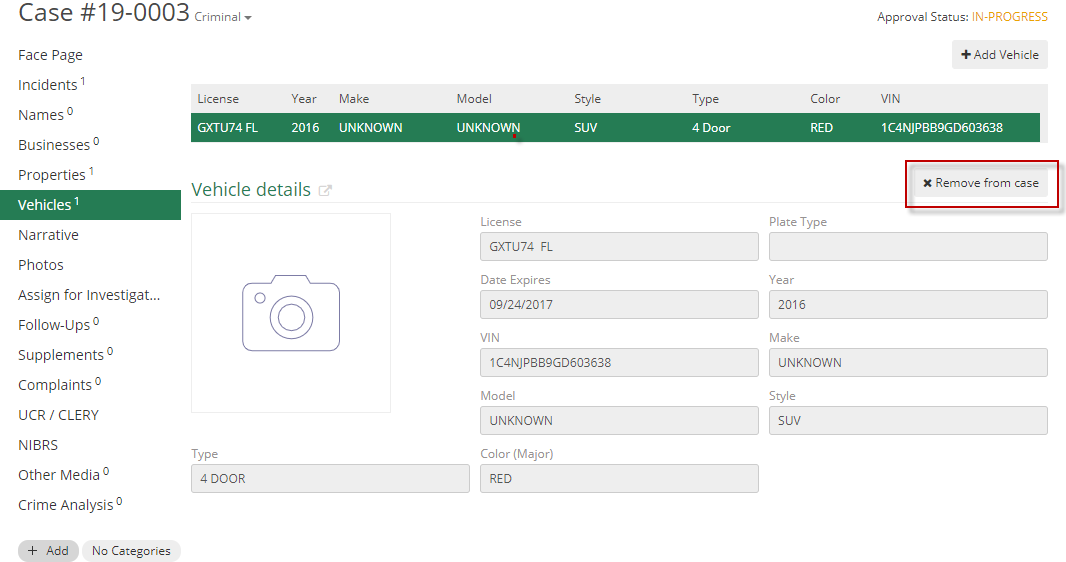
The vehicles tab allows the user to add any vehicles to the CAD event or to find and add a vehicle that is already in ARMS.
Attaching a Vehicle that is in ARMS
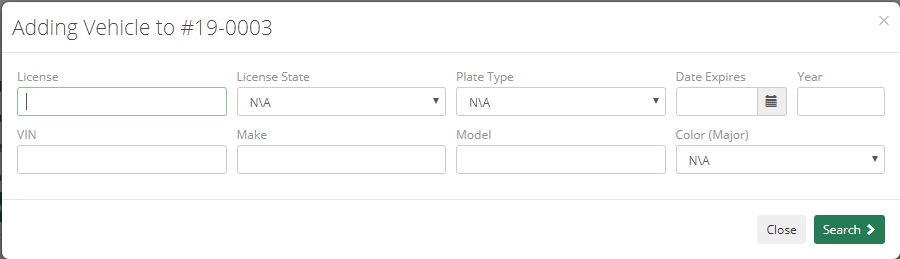
When you start to add a vehicle in ARMS it will open a search window. Enter the vehicle information and ARMS will search for near matches, if one is found you can attach it to the event by selecting it.
|
Vehicle License – License plate number |
Vehicle License State – License plate state |
|
Vehicle Identification Number – Vehicle specific identification number |
Year – Year of vehicle manufacture |
|
Make – Company that makes the vehicle i.e. Ford |
Model – Type of vehicle i.e. Mustang |
|
Color (Major) – Primary color of the vehicle. |
|
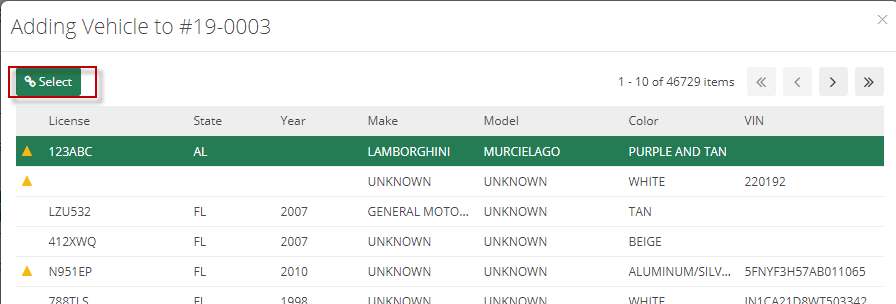
Once the search is complete select the link button from the list and it will be attached to the event.
Adding a new vehicle to ARMS
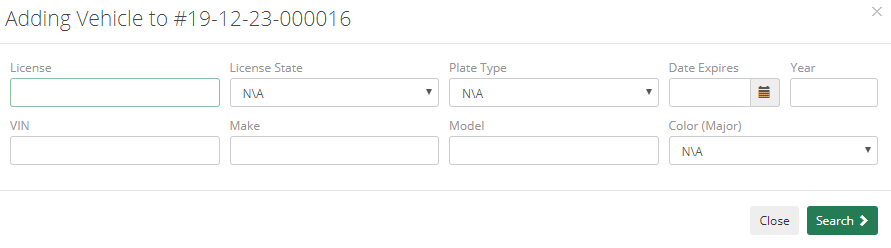
To add a new vehicle in ARMS first enter the search parameters and press search.
|
Vehicle License – License plate number |
Vehicle License State – License plate state |
|
Vehicle Identification Number – Vehicle specific identification number |
Year – Year of vehicle manufacture |
|
Make – Company that makes the vehicle i.e. Ford |
Model – Type of vehicle i.e. Mustang |
|
Color (Major) – Primary color of the vehicle. |
|
Next press the Add New button at the bottom of the list.
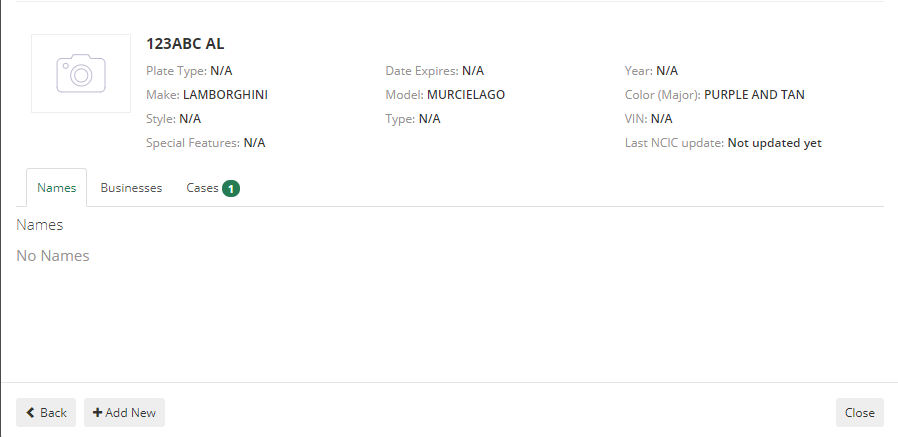
Any of the information that you entered into the search will be transferred to the add New Vehicle window. Vehicles require a VIN or License plate and State before they can be added.
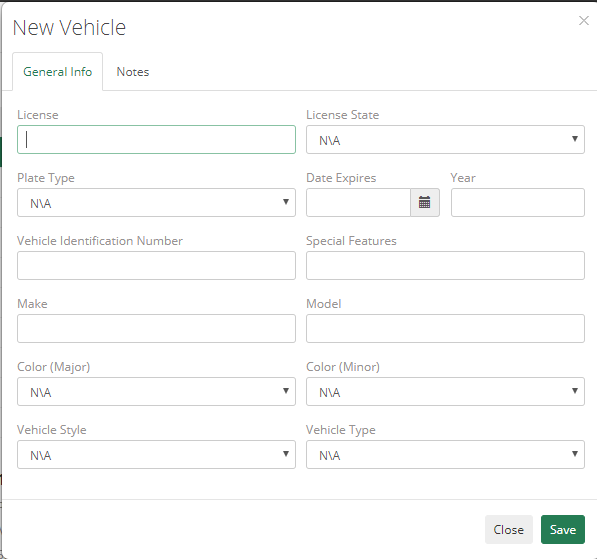
|
Vehicle License – License Plate Number |
Vehicle License State – License plate state |
|
Vehicle Identification Number – Vehicle specific identification number |
Date Expires – Date license plate expires on |
|
Year – Year of vehicle manufacture |
Special Features – Unique features of the vehicle |
|
Make – Company that makes the vehicle i.e. Ford |
Model – Type of vehicle i.e. Mustang |
|
Color (Major) – Primary color of the vehicle |
Color (Minor) – Secondary color of the vehicle |
|
Vehicle Style – Coupe, Sedan, Etc. |
Vehicle Type – 2 door, 4 door, truck, etc. |
Editing a vehicle
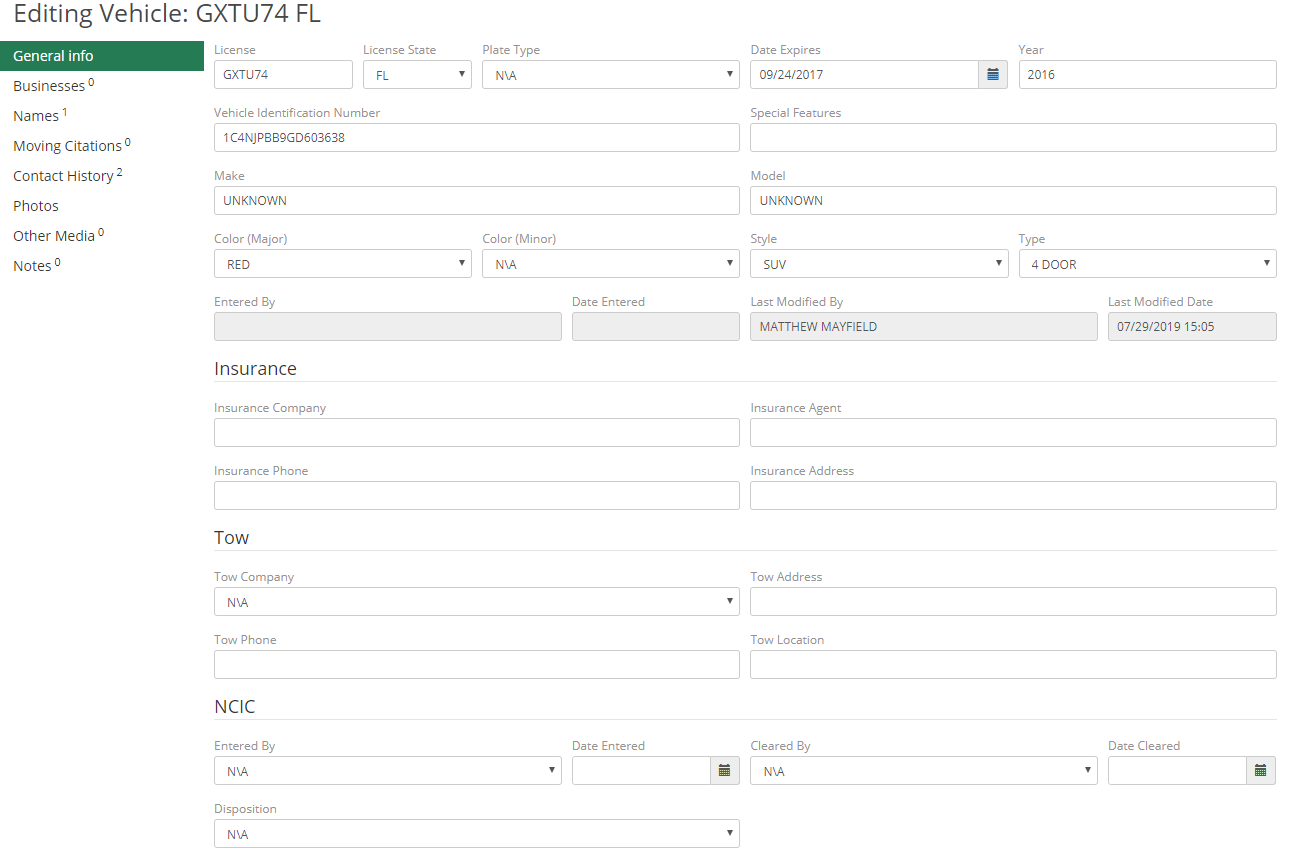
First select the vehicle tab and then select the edit button on the vehicle you wish to edit.

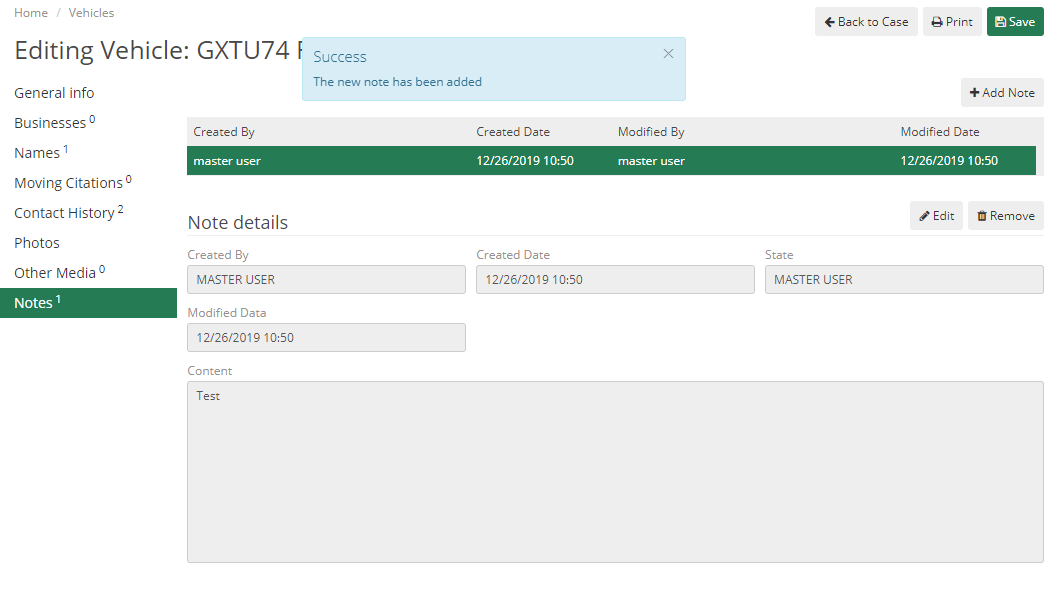
This will open the vehicle information window where you can edit the vehicle details or add a note about the vehicle.
Removing a vehicle
Press the remove vehicle button to remove the vehicle.