Photos
Officers can add Photos through the photos tab.
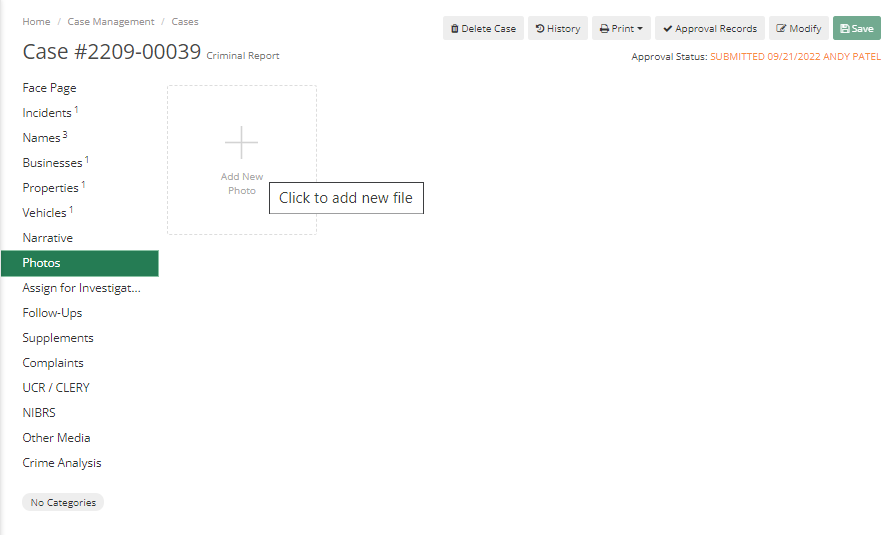
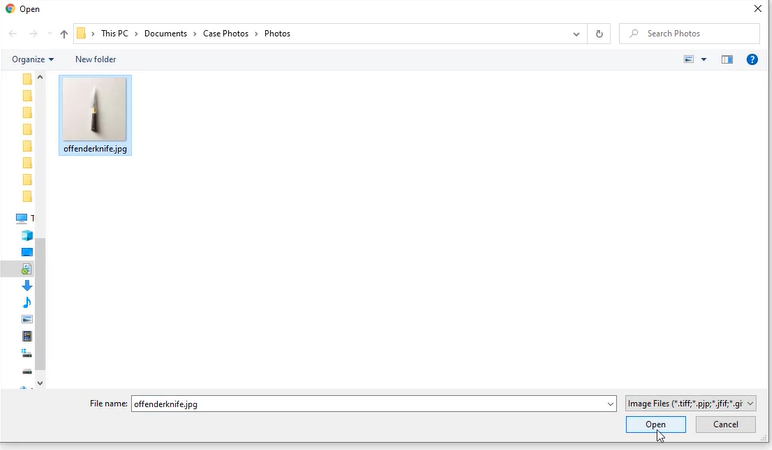
On click of Add New Photo it will show a dialog, where officers can select a photo they want to add to the case.
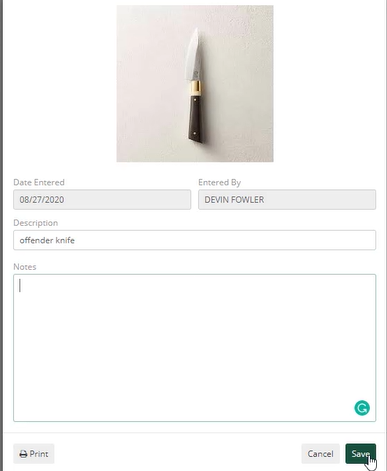
Then after selecting, again a dialog will appear where Officer can add details about the photo like the Date Entered, Entered By, Description and Notes.
Officers can also print those details by clicking on the Print button. After adding details to the photo hit Save. If an Officer is using a device such as a mobile phone, they can capture an image and can upload that image to ARMS.
For Photos, officers can Print, View, and Download uploaded files.