
ARMS Case Management Overview
The Case Management module allows the Officer to search, view, and edit Case records within ARMS. Officers can manage Case records through Case, manage approvals through Approval Management, manage supplements through Supplements, attach Follow-Up reports, assign for Investigation, TX NIBRS Data Extract, Maxient, Courtyard, and manage templates for Narrative through Narrative Templates.
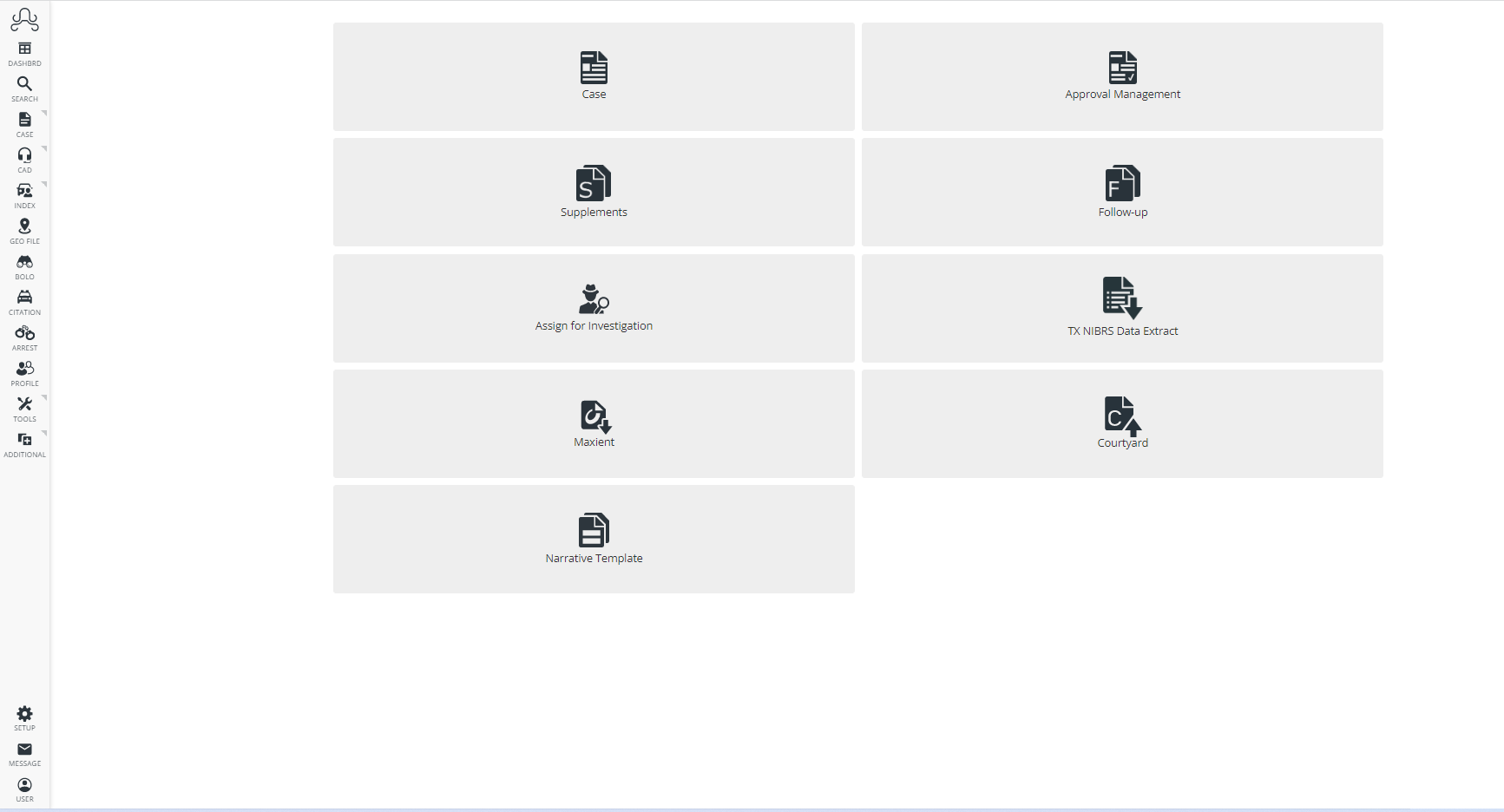
Figure 1 Case Management
Case Module
In this module, Officers can manage Case records. To go to "Case", go to Home-screen>Case management>Case.
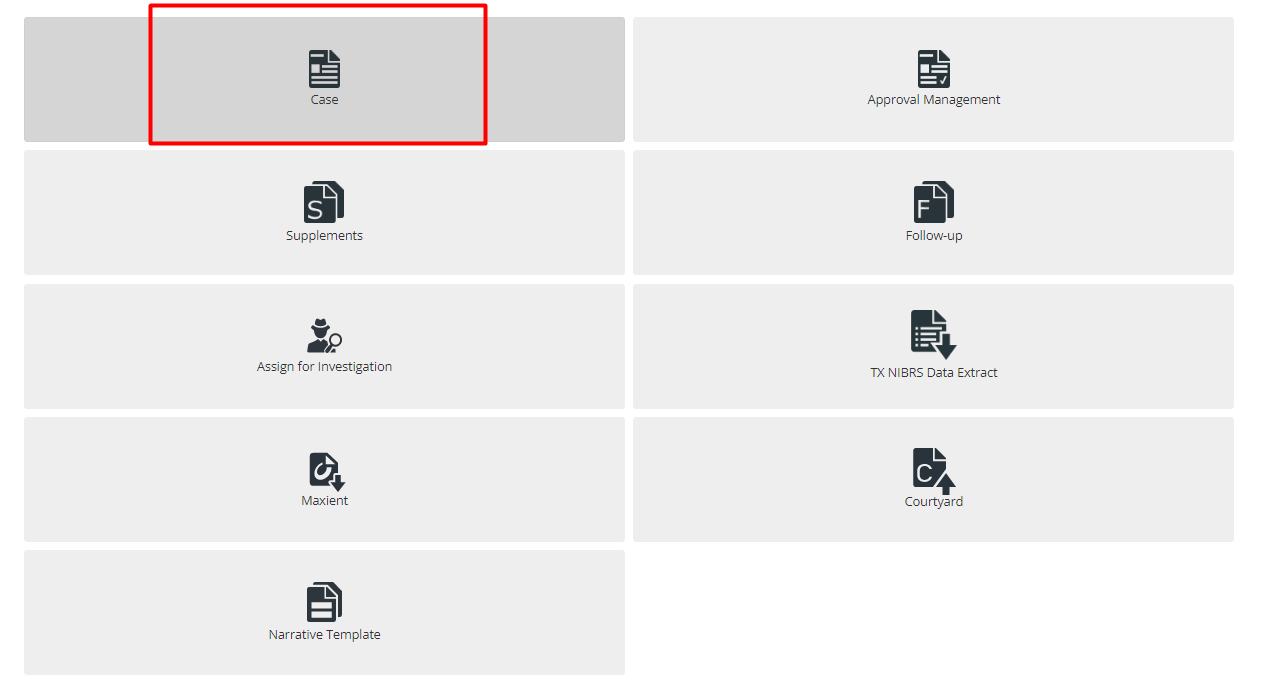
Figure 2 Case Module Tab
When first opening the Case module, the Officer will see the Last 10 Cases list (Here it displays only two records as two records are added). This is a list of the 10 most recently created, or modified, Case records that are associated with the Officer.
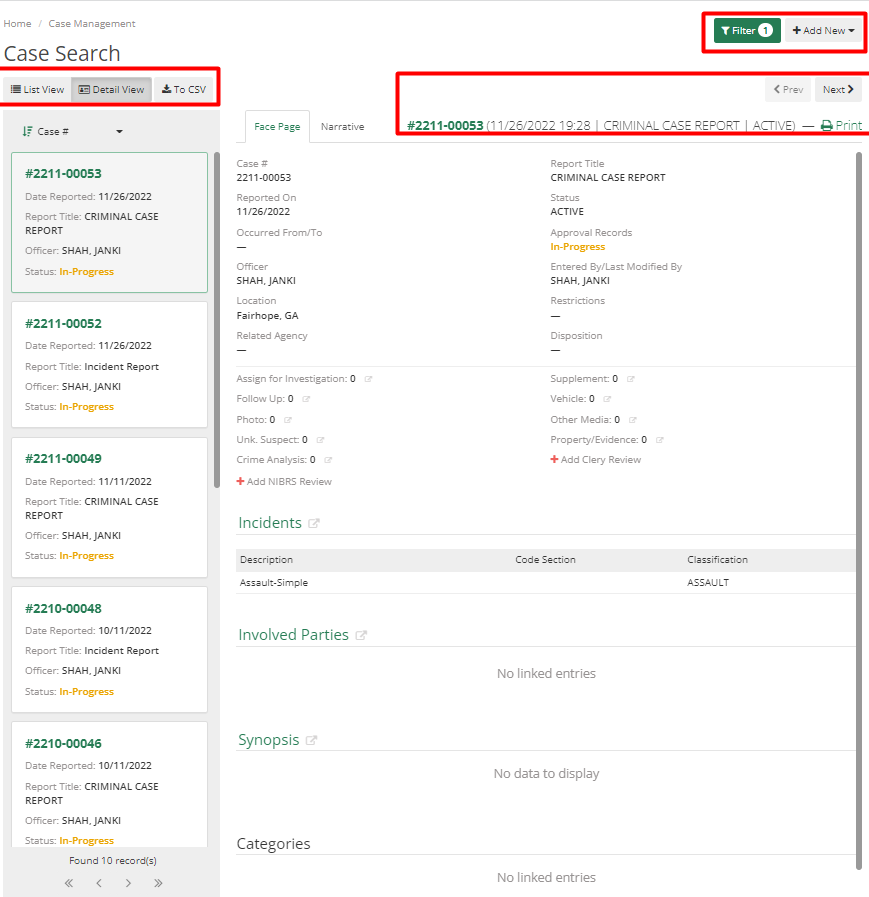
Figure 3 Case Module Home Screen
On the top right corner, the Officer can see two options Filter and Add New. Add New allows the Officer to add new cases and filter helps the Officer to filter data and view a list of records according to it.
Figure 4 Filter and Add New Button
The Case Search form allows the Officer to search Case records based on a combination of the search parameters of Report Number, Related Agency, Related Number, Common Name, Street Name, CAD Number, Date Reported On (to and from), and Officer. By default, all cases are filtered as per the officer logged in.
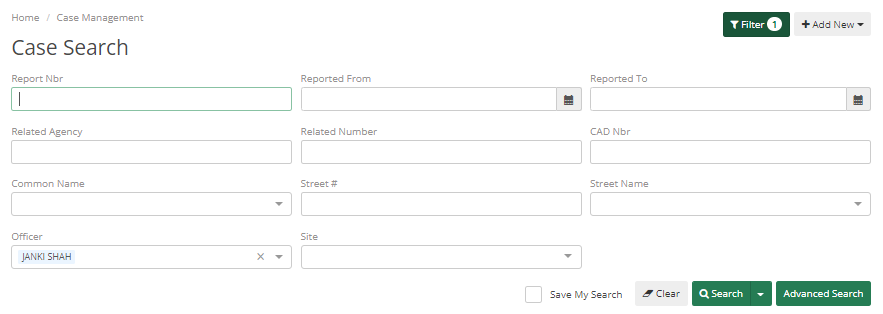
Figure 5 Case Search
Certain fields will display a drop-down menu when the Officer starts typing in that search parameter. The drop-down menu will show the top 5 matches to what the Officer has typed in the field. The Officer can see below that where I have typed "Ki" into the Common Name field, it displays the top 5 matches.
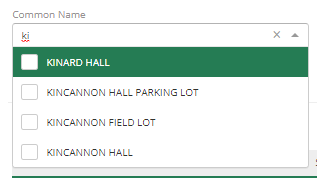
Figure 6 Common Name
To view the complete record of a Case in the list, simply click on the row; this will open the Case record for viewing/editing/etc. based on Officer permissions.
To save time Officers can use the advanced search option and save their search, so each time they log in they will see data as per their saved filter.

Figure 7 Search Menu
Case records can be displayed in two ways List view and Detail view. Officers can switch between those as desired. Each row in the list view represents a Case record, displaying the Report Number, Date Reported, Case Status, Name of the officer to whom the case is assigned, site, Location, Offenses, and Last modified date.
By clicking on the header, the Officer can sort data in ascending and descending order. By clicking on the case number, the Officer can see other information about that case.
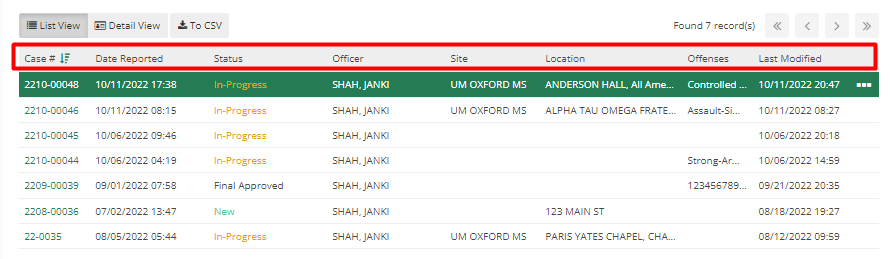
Figure 8 Header
Three dots at the end of each row shows options such as edit, print, and delete. By using that, the Officer can edit, print, or delete that case.
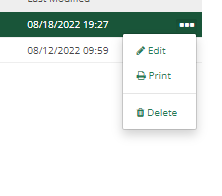
Figure 9 Option Menu
By selecting the Detail view option, the case can be viewed in detail straight from the main screen with the Next and Previous options. Officers can see all details related to the case. The Face Page and Narrative tab allow the Officer to view all aspects of the case without navigating to other screens. On the left, Officers can see case numbers and they can scroll and select the case they wanted. Officers can sort case numbers in ascending or descending order as the Officer was doing in List view.
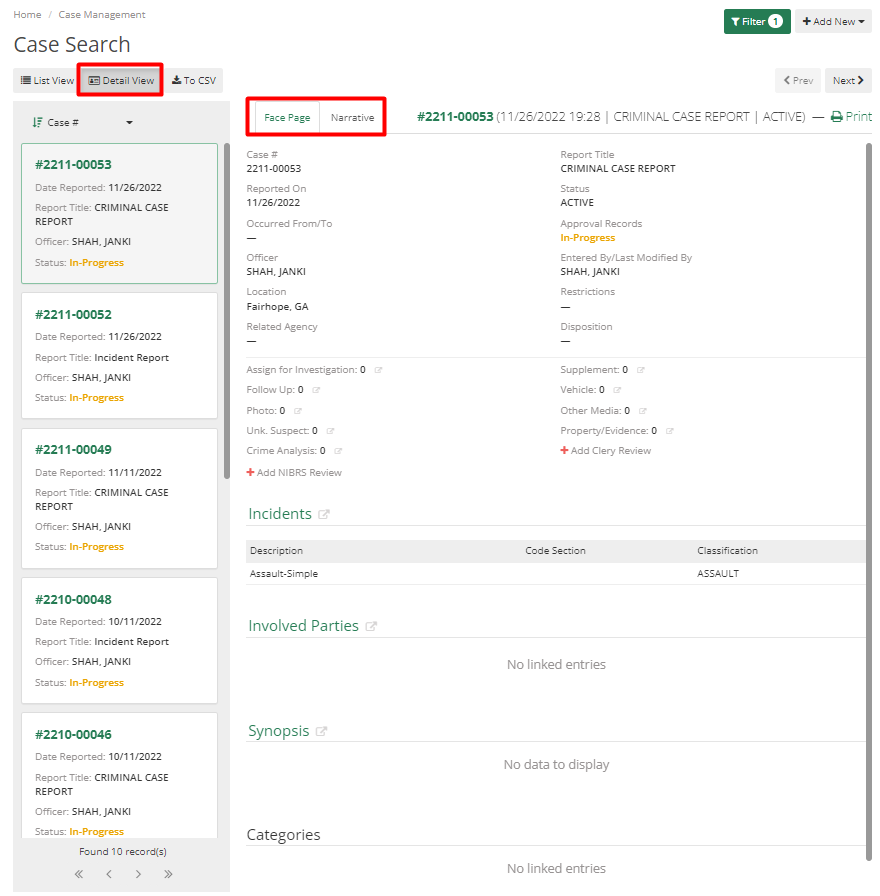
Figure 10 Case Listing - Detail View
Officers can change the order of cases by Case Number, Date Reported, an Officer, or by the Last Modified Date.
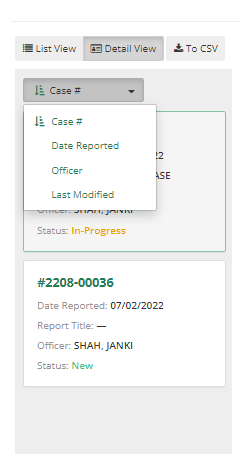
Figure 11 Sorting Options in Detail View
To add a Case record, click the Add New button in the top-right corner of the page. From there Officer will need to select New Case Log.
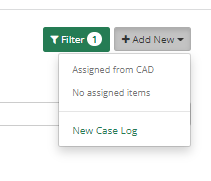
Figure 12 Add New Menu
The case Officer will add is either Criminal or Non-Criminal. As per the case type, a few case types are set as "Criminal" by an administrator of the Officer's department. If the Officer selects a case with a Criminal type, then they must fill in the details required in a criminal case.
Once they have selected a Case record or created a new Case record, the Officer can then add information to or edit information in the different tabs of the Case record. These tabs are Face Page, Incidents, Names, Businesses, Properties, Vehicles, Narrative, Photos, Assign for investigation, Follow-Ups, Supplements, Complaints, UCR/CLERY, NIBRS, Other Media, and Crime Analysis. Any field that requires information will display a red exclamation dot next to the tab name.
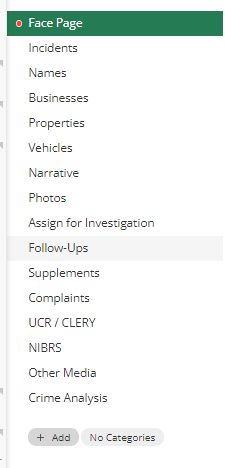
Figure 13 New Case - Tabs
Once the Officer has finished filling out the Case report, the Officer can select the Approval Records button in the top right corner and submit the Case for Approval.
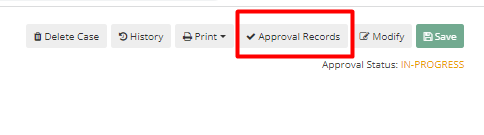
Figure 14 Approval Records
This will require Officer to choose a Destination Officer. The officer can add a division to also Instant Message or CC a specific Officer other than the Destination Officer, add a subject and notes to the submission.
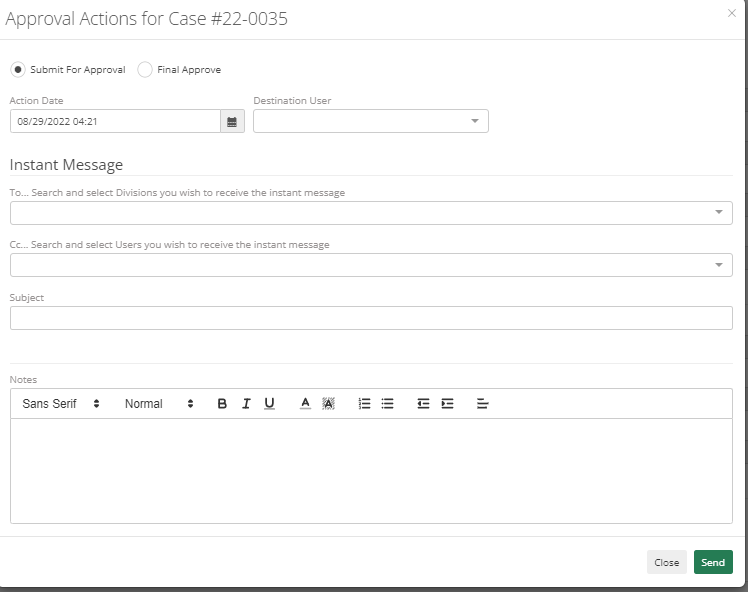
Figure 15 Approval Actions
To view the Case's Approval History, go to the History button from the top-right corner and click on it. In this tab, Officer can see Modification History as well as Photo/Media History. Officer can see a copy of the case report before the modification was made, so it can be downloaded in the case where it's required.
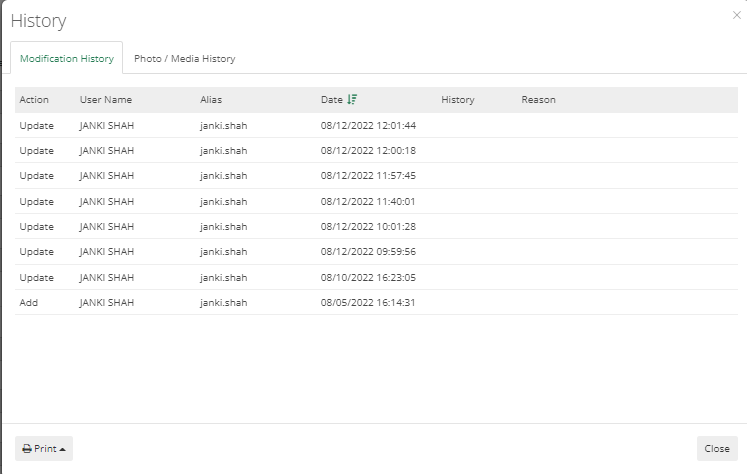
Figure 16 History
On clicking of Add New Case button, the officer will be navigated to the screen which contains an auto-generated Case number on the top. It can be edited if the Officer has the permission of editing it.
With the click of Modify button, the officer can start filling in data. Red dots in front of any tab indicates that the officer needs to fill in data to successfully add a new case. Officer can also click on this red dot, and it will show a message indicating the fields which are required.
If any information needs to be added in any drop- then that can be added by the Administrator of your department. They can add/edit it in Code List and once added it will appear in that dropdown.
Face Page
For the Face page, the required fields are "Report Title" and "Status". Select as per your case from the drop-down.
If any department within your city or colony or area helps in that case then Officer can Related agency and related number
There are four checkboxes on the top they are "Confidential", "Juvenile", "Sex Offense", and "Sealed", Only officers who have access to this can check or uncheck them for others it would be disabled. If one of these checkboxes is checked for any case and officers are not able to search that case, then it would be because Officer might not have access to such type of case.
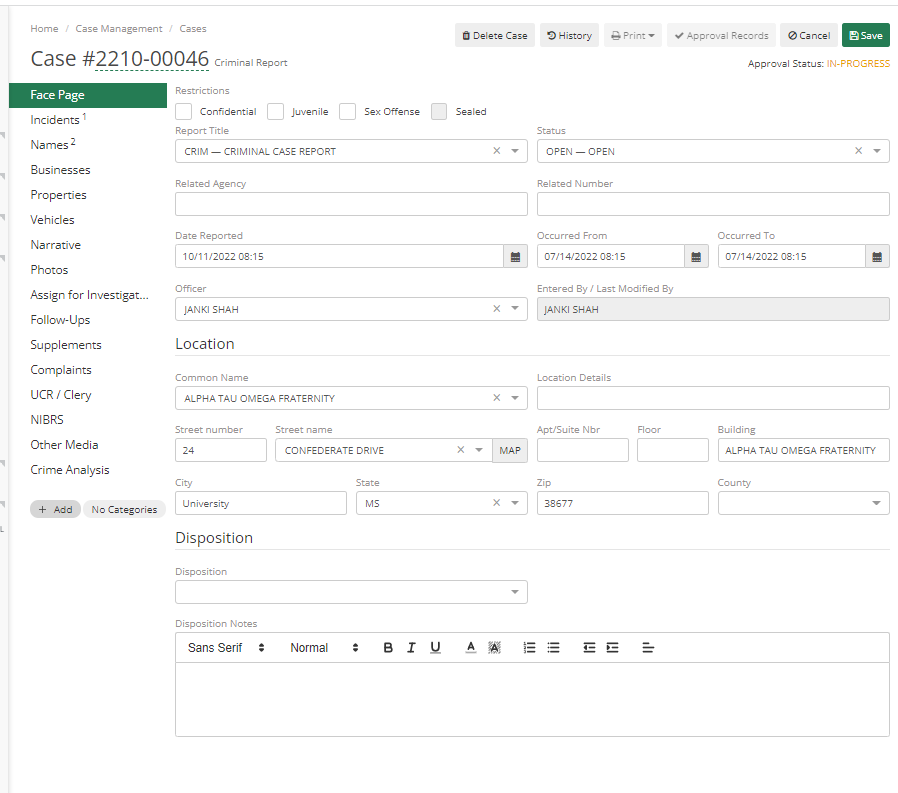
Figure 17 Face Page
Officers will only be able to add details once they click Modify button and Hit Save to save added details for that case.

Figure 18 Modify and Save
Incidents
If the case is issued by CAD, it will show "Dispatch" as a Crime Code. Dispatchers use this code for Aggravated assault, officers need to remove it and add more details by clicking on the "Add Incident" button.
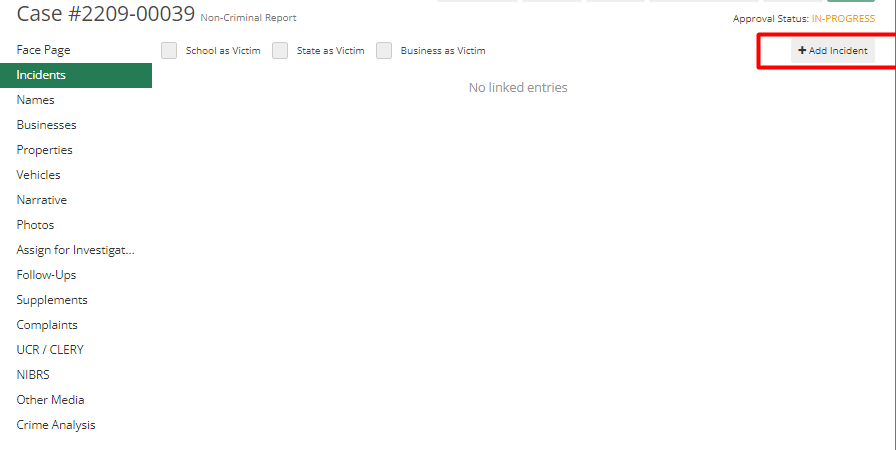
Figure 19 Add Incident Button
The officer should type the incident in the incident field, and it will show the incident list to select from. It will show a list when the user starts typing.
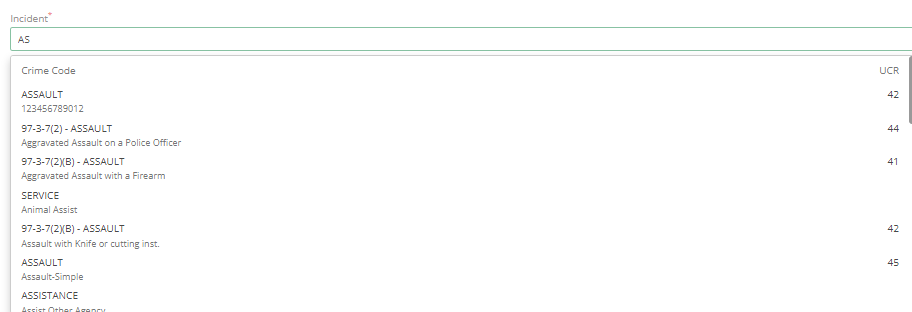
Figure 20 Incident Field
Once the officer selects an incident, it will automatically fill in a few fields. This information is attached by Admin with the type of Incident and will be prefilled once it is selected by an officer.
All other fields are only added by the person who is reporting the issue. For officers, Incident type is the only required field.
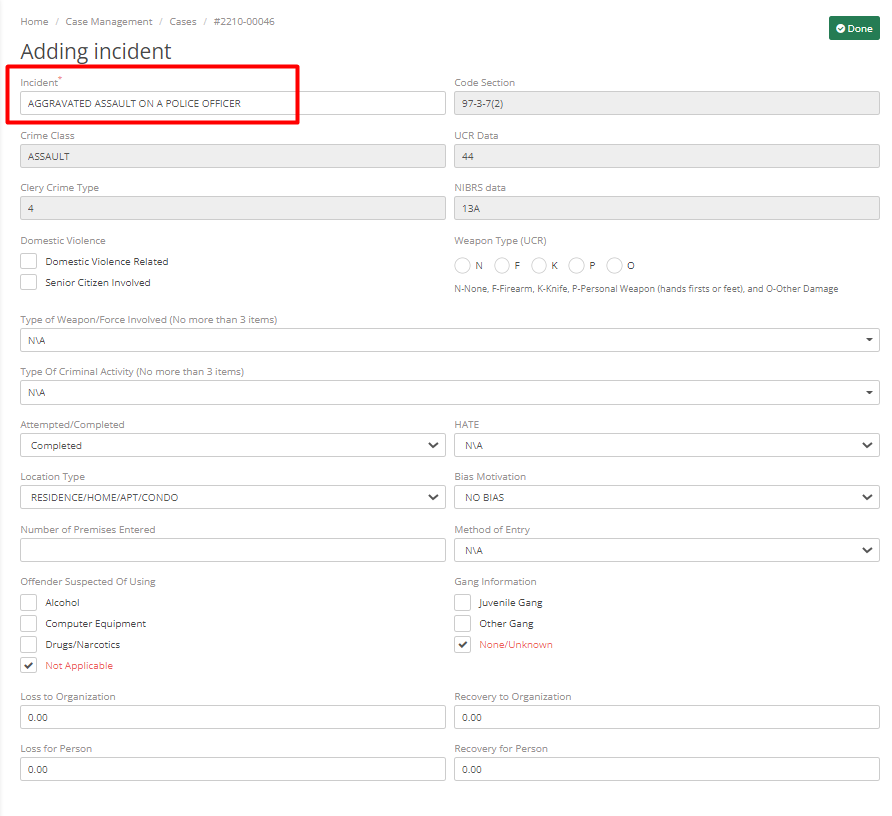
Figure 21 Add Incident
Once Officer clicks on "Done", it will add the Incident to the case.
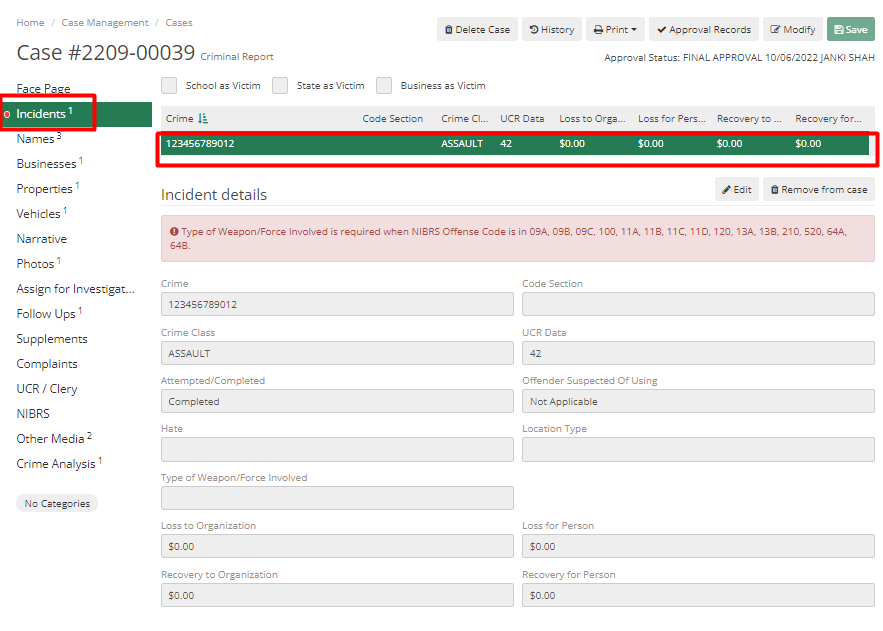
Figure 22 Added Incident Listing
All data are added still it shows a red dot in an incident tab, it is related to the Names and Business tab. With the click of a red dot, it will show the reason. This dialog shows that criminal case requires victim details.

Figure 23 Warning
If the victim is a school, state, or business, the officer needs to check the mark-related checkbox at the top. If the victim is an individual, an officer can ignore this and move to the Names tab. If the business is a victim, then select the checkbox on top and add details in the Business tab. If there is a drug Charge, then nobody is a victim except the state. So, the officer needs to check "State as a Victim".