
Names and Unknown Suspects
The red dot in Names indicates that there is a need for Victim details. To add victim details, click on the Add Involved Person button on the top right corner of the screen.
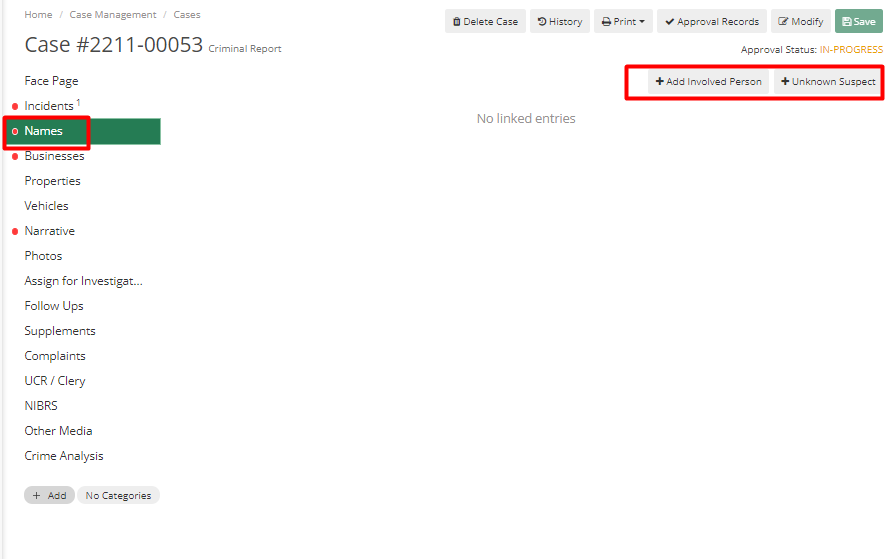
Figure 1 Names Tab
Adding Involved Person
The first thing this does is to ask the officer to search first before adding it as a new entry to avoid duplicity of records. After adding the Last Name, an officer can click the Search button.
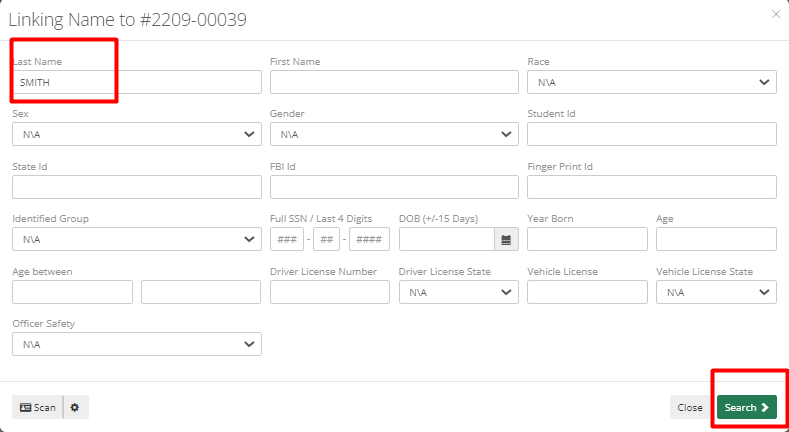
Figure 2 Link Name
If there is no matching name, or if the name is not what Officer is searching for then they can click the "Add New" button on the bottom left corner of the screen. If they found whom they are looking for, then they can select the person from the list and hit "Next".
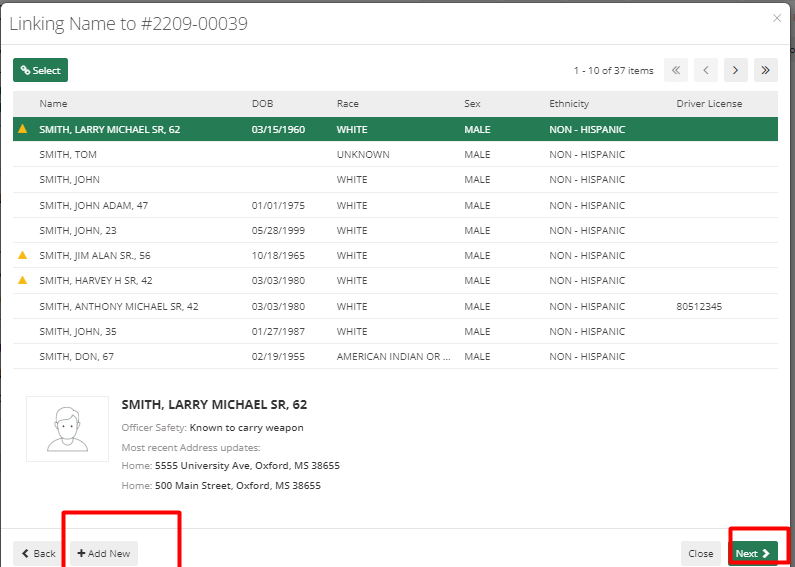
Figure 3 Add New
It's better to search with minimal details, like just entering the last name. Once you click the Add New button it will prefill the record with any details used for the search. Race, Sex and Ethnicity are required fields, in case you don't know any of them you can select Unknown from the options. Multiple optional fields can also be added by an officer.
The Misc. tab is not used by all departments, and is not required unless needed for the department.
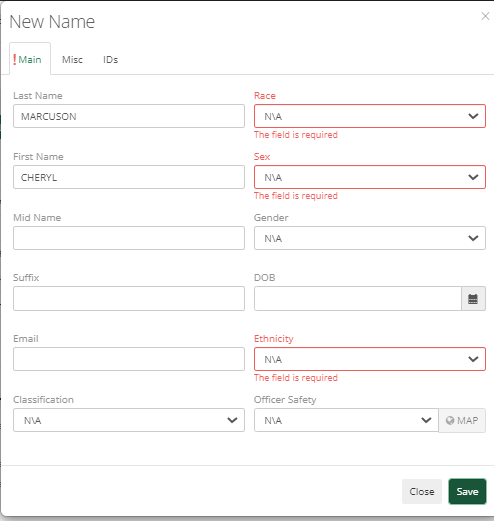
Figure 4 New Name
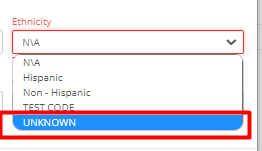
Figure 5 Ethnicity Drop down
The IDs tab allows to add users ID details like SSN (Social Security Number), FBI Id, Driver's License, Finger Print Id, Driver's License State, Alien Id, Student Id, CII number, and State Id. Once the officer clicks the Save button, it will add that person to the Names List of ARMS.

Figure 6 Success Message
After the officer receives the success message, ARMS will prompt him to link the name in ARMS, which requires him to enter the person's involvement and name type. Other than that, there are multiple other fields that an officer can add like Addresses, Phones, Descriptions, Field Interviews, Vehicles, Complaints, Moving Citations, and Warrants. Trespass Orders, Restraining Orders, Notes, Photos, Other Media, Licensing, Aliases.
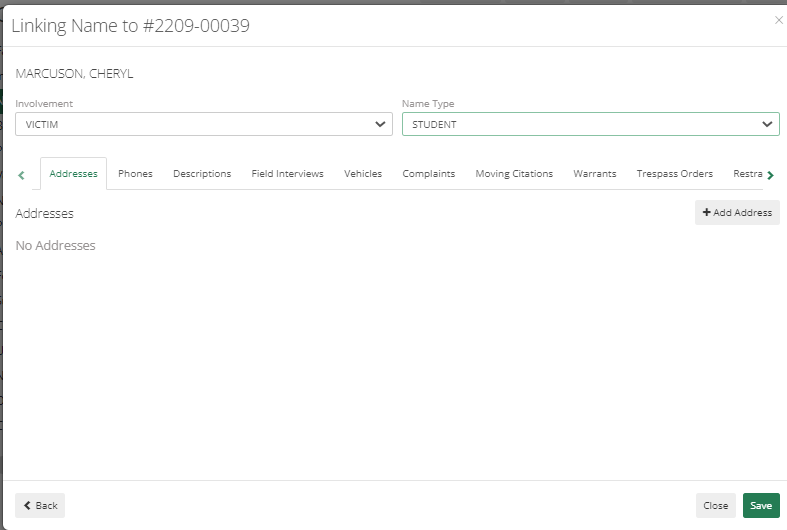
Figure 7 Link Name Association
After hitting Save, now it will show a success message associating a name with the Case.
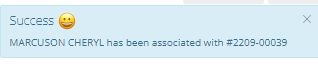
Figure 8 Success Message
Adding Unknown Suspect
The required fields are Sex, Race, Age from, and Age to. The rest is up to the officer. They can provide as many details as they know. Like name, if the officer does not know the details, then they can select Unknown from the list.
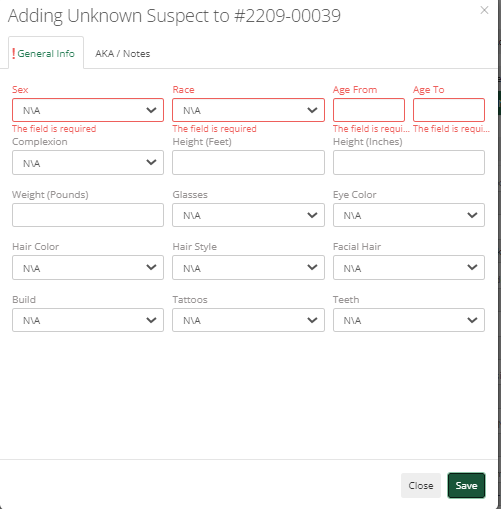
Figure 9 Adding Unknown Suspect