
The Property tab allows the user to search, view, edit Property/Evidence records, and check in/out property records within ARMS. When first opening the Property tab you will see a list of the last 10 property records that have been created, searched, modified, or checked in/out in mobile. Each row in the list represents a Property record, displaying the Property Number, linked Case Report Number, Date Entered, Property Type, and Property Category.
Please note that unlike vehicles and persons the property records must be added through Case Management or CAD before the record can be created.
Searching for Property
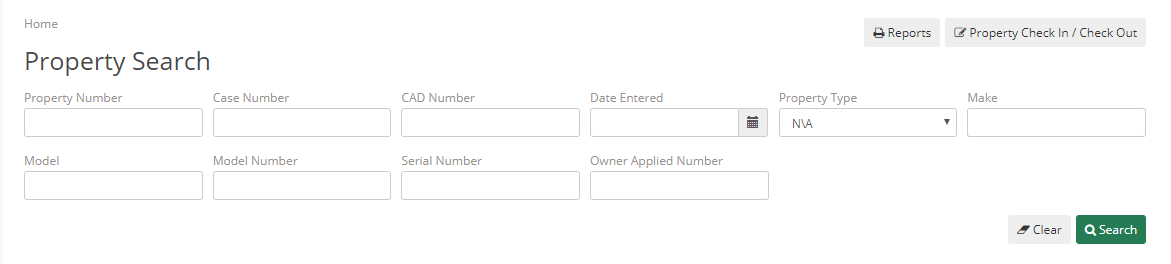
To search for a property record in ARMS select the search button and enter the information you would like to search. The Property Search form allows the user to search Property/Evidence records based on a combination of the search parameters; Property Number, Case Number, CAD Number, Date Entered, Property Type, Make, Model, Model Number, Serial Number, and Owner Applied Number.
If you have a label and a scanner connected to the computer you can scan the label to find the property record by scanning the barcode

|
Property Number – Individual property number |
CAD Number – CAD reference number |
|
Date entered – Date property was entered in ARMS. |
Property Type – currency, firearm, etc. |
|
Make – manufacturer of product (Colt, Toshiba) |
Model – model of property if applicable (i.e. M14, Chrome book) |
|
Serial Number – Serial number of property |
Model Number – Specific version number of property |
|
Case Number – Case file reference number |
Owner Applied Number – reference number for owner return |
The results will be below. They will show an overview of the record and list the Property Number, Case/CAD Number, the Type, Date Entered, and Description. Selecting a property record will allow you to view all information entered into ARMS.

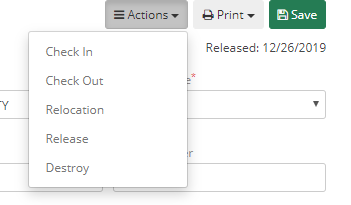
With a property record selected you can check in/out the property, print a label, view the chain of custody, and save any
changes you make to the property
Printing a Label
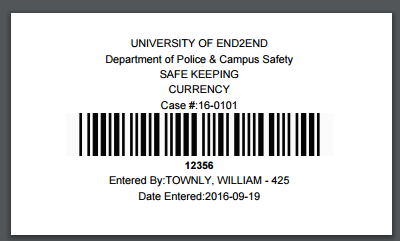
Once you have searched for a property record you can print a label with the Print label button. The label will show in a new tab and you will be able to print it normally from there. The label prints the City/University Name, Department, Property Category, Property Type, Case Number, Property Number, barcode (generated by the property number), Entered By, and Date Entered.
Checking In/Out Property
By selecting the Property Check In/Check Out button you can search by the property number or if you have a label and a scanner connected to the computer you can scan the label to find the property record by scanning the barcode.

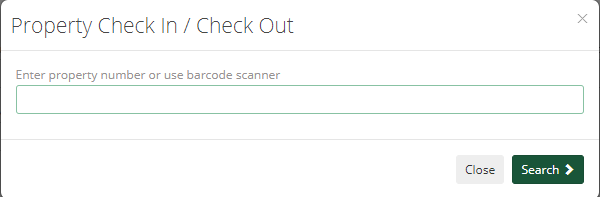
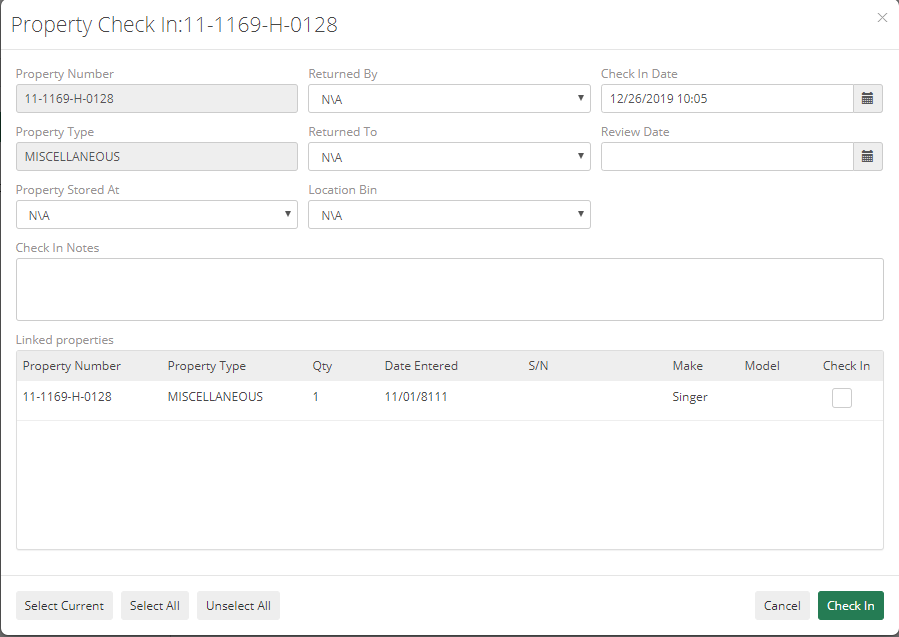
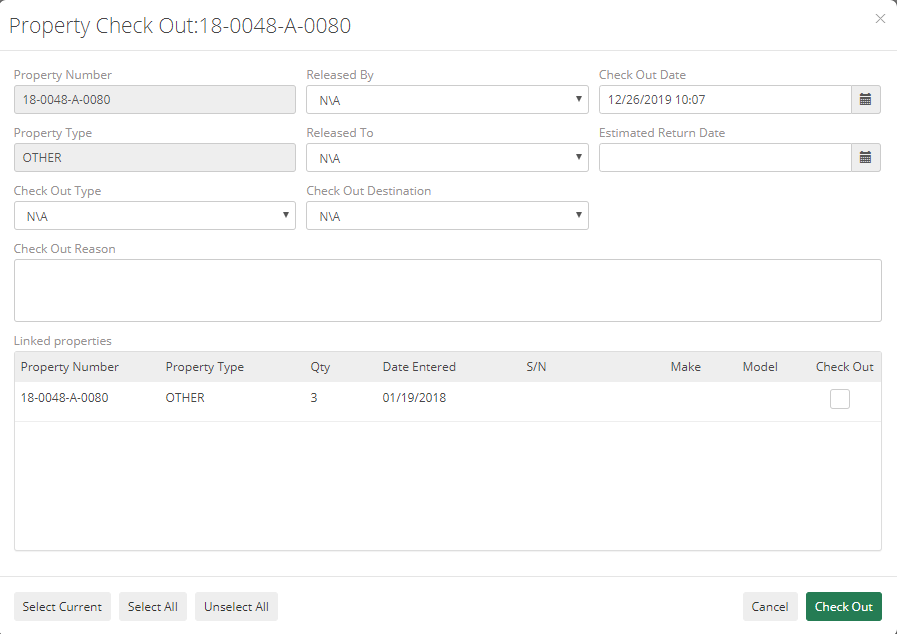
ARMS will automatically select the matching record. When using this button for check in, ARMS will automatically fill in the check in date. When using this button for check outs ARMS will automatically fill in the Released By, Released To, Check Out Date, and Estimated Return Date. For each process there are three required fields that are not automatically filled out. Below the pictures of the check in and check out forms are overviews of the fields. Required fields have a * next to them
For Check In: Returned By, Returned To, and Check In Notes.
|
Property Number(auto filled) |
The Property number in ARMS. This field is automatically populated from the record. |
|
Property Type(auto filled) |
The type of property. This field is automatically populated from the record. |
|
Returned By* |
The Person returning the property. |
|
Returned To* |
The Person receiving the property. |
|
Check In Date* |
Date of check in |
|
Check In Notes* |
Any notes about the property such as weight or description of damage can be placed here. |
For Check Out: Check Out Type, Check Out destination, and Check Out Reason
|
Property Number |
The Property number in ARMS. This field is automatically populated from the record. |
|
Property Type |
The type of property. This field is automatically populated from the record. |
|
Check Out Type* |
The reason for the check out. |
|
Released By* |
Person who is releasing the property |
|
Released To* |
Person who is checking out the property |
|
Check Out Destination* |
Where the property is being taken |
|
Check Out Date* |
Date of Check out |
|
Estimated Return Date* |
Estimated date property will be returned by |
|
Check Out Reason* |
Any notes about the checkout such as court case number, location, or in the case of destruction reference number for destruction order |