
Vehicle and Tow Files
The Vehicle tab allows adding vehicles to a case report. To add a vehicle, select the Vehicles tab and click Add Vehicle button.
Figure 1 Add Vehicle Button
Before adding in the vehicle, it will first ask to search. The officer can add the license number and hit search.
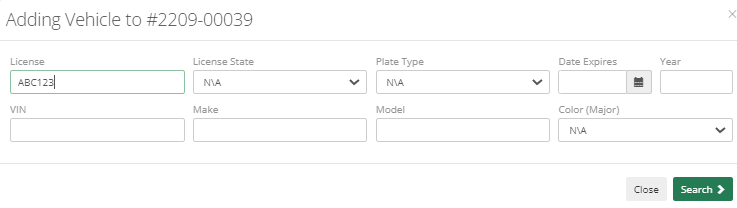
Figure 2 Add Vehicle
The search result will show the related vehicle if it already exists, the Officer can Add New from that window.
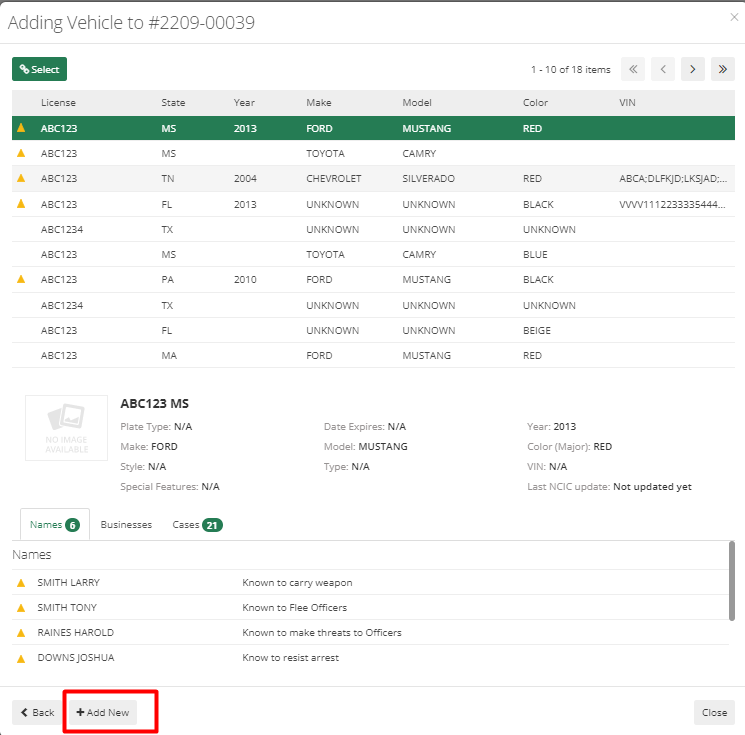
Figure 3 Add Vehicle
Required fields to add a new vehicle are License, License State, and Vehicle Identification Number.
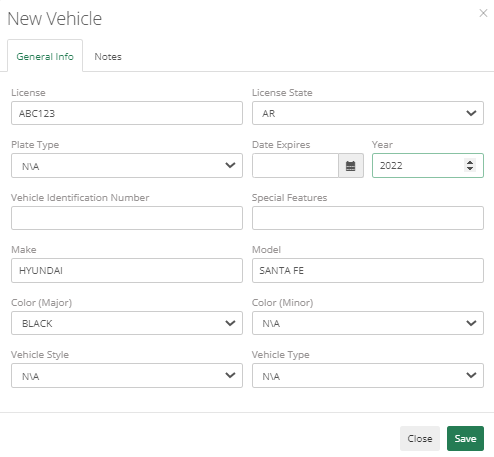
Figure 4 New Vehicle
After clicking save, the vehicle gets added to the case and if the vehicle got towed for some reason, then those details can also be added by hitting Add Tow button.
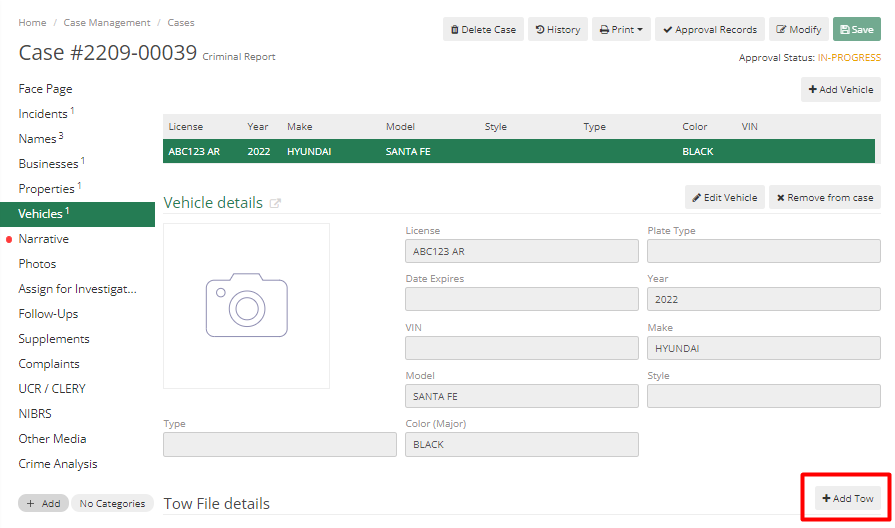
Figure 5 Case - Vehicle
All Tow details like keys location, Reason for Tow, Towed Status, Insurance Policy, Mileage, Common Name, Street Number, Street Name, Location Details, other towing information, Releasing Information, Owner details, Stolen details if any or other vehicle details can be added. The print option allows the printing tow information. Hit save to add details.
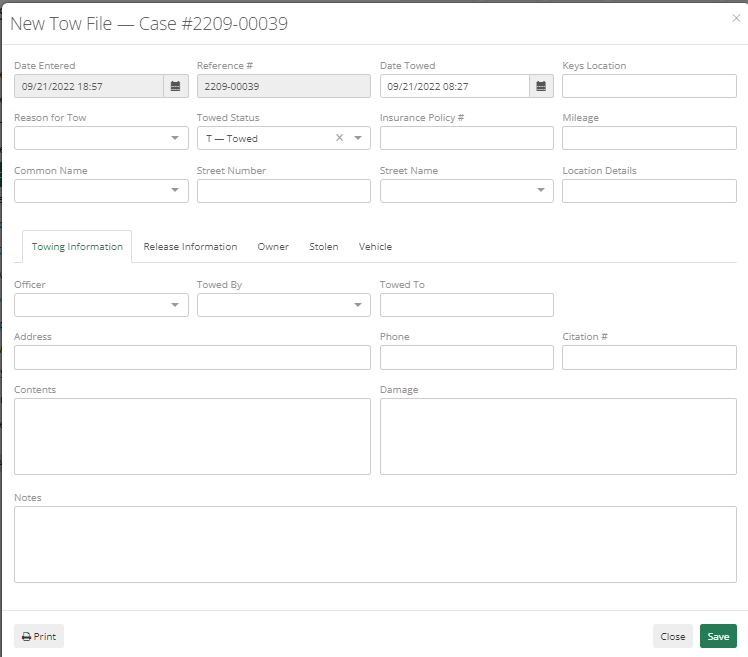
Figure 6 New Tow File
The newly added vehicle can be linked with Businesses or Names. To link it with Business, go to the Business tab>Business Details>Vehicles> Add Vehicle> Search for the vehicle> Select it and it will get linked to the Business

Figure 7 Add Vehicle Button