---
title: Clery Report Center
description: Clery Report Center
---
[Skip to content](https://kb.arms.com/arms/clery-report-center#main-content)
English
Show submenu for translations

Open main navigation
Close main navigation
- English
Show submenu for translations
- [Customer Portal](https://helpdesk.arms.com/tickets)
[Customer Portal](https://helpdesk.arms.com/tickets?hsLang=en)
How can we help you?
- There are no suggestions because the search field is empty.
1. [ARMS](https://kb.arms.com/arms?hsLang=en)
2. [Clery](https://kb.arms.com/arms/clery?hsLang=en)
3. [Clery Workbook](https://kb.arms.com/arms/clery?hsLang=en#clery-workbook)
# Clery Report Center
### **Overview**
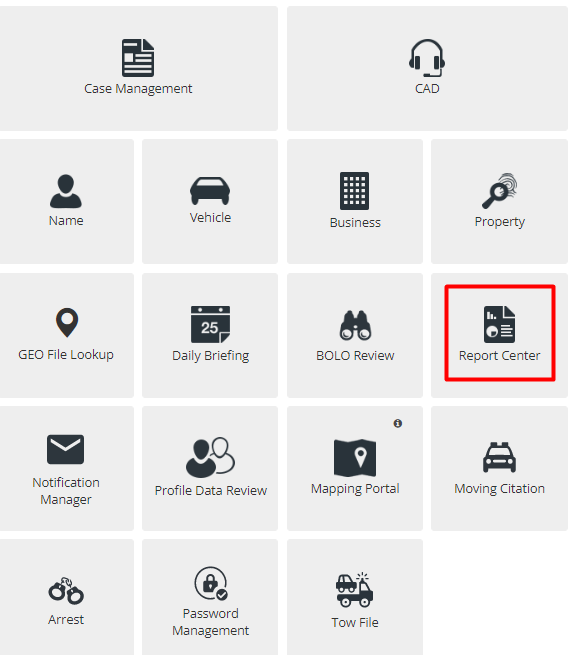
To create a report in ARMS, start with the Report Center module. From there a user can select a Canned Report (a report with predetermined fields) or create a custom report to fulfill their needs.
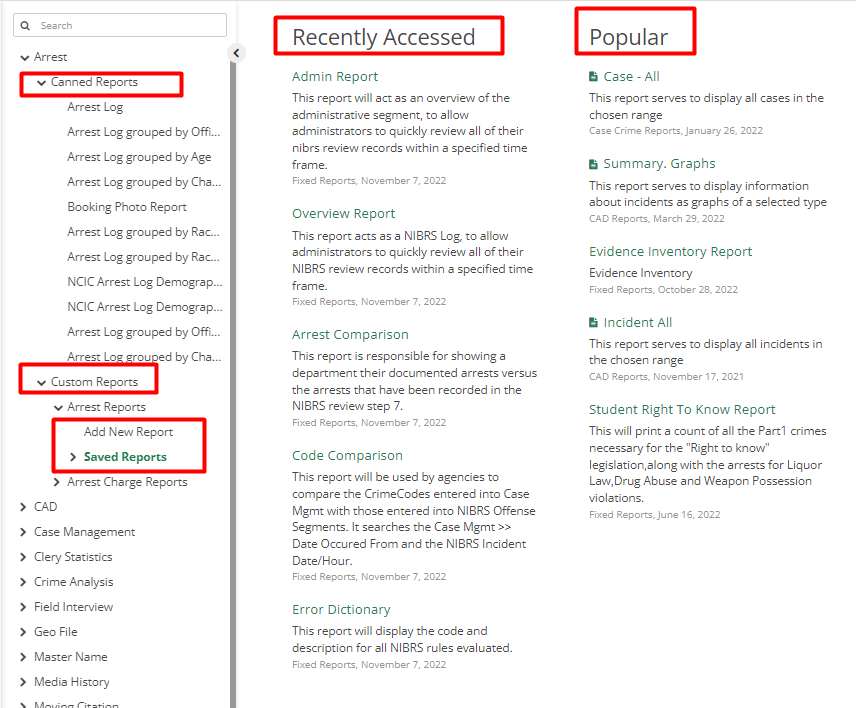
The first page shows Recently Accessed and Popular Reports. Recently accessed are reports that were used lately by the user. The reports displayed in this section will vary from user to user.
Reports that display in the popular section are the most frequently used by the department. This section will look the same for all users.
On the left, there is a menu with multiple options for reports that are separated category-wise. It also has a search option that searches from the list of reports provided in ARMS.
If we click any of them, it will divide into two parts Canned Reports and Custom Reports. Canned Reports are created by ARMS and can be filtered as per one’s needs. Custom Reports are created by the User.
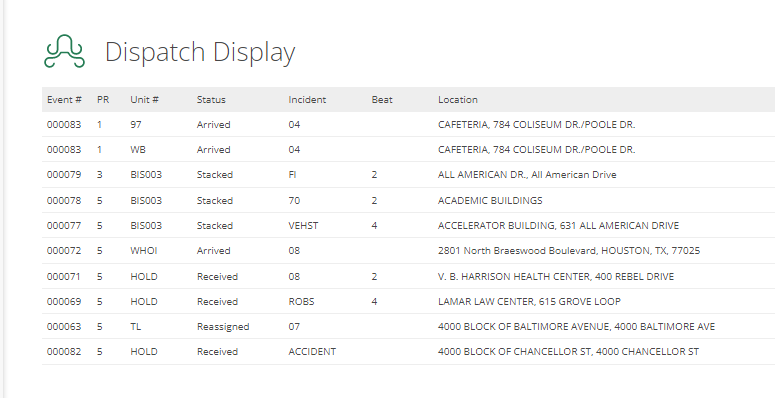
To view the open calls or the status of an officer select Dispatch Display from the side menu.
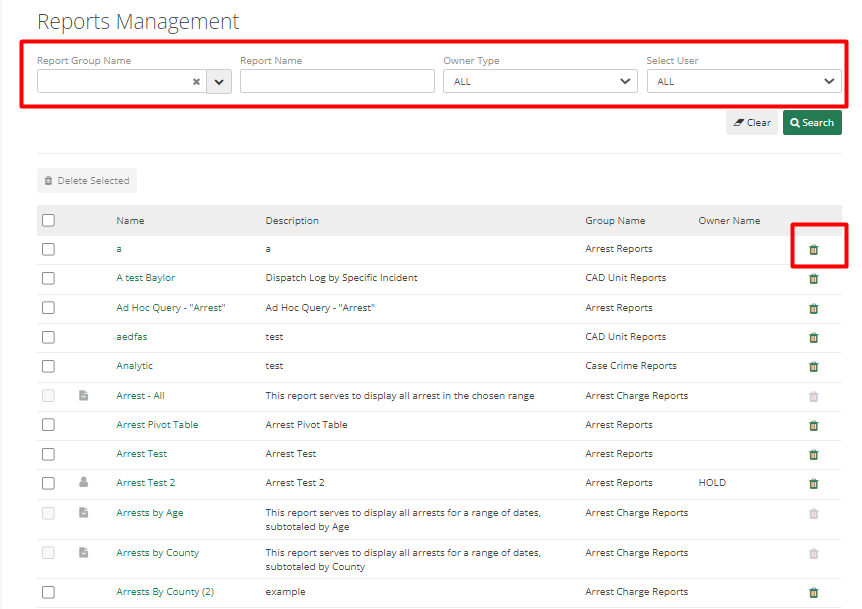
In Reports Management an officer can search based on report name or the user who created the report. If a user can delete reports a trash icon will display.
#### **Canned Reports**
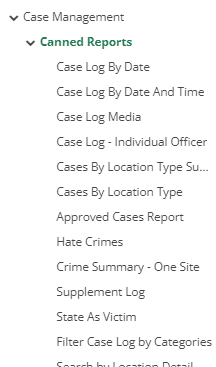
Canned Reports are pre-created reports that are available for immediate use. To find a Canned Report click the drop-down arrow of a category and click the drop-down arrow of Canned Reports
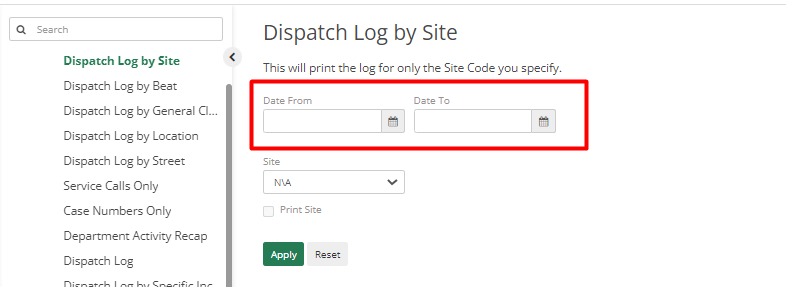
A list of reports will display select a report. Within the report a user can modify the dates, sites, and other fields displayed for the report. Click Apply and a report will be created.
All reports can be Printed. Exported to PDF, exported to Excel, or Exported to RTF file.
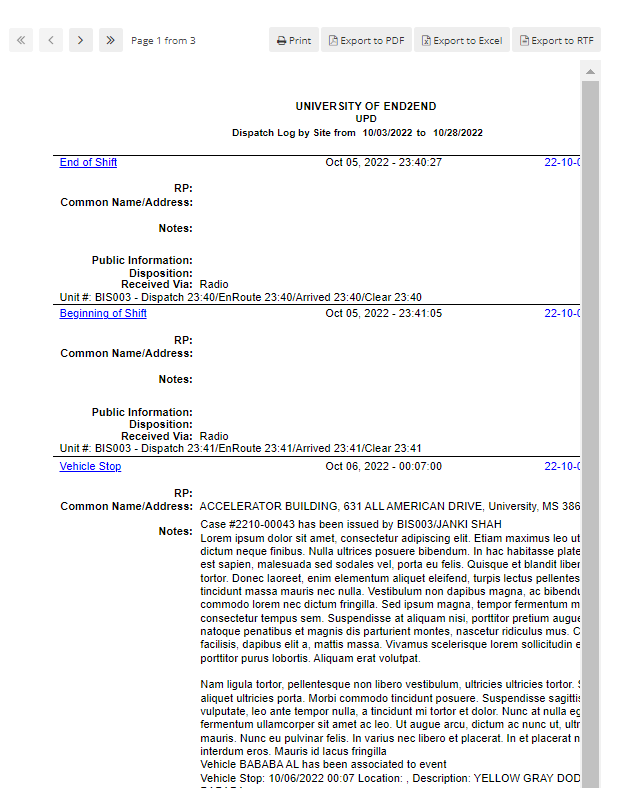
Each Canned Report has different options to be filled by the Officer as per the type of the Report. Reports that display in table form look best when exported to Excel.
#### **Custom Reports**
Custom reports allow users to tailor a report to their specific needs. To create a Custom Report, start by clicking the drop-down arrow of the category of their choosing. Click the drop-down arrow on Custom Reports.
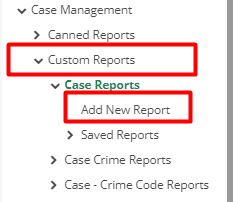
There are two options Add New Report and Saved Reports. Add New Report will create a new report as per the information selected and Saved Reports will display all the reports saved by other employees in the department.
After clicking Add New Report, it will display a few entries with default setup which can be changed by selecting fields as per the type of report. The three main things for customizing reports are Filters, Group By and Fields. Filters are what an Officer searches. Group By is used to categorize but is not necessary.
Fields are headers or data. 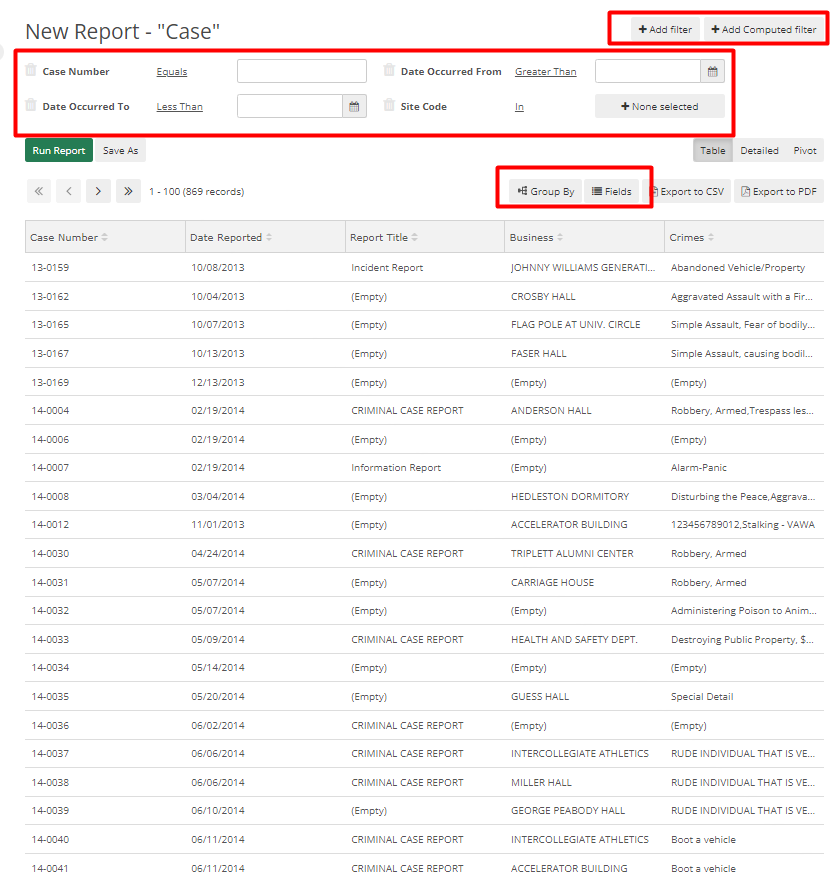
To remove filters, click the trash can icon to the left of the filter. To add a new filter, click the add Filter button and choose from the list. After selecting a filter, it can be searched by those selected options.

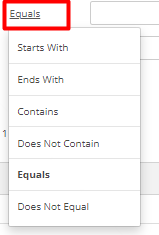
By clicking on Equals, an Officer can filter in multiple other ways using Starts with, Ends With, Contains, Does Not Contain, Equals, and Does Not Equal.
To use a more descriptive filter, click On the Add Computed Filter button. For example, instead of filtering by dates, users can filter by Week, Weekday, Month, Quarter, etc.
Group by has similar options like a filter i.e., Add Filter and Add Computed Field, but it can be grouped by unit, etc.
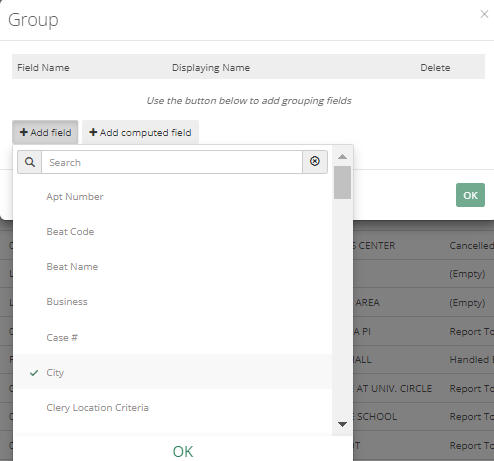
Applied Group By filters can be removed by clicking on the trash can icon.
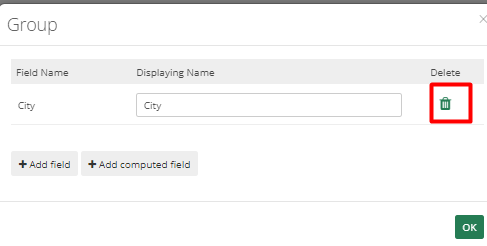
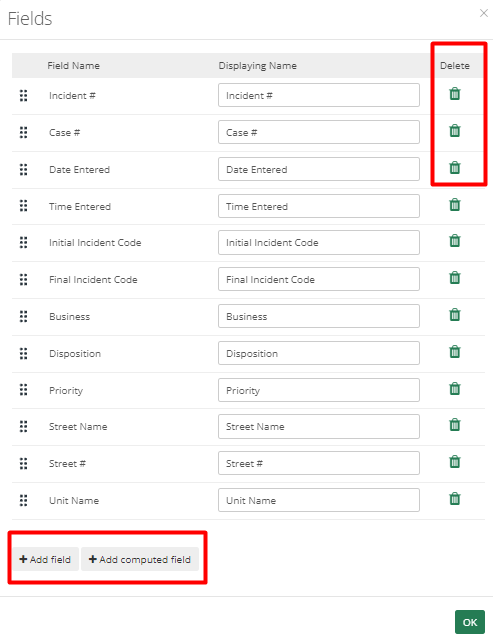
Fields are the information displayed in the table. The unnecessary fields can be removed by clicking on the trash can icon and required fields can be added by clicking on Add Field button. Computed fields can be added by clicking on Add Compute Field button.
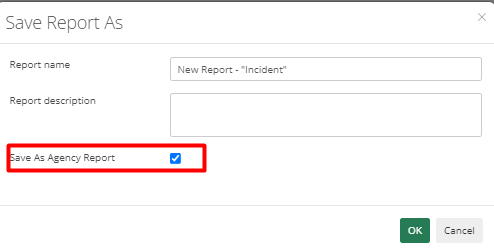
When a user has finished adding all the fields or groupings, they may select "Run Report" to run the report or "Save As" to save the report. All agency employees can view the report if the officer selects the "Save As Agency Report" checkbox. If not, only the Officer who created it can view it.
#### **Report Types**
There are three types of Reports in ARMS. Table, Detailed, and Pivot.
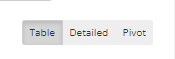
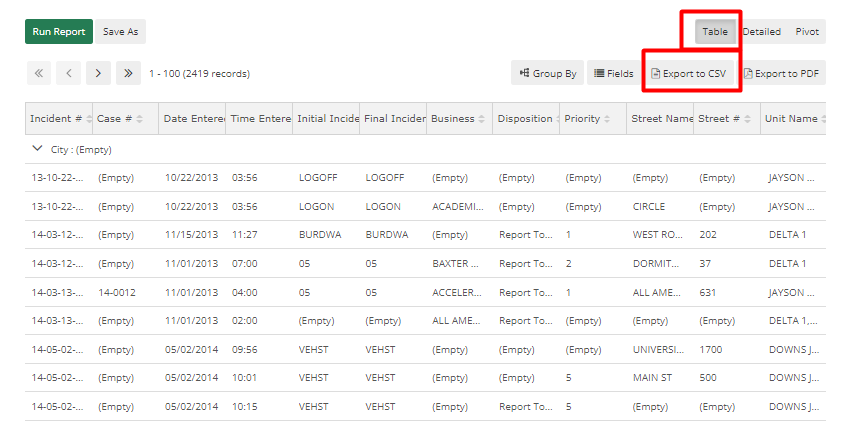
Table Type - By default reports can be viewed in a Table format, can be exported in a CSV file, and manipulated further if required.
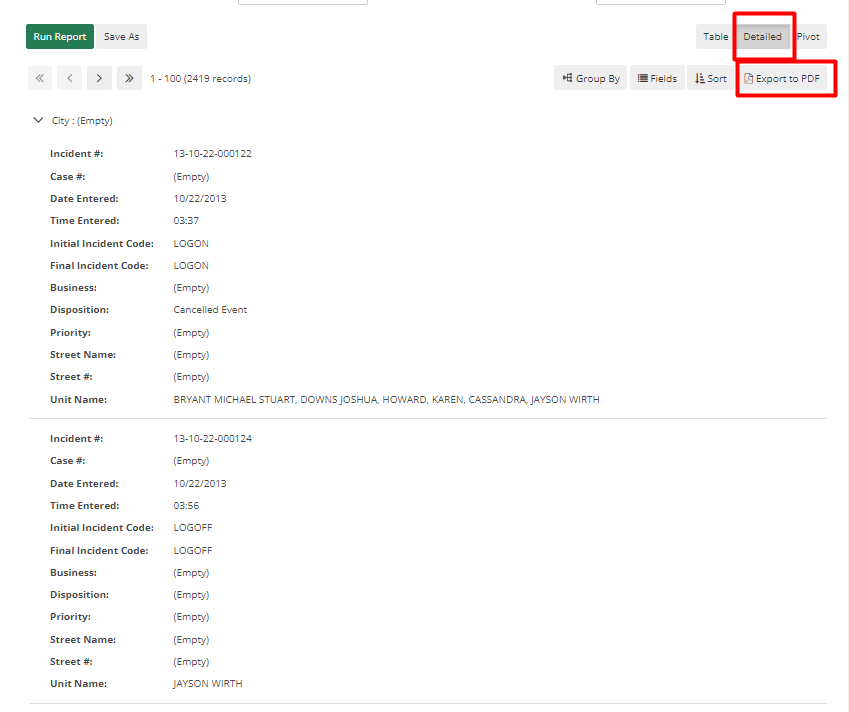
Detailed - This format is similar to Report or Log. It can be exported as a PDF.
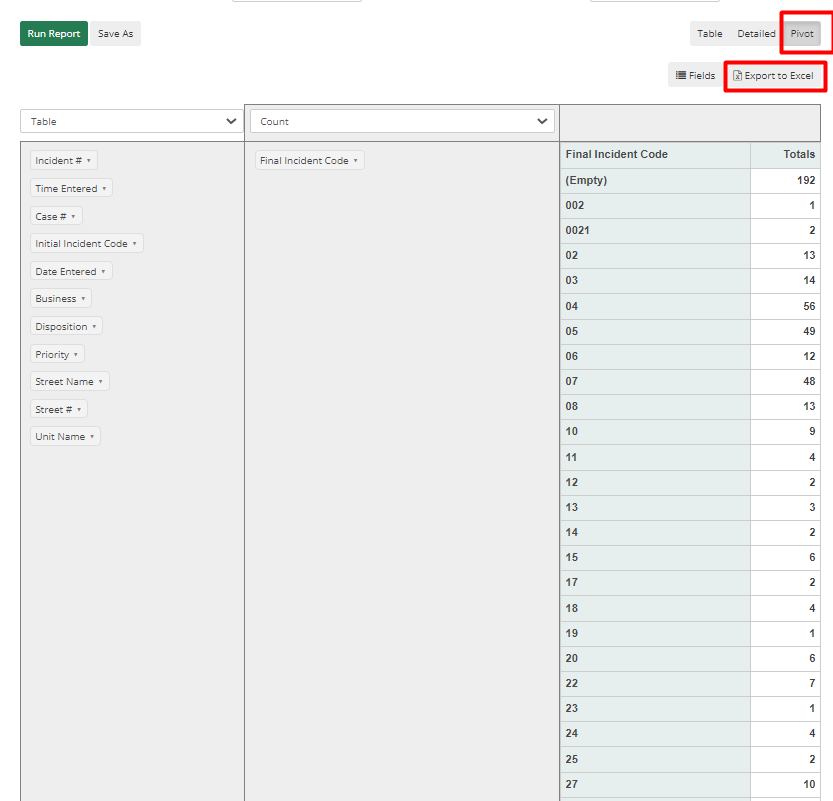
Pivot Type Report- are used to create graphs and various tables. Both an X and Y axis are present. As a result, fields can be Added or Dragged to the X-axis and Y-axis as needed.
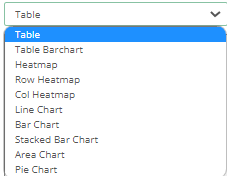
There are multiple options to view this type of report. They are Table, Table Bar chart, Heat Map, Row Heatmap, Col Heatmap, Line Chart, Bar Chart, Stacked Bar Chart, Area Chart, and Pie Chart.
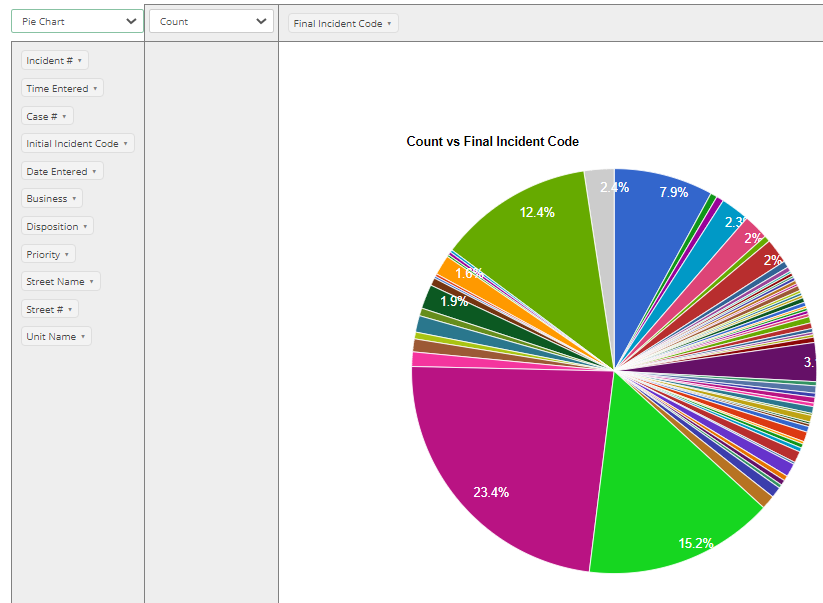
Below is an example of a pie chart.
- [Administrator](https://kb.arms.com/arms/administrator?hsLang=en#main-content)
- [Administrator Documents](https://kb.arms.com/arms/administrator?hsLang=en#administrator-documents)
- [Administrator FAQs - Error Messages/Troubleshooting](https://kb.arms.com/arms/administrator?hsLang=en#administrator-faqs-error-messages-troubleshooting)
- [Administrator FAQs - Feature Questions](https://kb.arms.com/arms/administrator?hsLang=en#administrator-faqs-feature-questions)
- [Administrator FAQs - Setup](https://kb.arms.com/arms/administrator?hsLang=en#administrator-faqs-setup)
- [Dispatcher](https://kb.arms.com/arms/dispatcher?hsLang=en#main-content)
- [ARMS WebCAD Workbook](https://kb.arms.com/arms/dispatcher?hsLang=en#arms-webcad-workbook)
- [ARMS CAD Workbook](https://kb.arms.com/arms/dispatcher?hsLang=en#arms-cad-workbook)
- [Dispatcher Documents](https://kb.arms.com/arms/dispatcher?hsLang=en#dispatcher-documents)
- [Dispatcher FAQs - Error Messages/Troubleshooting](https://kb.arms.com/arms/dispatcher?hsLang=en#dispatcher-faqs-error-messages-troubleshooting)
- [Dispatcher FAQs - Feature Questions](https://kb.arms.com/arms/dispatcher?hsLang=en#dispatcher-faqs-feature-questions)
- [Officer](https://kb.arms.com/arms/officer?hsLang=en#main-content)
- [ARMS Mobile - CAD Workbook](https://kb.arms.com/arms/officer?hsLang=en#arms-mobile-cad-workbook)
- [ARMS Mobile - Case Management Workbook](https://kb.arms.com/arms/officer?hsLang=en#arms-mobile-case-management-workbook)
- [ARMS Mobile - Home Screen Workbook](https://kb.arms.com/arms/officer?hsLang=en#arms-mobile-home-screen-workbook)
- [ARMS Mobile Admin Workbook](https://kb.arms.com/arms/officer?hsLang=en#arms-mobile-admin-workbook)
- [Officer Documents](https://kb.arms.com/arms/officer?hsLang=en#officer-documents)
- [Officer FAQs - Case Management](https://kb.arms.com/arms/officer?hsLang=en#officer-faqs-case-management)
- [Officer FAQs - Photos and Media](https://kb.arms.com/arms/officer?hsLang=en#officer-faqs-photos-and-media)
- [NIBRS](https://kb.arms.com/arms/nibrs?hsLang=en#main-content)
- [NIBRS Documents](https://kb.arms.com/arms/nibrs?hsLang=en#nibrs-documents)
- [NIBRS FAQs - Error Messages/Troubleshooting](https://kb.arms.com/arms/nibrs?hsLang=en#nibrs-faqs-error-messages-troubleshooting)
- [NIBRS Videos](https://kb.arms.com/arms/nibrs?hsLang=en#nibrs-videos)
- [NIBRS Workbook](https://kb.arms.com/arms/nibrs?hsLang=en#nibrs-workbook)
- [Clery](https://kb.arms.com/arms/clery?hsLang=en#main-content)
- [Clery Workbook](https://kb.arms.com/arms/clery?hsLang=en#clery-workbook)
- [Statistical Reporting](https://kb.arms.com/arms/statistical-reporting?hsLang=en#main-content)
- [Dashboard Workbook](https://kb.arms.com/arms/statistical-reporting?hsLang=en#dashboard-workbook)
- [Maxient Workbook](https://kb.arms.com/arms/statistical-reporting?hsLang=en#maxient-workbook)
- [Notification Manager FAQs](https://kb.arms.com/arms/statistical-reporting?hsLang=en#notification-manager-faqs)
- [Notification Manager Workbook](https://kb.arms.com/arms/statistical-reporting?hsLang=en#notification-manager-workbook)
- [Profile Data FAQs](https://kb.arms.com/arms/statistical-reporting?hsLang=en#profile-data-faqs)
- [Profile Data Workbook](https://kb.arms.com/arms/statistical-reporting?hsLang=en#profile-data-workbook)
- [Property/Evidence FAQs](https://kb.arms.com/arms/statistical-reporting?hsLang=en#property-evidence-faqs)
- [Property/Evidence Workbook](https://kb.arms.com/arms/statistical-reporting?hsLang=en#property-evidence-workbook)
- [Report Center Documents](https://kb.arms.com/arms/statistical-reporting?hsLang=en#report-center-documents)
- [Report Center FAQs](https://kb.arms.com/arms/statistical-reporting?hsLang=en#report-center-faqs)
- [UCR Documents](https://kb.arms.com/arms/statistical-reporting?hsLang=en#ucr-documents)
- [Vehicle Maintenance Workbook](https://kb.arms.com/arms/statistical-reporting?hsLang=en#vehicle-maintenance-workbook)
- [Parking](https://kb.arms.com/arms/parking?hsLang=en#main-content)
- [Internal Parking Documents](https://kb.arms.com/arms/parking?hsLang=en#internal-parking-documents)
- [Parking Administrator Document](https://kb.arms.com/arms/parking?hsLang=en#parking-administrator-document)
- [Parking Documents](https://kb.arms.com/arms/parking?hsLang=en#parking-documents)
- [Parking End User Documents](https://kb.arms.com/arms/parking?hsLang=en#parking-end-user-documents)
- [Parking FAQs](https://kb.arms.com/arms/parking?hsLang=en#parking-faqs)
- [Release Notes](https://kb.arms.com/arms/parking?hsLang=en#release-notes)
- [Webinars](https://kb.arms.com/arms/webinars?hsLang=en#main-content)
- [Administrator](https://kb.arms.com/arms/webinars?hsLang=en#administrator)
- [Clery](https://kb.arms.com/arms/webinars?hsLang=en#clery)
- [Dispatcher](https://kb.arms.com/arms/webinars?hsLang=en#dispatcher)
- [IT Support](https://kb.arms.com/arms/webinars?hsLang=en#it-support)
- [Miscellaneous](https://kb.arms.com/arms/webinars?hsLang=en#miscellaneous)
- [NIBRS](https://kb.arms.com/arms/webinars?hsLang=en#nibrs)
- [Officer](https://kb.arms.com/arms/webinars?hsLang=en#officer)
- [Parking](https://kb.arms.com/arms/webinars?hsLang=en#parking)
- [Statistical Reporting](https://kb.arms.com/arms/webinars?hsLang=en#statistical-reporting)
- [Miscellaneous](https://kb.arms.com/arms/miscellaneous?hsLang=en#main-content)
- [Release Notes](https://kb.arms.com/arms/miscellaneous?hsLang=en#release-notes)
- [ARMS User Training Conferences](https://kb.arms.com/arms/miscellaneous?hsLang=en#arms-user-training-conferences)
- [Internal](https://kb.arms.com/arms/miscellaneous?hsLang=en#internal)
- [Support Docs](https://kb.arms.com/arms/miscellaneous?hsLang=en#support-docs)
- [IT Support](https://kb.arms.com/arms/it-support?hsLang=en#main-content)
- [Internal IT Support Documents](https://kb.arms.com/arms/it-support?hsLang=en#internal-it-support-documents)
- [IT Support Documents](https://kb.arms.com/arms/it-support?hsLang=en#it-support-documents)
- [Internal](https://kb.arms.com/arms/internal?hsLang=en#main-content)
- [Jira Escalation Process and Documents](https://kb.arms.com/arms/internal?hsLang=en#jira-escalation-process-and-documents)
- [Parking Workflows](https://kb.arms.com/arms/internal?hsLang=en#parking-workflows)
- [Administration](https://kb.arms.com/arms/administration?hsLang=en#main-content)
- [Personnel Card](https://kb.arms.com/arms/administration?hsLang=en#personnel-card)
- [Online Bicycle Registration](https://kb.arms.com/arms/online-bicycle-registration?hsLang=en#main-content)
- [Bicycle Registration Workbook](https://kb.arms.com/arms/online-bicycle-registration?hsLang=en#bicycle-registration-workbook)
- [Courtyard - Public Incident Reporting](https://kb.arms.com/arms/courtyard-public-incident-reporting?hsLang=en#main-content)
- [Courtyard Manual](https://kb.arms.com/arms/courtyard-public-incident-reporting?hsLang=en#courtyard-manual)
[mailto:support@arms.com](mailto:support@arms.com)
Copyright © 2026, End2End Public Safety