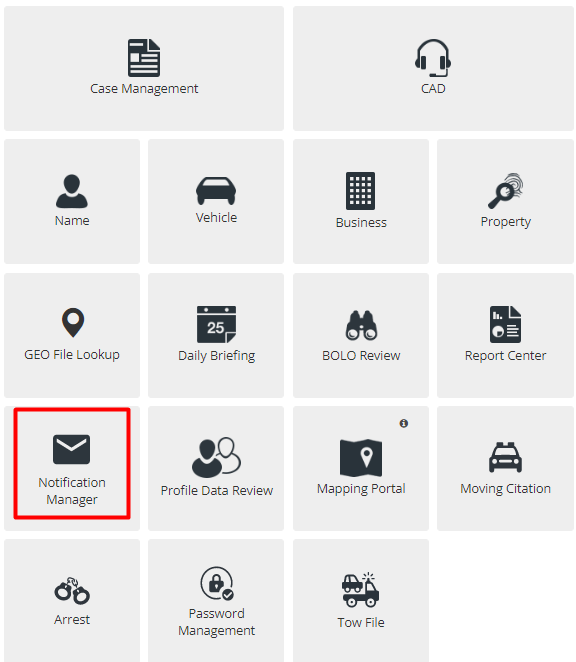
Notification Manager's purpose is to send out notifications, via email, to people within or outside of your department.
Setting up a User
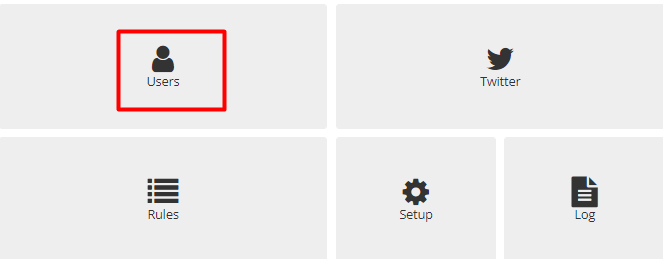
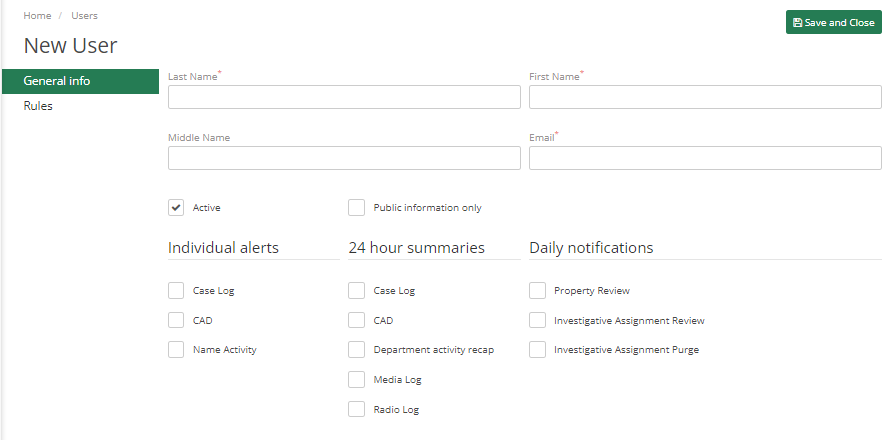
To set up a new User go to Users > Add New. Fill in the required fields, they are First Name, Last Name and Email Address.
Select the notifications to send to the user. Some examples are Individual Alerts, 24 Hour Summaries, and Daily Notifications.
Individual Alerts – Notifications are sent to users, every single time when a case comes come out from CAD.
24-Hour Summaries – sends a 24-hour summary every day for the crime codes selected.
Daily Notifications – It has three options to choose from.
Property Review Date, Investigative assignment Review Date, Investigative Assignment Purge Date – sends notifications on the review date.
Public information only –sends out only public information. If CAD is selected with the public information only, then it will not send police notes to subscribers, and if Case Log is checked it will not send Narrative.
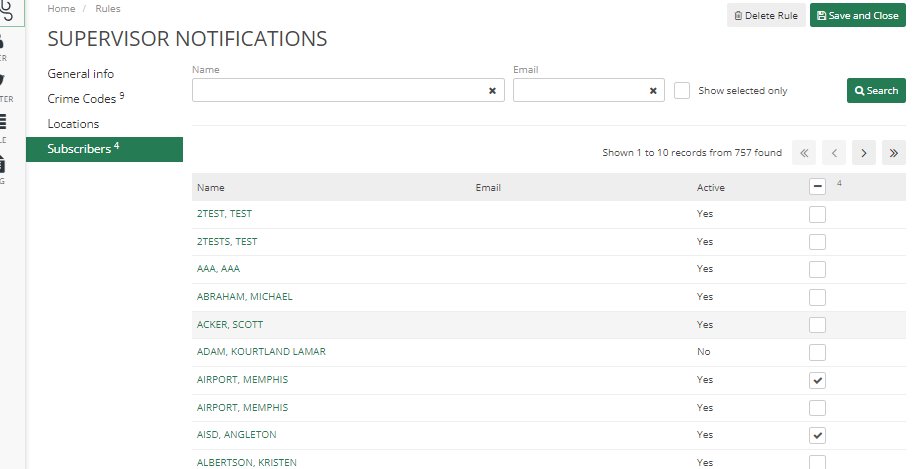
Once you set up all the general information you can subscribe to Rules. Admin can set Rules to Subscriber or can go to Subscriber and set Rules to it.
Set up User Rules
Rules are used to set up a type of subscription. Subscriptions can be set to a specific crime code, all crime codes, a specific location, or all locations.
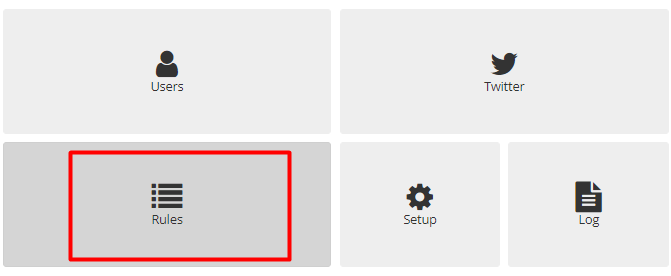
To set up rules go to Notification Manager > Rules > Add New
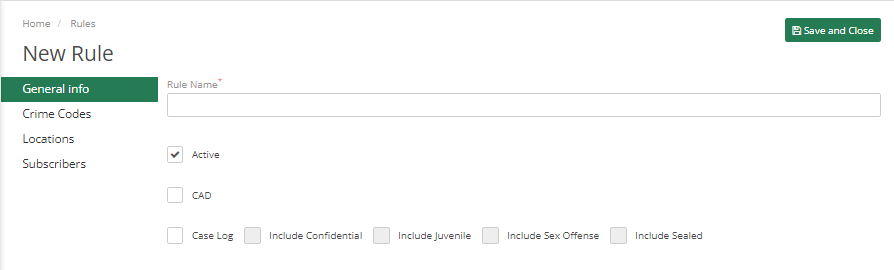
The first page shows General information about Rules, for this rule an Administrator, can select from the types of Crime codes and location codes.
If the Administrator wants this rule to take care of everything, check all the checkboxes.
The Next Tab is Crime codes, here you can choose from crime codes for which the users need to be notified of this rule. Similarly, the admin can select from Locations.
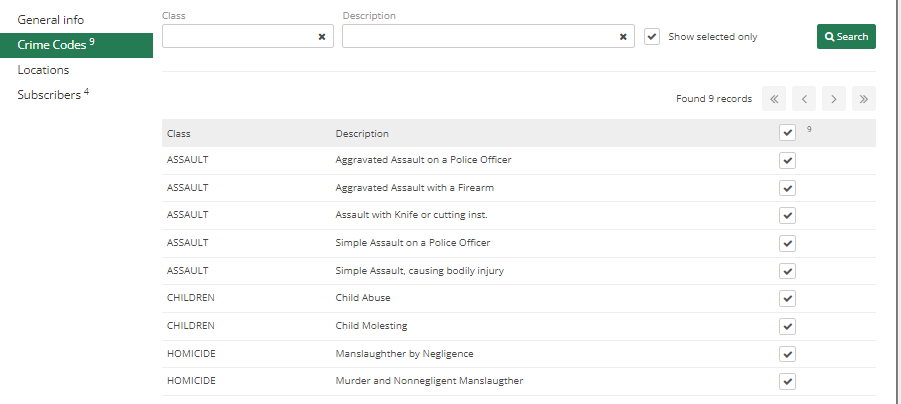
The administrator can set these rules and then assign them to users or subscribers. Subscribers can be searched and selected by using the search option in this.