
Adding Vehicles to a CAD event:
Vehicles can be added to CAD events by going to the CAD Function menus and selecting the Add Vehicles menu item.
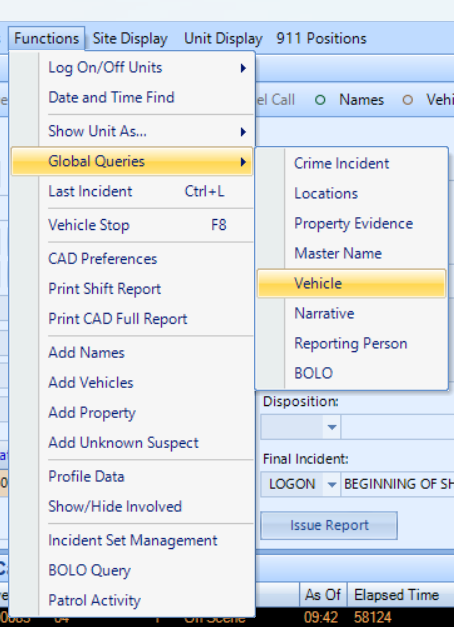
The Add Vehicles window allows users to make entries into a vehicle file that is associated with a CAD event number. The CAD Add Vehicles window will also show all vehicles that are associated with the current CAD event.
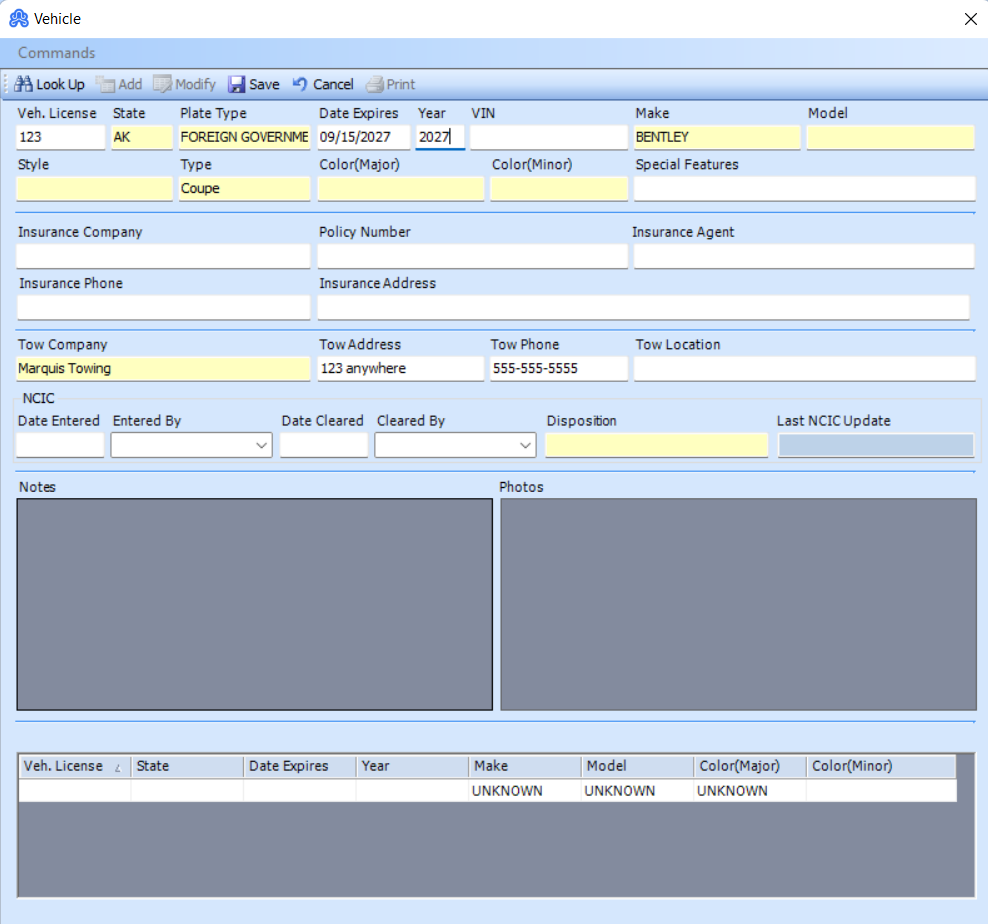
The Add Vehicles window could search for existing vehicles as well as associate additional information such as photos, Tow Company, and NCIC information.
To add a vehicle to a CAD event:
Choose the Add Vehicles menu item from the Functions menu. The Add Vehicles window will display in a read-only view.
Use Ctrl-A , to change the Add Vehicles window into edit mode. The cursor will begin at the top left corner.
Using the keyboard, begin entering any known information about the vehicle such as its License Plate, Make, and Model. For text fields shaded in yellow, type a “?” and press the TAB button to display the list values associated with that text field (if the value is known, it can also be typed in using the keyboard).
Once all known information has been entered into the text fields, press the “Save” button. The dispatcher will notice the added name appear in the Involved Parties data grid in the top right of the window.