
ARMS Web Installation:
Like our "Click-Once" installation method that the department may have previously employed, the new Web Installation utilizes a website that users can easily access to install the ARMS Thick Client on their computer.
This is accomplished simply by having the user open a web browser and navigate to the department's thick client web page. If the user is currently an ARMS Mobile user, he/she can simply replace the "/ARMS" with "/Client" to access this page:
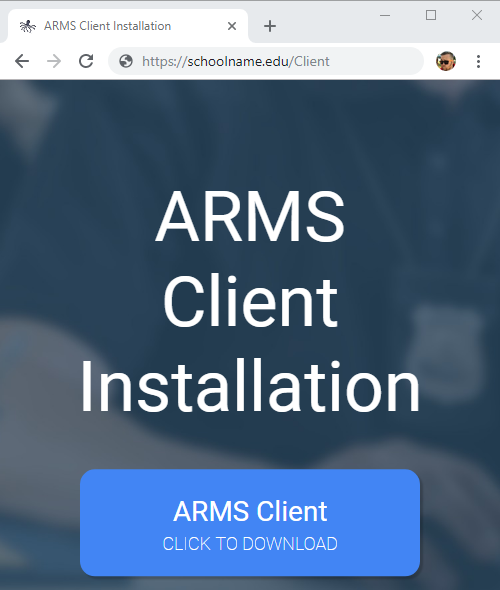
If the user has any difficulties finding their Web Client Install address, please contact ARMS Support Team.
The user can then click the "ARMS Client CLICK TO DOWNLOAD" button to download a '.application' file that will appear in the lower left-hand corner of the screen if using chrome:
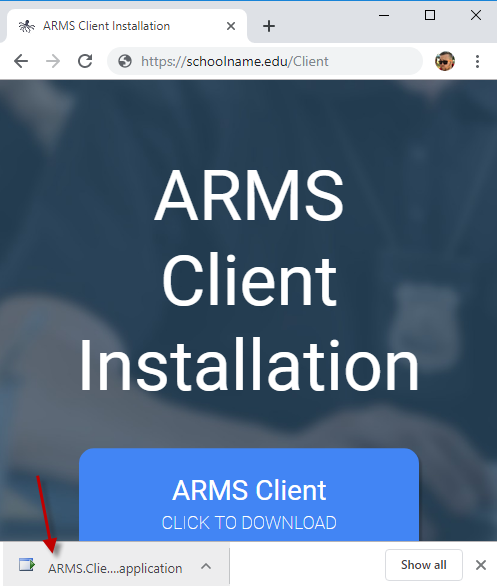
Running this file will initiate an install of the client to the local user's profile and create a desktop shortcut to make accessing the client easier in the future.
The benefits of installing the client this way include making future upgrades simple since this client installation will easily upgrade in the future without having IT available to assist and eliminates the need to transfer the clients using a thumb drive or any similar device.
When initially beginning the use of the web installation method, users may want to find a simple way for their users to access their client install webpage. The simplest method would be to have them "Favorite" or "Bookmark" that site address in their preferred web browser.
However, the user can also create a desktop shortcut; for example, in Chrome a user can select the setting menu (represented by 3 dots in the upper right-hand corner) and then select More tools -> Create Shortcut. This will allow you to create a shortcut that can be added to the All Users or Public Desktop to give every user on that machine easy access to the web page that will allow them to install the client.
Prerequisite Software:
Prior to attempting to install any version of the client, ensure that your workstations have the latest prerequisite software installed, an easy way to check is to open Control Panel -> Programs and Features to check that you have SAP Crystal Reports with the Version # listed of "13.0.26.3348”:
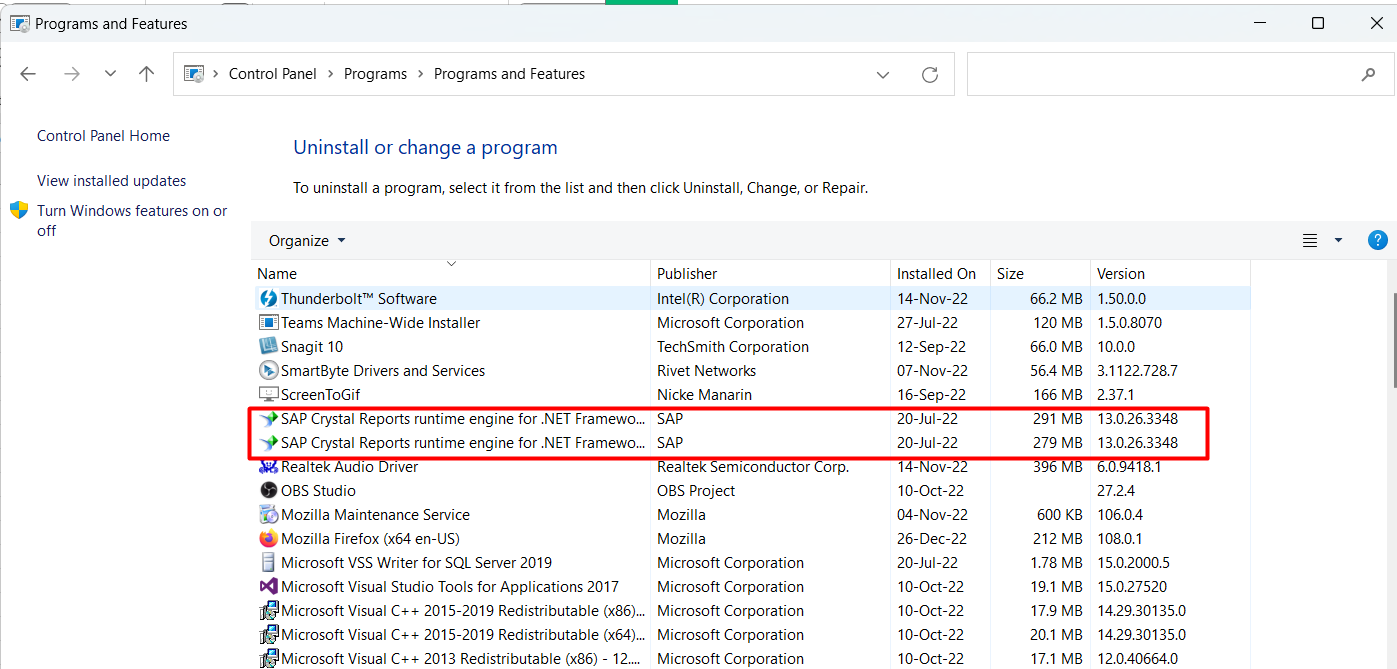
Microsoft Edge WebView 2 - For customer upgrading from 2020 to 2021, this is the only new prerequisites that will be needed for client machine deployment
If you are missing any prerequisites or are unsure if you have installed them all, they can be downloaded from our support website.