How do I add and use Department Vehicles?
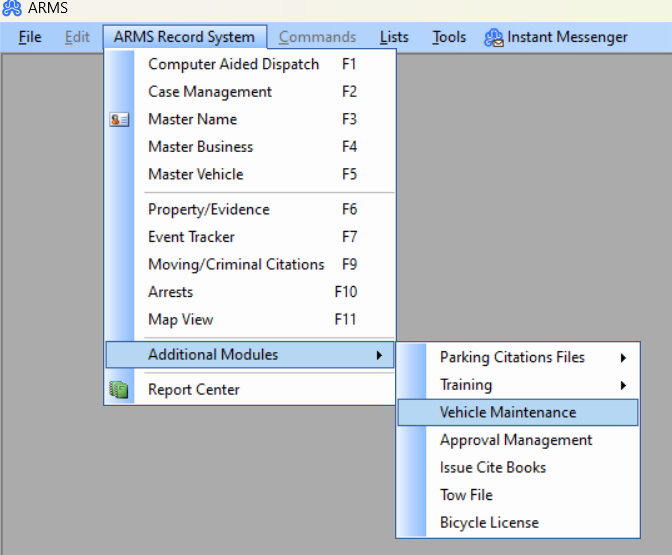
To access Department Vehicles, select ARMS Record System -> Vehicle Maintenance -> Department Vehicles
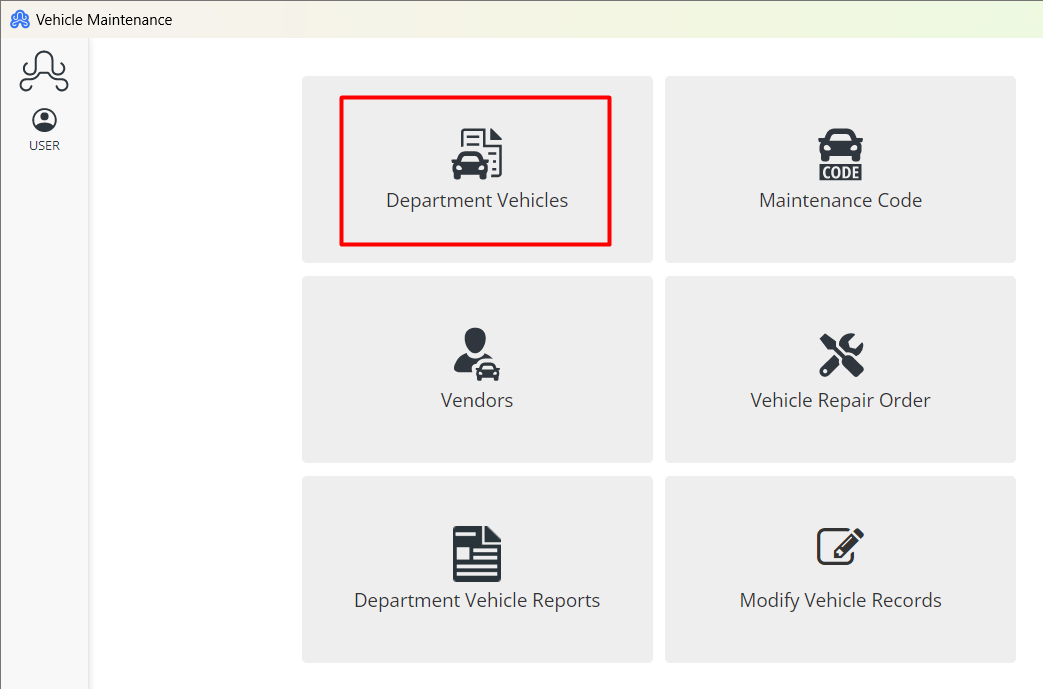
This will open the Vehicle Maintenance module. Admins will see different tabs like Department Vehicles, Maintenance Codes, Vendors, Vehicle Repair Orders, Department Vehicle Reports, and Modify Vehicle Records. Select Department Vehicles Tab.
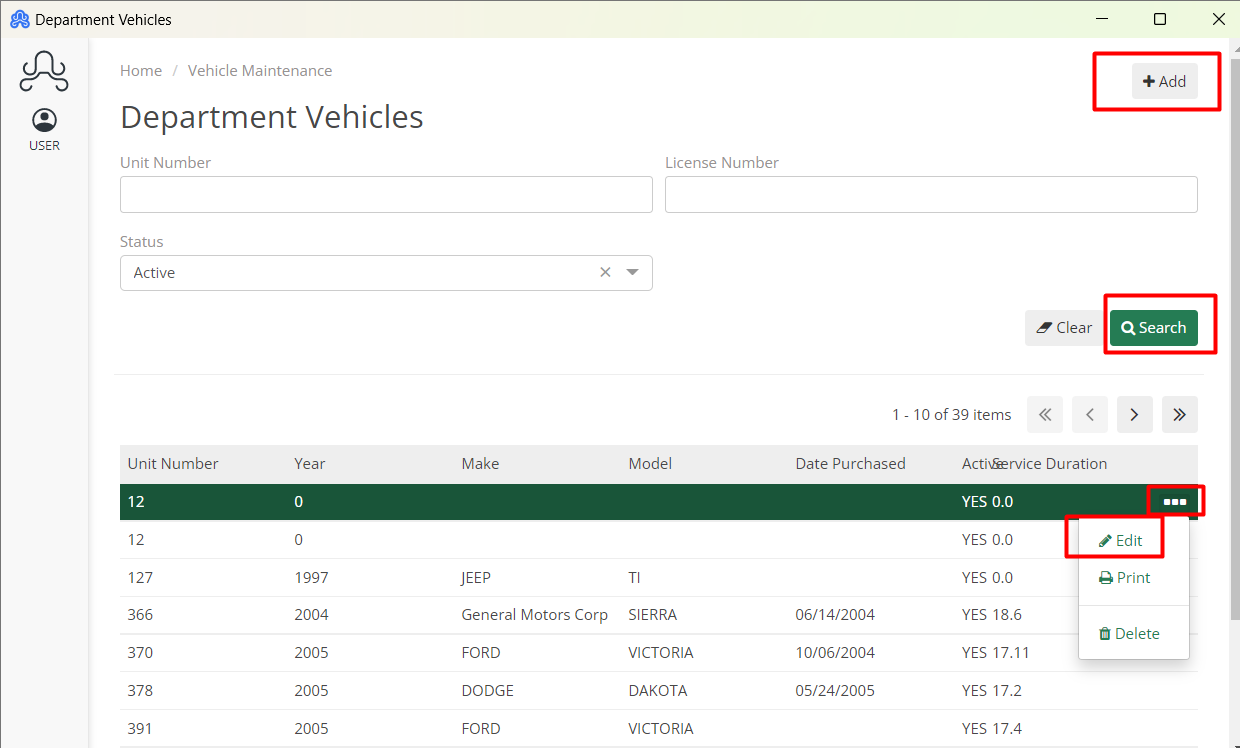
From this screen, the user can add new vehicles, search existing vehicles, and modify existing vehicles.
Examples of equipment to add to vehicle would be a defibrillator or a tactical kit. This will pull from the same Equipment list as the Employee File. When adding a new vehicle, there are no required fields, so a new record can use as many or as few fields as necessary.
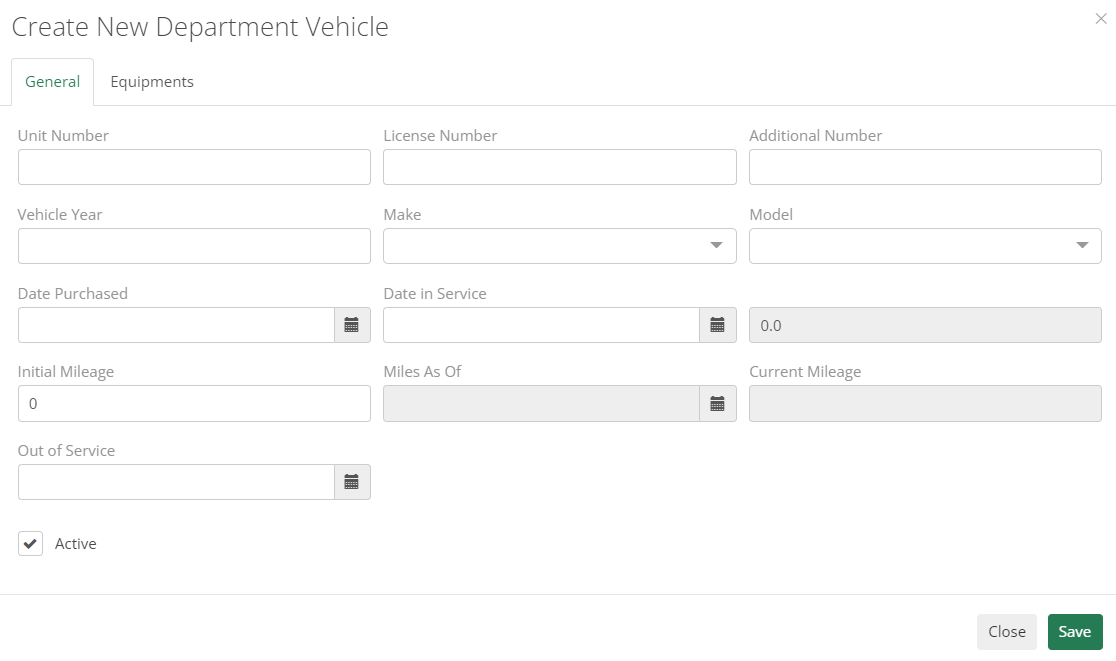
The next section is Maintenance Codes. From here, regular maintenance activities can be added for use in vehicle records.
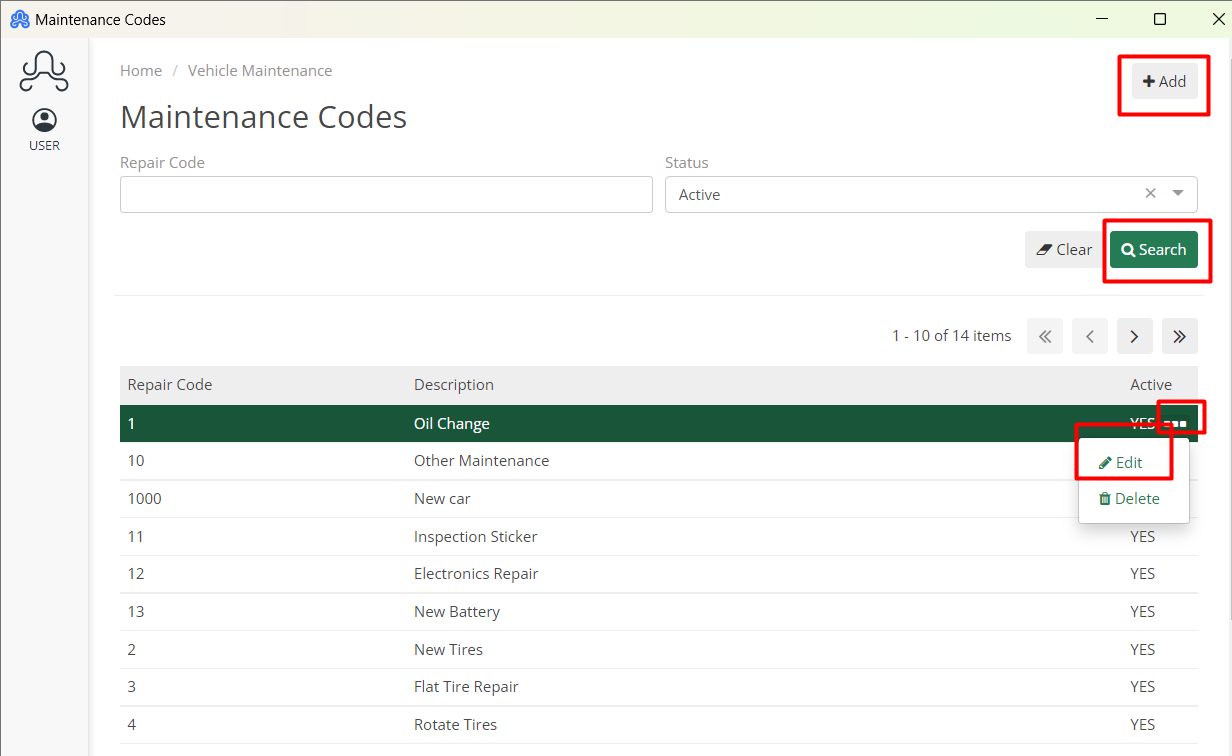
On the Vendors tab, mechanics and auto shops can be added for future reference. This will help the department keep track of vendors with whom they have an active account.
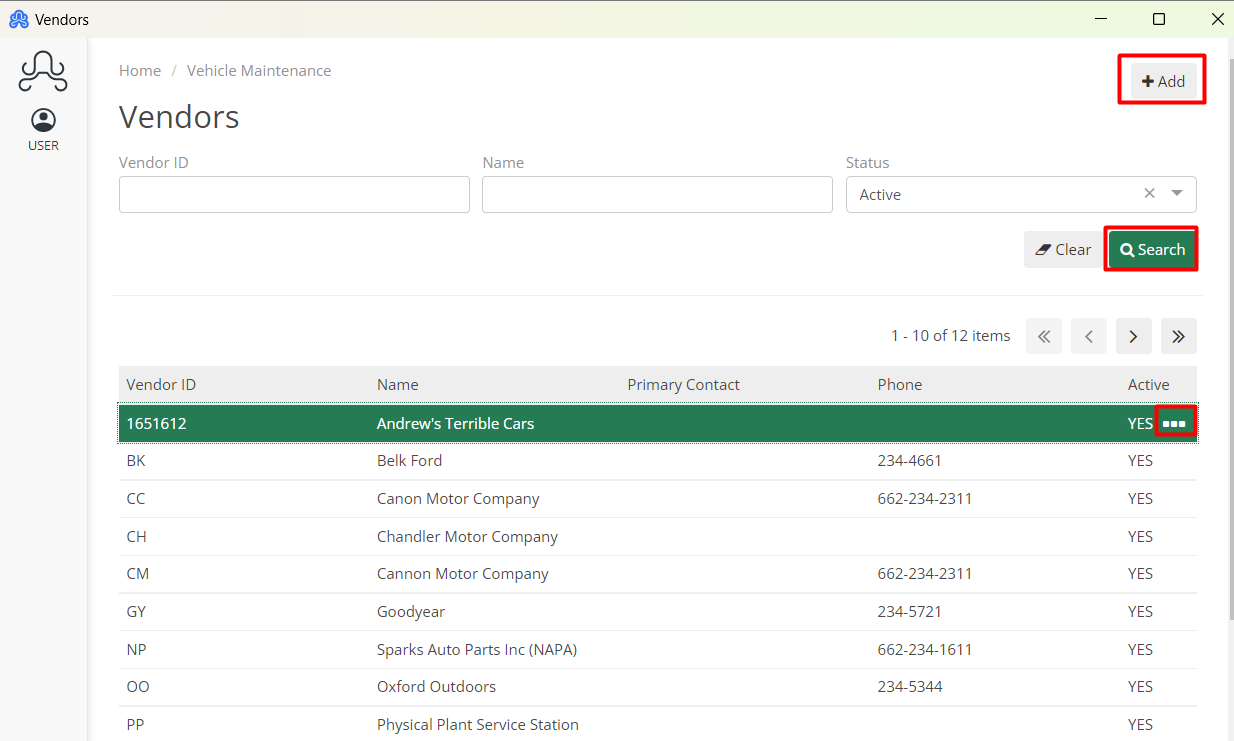
Vehicle Repair Order is where the three previous tabs can be used to track maintenance activities performed on Department Vehicles. Maintenance Order numbers, Vehicle Unit numbers, Vendor ID numbers, and Repair Codes can all be entered on this tab. Additional fields are included if needed.
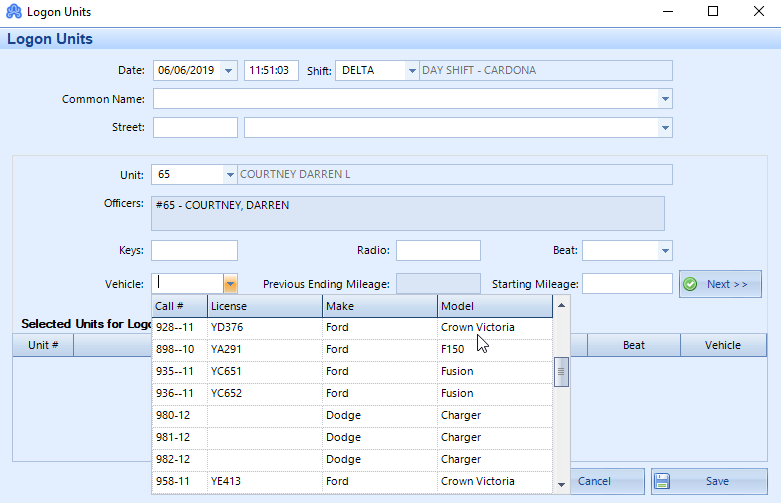
To use department vehicles in CAD, they can be logged in along with any CAD Unit from the Logon Unit screen or affixed to a CAD Unit (i.e. the chief is the only user of his truck) from the CAD Unit tab in the Set-Up Menu. To add a vehicle to a CAD Unit at logon, set the shift and unit number of the officer, then select the vehicle from the drop-down menu shown below. Starting Mileage can also be added.
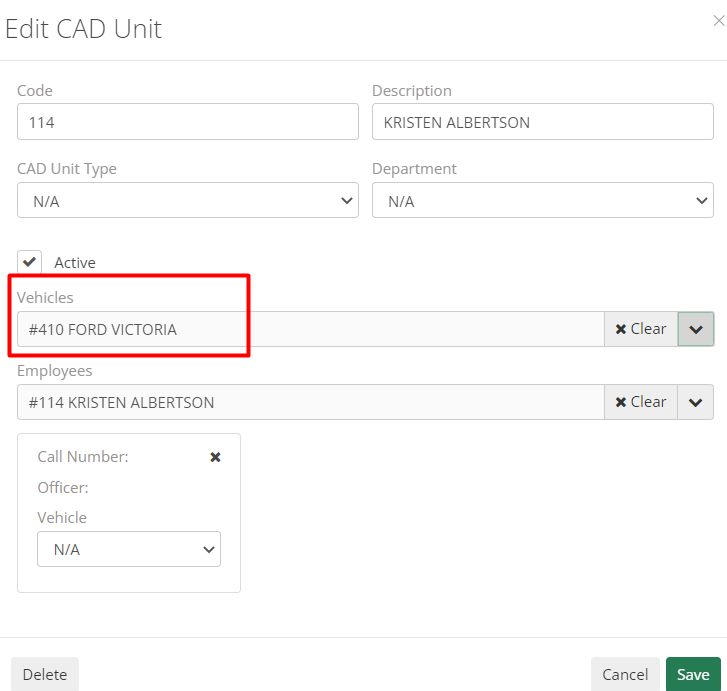
Lastly, to attach a vehicle to a CAD Unit as mentioned above, go to the Set-Up menu (File -> Set Up -> CAD Unit) and select your unit.
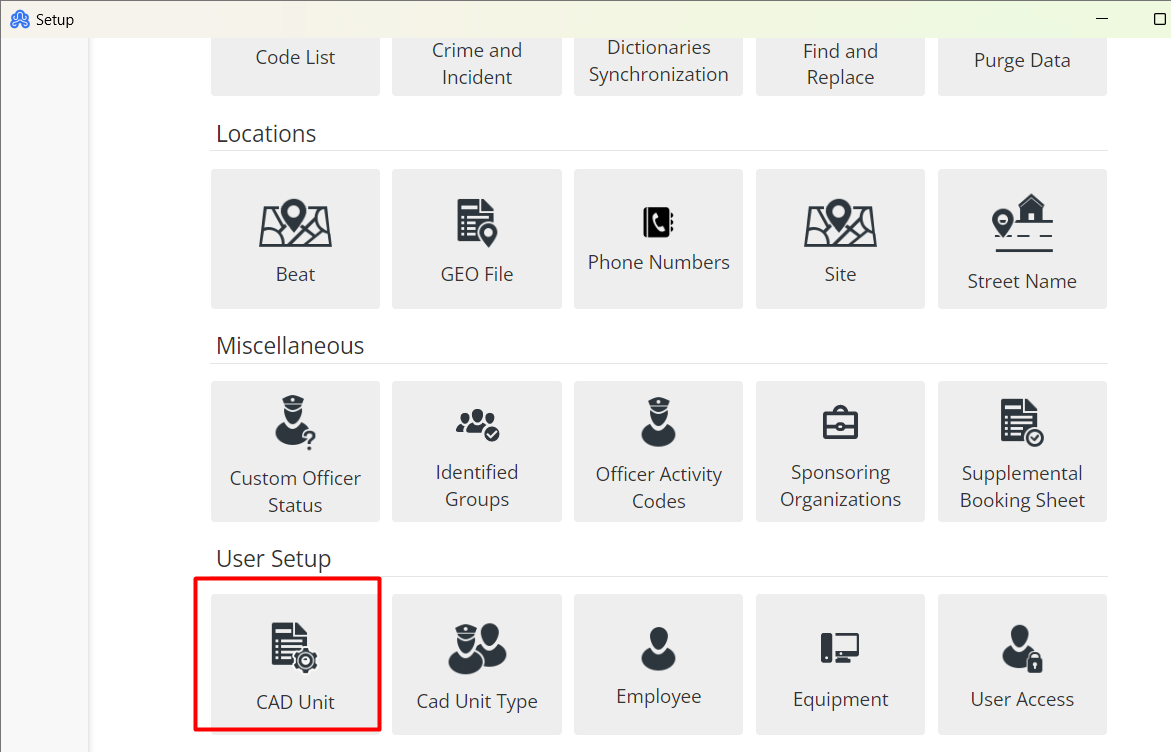
The Admin can use the same process as associating an officer to a CAD Unit to add a vehicle. Select Modify and double click on the vehicle from the Available Vehicles list to add it to the Associated Vehicles field. Select Save. Now, this vehicle will be logged on any time that CAD Unit is logged on.