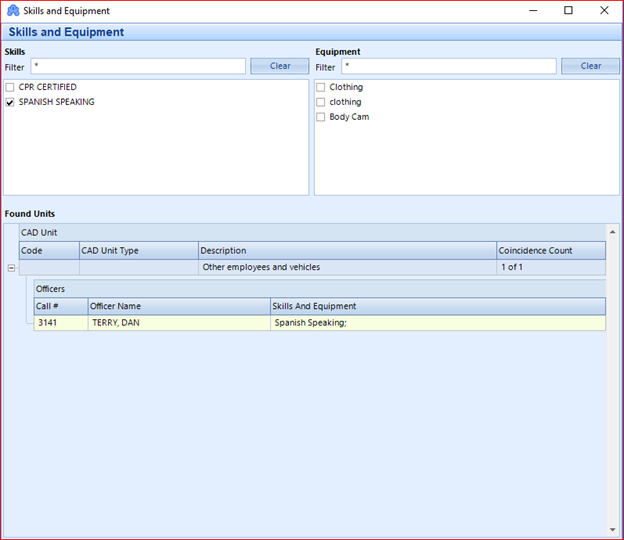
Equipment can be added in either the Employee File screen or the Equipment screen.
This FAQ will only cover adding Equipment through the Employee File screen.
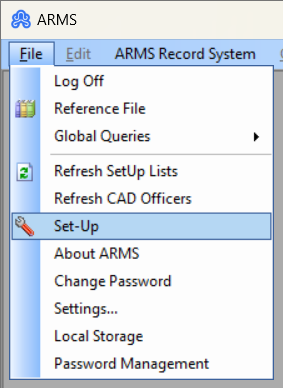
Step 1: First, open ARMS and go to File > select the Set-Up from the menu.
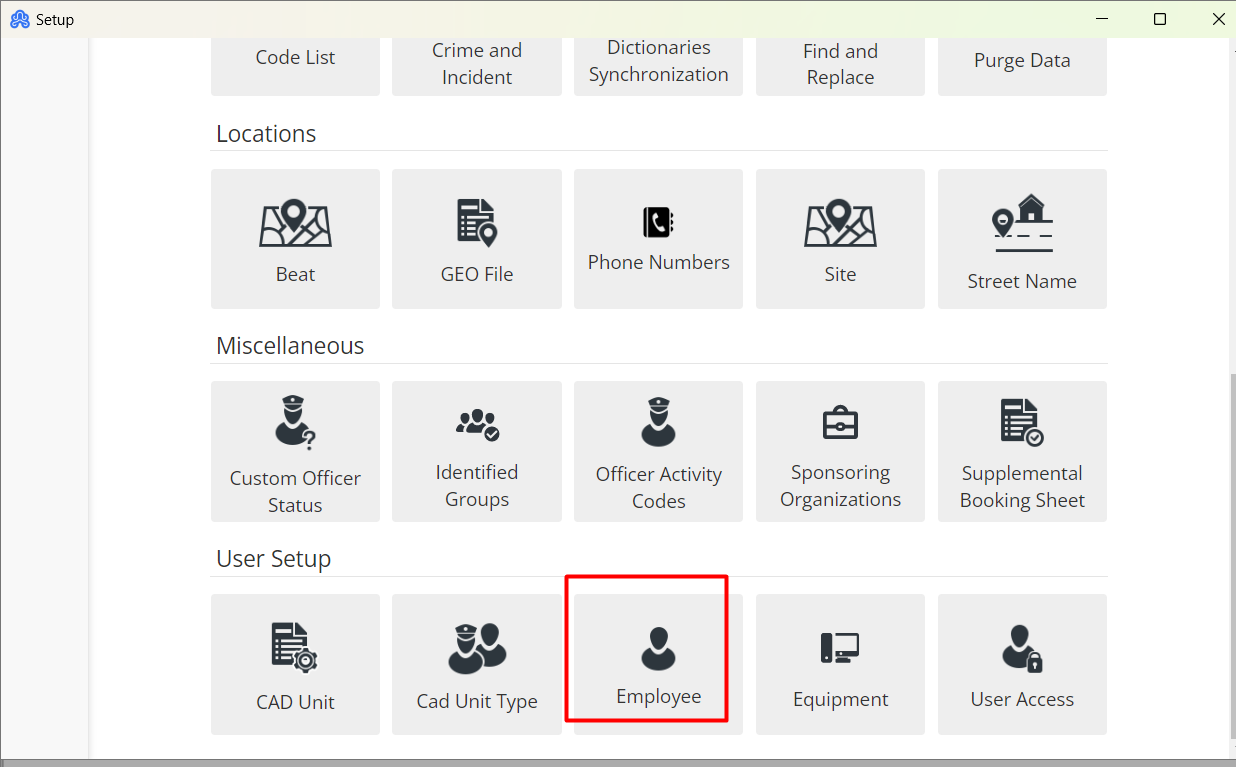
Step 2: From there select the Employee Tab.
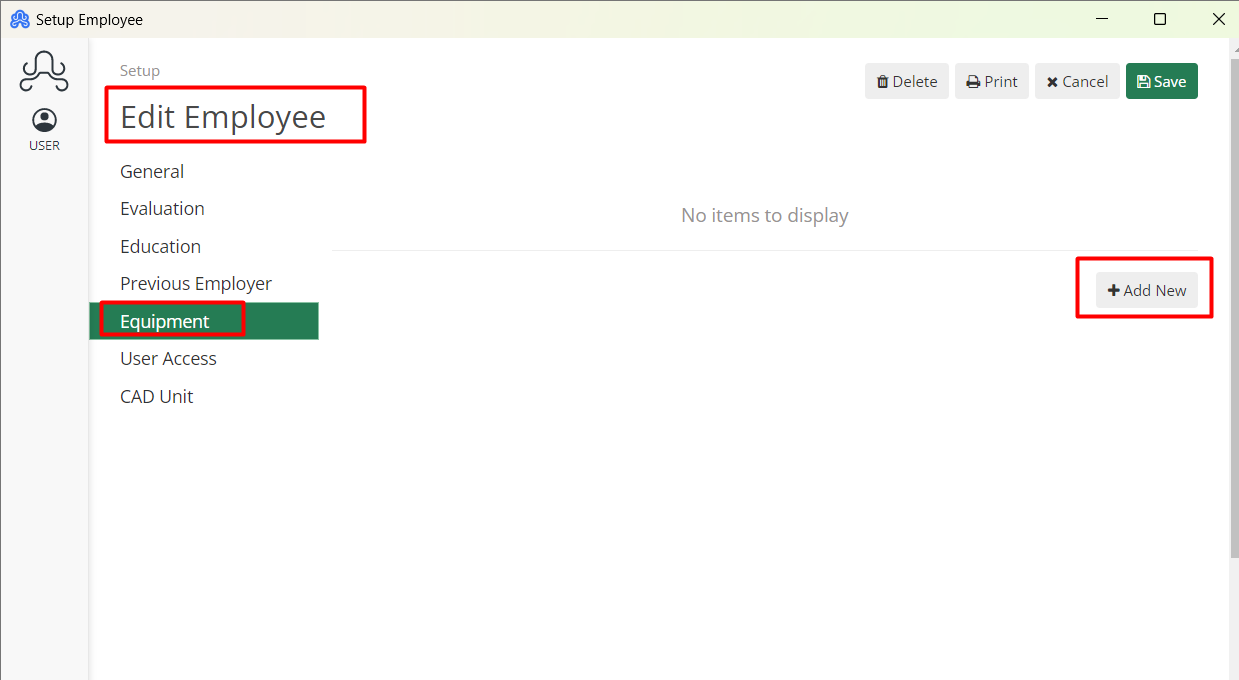
Step 3: Select the Employee For which vehicle needs to be added, Select the Equipment tab, from the side menu and click on Add New, to add Equipment to the Employee.
Step 4: In this box, the user can add the date that the equipment was issued, select Browse Equipment to select from a list of equipment that is added through the Equipment menu, or add new equipment through the Add Equipment to Equipment File button. Equipment can also reason to return at the bottom of the dialogue box.
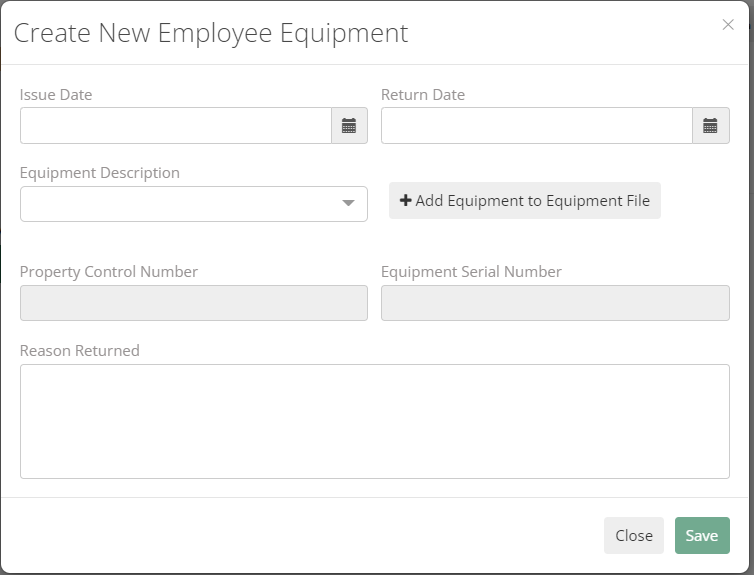
To add new equipment, select the Add Equipment to Equipment File button. This will open a new dialogue box, shown below. From this menu, the user can add six different fields to the equipment, as well as a brief Condition description.
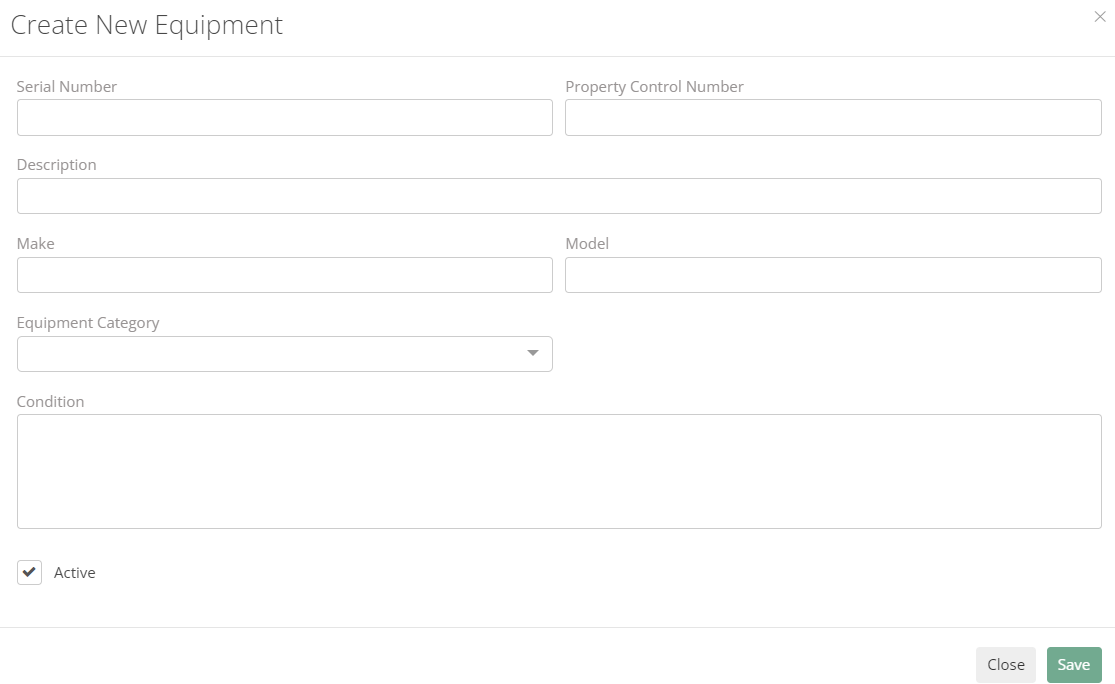
Step 5: Hit Save, after filling out these fields to add it to Equipment List.
Step 6: Once the equipment is added or selected from the list, hit Save to add the equipment to your Employee File.
Now the Equipment can be searched in CAD to make dispatching officers to special situations easier.
To do this, open CAD. In the toolbar across the top, select Reference, then select Equipment/Skills from the drop-down menu.
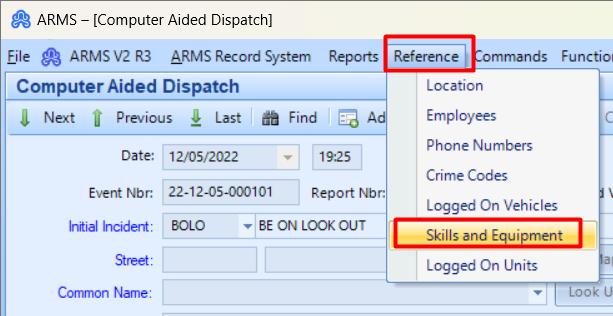
From this new window, you can check the different Skills and Equipment that are listed in your system and the menu below will display a list of your officers who meet your search criteria.