To delete a case from Case management, the user must have permission to do so. To give user Access to delete cases.
Admin can follow the steps as directed below:
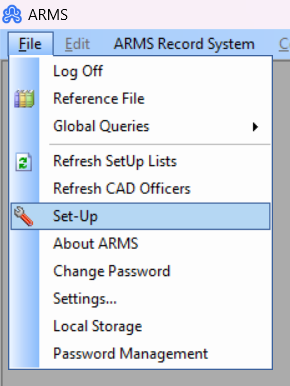
Step 1 Navigate to File->Set-Up-> Set-User Access.
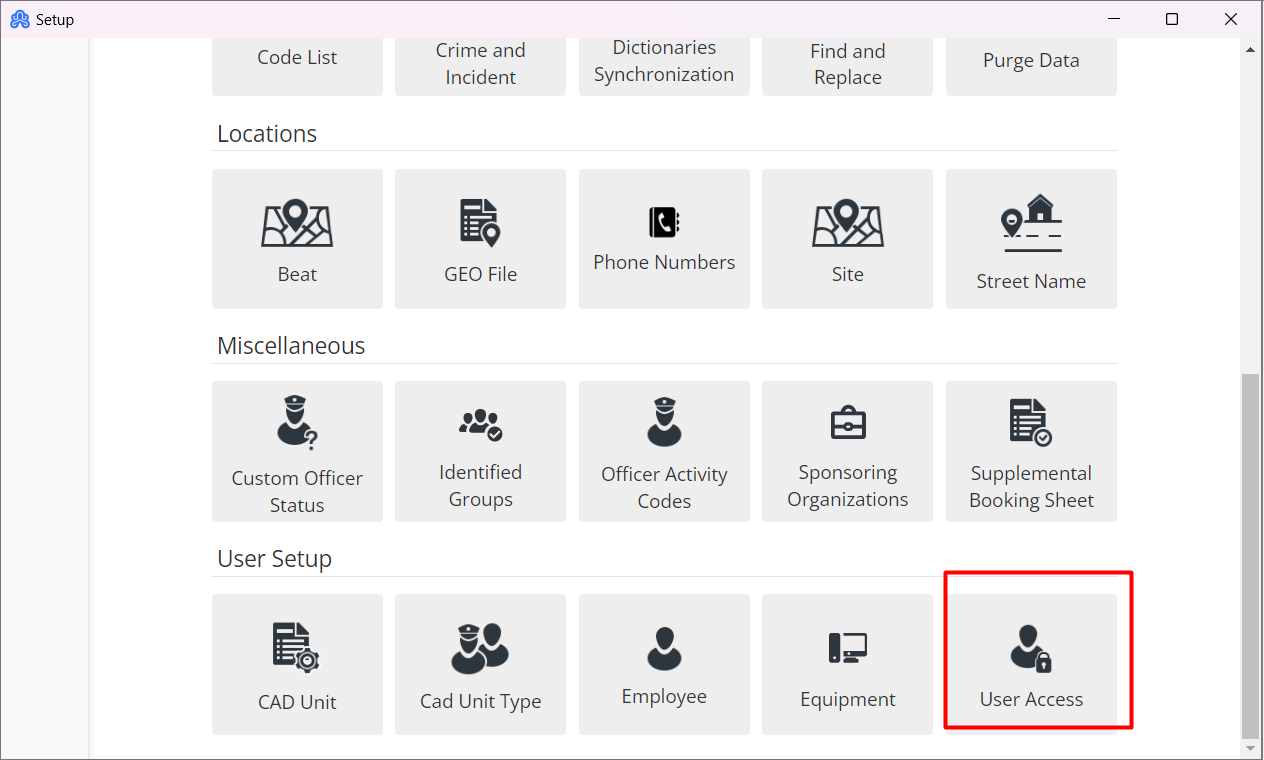
Step 2 Select the User Access Tab.
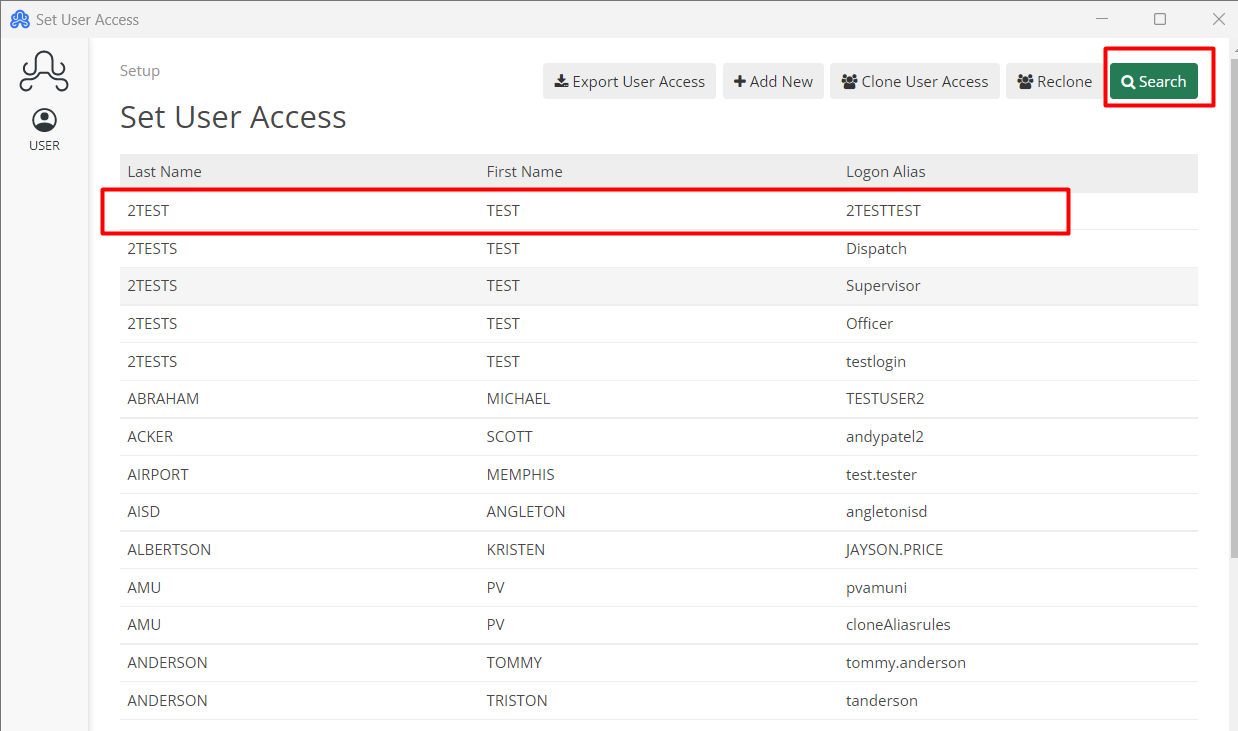
Step 3: From there find the desired User to change.
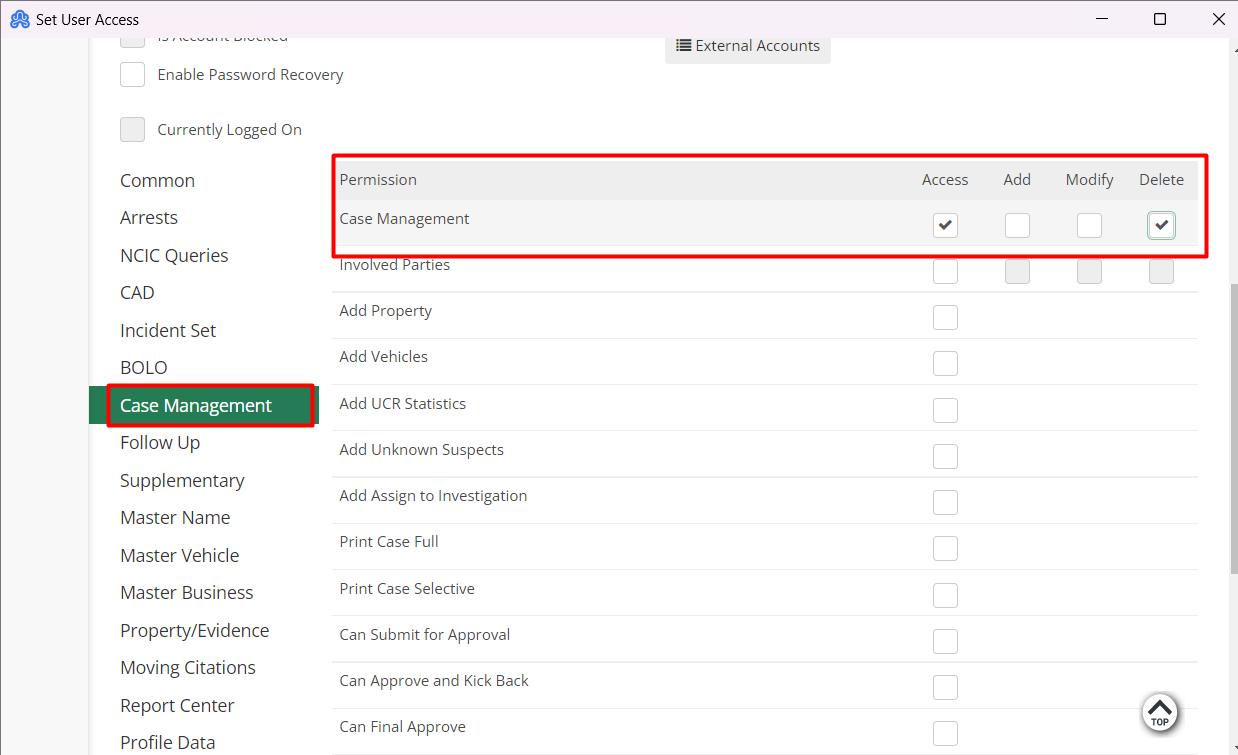
Step 4: Then Scroll down and select Case Management and select 'Delete '. To provide delete permission to the selected user.
Step 5: Then Click 'Save'
The user will need to log out of ARMS for this change to take effect. once the user logs in back, the user should be able to delete the cases.
However, we recommend that users should be sure that they want this case deleted.
Any record that is deleted from ARMS is PERMANENTLY deleted and CAN NOT be recovered. Alongside that, we recommend that once the user has deleted their case the admin should go back and take away the permission to delete to prevent any future accidental deletion.
Please note that once a user deletes a case there will be a gap in case records for that deleted case number. Admin may choose to roll back the numbers to where it will start on that case number again if there were no other cases created after it. However, if there were cases created after it then Admin will have to go and edit each case number after it so that it will be in proper order.
Admin can roll back the case numbers by going to your File>Setup>' System Defaults'.
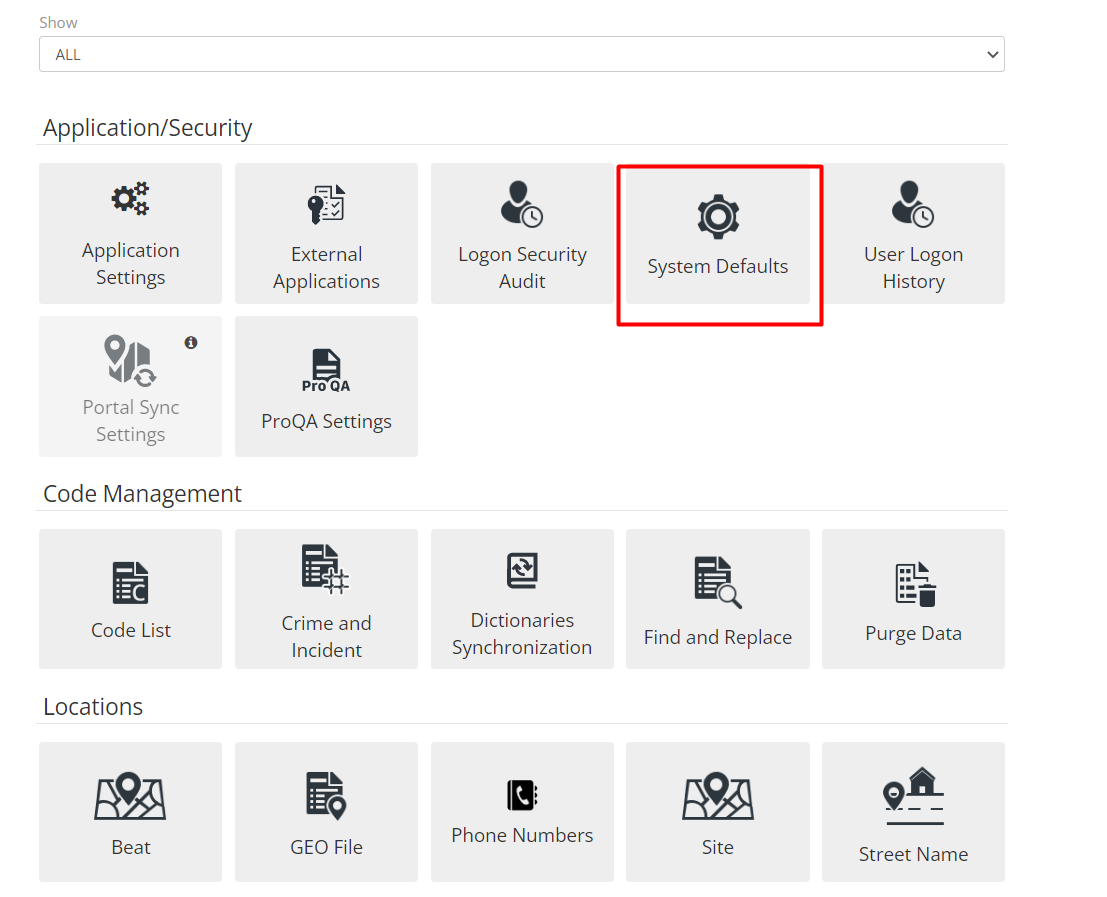
Select Case Setup and click on Assign button.
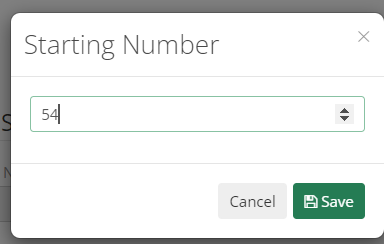
It will show a dialog to enter desired starting number. Hit, and save once done.