
If an officer is trying to draw a segment on the map for an agency layer, they need to follow the steps as described below:
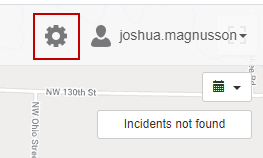
Step 1: Go to portal.arms.com. Login to your account. Click on the setup icon.
Step 2: After clicking on the setup button, you then need to be given permission to access the Agency Layer tab. If you have access, click on the “Agency Layers” tab to begin creating your department's layers.
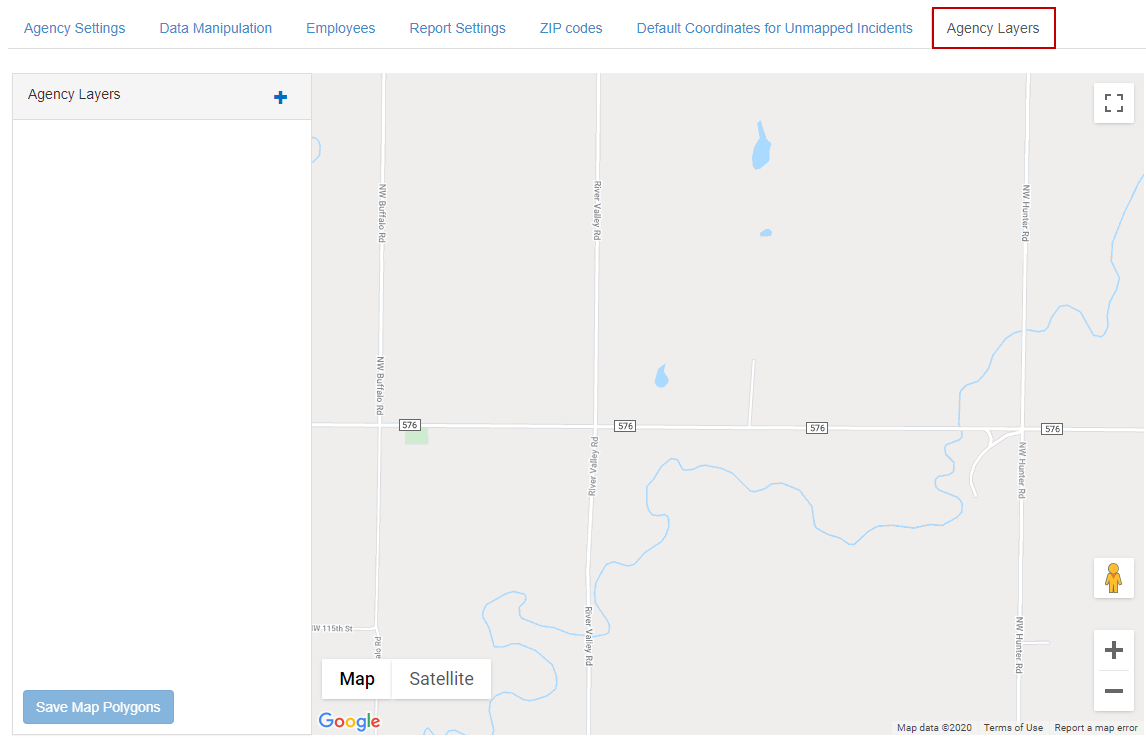
Step 3: Click on the "+" add layer button.

If the label section of the "Agency Layers" tab button does not show when you click add, you will need to clear the cache of the web browser you are currently on and refresh the page.
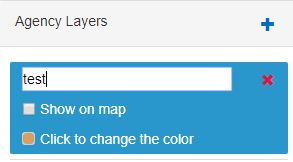
Step 4: In this area of "Agency Layers" users can label what they want the section to be on the map by clicking on the text where "test" is.
Users can also change the color of section by clicking on the "Click to change the color". Once users have these details set, they can click on "Show on map" to show the layer on the map. This can be toggled off to make the layer not visible.
Step 5: To draw the section user will need to click on the shape in the middle of the screen as shown below. To create the triangle as the depicted user will need to click then drag, and click again to plot each end point.
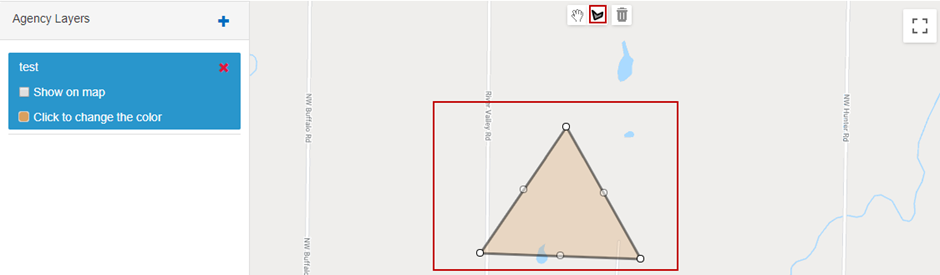
If the user would like to move the shape, click on the hand icon to drag the figure they drew for the layer. Once they are finished making any further changes with the section, they may save the layer, to move on to the next one needed.