---
title: How do I remove or edit duplicate Property numbers?
description: How do I remove or edit duplicate Property numbers?
---
[Skip to content](https://kb.arms.com/arms/how-do-i-remove-or-edit-duplicate-property-numbers#main-content)
English
Show submenu for translations

Open main navigation
Close main navigation
- English
Show submenu for translations
- [Customer Portal](https://helpdesk.arms.com/tickets)
[Customer Portal](https://helpdesk.arms.com/tickets?hsLang=en)
How can we help you?
- There are no suggestions because the search field is empty.
1. [ARMS](https://kb.arms.com/arms?hsLang=en)
2. [Statistical Reporting](https://kb.arms.com/arms/statistical-reporting?hsLang=en)
3. [Property/Evidence FAQs](https://kb.arms.com/arms/statistical-reporting?hsLang=en#property-evidence-faqs)
# How do I remove or edit duplicate Property numbers?
It is not common to have multiple items of property with the same property numbers, whether those items were numbered intentionally or otherwise. ARMS allows these practices for those departments that would like all property items associated with a single case record or CAD event to share the same number. Doing so may offer some advantages when searching for property items by case, CAD, or property number, but at the same time, may cause some confusion.
If the user has the necessary permissions, they can manually change these duplicate numbers.
**Example:** Given we have three pieces of property all numbered 11145; we can query the property file (ARMS Records System\>\>Property/Evidence: then hit the Look Up button) for those items with a search by property number:
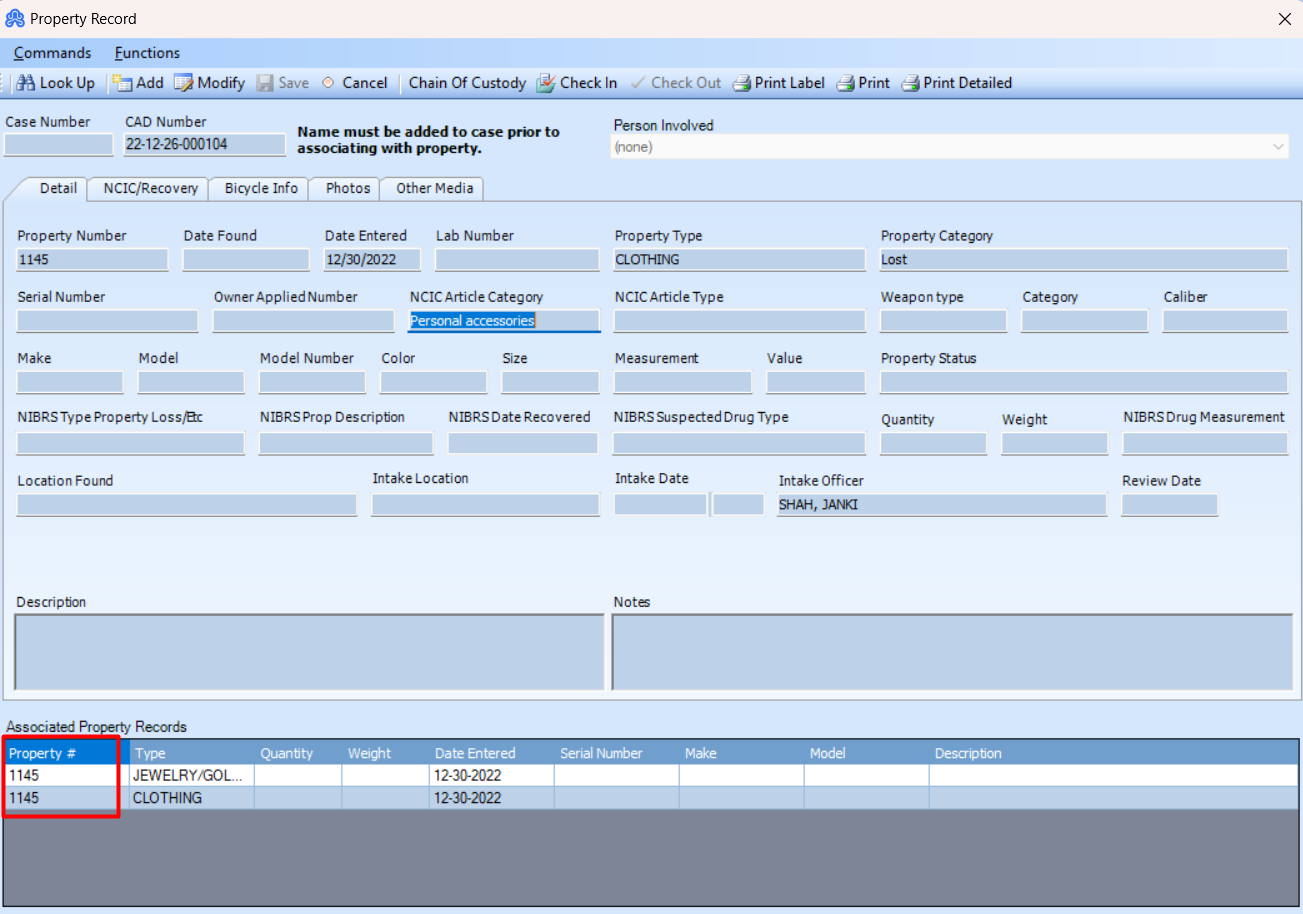
After our results are returned in the data grid, we can see all the property items set are numbered 1115. And by double-clicking on one of the records in the data field, we will see all the details of their property record populate into the original property or evidence window.
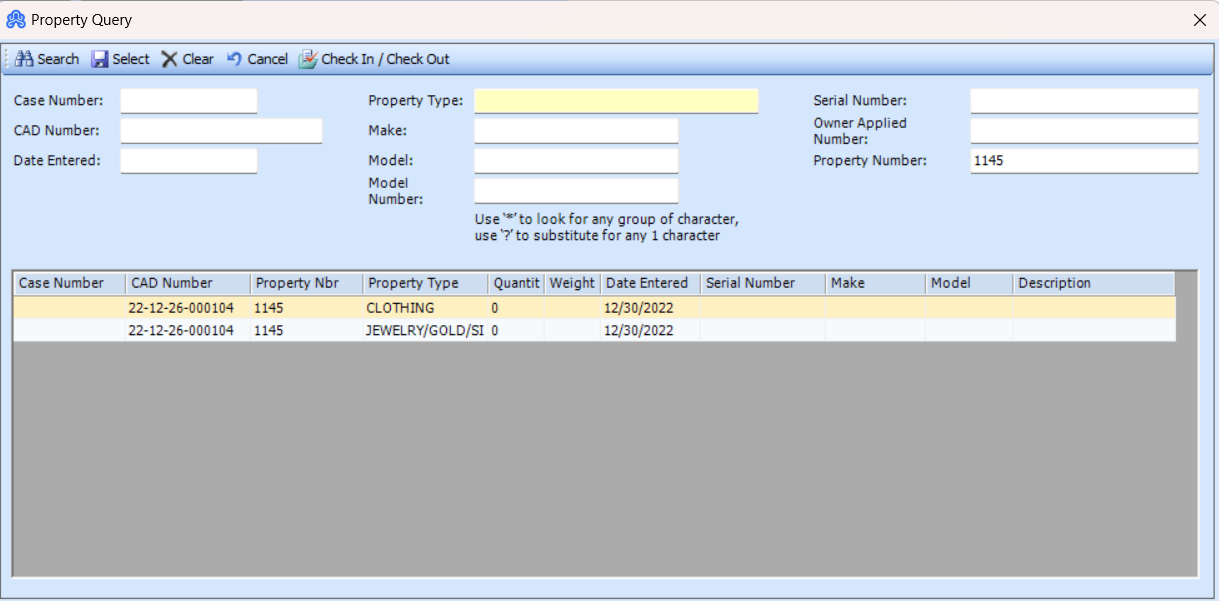
Once back in the original property or evidence window, we can then enter modify mode by clicking CTRL + M to modify the property number.
For the property item above, we have chosen to append a letter to the end of the property number and will do the same for the other two items. Once complete, we will end up with the same three property items numbered 11145A, 11145B, and 11145C.
Appending letters to the end of the property is just one way to eliminate duplicated property numbers. Another way is to give the property item a completely different property number.
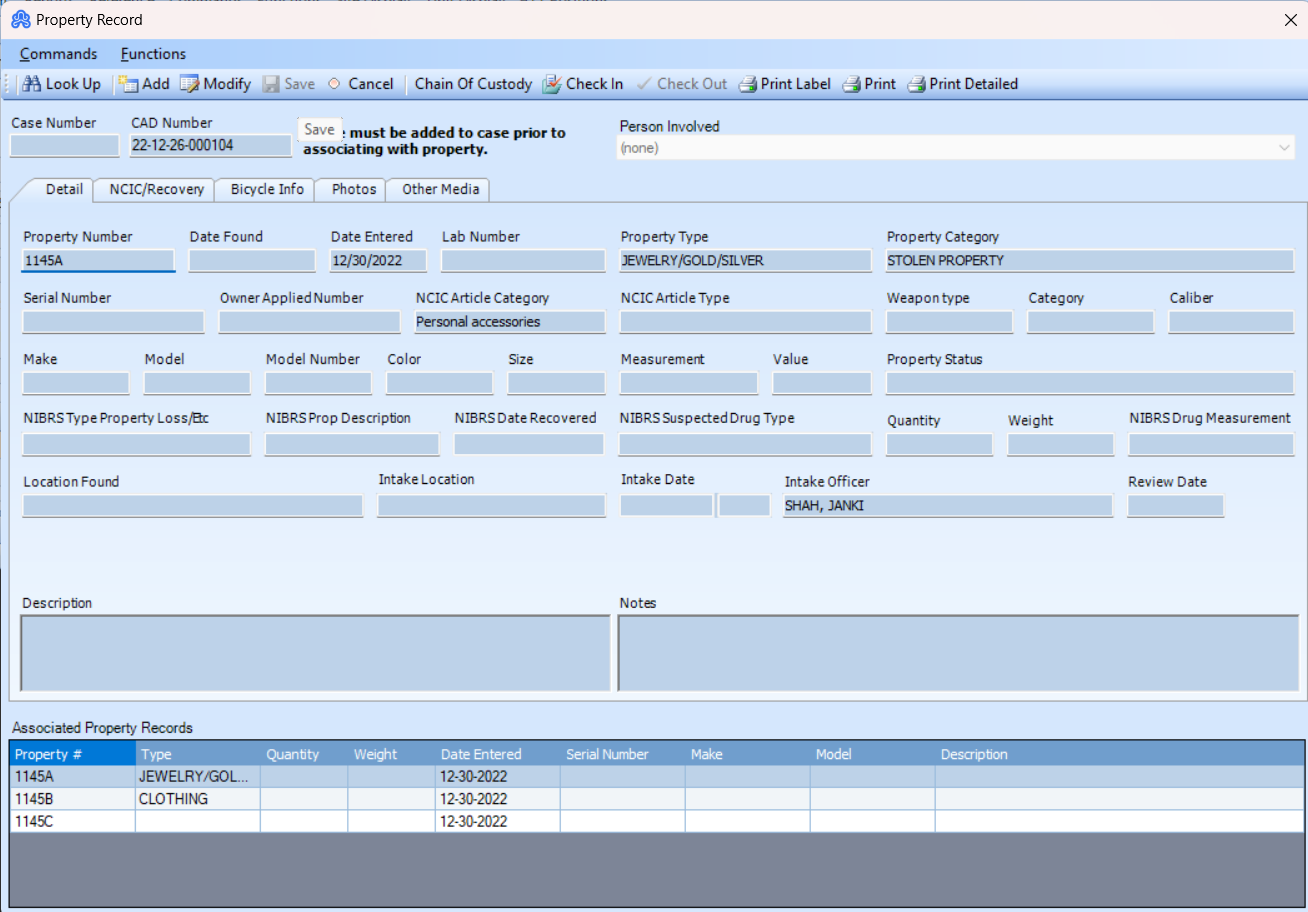
**Note:** Modifying or changing property numbers in no way affects the associations that property has with Cases., CAD events or people.
- [Administrator](https://kb.arms.com/arms/administrator?hsLang=en#main-content)
- [Administrator Documents](https://kb.arms.com/arms/administrator?hsLang=en#administrator-documents)
- [Administrator FAQs - Error Messages/Troubleshooting](https://kb.arms.com/arms/administrator?hsLang=en#administrator-faqs-error-messages-troubleshooting)
- [Administrator FAQs - Feature Questions](https://kb.arms.com/arms/administrator?hsLang=en#administrator-faqs-feature-questions)
- [Administrator FAQs - Setup](https://kb.arms.com/arms/administrator?hsLang=en#administrator-faqs-setup)
- [Dispatcher](https://kb.arms.com/arms/dispatcher?hsLang=en#main-content)
- [ARMS WebCAD Workbook](https://kb.arms.com/arms/dispatcher?hsLang=en#arms-webcad-workbook)
- [ARMS CAD Workbook](https://kb.arms.com/arms/dispatcher?hsLang=en#arms-cad-workbook)
- [Dispatcher Documents](https://kb.arms.com/arms/dispatcher?hsLang=en#dispatcher-documents)
- [Dispatcher FAQs - Error Messages/Troubleshooting](https://kb.arms.com/arms/dispatcher?hsLang=en#dispatcher-faqs-error-messages-troubleshooting)
- [Dispatcher FAQs - Feature Questions](https://kb.arms.com/arms/dispatcher?hsLang=en#dispatcher-faqs-feature-questions)
- [Officer](https://kb.arms.com/arms/officer?hsLang=en#main-content)
- [ARMS Mobile - CAD Workbook](https://kb.arms.com/arms/officer?hsLang=en#arms-mobile-cad-workbook)
- [ARMS Mobile - Case Management Workbook](https://kb.arms.com/arms/officer?hsLang=en#arms-mobile-case-management-workbook)
- [ARMS Mobile - Home Screen Workbook](https://kb.arms.com/arms/officer?hsLang=en#arms-mobile-home-screen-workbook)
- [ARMS Mobile Admin Workbook](https://kb.arms.com/arms/officer?hsLang=en#arms-mobile-admin-workbook)
- [Officer Documents](https://kb.arms.com/arms/officer?hsLang=en#officer-documents)
- [Officer FAQs - Case Management](https://kb.arms.com/arms/officer?hsLang=en#officer-faqs-case-management)
- [Officer FAQs - Photos and Media](https://kb.arms.com/arms/officer?hsLang=en#officer-faqs-photos-and-media)
- [NIBRS](https://kb.arms.com/arms/nibrs?hsLang=en#main-content)
- [NIBRS Documents](https://kb.arms.com/arms/nibrs?hsLang=en#nibrs-documents)
- [NIBRS FAQs - Error Messages/Troubleshooting](https://kb.arms.com/arms/nibrs?hsLang=en#nibrs-faqs-error-messages-troubleshooting)
- [NIBRS Videos](https://kb.arms.com/arms/nibrs?hsLang=en#nibrs-videos)
- [NIBRS Workbook](https://kb.arms.com/arms/nibrs?hsLang=en#nibrs-workbook)
- [Clery](https://kb.arms.com/arms/clery?hsLang=en#main-content)
- [Clery Workbook](https://kb.arms.com/arms/clery?hsLang=en#clery-workbook)
- [Statistical Reporting](https://kb.arms.com/arms/statistical-reporting?hsLang=en#main-content)
- [Dashboard Workbook](https://kb.arms.com/arms/statistical-reporting?hsLang=en#dashboard-workbook)
- [Maxient Workbook](https://kb.arms.com/arms/statistical-reporting?hsLang=en#maxient-workbook)
- [Notification Manager FAQs](https://kb.arms.com/arms/statistical-reporting?hsLang=en#notification-manager-faqs)
- [Notification Manager Workbook](https://kb.arms.com/arms/statistical-reporting?hsLang=en#notification-manager-workbook)
- [Profile Data FAQs](https://kb.arms.com/arms/statistical-reporting?hsLang=en#profile-data-faqs)
- [Profile Data Workbook](https://kb.arms.com/arms/statistical-reporting?hsLang=en#profile-data-workbook)
- [Property/Evidence FAQs](https://kb.arms.com/arms/statistical-reporting?hsLang=en#property-evidence-faqs)
- [Property/Evidence Workbook](https://kb.arms.com/arms/statistical-reporting?hsLang=en#property-evidence-workbook)
- [Report Center Documents](https://kb.arms.com/arms/statistical-reporting?hsLang=en#report-center-documents)
- [Report Center FAQs](https://kb.arms.com/arms/statistical-reporting?hsLang=en#report-center-faqs)
- [UCR Documents](https://kb.arms.com/arms/statistical-reporting?hsLang=en#ucr-documents)
- [Vehicle Maintenance Workbook](https://kb.arms.com/arms/statistical-reporting?hsLang=en#vehicle-maintenance-workbook)
- [Parking](https://kb.arms.com/arms/parking?hsLang=en#main-content)
- [Internal Parking Documents](https://kb.arms.com/arms/parking?hsLang=en#internal-parking-documents)
- [Parking Administrator Document](https://kb.arms.com/arms/parking?hsLang=en#parking-administrator-document)
- [Parking Documents](https://kb.arms.com/arms/parking?hsLang=en#parking-documents)
- [Parking End User Documents](https://kb.arms.com/arms/parking?hsLang=en#parking-end-user-documents)
- [Parking FAQs](https://kb.arms.com/arms/parking?hsLang=en#parking-faqs)
- [Release Notes](https://kb.arms.com/arms/parking?hsLang=en#release-notes)
- [Webinars](https://kb.arms.com/arms/webinars?hsLang=en#main-content)
- [Administrator](https://kb.arms.com/arms/webinars?hsLang=en#administrator)
- [Clery](https://kb.arms.com/arms/webinars?hsLang=en#clery)
- [Dispatcher](https://kb.arms.com/arms/webinars?hsLang=en#dispatcher)
- [IT Support](https://kb.arms.com/arms/webinars?hsLang=en#it-support)
- [Miscellaneous](https://kb.arms.com/arms/webinars?hsLang=en#miscellaneous)
- [NIBRS](https://kb.arms.com/arms/webinars?hsLang=en#nibrs)
- [Officer](https://kb.arms.com/arms/webinars?hsLang=en#officer)
- [Parking](https://kb.arms.com/arms/webinars?hsLang=en#parking)
- [Statistical Reporting](https://kb.arms.com/arms/webinars?hsLang=en#statistical-reporting)
- [Miscellaneous](https://kb.arms.com/arms/miscellaneous?hsLang=en#main-content)
- [Release Notes](https://kb.arms.com/arms/miscellaneous?hsLang=en#release-notes)
- [ARMS User Training Conferences](https://kb.arms.com/arms/miscellaneous?hsLang=en#arms-user-training-conferences)
- [Internal](https://kb.arms.com/arms/miscellaneous?hsLang=en#internal)
- [Support Docs](https://kb.arms.com/arms/miscellaneous?hsLang=en#support-docs)
- [IT Support](https://kb.arms.com/arms/it-support?hsLang=en#main-content)
- [Internal IT Support Documents](https://kb.arms.com/arms/it-support?hsLang=en#internal-it-support-documents)
- [IT Support Documents](https://kb.arms.com/arms/it-support?hsLang=en#it-support-documents)
- [Internal](https://kb.arms.com/arms/internal?hsLang=en#main-content)
- [Jira Escalation Process and Documents](https://kb.arms.com/arms/internal?hsLang=en#jira-escalation-process-and-documents)
- [Parking Workflows](https://kb.arms.com/arms/internal?hsLang=en#parking-workflows)
- [Administration](https://kb.arms.com/arms/administration?hsLang=en#main-content)
- [Personnel Card](https://kb.arms.com/arms/administration?hsLang=en#personnel-card)
- [Online Bicycle Registration](https://kb.arms.com/arms/online-bicycle-registration?hsLang=en#main-content)
- [Bicycle Registration Workbook](https://kb.arms.com/arms/online-bicycle-registration?hsLang=en#bicycle-registration-workbook)
- [Courtyard - Public Incident Reporting](https://kb.arms.com/arms/courtyard-public-incident-reporting?hsLang=en#main-content)
- [Courtyard Manual](https://kb.arms.com/arms/courtyard-public-incident-reporting?hsLang=en#courtyard-manual)
[mailto:support@arms.com](mailto:support@arms.com)
Copyright © 2026, End2End Public Safety