If the ARMS Service account ever has its password reset or needs to be changed, the user will need to update the ARMS services with the new credentials.
Otherwise, the user could get an error message when attempting to run ARMS.
To resolve this behavior:
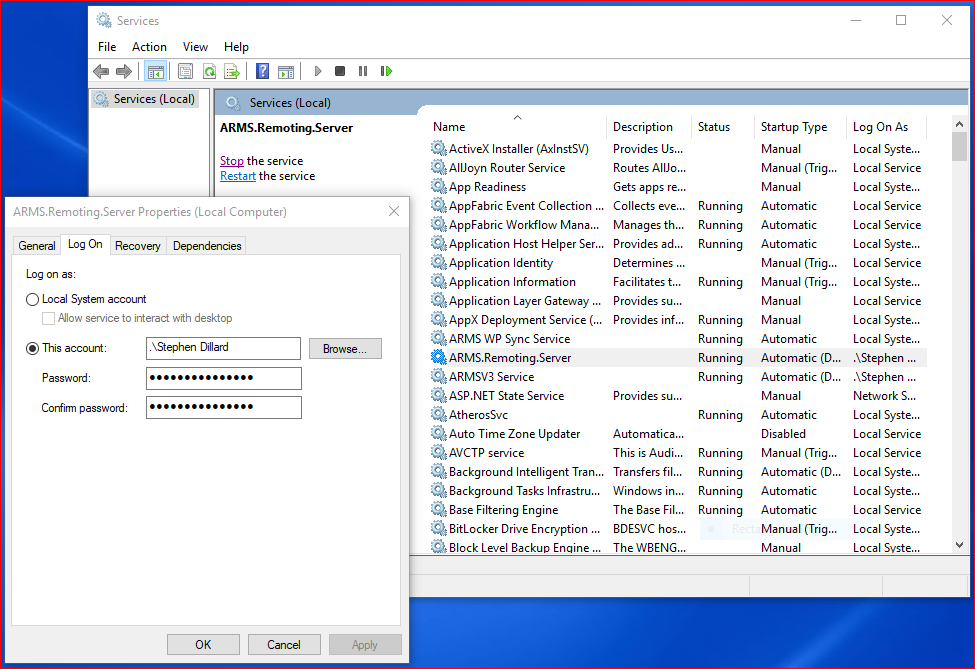
Step 1: Connect to the ARMS application server. Once on the server, open administrative tools, and select Services.
Step 2: Double-click on ARMS.Remoting.Server to open its properties.
Step 3: Select the Log On tab and enter the correct service account credentials. Hit OK to close the properties.
Step 4: Once the correct service account credentials are saved, the user needs to restart their ARMS services. They can simply right-click on them and select ‘Restart’ or ‘Start’. If they are a V3 customer, they will need to start the ARMS.Remoting.Server service first.
How To Change/Reset IIS App Pool Password?
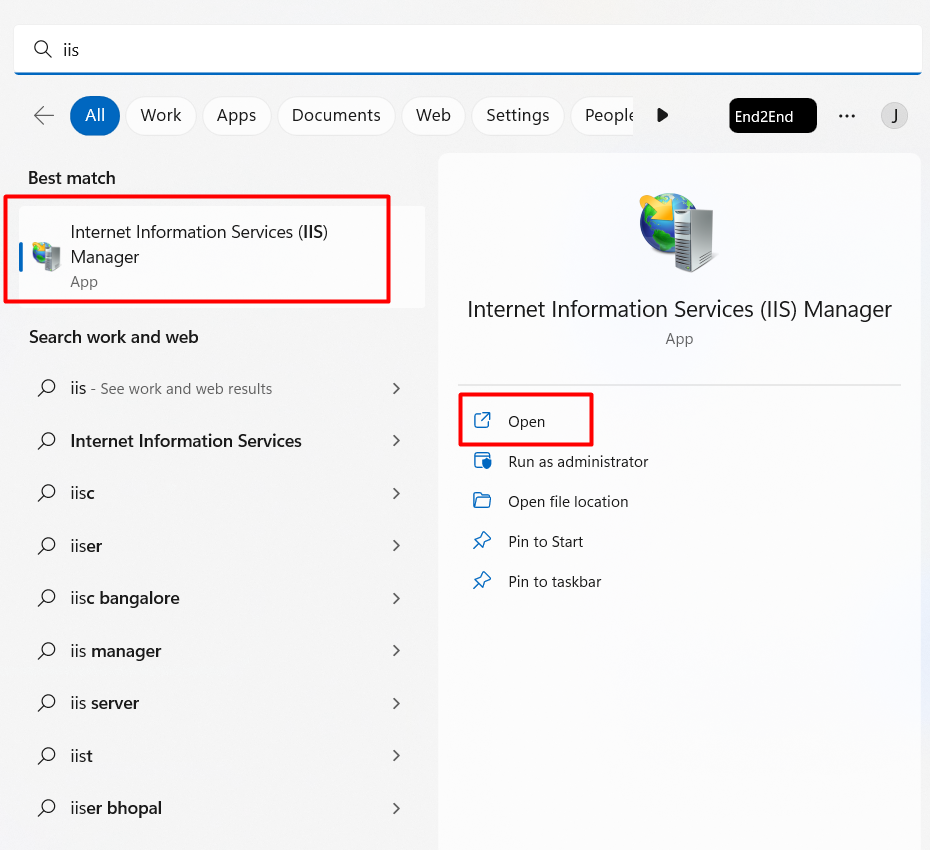
Step 1: Open IIS App Pool by going to Control Panel >> Administrative Tools >> IIS Manager or directly search IIS in Search Menu
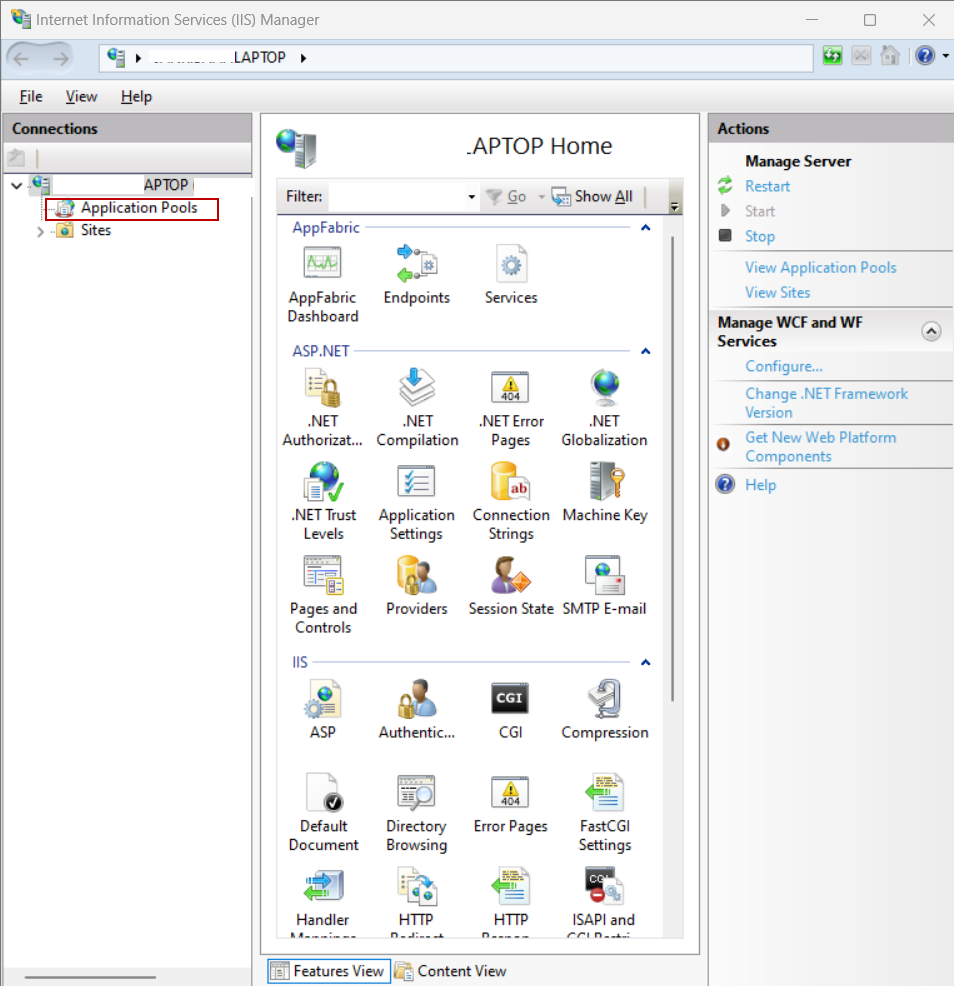
Step 2: Select Application Pools from left side Menu
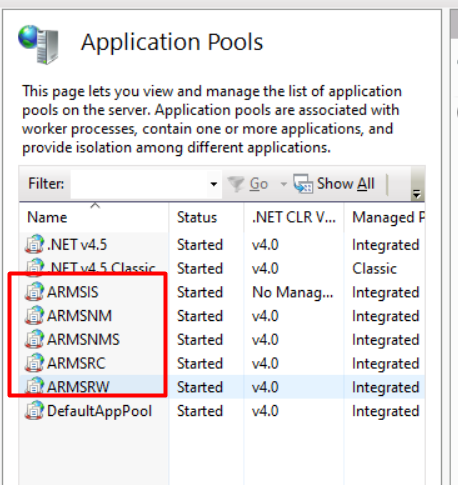
Step 3: Select ARMS Services from the Application pool
Please Note there are 5 services of ARMS as shown in the image, the user needs to follow the steps for all 5 individually.
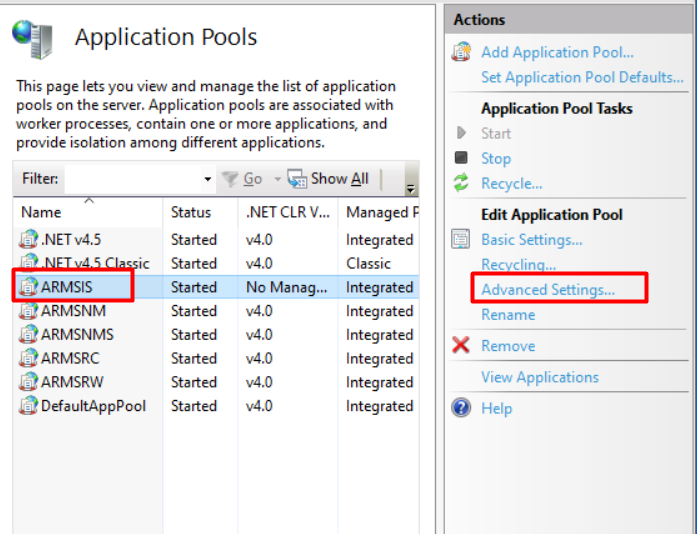
Step 4: For example, here we are selecting one ARMS Service. Right-click on ARMS service and select Advanced Settings or select Advanced Settings options from the Right side of the Menu.
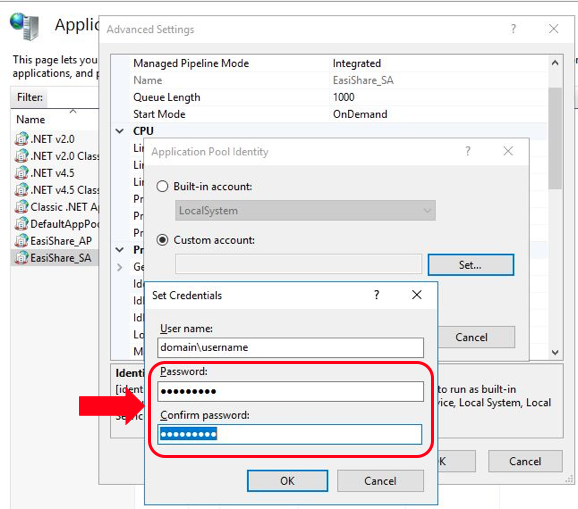
Step 5: Navigate to Process Model> Identity> Click on the "MoreOptions" icon (three horizontal dots)

Step 6: Under Custom account > Click Select> Enter the new password in the “Password” and “Confirm Password” fields