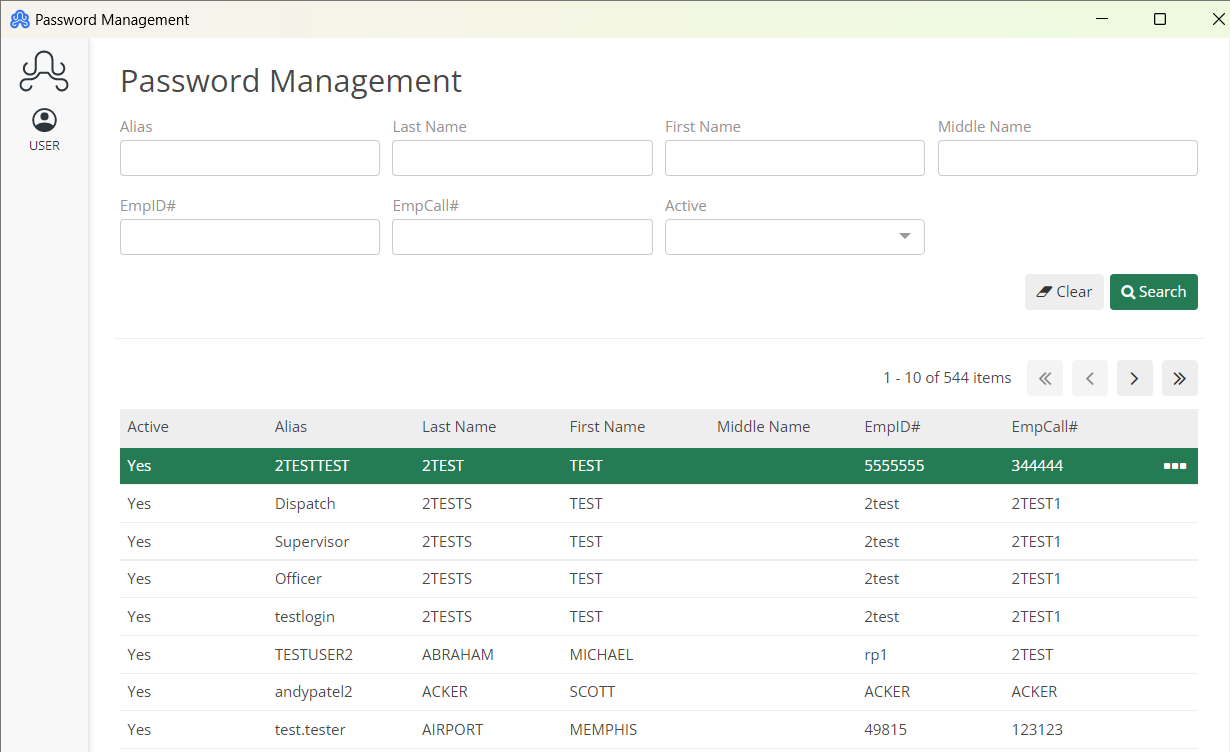
To unlock a user’s account and allow them to login in again, select Password Management from the File menu within ARMS.
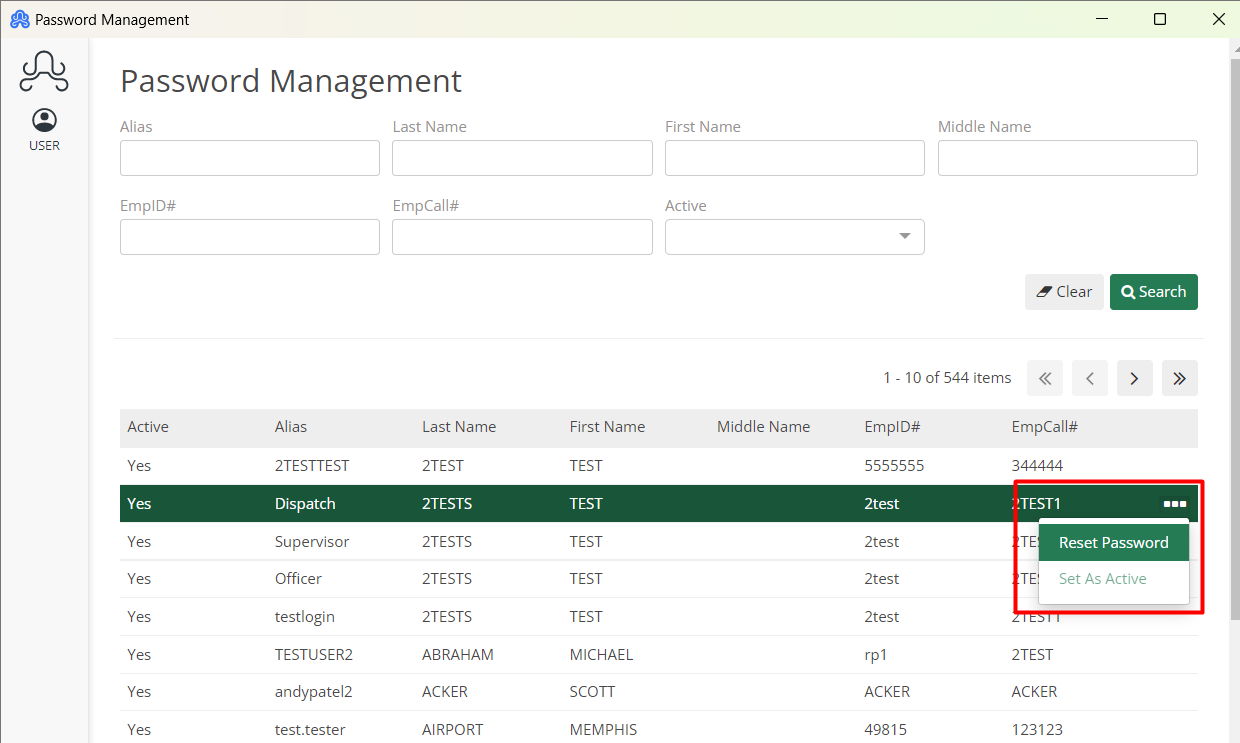
Scroll through the list until you find the locked-out employee and click on them to highlight them. Use the ‘Set as Active’ button to unlock the account; this will not reset their password; it will just allow them to attempt to log in again.
If they have forgotten their password, click on the ‘Reset Password’ button instead.
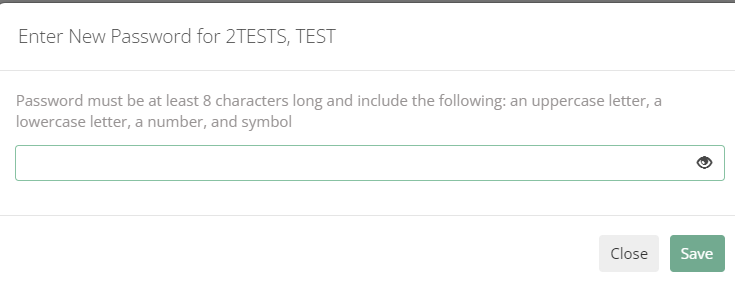
This will open a new window allowing you to key in a new password. Keep in mind that the password has a character limit of 15 and will require a capital letter, a lowercase letter, a special character (! @#), and a number. Hit Change to save the new password.